Omnisend AI

 OFFER
OFFER








A common Omnisend workflow looks like this: campaign report open in one tab, ChatGPT in another, and a spreadsheet somewhere in between. Before you can ask for useful help, you first have to move the numbers around yourself.
The Omnisend ChatGPT integration cuts out much of that manual work. Once you connect Omnisend to ChatGPT, you can ask questions about your campaigns, automations, subscribers, revenue, and deliverability using the data already in your Omnisend account.
You still make the final decisions in Omnisend, but ChatGPT can help you reach the answer without having to rebuild the context from scratch.
This guide explains how to use Omnisend with ChatGPT in practical ecommerce workflows, from diagnosing an underperforming campaign to planning next week’s send calendar.
What the Omnisend + ChatGPT integration actually is
The Omnisend + ChatGPT integration lets ChatGPT read selected data from your Omnisend account, so you can ask questions about campaigns, automations, subscribers, revenue, and performance in plain language.
MCP, or Model Context Protocol, powers it. MCP is the connection layer that helps AI tools access external systems in a controlled way. For a broader explanation of what MCP means for marketers, read our guide to MCP for email marketing.
For Omnisend marketers, the practical benefit is pretty simple. ChatGPT can work directly with your marketing context and live data, instead of relying on copied-and-pasted numbers. You can ask why a campaign underperformed, which automations drove the most revenue, what changed in your subscriber growth, or how last month’s emails compare with this month’s results.
You can still manage campaigns inside Omnisend. ChatGPT helps you analyze, summarize, and plan faster.
What you can (and can’t) do with it today
Today, the Omnisend + ChatGPT integration is mainly for analysis, reporting, and planning. ChatGPT can read approved Omnisend account data, such as campaigns, automations, contacts, segments, forms, and performance metrics.
It can help you compare results, spot patterns, summarize performance, and suggest next steps. It can’t send campaigns, edit automations, or replace your final review inside Omnisend.
For now, ChatGPT is the main supported starting point. Claude support is coming. For better answers, use the strongest model available in your ChatGPT account, especially for performance analysis or reporting.
Prerequisites and how to connect (in ~5 minutes)
If you’re wondering how to use Omnisend with ChatGPT, before you start, you’ll need an active Omnisend account and a ChatGPT account that supports apps. If you manage more than one store, open the right Omnisend account first so ChatGPT connects to the correct store.
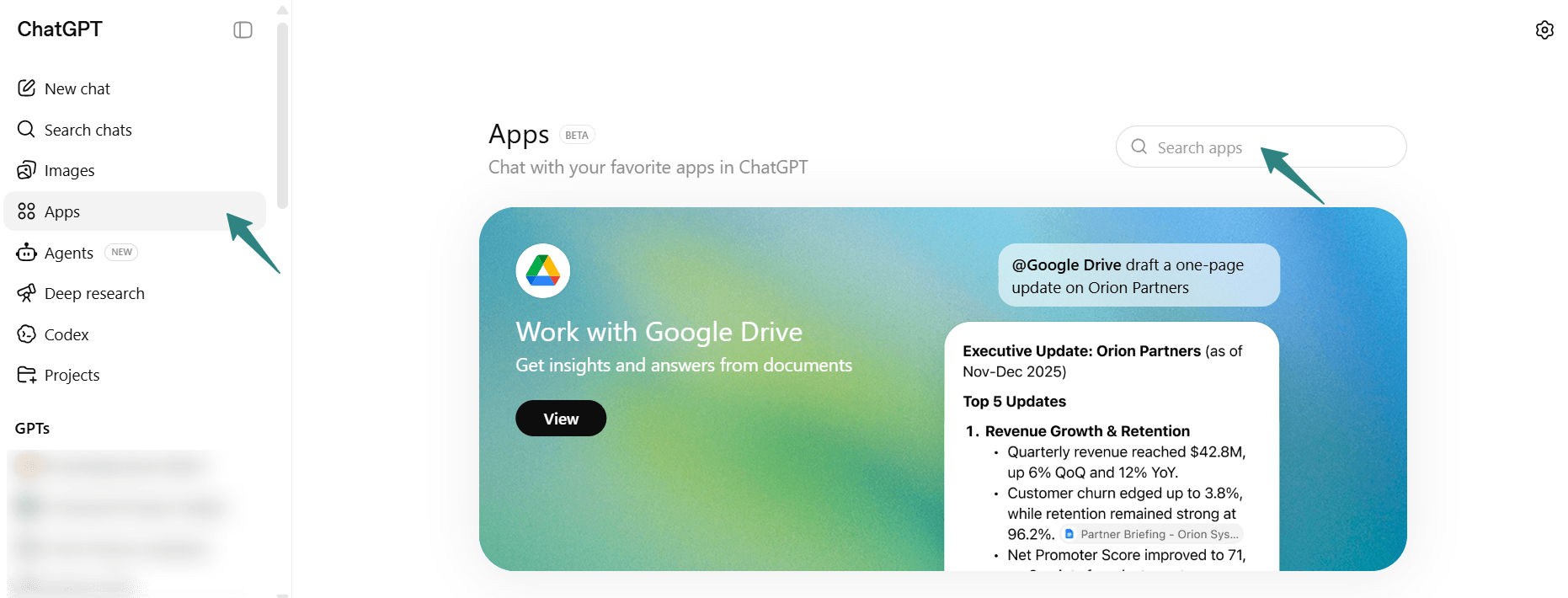
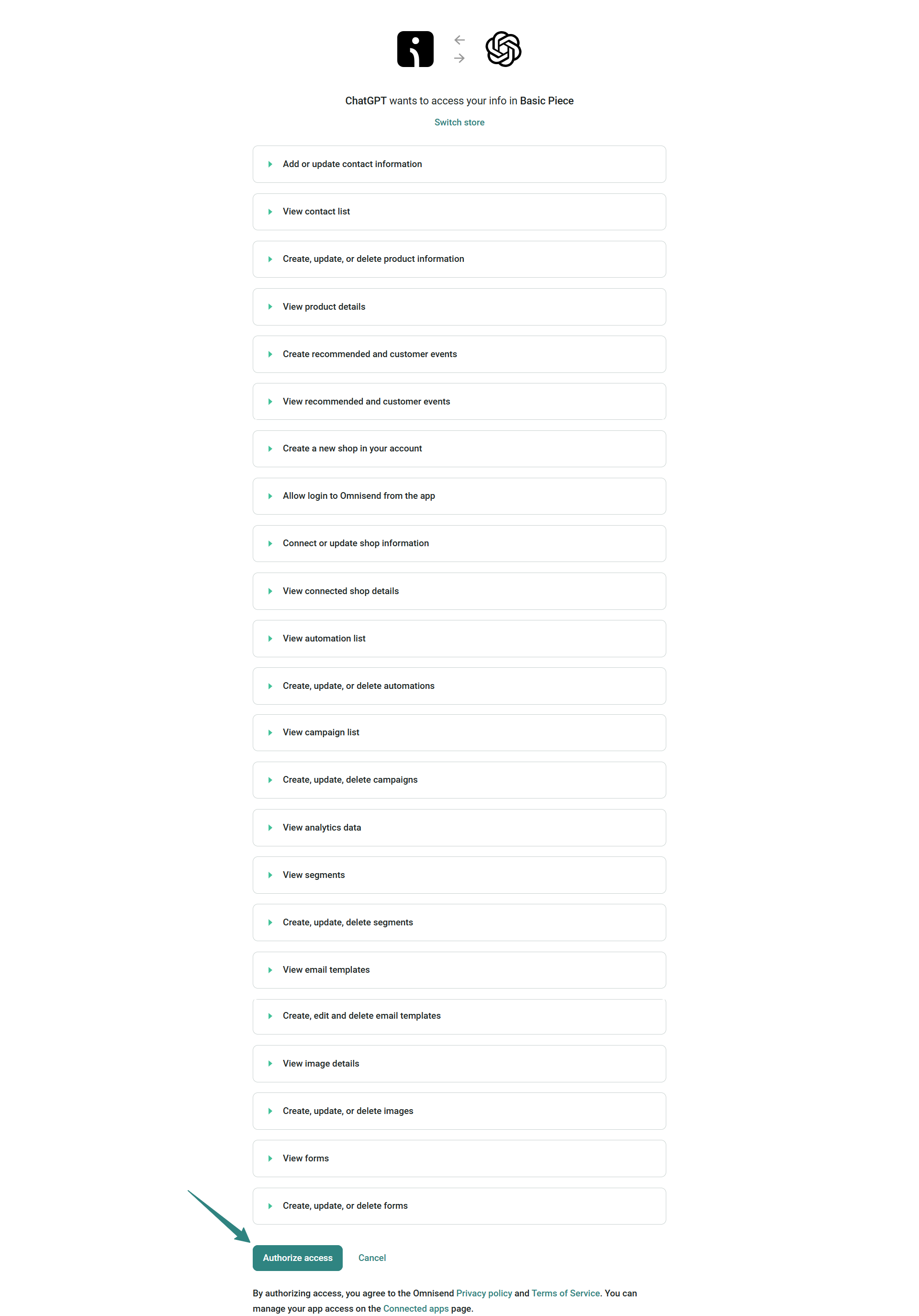
When connecting Omnisend to ChatGPT for the first time, open Apps in ChatGPT, search for Omnisend, and click Connect. Sign in to your Omnisend account, review the permissions screen, and authorize access.
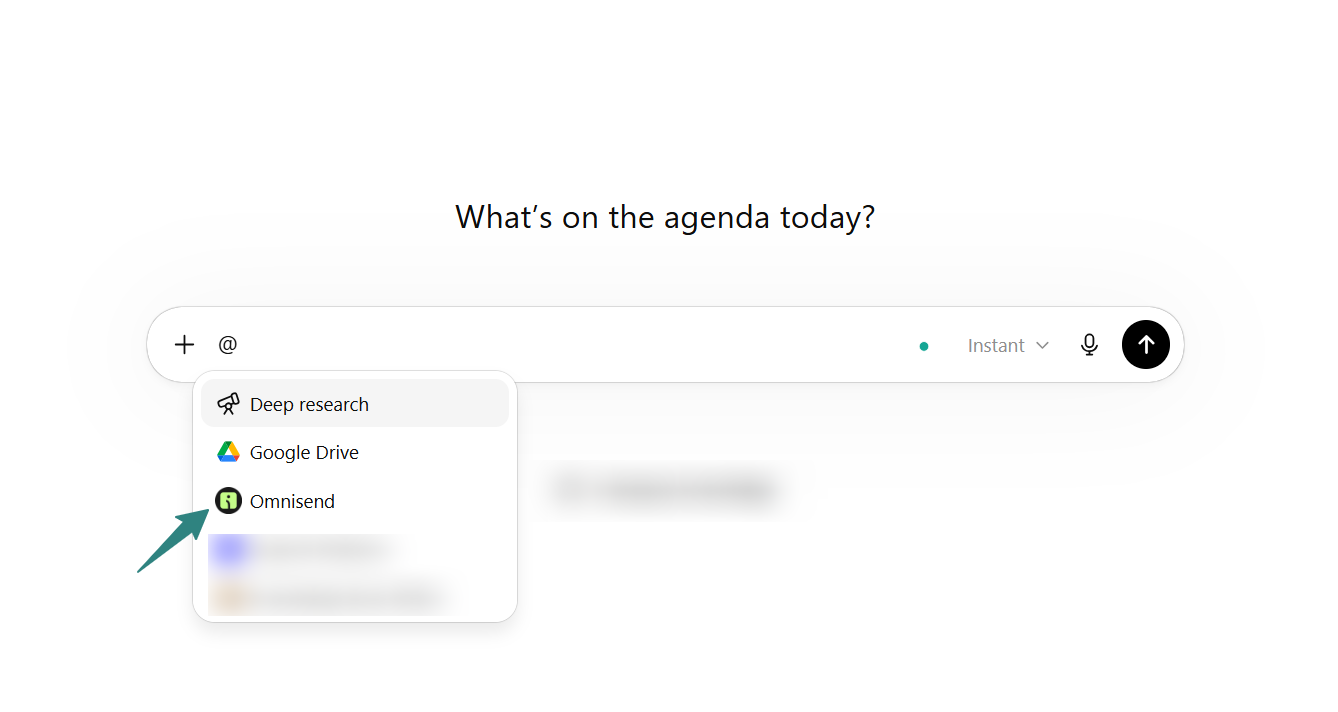
After that, click Start chat or type @Omnisend in any ChatGPT conversation to ask questions about your marketing data.
For the full step-by-step setup, use Omnisend’s Help Center guide on connecting the Omnisend app with ChatGPT.
7 ways Omnisend customers are actually using ChatGPT
The most worthwhile Omnisend ChatGPT use cases are the ones tied to jobs marketers already do every week: checking performance, finding weak spots, planning sends, and turning campaign data into clear next steps.
Below are seven practical workflows you can run after connecting Omnisend to ChatGPT.
1. Diagnose an underperforming campaign in 3 prompts
The job: Find out why a recent campaign performed worse than expected.
The exact prompt:
@Omnisend Compare my latest email campaign with my average campaign performance from the last 30 days. Show me where it underperformed and which metrics changed the most.
@Omnisend Now compare that campaign with my top three revenue-generating campaigns from the last 90 days. What patterns are different?
@Omnisend Based on that comparison, give me three specific fixes I can test in my next campaign.
What the output may look like:
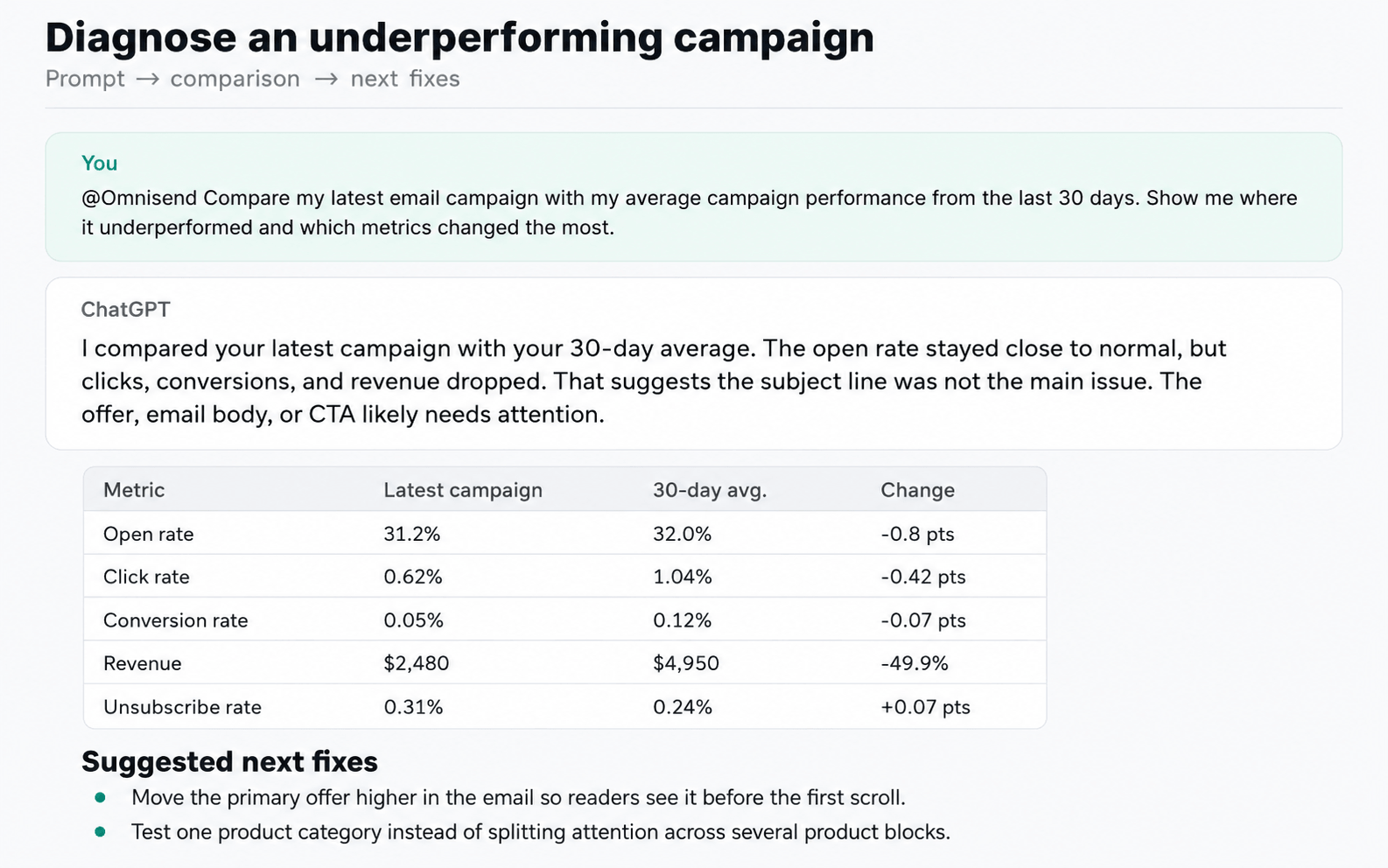
The follow-up action in Omnisend:
Open the campaign report in Omnisend, check the email content and click map, then create a new version with a clearer offer, stronger CTA placement, or a more focused product block.
2. Build a re-engagement segment without leaving ChatGPT
The job: Find inactive subscribers who still look worth saving.
The exact prompt:
@Omnisend Help me define a re-engagement segment. Look for subscribers who have not clicked or purchased recently, but were engaged or purchased in the past. Suggest the best segment rules to build in Omnisend.
What the output may look like:
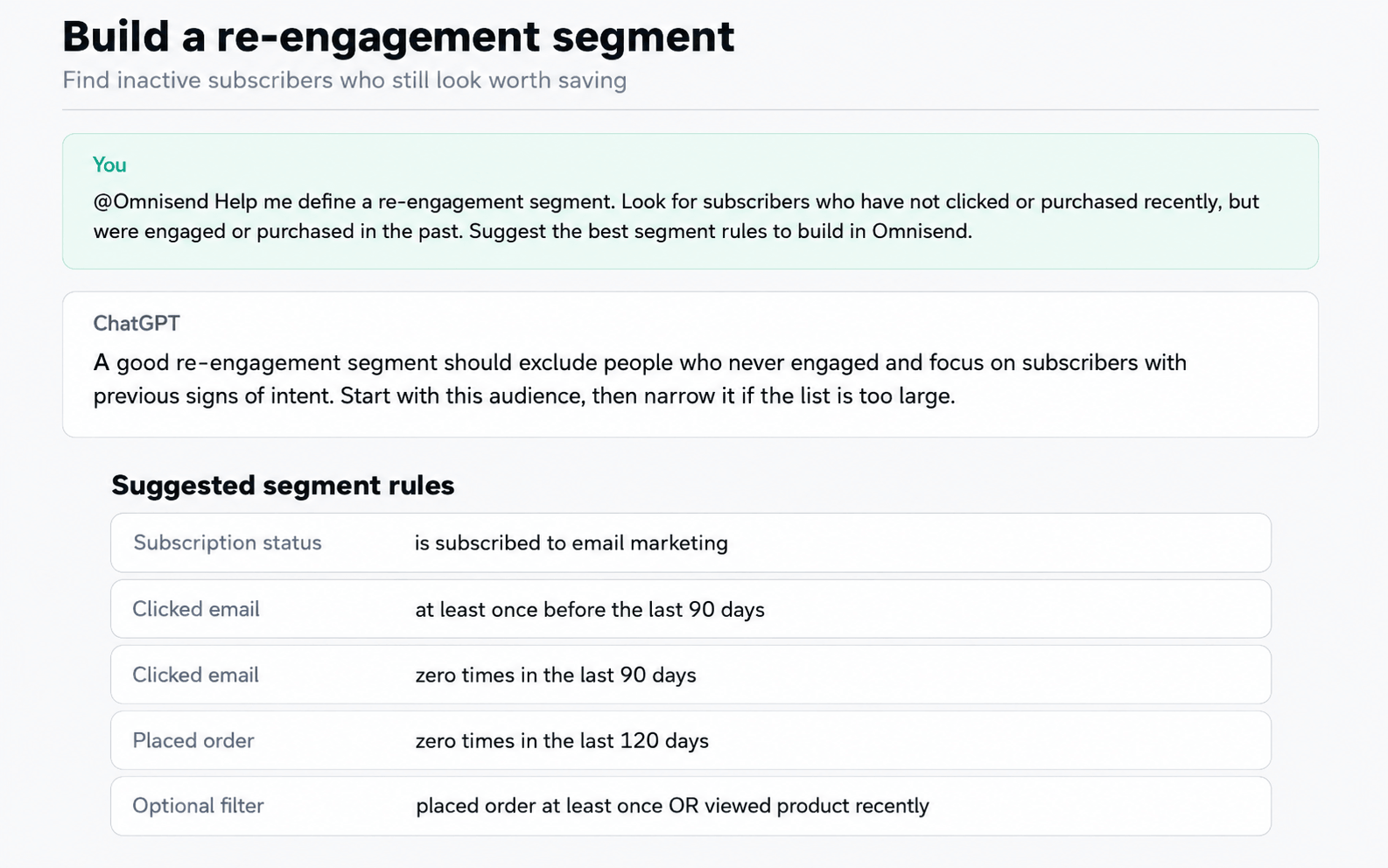
The follow-up action in Omnisend: Create the segment in Omnisend using the suggested rules. Then build a short re-engagement campaign with a clear reason to return, such as a bestsellers roundup, limited-time offer, or preference update email.
3. Audit your welcome automation message by message
The job: Find weak emails in your welcome series rather than judging the flow as a single block.
The exact prompt:
@Omnisend Review my welcome automation from the last 90 days. Break down performance by message and tell me which email needs attention first.
What the output may look like:
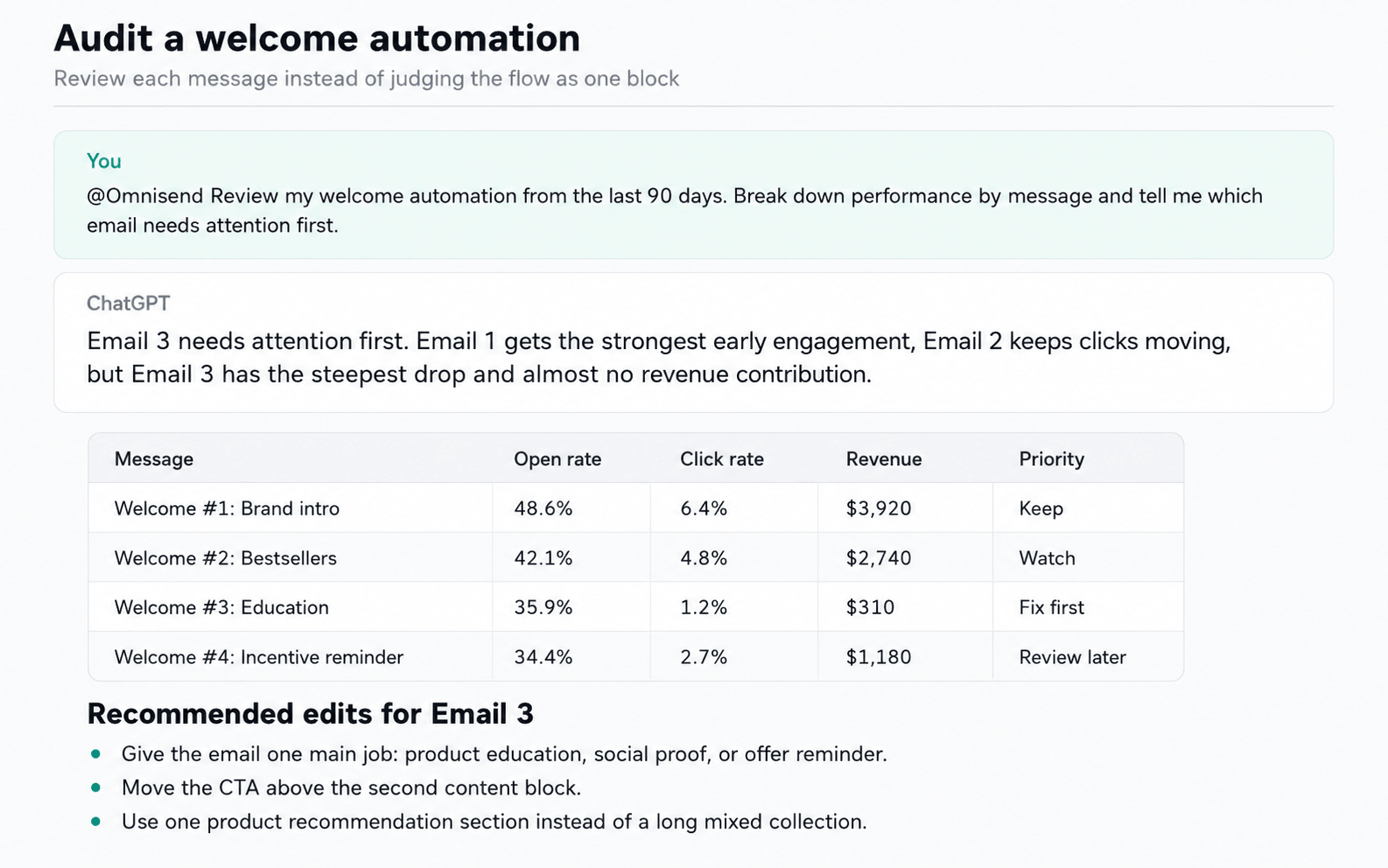
The follow-up action in Omnisend: Open the welcome automation, review the lowest-performing message, and check whether the email has a clear purpose. Update the subject line, CTA, offer, or product recommendations before changing the full flow.
4. Plan next week’s send calendar from this week’s winners
The job: Use recent performance to plan the next set of campaigns.
The exact prompt:
@Omnisend Review my email campaigns from the last 7 days. Which campaigns performed best by revenue, click rate, and conversion rate? Based on those results, suggest a send calendar for next week.
What the output may look like:
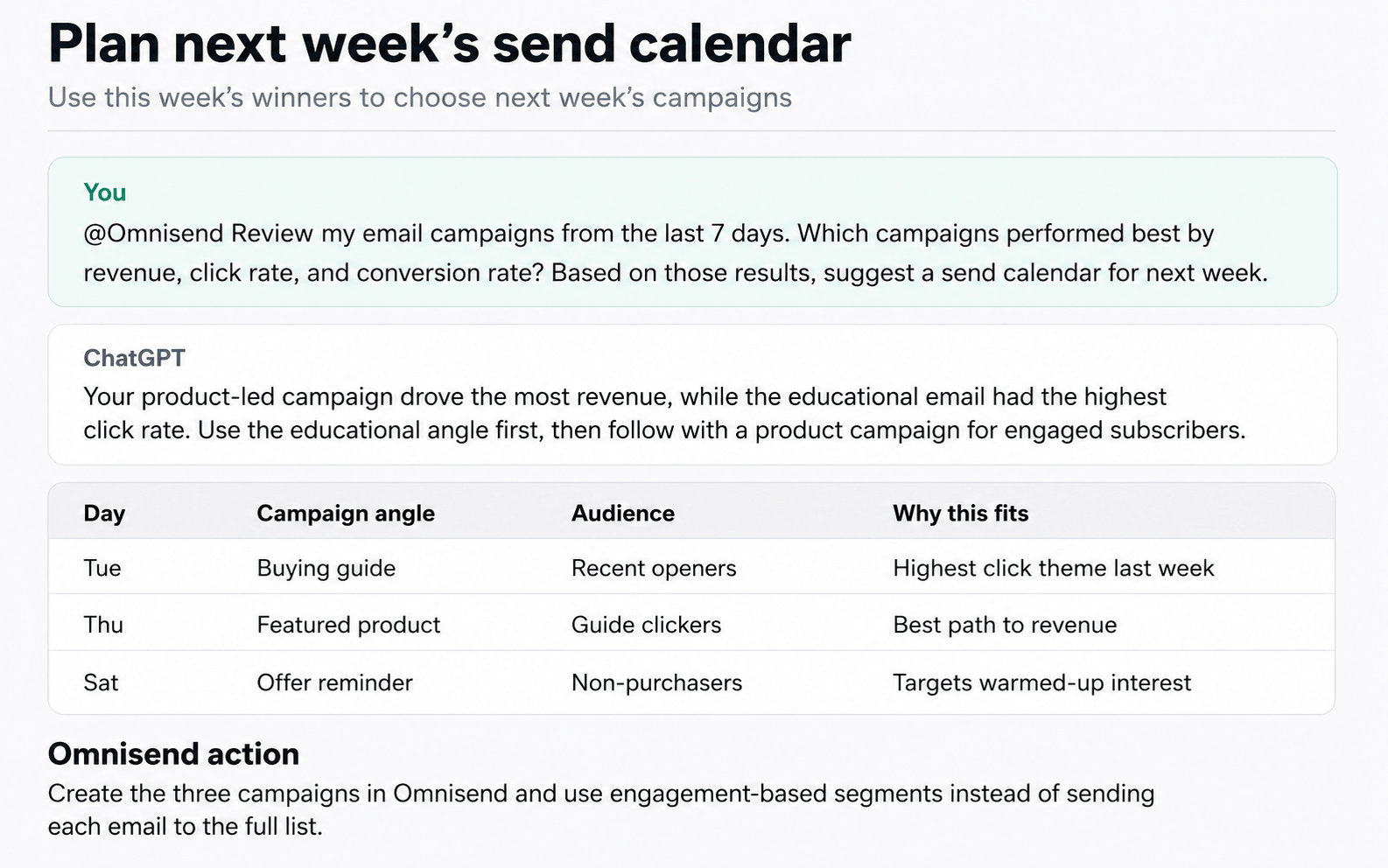
The follow-up action in Omnisend: Create the campaign plan in Omnisend. Use segments based on engagement, product interest, or purchase history rather than sending every idea to the full list.
5. Draft a campaign brief that mirrors your top performers
The job: Turn past winners into a brief for the next campaign.
The exact prompt:
@Omnisend Analyze my five highest-revenue campaigns from the last 90 days. What do they have in common? Then draft a campaign brief for a new email that follows those patterns.
What the output may look like:
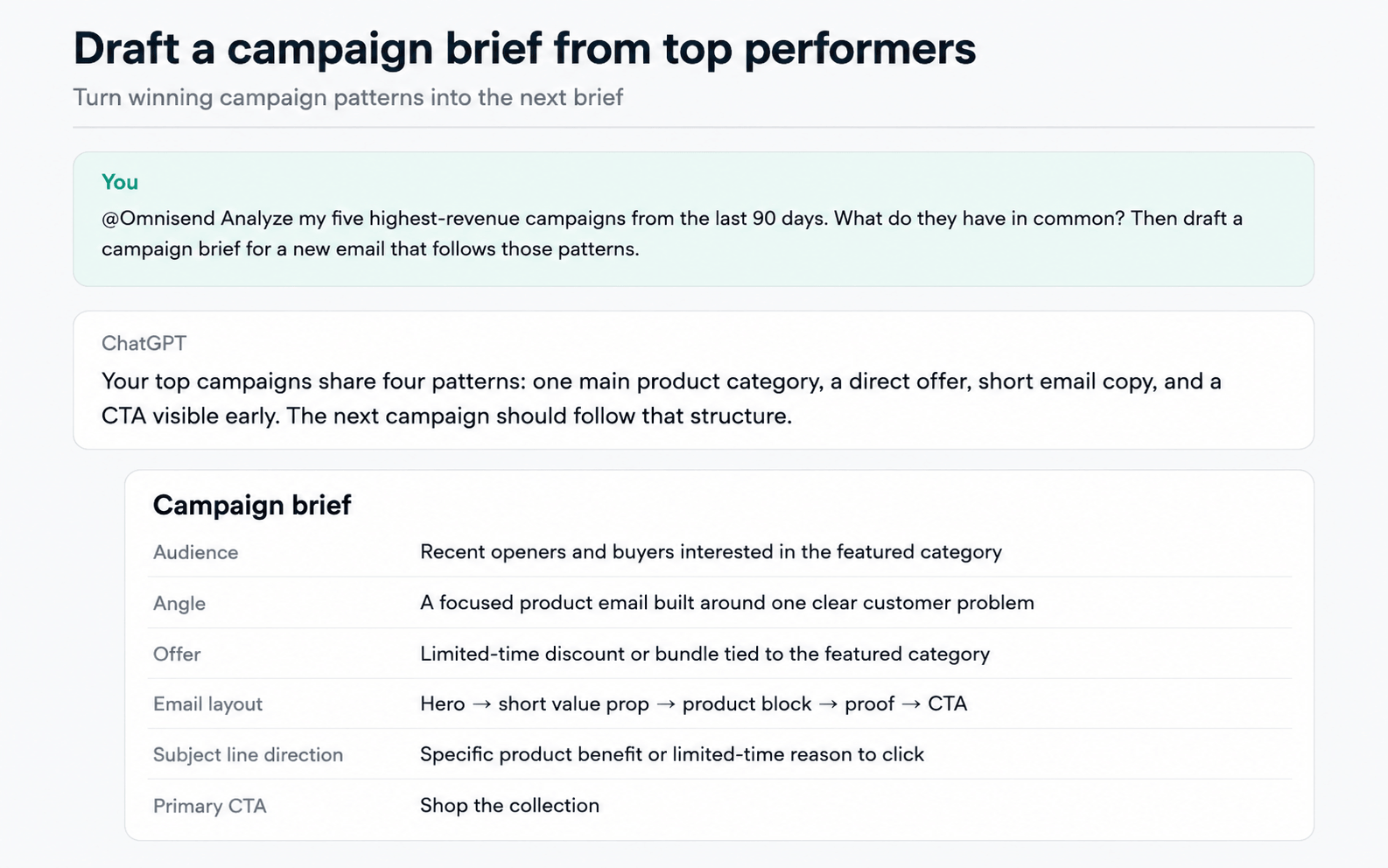
The follow-up action in Omnisend: Use the brief to build the campaign in Omnisend. Treat ChatGPT’s draft as the planning layer, then adjust the copy, visuals, offer, and product recommendations inside the email builder.
6. Run a 90-day deliverability health check
The job: Catch list or engagement issues before they become bigger problems.
The exact prompt:
@Omnisend Review my email performance from the last 90 days and check for deliverability warning signs. Look at open rate trends, click trends, unsubscribes, bounces, spam complaints, and engagement by segment if available.
What the output may look like:
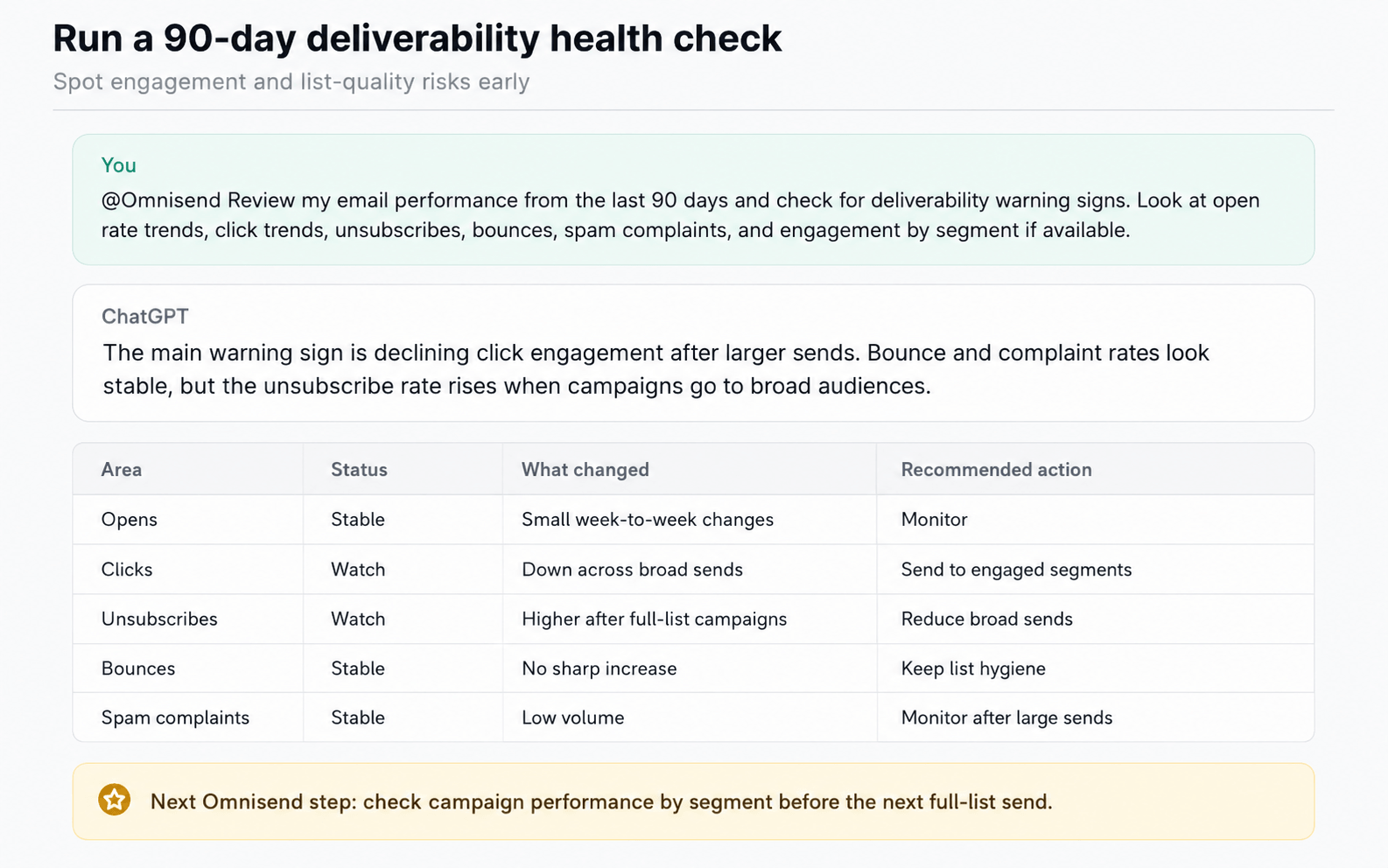
The follow-up action in Omnisend: Review recent campaigns by segment. Pause full-list sends if engagement is falling, clean up inactive audiences, and prioritize engaged contacts for upcoming campaigns.
7. Generate the monthly executive recap your CMO actually reads
The job: Turn campaign and automation performance into a short business summary.
The exact prompt:
@Omnisend Create a monthly executive recap for my email and SMS marketing performance. Include total revenue, top campaigns, top automations, biggest changes from the previous month, risks to watch, and three recommended next steps.
What the output may look like:
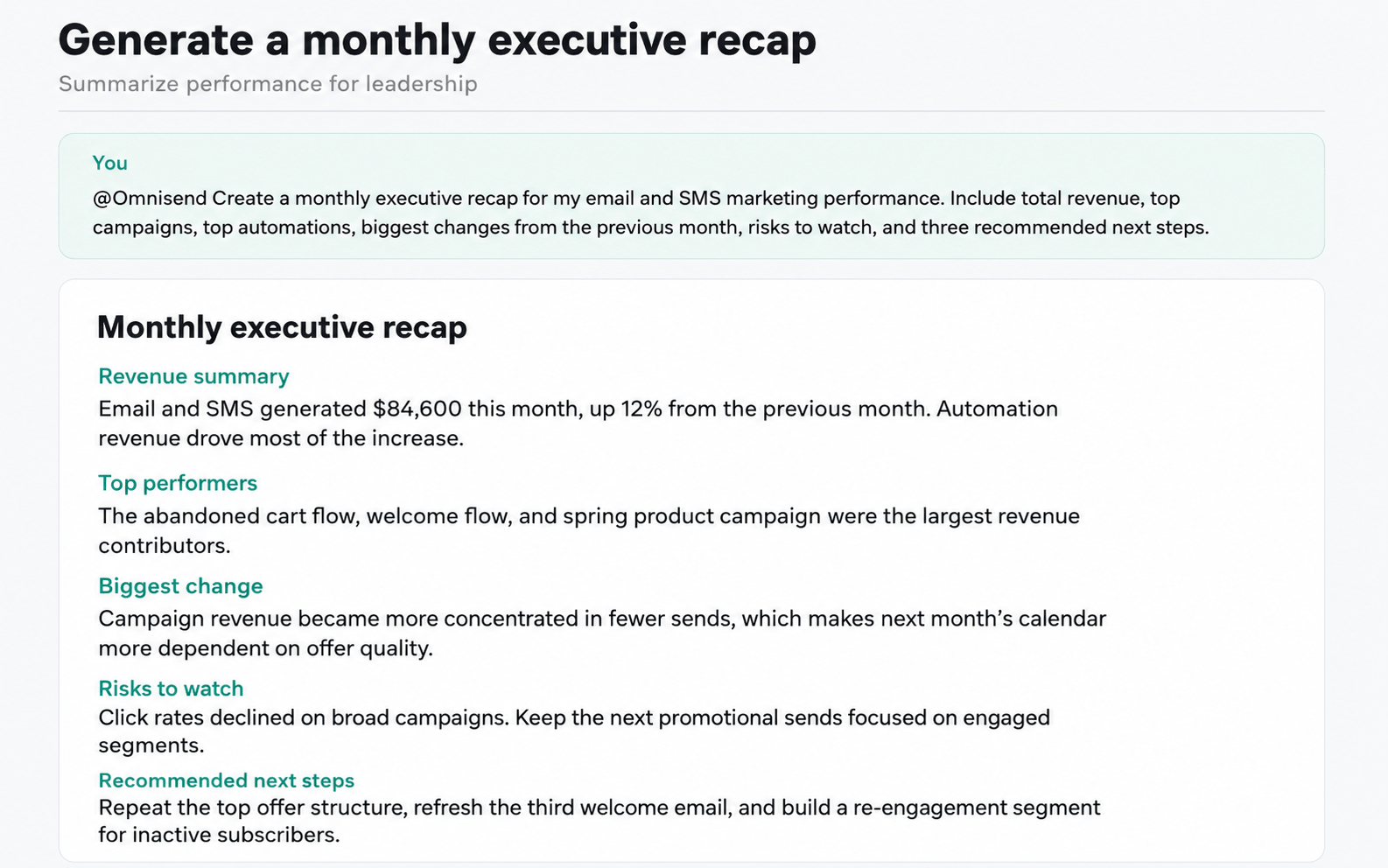
The follow-up action in Omnisend: Verify the numbers in Omnisend, then use the recap for your monthly report, team update, or planning meeting. Add screenshots from Omnisend reports where your team needs the original source.
A weekly SOP: 4 prompts to run every Monday morning
This is a simple Monday workflow for turning last week’s Omnisend data into this week’s campaign plan. You might want to run these prompts in sequence, then build from the final answer inside Omnisend.
1. Start with last week’s performance
@Omnisend Review my email and SMS performance from the last 7 days. Show total revenue, campaign revenue, automation revenue, top campaigns, weakest campaigns, and any major changes compared with the previous 7 days.
Use this first prompt to get the baseline. Before planning anything new, check whether revenue came from campaigns, automations, or an unusually strong send.
What to do next in Omnisend: Open the top-performing and weakest campaigns. Check the audience, offer, subject line, email content, and CTA placement.
2. Find the biggest opportunity for this week
@Omnisend Based on last week’s results, what is the highest-priority opportunity for this week? Focus on one campaign idea, one segment to target, and one automation or message that needs attention.
This keeps the Monday review from turning into a long list of ideas. The goal is to identify one clear priority: a campaign to repeat, a segment to use, or a flow that needs an update.
What to do next in Omnisend: Create the suggested segment, open the automation that needs work, or add the campaign idea to this week’s calendar.
3. Turn the opportunity into a send plan
@Omnisend Turn that opportunity into a simple send plan for this week. Include the audience, campaign angle, offer, suggested send day, subject line direction, and the metric I should watch after sending.
This prompt turns the analysis into a campaign brief. It helps you move from “this performed well” to “here’s what we send next.”
What to do next in Omnisend: Build the campaign draft, apply the right segment, and set the main metric you’ll use to judge performance.
4. Create the Monday team recap
@Omnisend Summarize this into a short Monday marketing recap for my team. Include last week’s result, this week’s priority, the planned campaign, the risk to watch, and the next action owner.
Use this when you need to update a manager, founder, client, or team channel without having to write the recap from scratch.
What to do next in Omnisend: Verify the numbers in your Omnisend reports, then paste the recap into your team doc, Slack update, or weekly planning notes.
10 prompt templates to steal
You can save these actionable prompts somewhere your team can reuse them. Just remember to replace the bracketed details with your own campaign, segment, product, or date range.
Analysis prompts
1. Campaign performance breakdown
@Omnisend Analyze my [campaign name] campaign. Show the main performance metrics, compare them with my average campaign performance from the last [30/60/90] days, and tell me what changed most.
2. Top campaign patterns
@Omnisend Review my top five revenue-generating campaigns from the last [90] days. What do they have in common in terms of audience, offer, timing, and engagement?
3. Underperformance diagnosis
@Omnisend Find campaigns from the last [30] days that underperformed compared with my usual results. Group the issues by likely cause: audience, offer, timing, subject line, or email content.
Segmentation prompts
4. Re-engagement segment idea
@Omnisend Suggest a re-engagement segment for subscribers who previously engaged but have not clicked or purchased recently. Give me the exact segment rules to build in Omnisend.
5. High-intent audience finder
@Omnisend Find a high-intent audience I can target this week. Look for recent engagement, product interest, purchase behavior, or automation activity. Explain why this segment is worth targeting.
Drafting prompts
6. Campaign brief from past winners
@Omnisend Based on my best-performing campaigns from the last [90] days, create a campaign brief for [product/category/offer]. Include the audience, angle, offer, subject line direction, CTA, and content blocks.
7. Follow-up campaign idea
@Omnisend Look at my recent campaign performance and suggest a follow-up campaign for subscribers who clicked but did not purchase. Include the audience, message angle, and offer a recommendation.
8. Automation improvement brief
@Omnisend Review my [welcome/abandoned cart/post-purchase] automation and identify the message that needs work first. Then write a short improvement brief for that message.
Reporting prompts
9. Weekly marketing recap
@Omnisend Create a weekly recap of my email and SMS performance. Include total revenue, top campaigns, top automations, biggest changes from the previous week, and three actions for next week.
10. Executive summary
@Omnisend Turn this month’s email and SMS performance into a short executive summary. Keep it focused on revenue, growth, risks, and next steps. Use bullet points and include the numbers behind each point.
How to get better answers
ChatGPT is only as useful as the question you ask. Small changes in your prompt can make the answer more specific, easier to verify, and easier to turn into work inside Omnisend.
Use the strongest model available
Use your strongest ChatGPT model for data-heavy questions. It will do a better job with comparisons, date ranges, campaign context, and follow-up recommendations than a basic model.
Be specific with dates
Avoid vague prompts like:
@Omnisend How are my campaigns doing?
Use a clear date range instead:
@Omnisend Review my email campaign performance from May 1 to May 31. Compare it with April 1 to April 30, and show the biggest changes in revenue, click rate, conversion rate, and unsubscribes.
Specific dates help ChatGPT compare the right periods and reduce back-and-forth.
Ask follow-up questions in the same chat
Once ChatGPT gives you an answer, keep building on it. For example:
@Omnisend Which campaign had the biggest drop in clicks?
Then follow with:
@Omnisend Compare that campaign with my top three campaigns from the same period.
Then:
@Omnisend Based on that comparison, what should I test in the next campaign?
This works better than starting a new chat for every question because ChatGPT can carry the earlier context into the next answer.
Tell ChatGPT to show the numbers
When you ask for recommendations, ask for the data behind them.
@Omnisend Recommend three campaign ideas for next week. For each one, show the Omnisend data that supports the recommendation.
Use the same habit for reporting:
@Omnisend Summarize last month’s performance, but include the numbers behind every claim.
If an answer says a campaign “performed well,” ask which metric proves it.
Know when to return to Omnisend
Use ChatGPT to analyze, compare, summarize, and draft. Use Omnisend to verify the source data, build segments, edit campaigns, change automations, and schedule sends.
Before sending anything, check the final audience, email content, offers, discount codes, links, and scheduling rules inside Omnisend.
Privacy and security: what Omnisend shares with ChatGPT
What data can ChatGPT access?
ChatGPT only accesses the Omnisend data needed to answer your request. That can include campaigns, automations, analytics, contacts, forms, segments, and related performance data, based on the permissions you approve when connecting the app.
Can ChatGPT send campaigns for me?
ChatGPT can help you understand the data and draft the plan. Omnisend is where you check the audience, links, offers, timing, and final campaign before sending.
Can I disconnect it?
Yes. You can disconnect Omnisend access later from the AI tool or app settings.
Does OpenAI train on data from apps?
It depends on your ChatGPT plan and settings. OpenAI claims that on Business, Enterprise, and Edu plans, data from connectors is not used for model training by default. For Free, Plus, Go, and Pro users, information accessed from apps may be used for training if the “Improve the model for everyone” setting is on.
What should teams check before using it?
Review the permissions screen before connecting, confirm that the correct Omnisend store is selected, and use the integration in accordance with your company’s data policies. If you handle sensitive customer data, check your internal policies before granting access to any AI app.
Troubleshooting and disconnecting
- Open ChatGPT Apps and search for Omnisend again before changing anything else.
- Use @Omnisend in a new chat when the current thread starts giving messy or incomplete answers.
- To disconnect the app, follow the steps in the Omnisend ChatGPT Help Center guide.
What’s next
The Omnisend app in ChatGPT is the easiest place to start today. Claude support is coming soon, and teams using MCP-compatible tools can also connect Omnisend through the MCP server if they prefer a more technical setup.
For most ecommerce marketers, the next step is simpler: connect Omnisend to ChatGPT, run one workflow from this guide, and see which questions save the most time. Start with a weekly recap, campaign diagnosis, or automation audit. Those tasks usually have enough data to make the integration useful right away.
Quick sign up | No credit card required