Omnisend AI


 OFFER
OFFER









Want to know when someone signs up through one of your forms? With Omnisend MCP, you can set up notifications for new subscribers and choose how often you want to check for updates.
This guide covers two approaches: a no-code option using Claude Cowork, and a more flexible workflow in n8n that can send notification emails automatically.
What is MCP?
MCP stands for Model Context Protocol, an open standard that connects AI assistants to your tools and data. Once you’ve connected the Omnisend MCP server to your AI assistant, it can read your subscriber data and use it in workflows like the ones below.
Option 1: Scheduled notifications with Claude Cowork
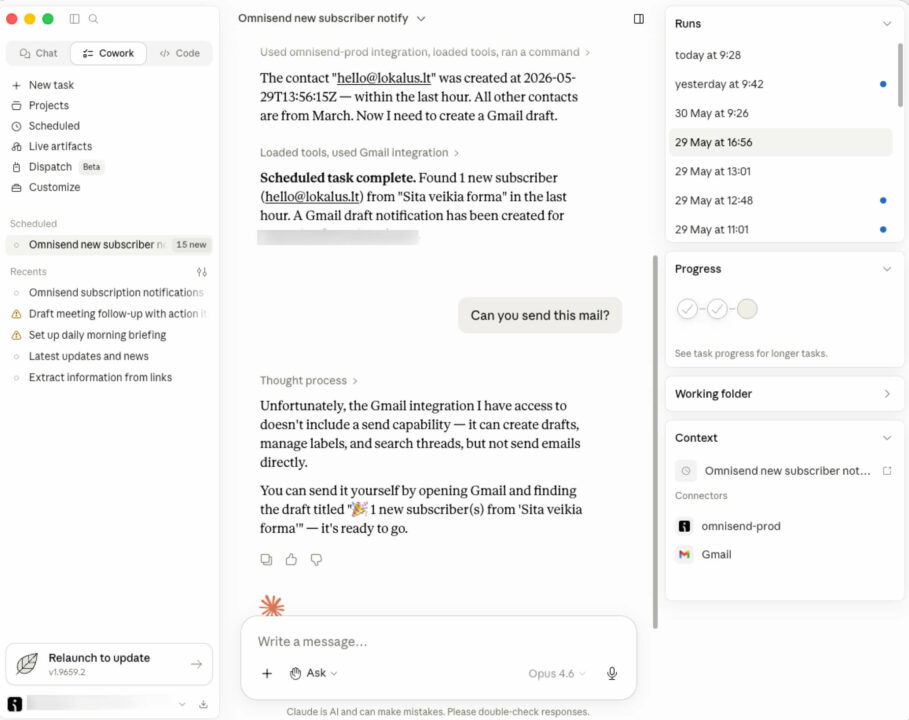
Claude Cowork lets you schedule a recurring task that checks for new subscribers and creates an email draft with a summary. You can run the task daily, hourly, or weekly.
How to set it up
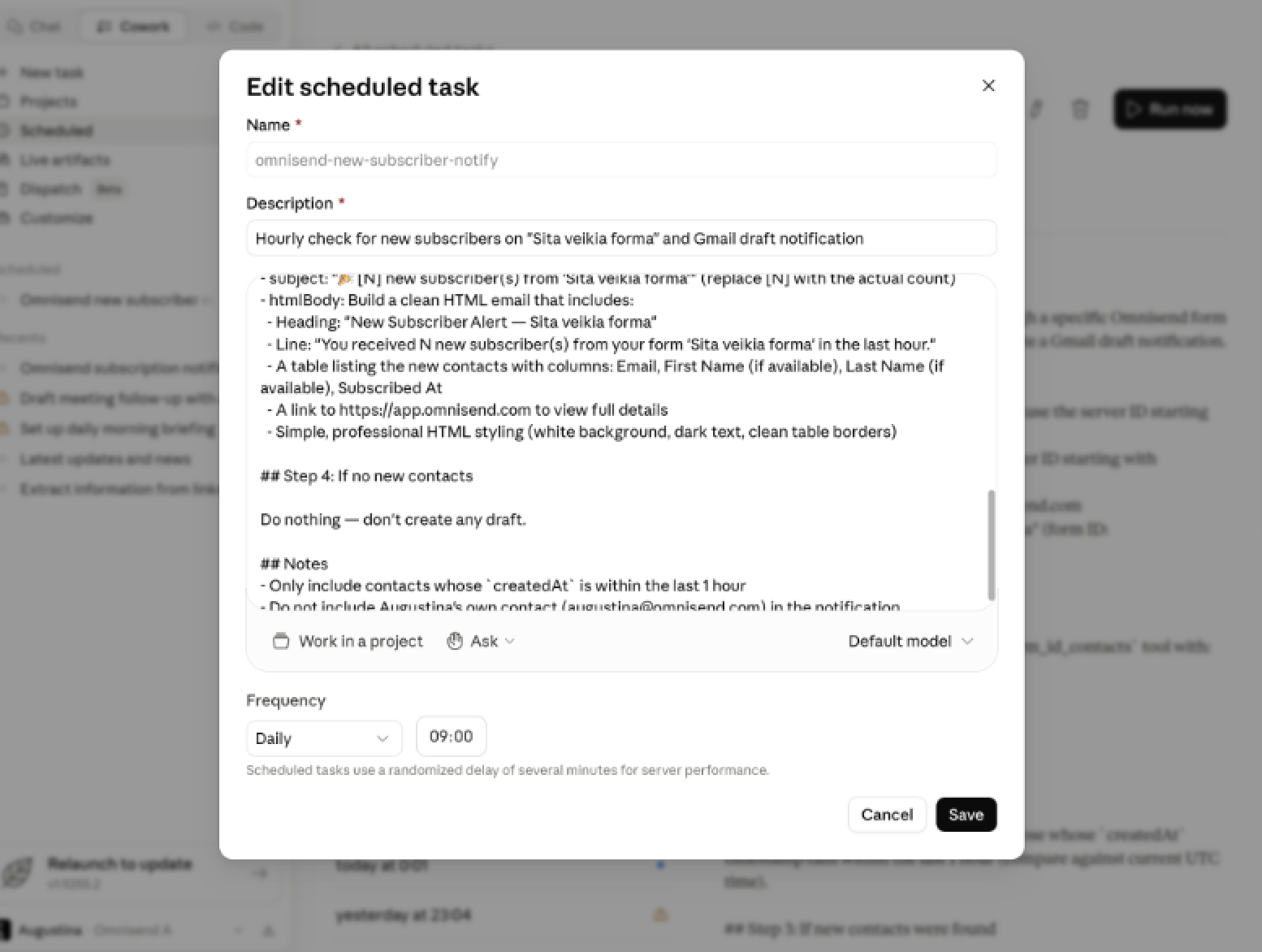
Open Claude Cowork and create a new task using a prompt like this:
Prompt example
You can customize a few things:
- Choose all forms or specify one form by name
- Choose your email provider, such as Gmail or Outlook
- Set how often you want the task to run, such as daily, hourly, or weekly
When Claude finishes, you’ll see a scheduled chat that runs on your chosen cadence.
Good to know
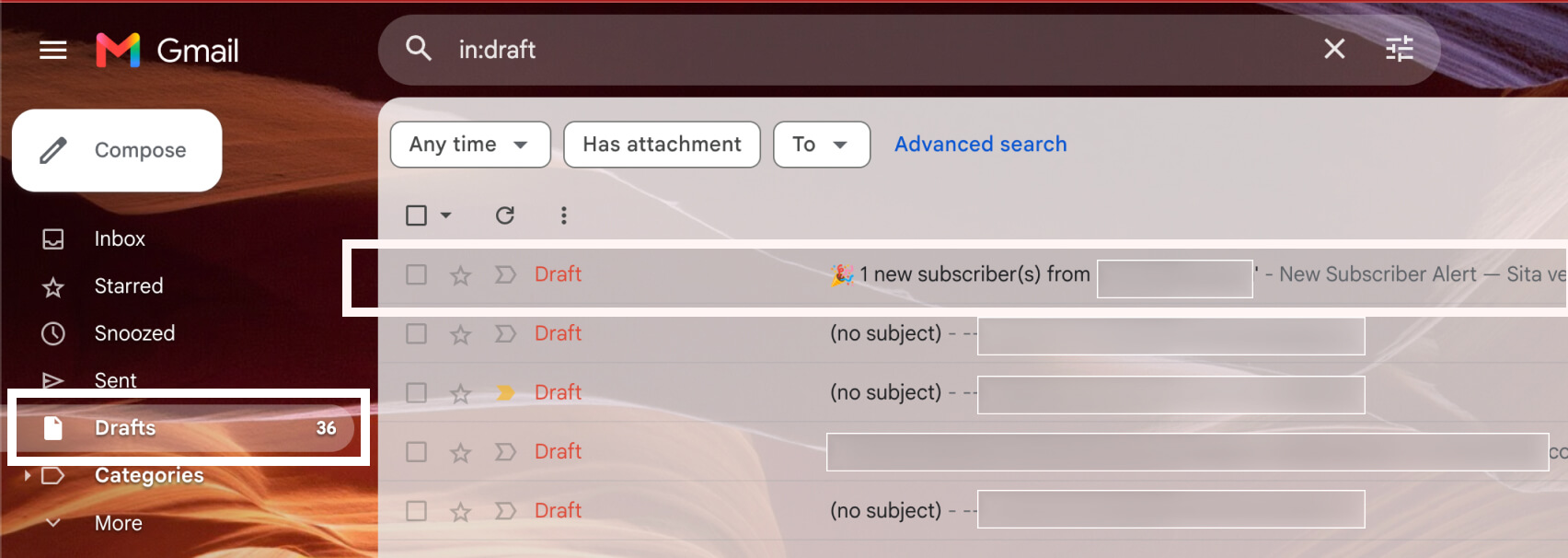
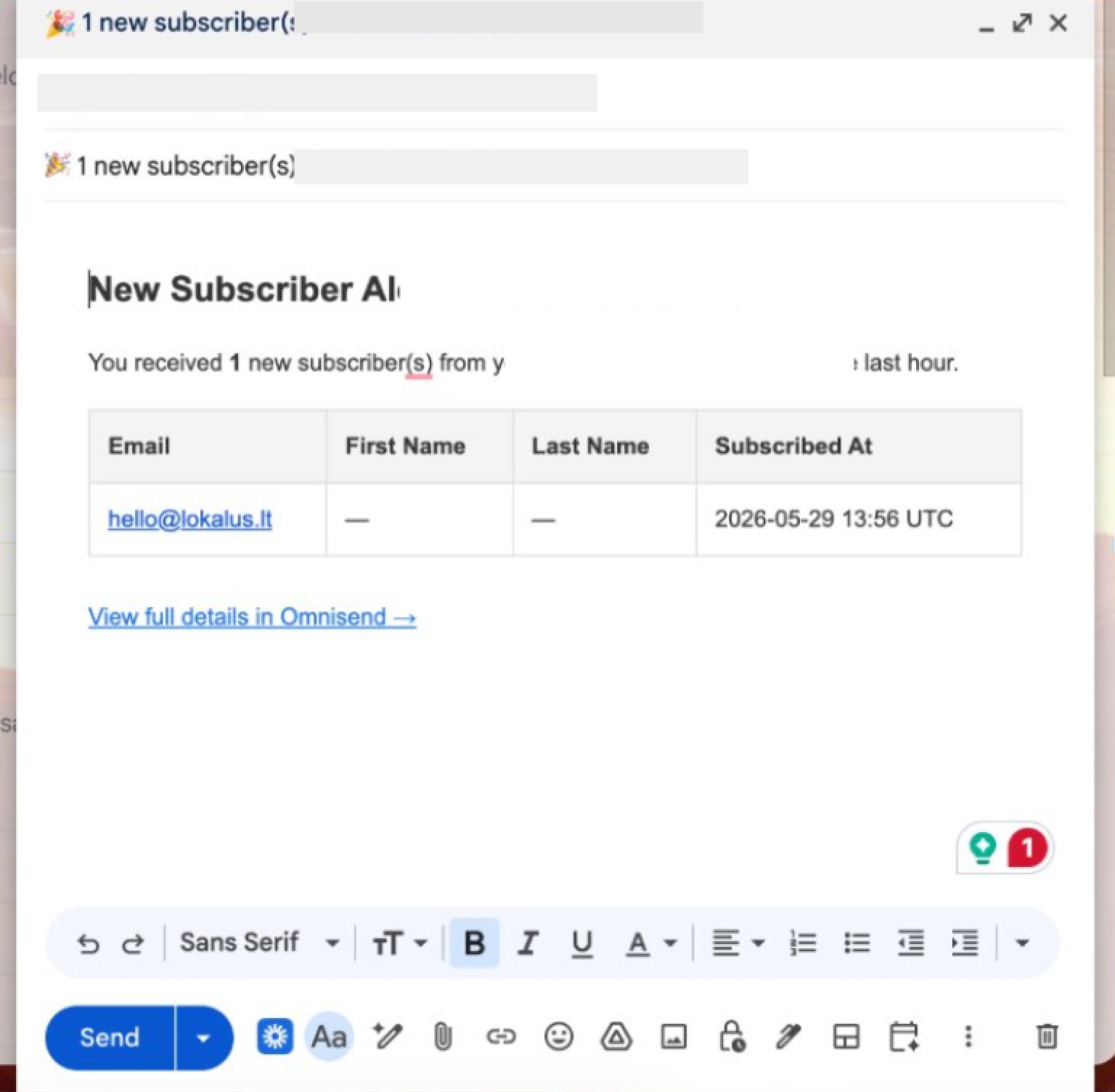
Direct sending from Gmail isn’t supported in this setup. Instead, Claude creates a draft email that summarises the new subscribers collected during the selected period.
You can set up the task so that you receive a draft only when there are new subscribers.
Option 2: Automated emails with an n8n workflow
Use n8n if you want notification emails to be sent automatically. This setup takes more configuration than Claude Cowork, but it gives you more control over the schedule, logic, and email content.
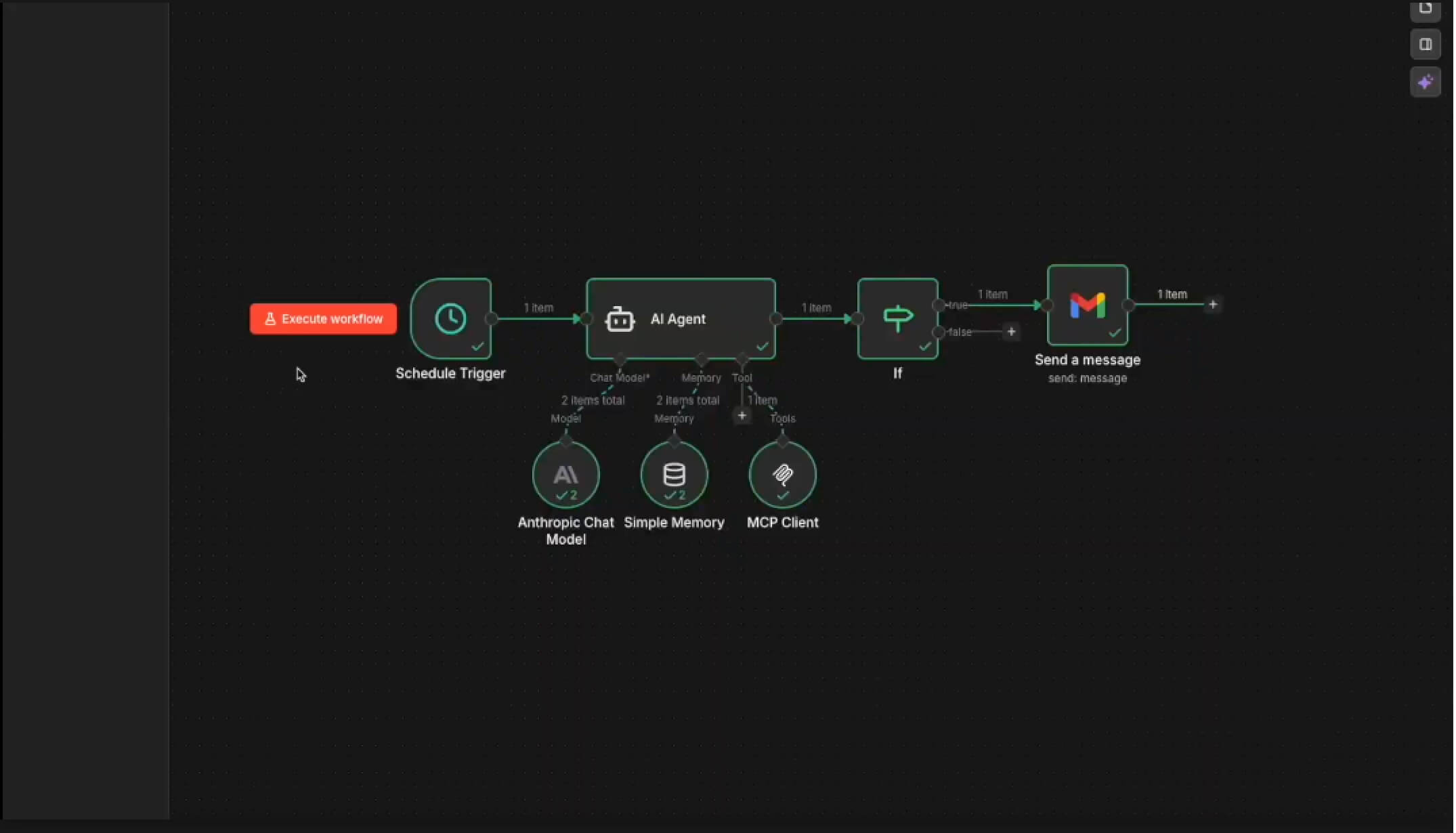
Here’s how to set up a workflow that checks for new subscribers on a schedule and emails you the details.
Nodes you’ll need
| Node | Purpose | Configuration Detail |
|---|---|---|
| Schedule Trigger | Interval Management | Set to execute every 30 minutes. |
| AI Agent | Data Retrieval and Analysis | Set up a prompt, connect a model and add memory for the agent so it can see if there are new contacts since the last check. |
| If Node | Logic Filter | Proceed only if the subscriber count is greater than 0. |
| Gmail | Notification | Send an email with contact details to the recipient. |
The prompt for the AI Agent
Use a prompt like this in the AI Agent node:
Check your memory for the latest contact. Use the MCP tools to retrieve contacts and check whether any new contacts have been created since the last run.
In the output, list the new contacts and their details, such as phone number and email. The message must contain nothing else — only the new contacts and their details, in plain, human-readable language. If there are no new contacts, the output must be exactly “N/A”.
Then update the memory with the latest contact.
Because the agent stores the most recent contact in memory, each run only reports people who signed up since the previous check. This helps you avoid duplicate notifications.
Watch it in action
See a walkthrough of the n8n workflow here:
Which option should you choose?
Use Claude Cowork if you want a simple scheduled check and don’t mind reviewing a draft before sending. Use n8n if you want notification emails to send automatically, and you need more control over the workflow.
Both options use Omnisend MCP to check for new subscribers, so you can stay informed without manually reviewing your form data.