Omnisend AI


 OFFER
OFFER









This guide compares the best tools for order confirmation automation — Omnisend, Klaviyo, Shopify Messaging, WooCommerce, and Mailchimp — so you can choose the right one and switch with confidence.
Klaviyo is powerful, but it costs more as your list grows. Shopify Messaging and WooCommerce lock you into rigid default templates. Mailchimp needs a paid add-on just to handle advanced transactional emails.
If you’re actively comparing tools and ready to switch, this guide gives you everything you need to make that call.
Quick sign up | No credit card required
Why your current order confirmation setup is holding you back
At some point, your current order confirmation automation setup stops being good enough. The tool you started with isn’t always the one that scales or grows with you.
Shopify Messaging, WooCommerce native emails, Klaviyo, and Mailchimp all have specific limitations. And the longer you stay on the wrong platform, the more revenue and customer trust you risk losing. Here’s what each one gets wrong.
Shopify Messaging: Marketing-first, not built for transactional order confirmation
Shopify Email was rebranded to Shopify Messaging in late 2025. That’s when SMS marketing was added to the platform. It’s a solid marketing tool, but it wasn’t built for order confirmation automation.
Your actual order confirmation still lives in Settings > Notifications as a basic Liquid template. It is a code-based file that controls how your email looks. You will need to edit this code to make meaningful changes.
Here’s what Shopify Messaging can’t do for order confirmation automation:
- Your transactional order confirmation is a Liquid template with no drag-and-drop editor and limited design control
- SMS in Shopify Messaging is for marketing automations like abandoned cart and browse abandonment, not for order events
- There’s no native multi-step post-purchase sequence triggered by order placement
- Shopify Flow handles branching logic, but its “Send internal email” action only delivers to staff, not to customers
If you’re trying to build an order confirmation automation workflow for Shopify, the result is a gap that’s hard to work around. You end up using multiple tools to do what one platform should handle on its own.
WooCommerce native emails: PHP templates with no workflow builder
WooCommerce sends order confirmation email automations out of the box. The issue is that they’re PHP templates. This means any real change requires getting into code. There’s no visual editor and no workflow sequencing. There’s also no SMS option at all.
Specific limitations are:
- No drag-and-drop editor: Changes to the order confirmation email template require editing PHP files directly
- No workflow sequencing: WooCommerce native sends one email and stops — there’s no post-purchase series
- No SMS capability: Order confirmation automation is email-only with no multi-channel option
- Delivery depends on your hosting server’s mail setup: This is often unreliable without a dedicated SMTP service
Every customization beyond the default requires developer time. For a growing store, it might not be feasible.
Klaviyo: Powerful but expensive at scale
Klaviyo has a strong workflow builder and works well with Shopify. But its pricing grows sharply as your marketing list does. Email and SMS workflows are also managed separately, which adds setup time.
Here’s what the cost looks like in practice:
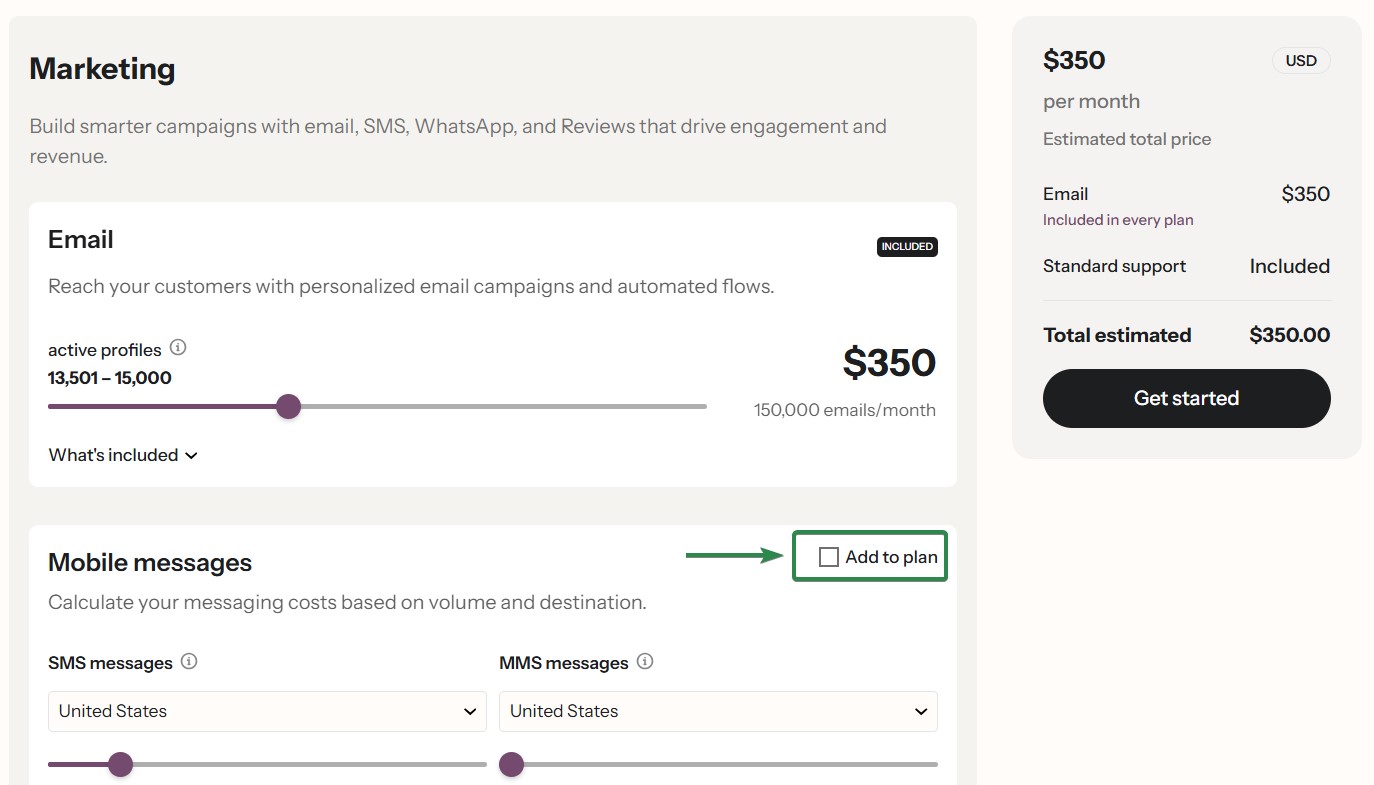
At 5,000 contacts, Klaviyo’s email plan is approximately $100/month. At 15,000 contacts, it’s around $350/month — email only, with SMS billed separately.
For context, Omnisend’s Standard plan is approximately $81/month at 5,000 contacts and $207/month at 15,000 contacts. That’s a meaningful gap, and it widens as your list grows.
On top of that, Klaviyo keeps email and SMS as separate flows. A combined order confirmation automation — email first, then SMS — means two separate workflows to build and maintain. That’s more time-consuming and complex, with more room for errors.
Mailchimp + Mandrill (Transactional): A paid workaround that adds up
Mailchimp includes basic order confirmation email automations for connected ecommerce stores on paid plans. Its Customer Journey Builder supports multi-step flows and combined email and SMS actions on Standard plans and above.
On the surface, that sounds capable enough. But it has real limitations for ecommerce stores.
Mailchimp’s SMS features are less advanced than dedicated ecommerce platforms like Omnisend. Its Shopify data sync isn’t deep enough for real-time tracking. And it doesn’t support complex behavioral segmentation.
It’s a general-purpose marketing tool — not one built for ecommerce order confirmation automation.
There’s also the cost to consider. If you need API or SMTP access for advanced transactional setups, you’ll need Mailchimp Transactional. That’s a service formerly known as Mandrill.
It’s a paid add-on on Standard or Premium plans only. It uses block-based pricing — each block covers 25,000 emails and costs $20.
So you could end up paying for a Mailchimp plan plus a separate Transactional add-on just to handle what ecommerce-first platforms include natively.
Platform comparison: The best tools for order confirmation automation
If you’re actively comparing tools for order confirmation automation, this section is for you. The table below covers the five platforms most ecommerce merchants are choosing between.
Of course, no tool does everything perfectly. The right order confirmation automation tool depends on your platform, your list size, and whether SMS is part of your strategy.
| Feature | Omnisend | Klaviyo | Shopify Messaging | WooCommerce native | Mailchimp + Mandrill (Transactional) |
|---|---|---|---|---|---|
| Email order confirmation automation | ✅ | ✅ | ✅ | ✅ (basic) | ✅ (paid add-on required for advanced) |
| SMS order confirmation automation | ✅ | ✅ | ✅ (limited) | ❌ | ✅ |
| Combined email + SMS workflow | ✅ | ✅ (separate flows) | ✅ | ❌ | ✅ |
| Visual workflow builder | ✅ | ✅ | ❌ | ❌ | ✅ (limited) |
| Post-purchase sequencing | ✅ | ✅ | ✅ (limited) | ❌ | ✅ (limited) |
| Pricing at 5,000 contacts | $81/month (Standard) | $100/month (Email) | Free (limited) | Plugin required | $100/month (Standard) + Transactional add-on |
| Native Shopify integration | ✅ | ✅ (deep integration) | Native | ❌ (plugin required) | ✅ |
| Native WooCommerce integration | ✅ | ✅ | ❌ (third-party tool required) | Native | ✅ |
| Free plan available | ✅ | ✅ (strict limitations) | ✅ (limited) | ✅ | ✅ (limited) |
| 24/7 customer support | ✅ (all plans) | Limited by plan | ❌ | ❌ (community help) | Limited by plan |
Comparison of leading order confirmation automation platforms — pricing verified as of May 2026.
* Shopify’s native SMS order confirmation only fires when a customer has no email address on file. Also, customers with an email address cannot opt to receive SMS instead. SMS in Shopify Messaging is available for marketing automations — abandoned cart, browse abandonment — not for order confirmation triggered by an order placement event. A unified email and SMS order-confirmation workflow requires Shopify Flow and a third-party SMS app.
Omnisend
Omnisend is built specifically for ecommerce. That focus shows up everywhere — from how it handles order confirmation automation to how it connects with your store.
Key differentiators
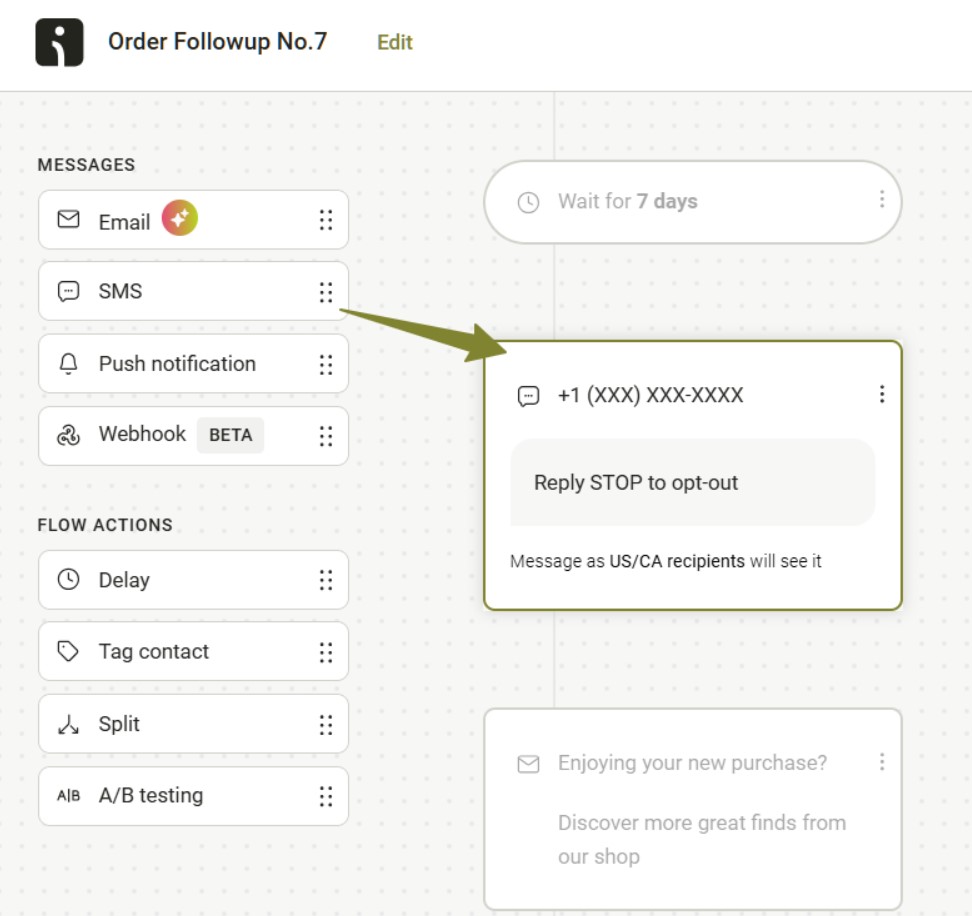
- Its visual workflow builder lets you build a complete order confirmation automation sequence in one place — email and SMS steps sit in the same flow:
- It integrates natively with Shopify, WooCommerce, BigCommerce, and Wix — no middleware or third-party plugins needed
- The free plan gives you access to all core features — you’re not locked out of automation or segmentation on a lower tier
- 24/7 support is available on all plans, including the free plan
- SMS is available on the Pro plan, with volume-based pricing starting at $0.007 per SMS for USA sends — applicable across all automation types, including order confirmation
Omnisend merchants on paid plans averaged $79 in revenue per $1 spent in 2025 — nearly double the industry benchmark. That return is driven by how Omnisend combines email and SMS in one place. This eliminates the workflow complexity that costs time and money on other platforms.
If you’re looking for one platform to handle order confirmation automation end-to-end, Omnisend delivers the strongest combination of features and value.
Klaviyo
Klaviyo has a strong workflow builder and deep Shopify integration. It supports email and SMS steps within the same flow, and it handles order confirmation automation well. But its pricing scales steeply, and the cost gap widens fast as your list grows.
Limitations to keep in mind
- At 5,000 contacts, Klaviyo’s email plan costs $100/month, and at 15,000 contacts, that jumps to $350/month for email only — no SMS yet:
- SMS requires separate consent management and is billed on top of the email plan
- There’s a free plan, but it comes with strict limitations — it’s not a viable long-term option for growing stores
- Support is limited on lower-tier plans — unlike Omnisend, which includes 24/7 support on all plans
Klaviyo is a capable platform. But for stores that don’t need its full depth, the cost is hard to justify as the list grows.
At 15,000 contacts, you’re paying $143 more per month for Klaviyo’s email plan than you would on Omnisend’s Standard plan. That’s $1,716 a year, before adding SMS on either platform. For a store already getting strong results from email, that difference is hard to ignore. And if it’s what’s driving your search, compare the most affordable alternatives to Klaviyo for order-confirmation flows.
Shopify Messaging
Shopify Messaging is free for the first 10,000 emails per month and includes SMS marketing. It does support limited SMS order-confirmation automation and some post-purchase sequencing. But it’s a marketing tool at its core — not a dedicated order confirmation automation platform.
Key limitations
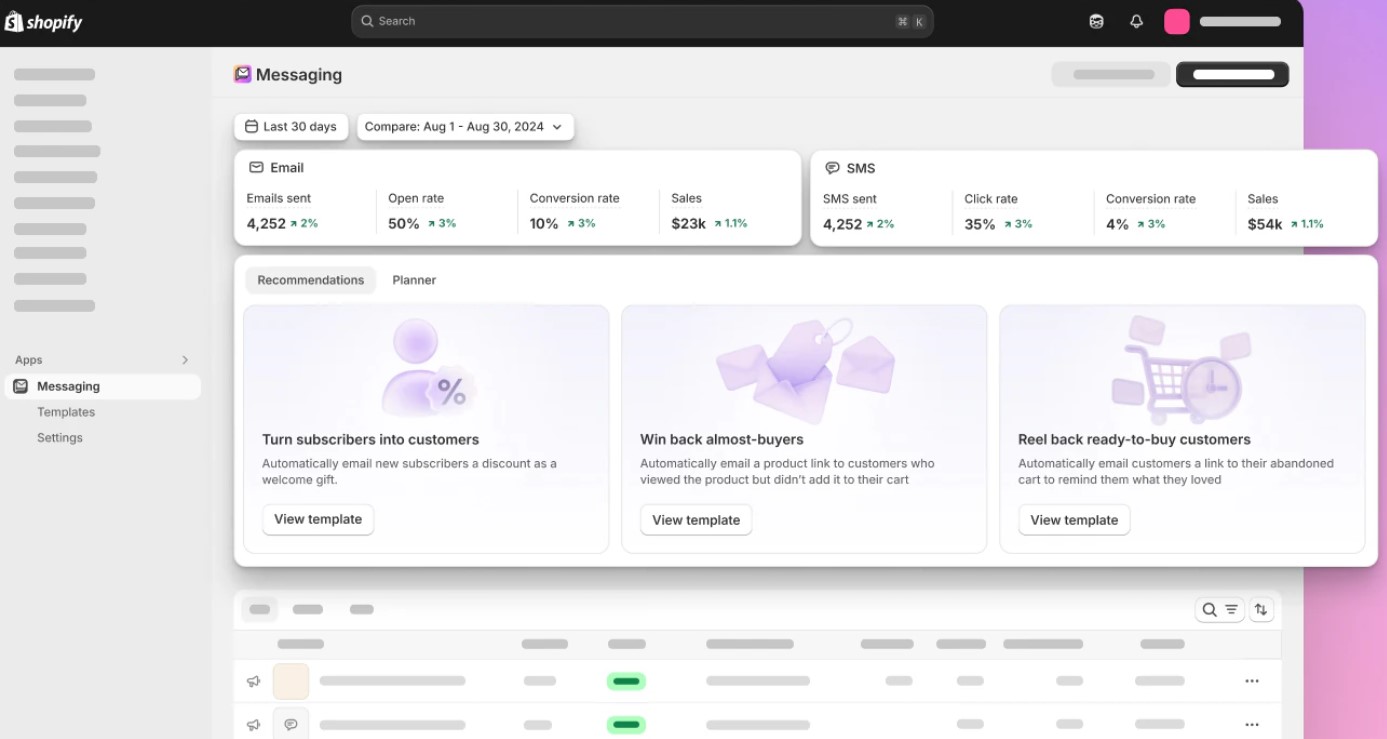
- The default order confirmation still lives in Settings > Notifications as a Liquid template with limited design control and no drag-and-drop editor:
- SMS order confirmation automation is limited — Shopify’s native SMS only fires when a customer has no email address on file
- Post-purchase sequencing exists but is limited — building anything beyond a basic flow requires Shopify Flow plus additional apps
It’s a workable option for very early-stage stores. But for stores that need full control over their order confirmation automation, it runs out of road quickly.
The moment you want to add SMS to your order confirmation, build a multi-step post-purchase sequence, or move beyond a basic Liquid template, you’ll need a dedicated platform. And that means migrating to a different platform anyway.
WooCommerce native
WooCommerce sends order confirmation emails out of the box. But they’re PHP templates. Any real customization means getting into code or installing a third-party plugin. There’s no visual builder, no workflow sequencing, and no SMS.
The core plugin is free, but meaningful customization typically requires a paid plugin or developer time. These are costs that add up quickly for a growing store.
Key limitations
- The order confirmation email template is a PHP file — meaningful design changes require developer access or a paid plugin
- There’s no workflow builder or post-purchase sequence
- Email delivery depends on your hosting server’s mail setup, which is often unreliable without a dedicated SMTP service
It works for very basic needs. But for a store that wants real order confirmation automation, WooCommerce native is only a starting point and not a solution.
Every step beyond the default confirmation, including shipping updates, review requests, and replenishment reminders, requires a separate plugin and a separate setup. This also introduces a separate point of failure. That complexity compounds quickly as your store grows.
Mailchimp + Mandrill (Transactional)
Mailchimp supports email and SMS order confirmation automations on the Standard plan and above. Its Customer Journey Builder lets you build multi-step flows with email and SMS steps in one place.
It also integrates natively with Shopify. For a general-purpose tool, that’s a solid feature set.
But it has real limitations for ecommerce stores. For advanced transactional setups — like sending receipts via API or SMTP from a custom app — you’ll need Mailchimp Transactional Email. This is a separate paid add-on formerly known as Mandrill.
Mandrill was originally a standalone transactional email service that Mailchimp acquired and later rebranded under its own name. It’s available only on Standard or Premium plans, with block-based pricing at $20 per 25,000 emails.
Ecommerce limitations to keep in mind
- Its SMS features are less advanced than dedicated ecommerce platforms, and its Shopify data sync isn’t deep enough for real-time behavioral tracking
- Advanced transactional setups require Mailchimp Transactional, a paid add-on on the Standard or Premium plans only
- Mailchimp Standard costs approximately $100/month at 5,000 contacts, plus Transactional blocks if your setup requires API or SMTP access
It’s a capable general-purpose tool. But ecommerce stores that need deep, native order confirmation automation will find purpose-built platforms handle it more cleanly.
Why email + SMS order confirmation automation is the new standard
Most stores send one order confirmation email and consider the job done. But a single email isn’t always enough.
Customers check their phones within minutes of placing an order. Sending both an email and an SMS confirmation covers both channels at once, right when attention is highest.
For WooCommerce, combined email and SMS order confirmation automation isn’t possible without third-party tools.
Shopify supports native SMS order confirmation, but it’s a fallback and not a true multichannel confirmation. It fires only when a customer provides a phone number without an email address at checkout.
Klaviyo supports both channels but manages SMS consent separately from email. Whereas Omnisend handles the full sequence in one workflow, triggered by a single order event.
Here’s why the combined approach matters for your store:
- It significantly reduces WISMO inquiries: “Where is my order?” is one of the most common post-purchase support requests. An SMS sent within minutes (complete with the order details) answers that question before it becomes a support ticket. Your team will spend more time on problems that truly require attention and less time on regular follow-ups if there are fewer support tickets.
- It increases customer confidence right after purchase: The window right after checkout is when buyer anxiety is at its peak. Reaching a customer on two channels removes doubt and reinforces trust in your store. A customer who feels confident about their purchase is also less likely to initiate a chargeback or cancellation.
- It outperforms single-channel confirmation on revenue: Agencies using SMS marketing alongside email see 202% more revenue than those that don’t. Running both channels from a single order confirmation workflow captures that upside without adding complexity.
- It reduces reliance on paid acquisition for repeat purchases: A customer who receives a well-timed post-purchase sequence, such as a confirmation, shipping update, or review request, is far more likely to buy again organically. That’s one less customer you need to win back through paid ads.
Here’s what that workflow looks like in practice:
Order placed → Email confirmation sent immediately → SMS confirmation sent five minutes later
How to set up order confirmation automation in Omnisend
Setting up order confirmation automation in Omnisend is straightforward on Shopify, WooCommerce, and BigCommerce. The workflow trigger, email builder, and SMS steps are all managed in one place.
One thing to handle on every platform is disabling the native confirmation email. Omnisend doesn’t do this automatically. If you skip this step, your customers will receive two order confirmations — one from Omnisend and one from your platform.
Each setup below takes around 10 to 15 minutes from start to finish. The steps below walk you through the full setup for each platform.
Shopify: Step-by-step setup
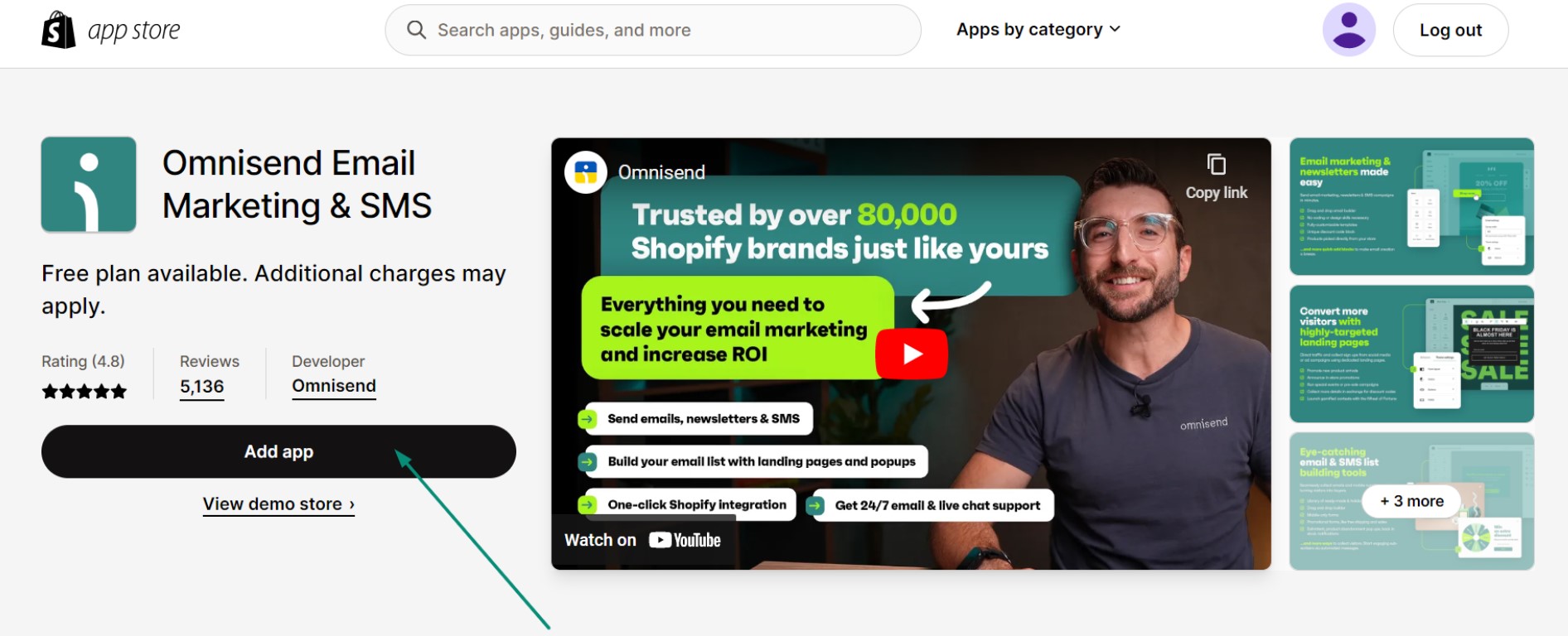
- Install Omnisend from the Shopify App Store: Search “Omnisend Email Marketing & SMS.” Click Add app and accept the permissions to complete the installation:
2. Connect your store: After installation, enter your yourstore.myshopify.com URL when prompted. Use this specific URL and not your custom domain.
3. Enable the App Embed: Go to Shopify admin → Online Store → Themes → Customize → App embeds → toggle Omnisend on and save. This step is required for tracking and automations to work on Shopify 2.0 themes.
4. Activate the order confirmation workflow: In Omnisend, go to Automation → Create workflow → select Order Confirmation. Customize your email, add an SMS step if you’re on the Pro plan, and then click Publish.
5. Handle the native Shopify confirmation: Non-Plus merchants can’t fully disable the default Shopify order confirmation email. Replace the content with a brief “Thank you for your order” message. Shopify Plus users can fully disable it under Settings → Notifications.
WooCommerce: Step-by-step setup
Setting up your WooCommerce order confirmation email is very simple with Omnisend. The default WooCommerce templates are PHP files with no visual editor — Omnisend replaces them with a drag-and-drop workflow you control entirely. Here’s how:
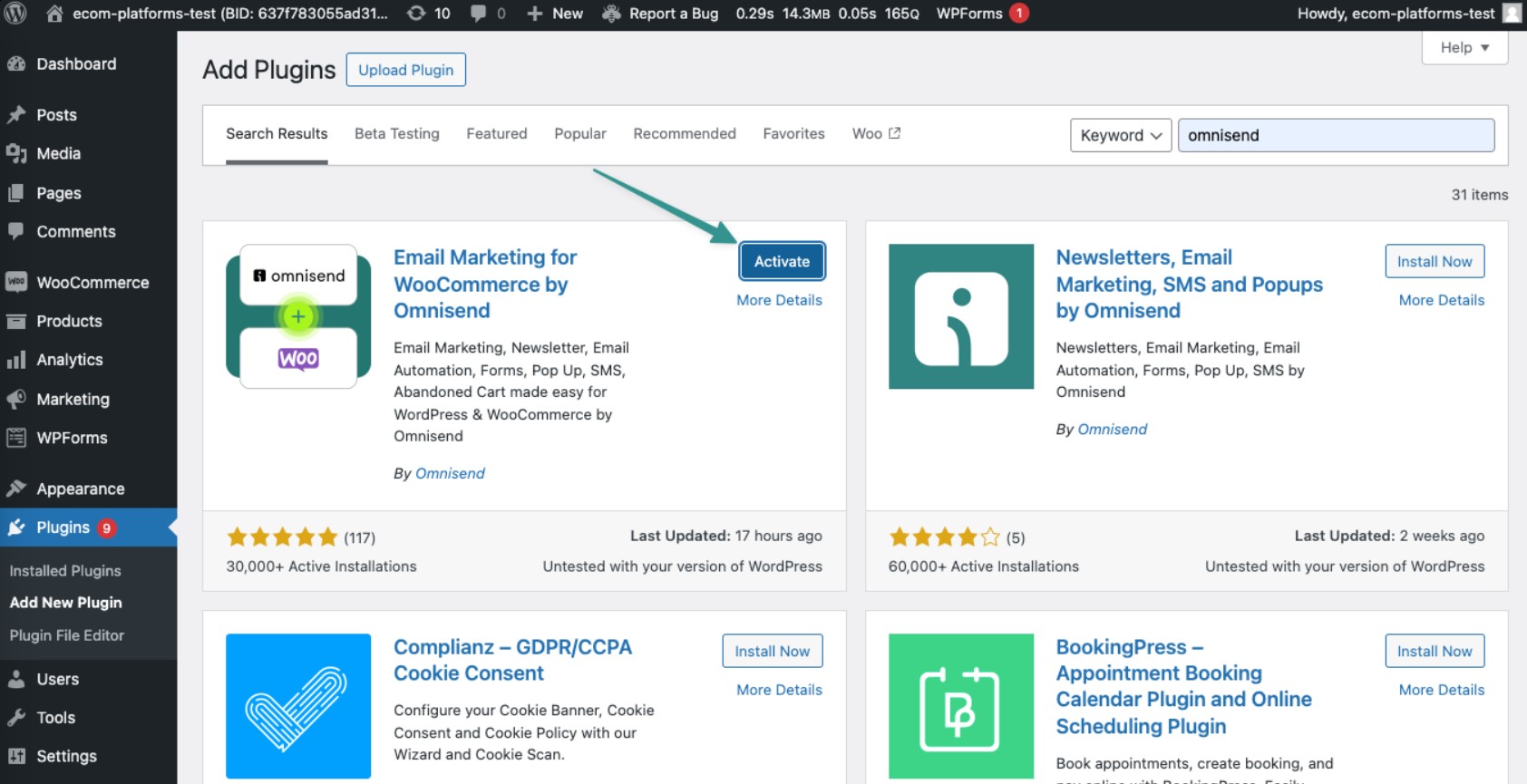
- Install the Omnisend plugin: In your WordPress dashboard, go to Plugins → Add New → search “Omnisend” → Install → Activate:
2. Connect your store: Open the Omnisend plugin settings in WordPress and follow the steps to connect your account. Once linked, it automatically syncs contacts, products, and orders.
3. Add an opt-in checkbox to checkout: In the Omnisend plugin settings, enable the opt-in checkbox for the checkout page. Customers who check this box at checkout will be synced to Omnisend as email subscribers.
4. Activate the order confirmation workflow: In Omnisend, go to Automation → Create workflow → select Order Confirmation. Customize your email, add an SMS step if you’re on the Pro plan, and then click Publish.
5. Disable WooCommerce’s native confirmation email: Go to WooCommerce → Settings → Emails → find “Processing order” → disable it to prevent duplicate sends.
Note: In WooCommerce, the “Processing order” email is the order confirmation. Disable this one specifically — not the “Completed order” email, which fires when the order ships.
BigCommerce: Step-by-step setup
- Install Omnisend from the BigCommerce App Marketplace: Search for Omnisend, click Install, and accept the permissions to complete the installation:
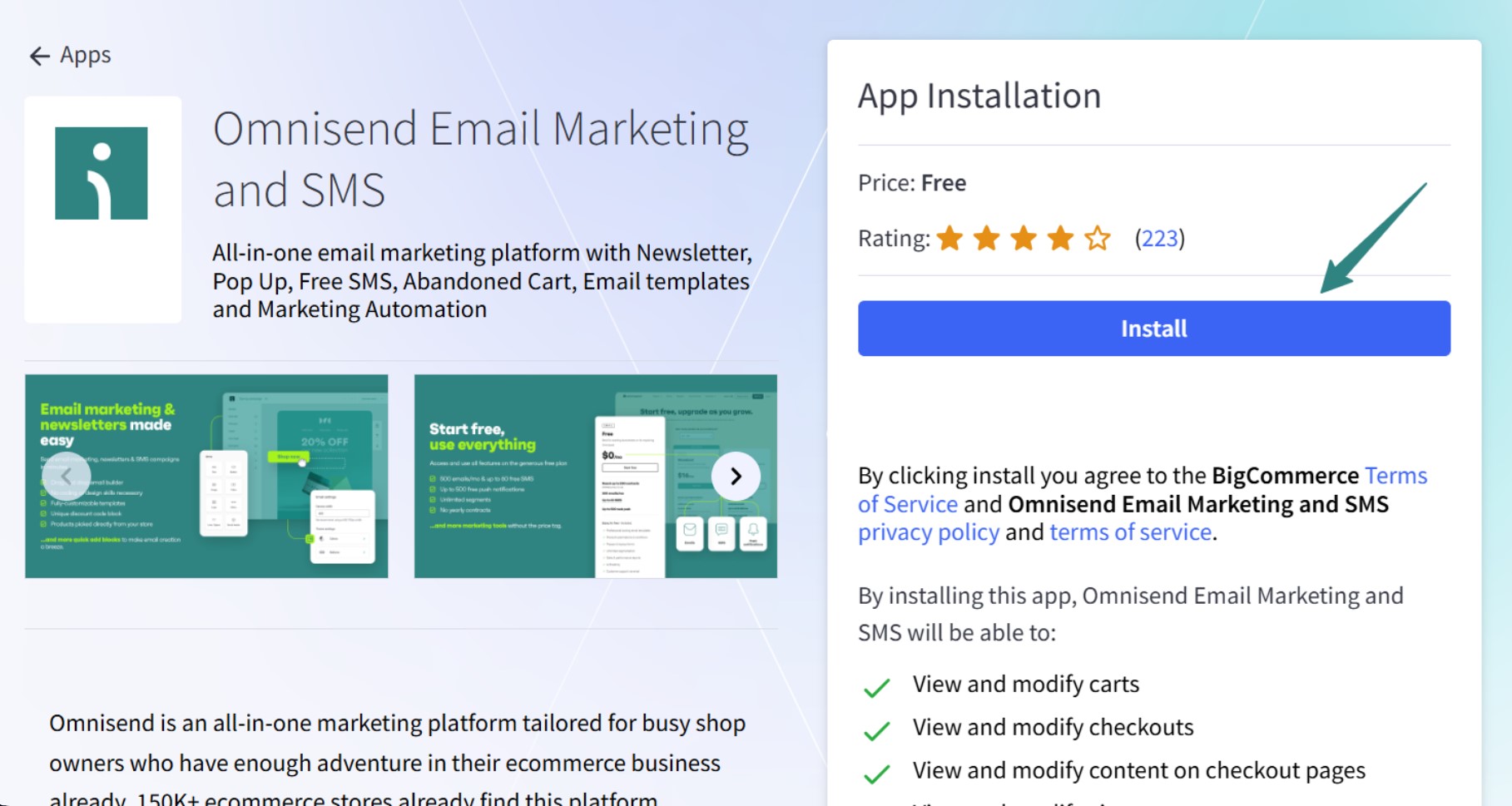
2. Connect your store: After installation, go to your Omnisend dashboard → Connect your store → select BigCommerce. Follow the prompts to complete the connection.
3. Verify the data sync: Check that your BigCommerce products, customers, and orders are appearing in Omnisend. A full sync can take up to 24 hours for larger stores.
4. Activate the order confirmation workflow: Go to Automation → Create workflow → select Order Confirmation. Customize your email, add an SMS step if you’re on the Pro plan, and then click Publish.
5. Disable BigCommerce’s native confirmation email: Go to your BigCommerce admin → Marketing → Transactional Emails → find Order Confirmation → disable it to prevent duplicate sends.
Once you’ve disabled BigCommerce’s native confirmation, your Omnisend order confirmation automation is live. For the full technical reference, see Omnisend’s order confirmation automation documentation.
How to switch to Omnisend from your current tool
Switching platforms can feel more complicated than it usually is. The core steps are the same no matter where you’re coming from. Connect your store, import your contacts, rebuild your workflows, and go live.
The main thing to get right is the transition period. You don’t want duplicate sends, gaps in confirmation emails, or contacts left behind on your old platform.
The most common mistake is switching cold — shutting down your old setup before Omnisend is live and tested. Orders come in, no confirmation goes out, and customers lose trust fast. That window is short, but the damage isn’t.
To avoid all these, refer to this migration checklist:
- Connect your store to Omnisend first: This syncs your customers, products, and orders automatically. Do this before importing contacts from your old platform.
- Import your contacts: If you’re migrating from Klaviyo or Mailchimp, Omnisend offers dedicated in-app migration tools that require no CSV export. For other platforms, export your list as a CSV and import it via Audience → Contacts → Add or update contacts.
- Transfer your suppression list: Export unsubscribes and bounces from your old platform and upload them to Omnisend. Skipping this risks emailing contacts who have already opted out.
- Keep your old account active during migration: Don’t close your previous account until your Omnisend workflows are live and tested. Running both temporarily is safer than switching cold turkey.
- Rebuild your automation workflows: Workflows don’t transfer between platforms. Build your order confirmation automation in Omnisend using the pre-built template in a few minutes.
- Run a test order before going live: Place a test order to confirm the workflow triggers correctly. Check that the confirmation lands in your inbox as expected.
- Disable your old platform’s confirmation email: With your old account still active, go in and turn off its order confirmation specifically. You want the account accessible for reference — just not sending duplicate confirmations to your customers.
Contact sync takes between one and 24 hours. Be sure to plan your cutover date accordingly.
Building a full post-purchase automation sequence
Sending one order confirmation email and stopping there is a missed opportunity. According to Omnisend’s 2026 Ecommerce Marketing Report, automated emails generate 30% of email-driven revenue from just two percent of total sends.
Order confirmation automation is just the starting point. What comes after it determines whether a customer buys again.
Here’s what a full post-purchase automation sequence looks like, starting with the order confirmation automation:
- Order confirmation (Day 0): Sent immediately after purchase, your order confirmation email has a 53.99% open rate and earns $1.60 per send. Its job is to confirm the order, reduce post-purchase anxiety, and set expectations for what comes next.
- Shipping confirmation (Day one): It is sent when the order ships and includes the tracking number, carrier name, and estimated delivery date. Automated order updates like this one have the highest open rate among any post-purchase email, at 62.99% per Omnisend’s 2026 data.
- Delivery confirmation (Day three): This email is sent once the order is marked as delivered. This short, friendly check-in signals your store cares beyond the transaction. It’s also a good moment to include a link to your returns or exchange policy before the customer has to look for it.
- Review request (Day seven): Sent after the customer has had time to use the product. Timing matters a lot here — too early, and you get low-quality reviews; too late, and engagement drops. A simple and direct ask works better than an elaborate one, so keep the email short and link directly to the review page.
- Replenishment reminder (Day 30): Relevant for consumable or repeat-purchase products. A well-timed reminder brings customers back without relying on paid acquisition. For non-consumable products, swap this step for a cross-sell — recommend something that complements what the customer already bought.
Which platforms support this full sequence?
Not every platform can build this post-purchase automation sequence natively. Here’s where each one stands:
- Omnisend: Supports the full five-step sequence natively — all steps in one workflow
- Klaviyo: Supports the full sequence natively, with email and SMS steps in the same flow
- Mailchimp: Supports multi-step flows via its Customer Journey Builder on Standard plans and above
- Shopify Messaging: Supports limited post-purchase sequencing — not the full five steps
- WooCommerce native: No post-purchase sequencing support — each step requires a separate third-party plugin
Order confirmation email templates and examples
A good order confirmation email template does two things well. It delivers the information the customer needs immediately after purchase. And it does so in a way that reflects your brand without feeling generic.
The difference between a template that works and one that doesn’t usually comes down to three things:
- Dynamic fields that pull in real order data
- Personalization tokens that make the email feel less automated
- A layout that renders cleanly on mobile
This section covers the must-have elements and the design choices that affect performance.
Essential elements every order confirmation email needs
Knowing how to write an order confirmation email that works starts with getting the basics right. Here’s what every order confirmation automation should include. Items marked (*) can be dynamically populated via Omnisend’s personalization tokens:
- Order number:* The unique identifier for the transaction that makes it easy for customers and support teams to reference the order
- Itemized order summary:* A list of every product ordered, including quantity, variant, and price
- Pricing breakdown:* Subtotal, shipping cost, taxes, and discounts applied
- Shipping address:* The delivery address as entered at checkout so that customers can spot errors before the order ships
- Estimated delivery date:* A date range for expected delivery
- Payment method confirmation:* The payment method used, including card type and last four digits, or PayPal
- Customer support link: A direct link to your help center or support email for immediate post-purchase questions
- Tracking link (when available): Include as a placeholder in your template so it populates automatically once the order ships
Order confirmation email design best practices
Order confirmation email design affects more than how your email looks. It affects whether customers find what they need, trust your brand, and come back. Here’s what actually moves the needle:
- Design for mobile first: Most emails are opened on mobile devices. A single-column layout, large tap targets, and font sizes of at least 14px are the baseline for order confirmation email design. A confirmation that looks broken on a phone is a bad first impression after a purchase.
- Use one primary CTA: Some order confirmation automations try to do too much. Pick one action you want the customer to take beyond reading the confirmation. A single, clear CTA performs better than three competing ones.
- Follow the 80/20 rule for transactional vs. marketing content: 80% of the email should be transactional (order details, delivery info, support link). 20% can include a soft marketing element, such as a mention of a related product or a loyalty program. Flipping this ratio turns a trusted transactional email into a promotional one.
- Keep brand consistency without overdesigning: Your order confirmation automation should look like it came from the same brand as your website. Use consistent logo placement, brand colors, and typography. Don’t use heavy image blocks or complex layouts.
- Use dynamic fields to avoid placeholder errors: A template showing “[CUSTOMER NAME]” or “$0.00” because a token failed is worse than a plain-text email. Test every personalization token before activating your order confirmation automation workflow.
Here are three order confirmation email examples from recognizable brands that get the design right:
OLIPOP
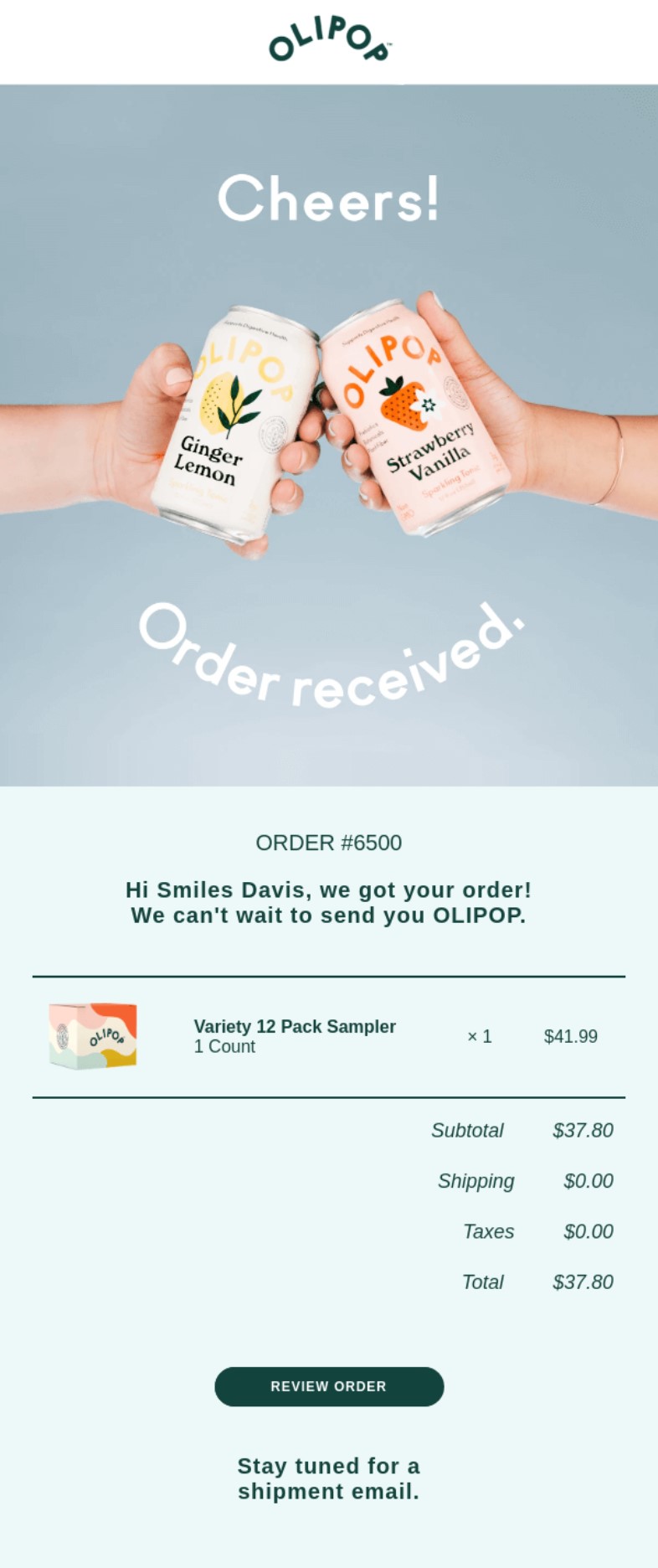
OLIPOP starts with a strong product image and playful copy, then moves into the order summary. It keeps the transactional content clean, and the whole email feels distinctly OLIPOP.
The “Stay tuned for a shipment email” line at the bottom also sets expectations for what comes next. That single line does something most order confirmation emails miss — it turns a one-off send into the start of a sequence the customer actually anticipates.
Instacart
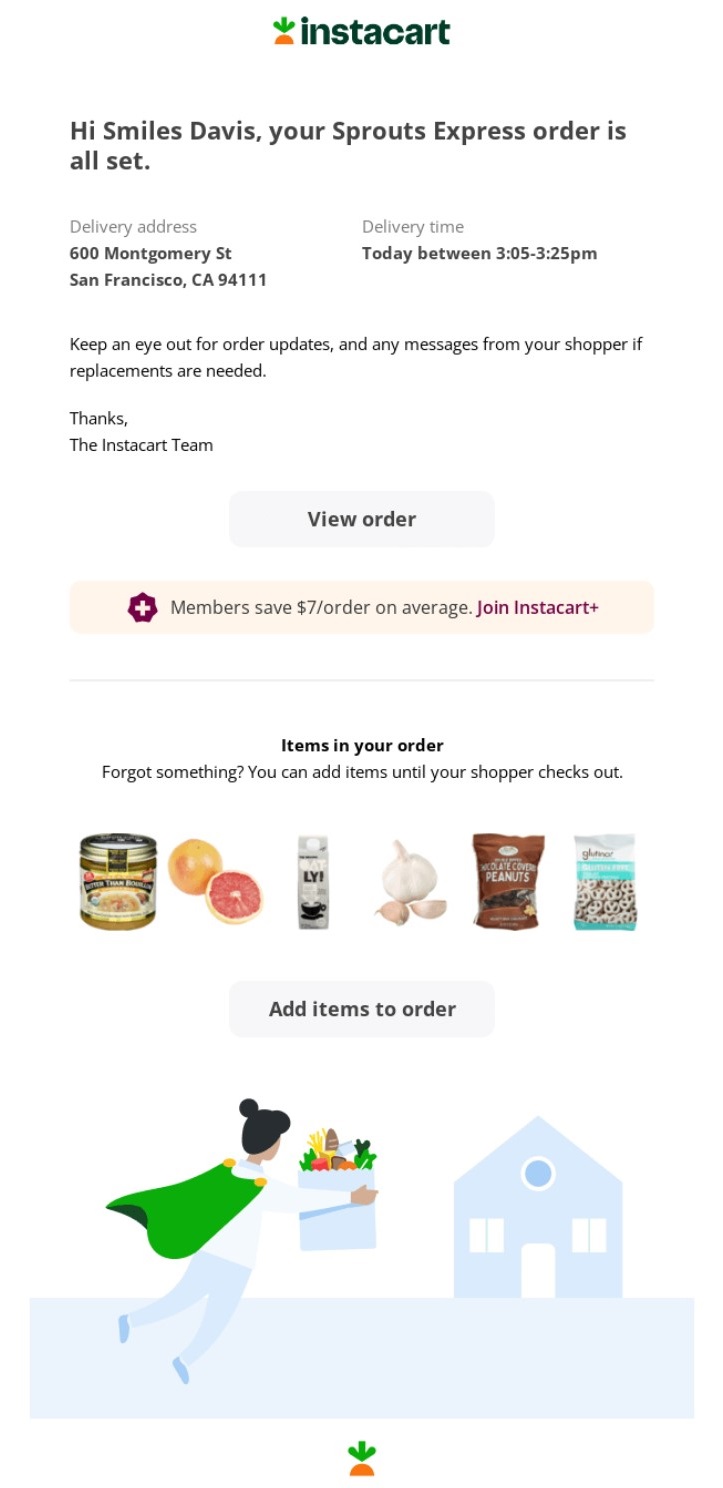
Instacart puts the most time-sensitive information (delivery address and delivery window) at the very top. Everything else comes after.
The “Add items to order” CTA is a smart single-action prompt that adds value without feeling pushy. This is a good example of the 80/20 rule applied well. Notice also that the upsell sits below the fold. The customer gets what they need first, and the marketing element comes second.
URTH
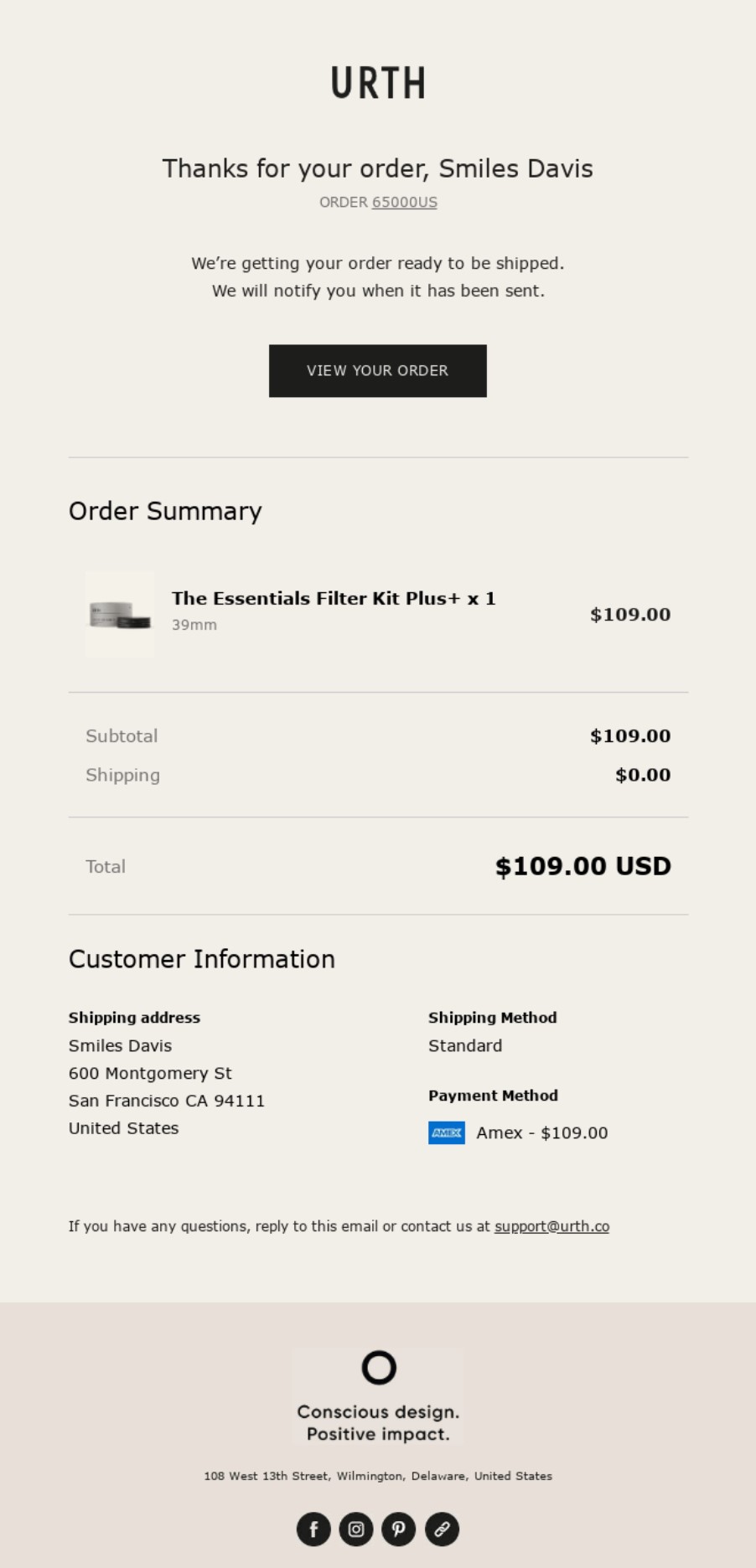
URTH keeps it simple, using no hero image and no marketing content. It relies on just clean typography, a complete order summary, and a prominent support contact. For a premium brand, that simplicity signals confidence. It also loads fast and renders cleanly on any device.
The support email address in the footer is a small but deliberate touch. It tells the customer exactly where to go if something goes wrong, without making the email feel defensive.
Metrics and benchmarks: How to measure order confirmation performance
Knowing whether your order confirmation automation is working means tracking the right numbers. Here are the benchmarks to measure against, all from the cited 2026 Omnisend report:
- Open rate (benchmark: 53.99%): Order confirmation emails far outperform standard marketing campaigns, which average 30.70%. If your open rate falls well below 50%, check your subject line, sender name, and deliverability setup.
- Click-to-sent rate (benchmark: 7.71%): This measures how many recipients clicked something in your confirmation. A rate below five percent suggests your CTA isn’t clear or your layout isn’t driving action.
- Click-to-conversion rate (benchmark: 14.25%): Nearly one in seven clicks on an order confirmation automation results in a purchase. This is one of the strongest conversion signals of any automated email.
- Conversion rate (benchmark: 1.10%): This reflects the share of all recipients who converted directly from the order confirmation email. It’s a useful baseline for measuring the direct revenue impact of your workflow.
- Average order value (benchmark: $145): Track this alongside your conversion rate. A rising AOV suggests your order confirmation automation is influencing purchase behavior — especially if you include cross-sells or upsells.
- Revenue per email (benchmark: $1.60): Order confirmations earn $1.60 per send on average. That figure grows when you add an SMS step or extend into a full post-purchase sequence.
Track these inside Omnisend’s automation reporting dashboard. Each workflow shows all key metrics in one view:
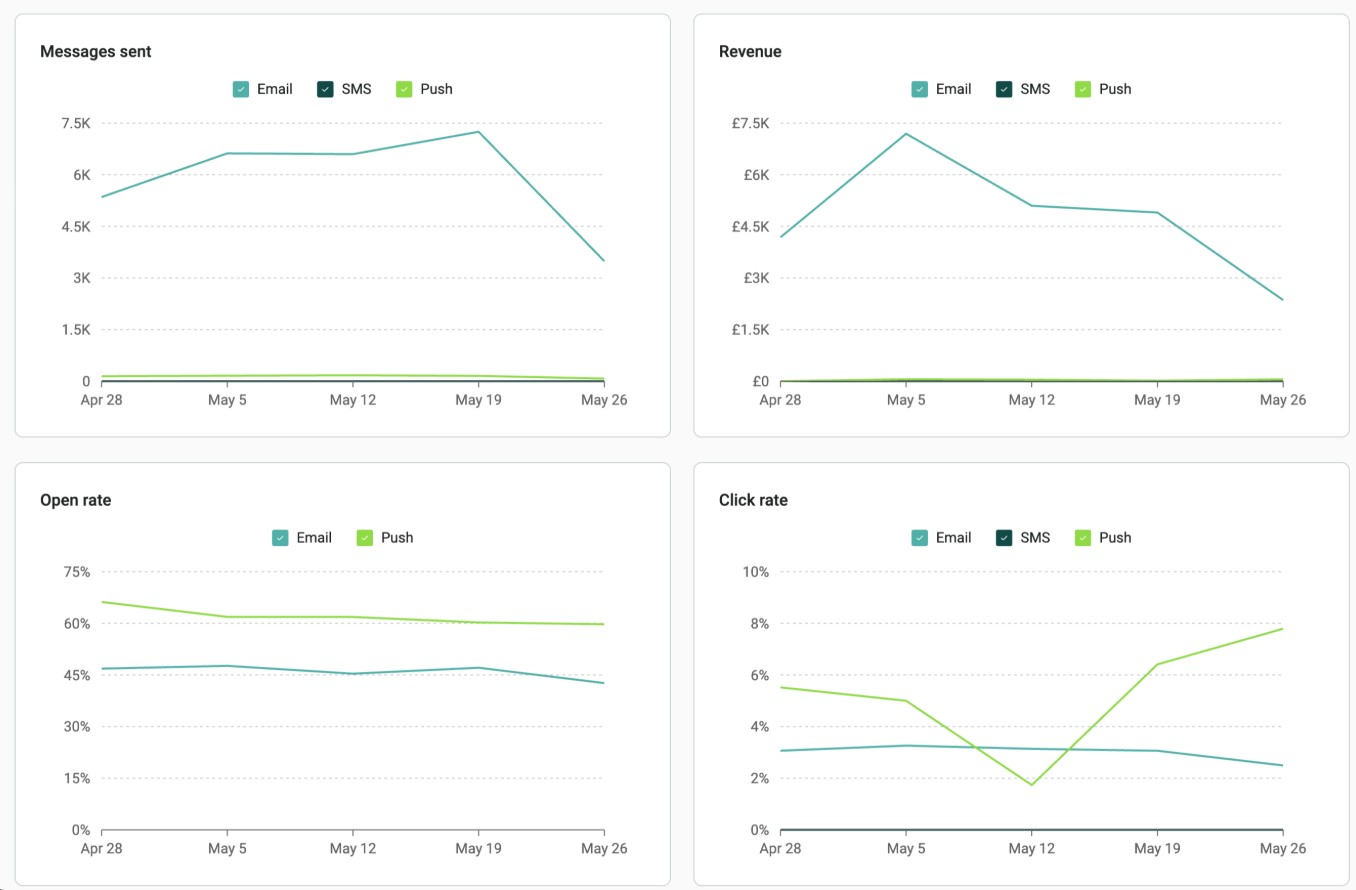
Once you have your baseline, test your order confirmation email subject line and send timing. A first-name token in the subject line is one of the simplest changes you can make. This consistently lifts open rates on high-volume workflows.
Testing send delay is also worth trying — a two-minute delay after order placement can improve deliverability on some setups.
If your click rate is the weak point, test your CTA copy. Something as simple as changing “View order” to “See your order details” can meaningfully shift engagement.
Which order confirmation automation tool is right for you?
Every platform covered in this guide has a real limitation.
Shopify Messaging wasn’t built for transactional order confirmation automations. WooCommerce native requires a developer for any meaningful customization. Klaviyo does the job well, but gets expensive fast. Mailchimp works for general marketing but needs a paid add-on for advanced transactional setups.
The right tool depends on your platform, your list size, and whether SMS is part of your strategy.
For most growing ecommerce stores, order confirmation automation needs to do more than send one email. It needs to cover both channels, trigger a post-purchase sequence, and fit within a budget that scales reasonably.
That’s where Omnisend stands out. It combines email and SMS in a single workflow, offers a free plan with access to core features, and delivers $79 for every $1 spent. It’s purpose-built for ecommerce — and it shows.
Start with the free plan and build your first order confirmation automation today.
Quick sign up | No credit card required
FAQ
What is order confirmation automation?
Order confirmation automation is a workflow triggered by a purchase event. It sends a confirmation email — and optionally an SMS — to the customer right after they place an order. No manual action required.
Is an order confirmation email considered a receipt?
Yes, in most cases. It serves as proof of purchase. It includes the key transaction details a customer would expect to see on a receipt, such as the order number, itemized summary, pricing breakdown, and payment method. For tax or return purposes, customers often refer back to this email, so accuracy matters.
What is the goal of an order confirmation email?
The primary goal is to confirm the transaction and reduce post-purchase anxiety. It also sets delivery expectations, provides a support contact, and kicks off a post-purchase sequence that can drive repeat purchases.
Can I send an order confirmation via SMS as well as email?
Yes — on Omnisend’s Pro plan. You can build a single workflow that sends an email confirmation immediately and an SMS follow-up minutes later. Both are triggered by a single order event, with no separate flows needed.
How do I switch from Klaviyo to Omnisend for order confirmation emails?
Connect your store to Omnisend. Use the in-app migration tool and import your Klaviyo contacts. Use the pre-built templates to rebuild your order confirmation automation workflow. Test it and then disable Klaviyo’s version to prevent duplicate sends.
What should I include in an order confirmation email?
At the very least, your order confirmation email automation should include:
- Order number
- Itemized summary
- Pricing breakdown
- Shipping address
- Estimated delivery date
- Payment method confirmation
- Customer support link
A tracking link placeholder is also worth including, so it populates automatically once the order ships.