Omnisend AI
 Migration

 OFFER
OFFER










August wasn’t a quiet month. Between Send Time Optimization landing, Reports AI opening up to all paid users, and a fresh batch of integrations, there’s a fair bit to catch up on before Q4 planning takes over.
Read on for the full breakdown, or watch the overview if you’re short on time:
Send Time Optimization for email campaigns
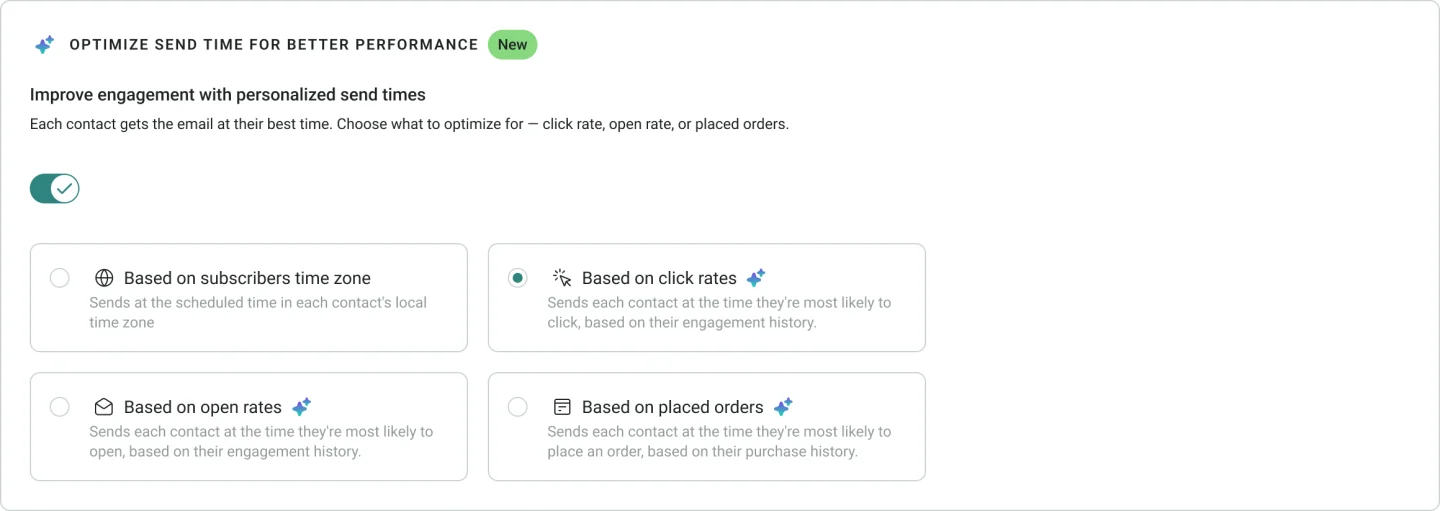
You don’t have to guess when to send anymore. Send Time Optimization is now live for email campaigns, and it picks the best send time for each contact based on your brand’s engagement history.
You get to decide what it optimizes for — click rates, open rates, or placed orders — depending on what you’re actually trying to move. Emails go out within 24 hours of your selected date. And for contacts who don’t have much individual engagement history yet, there’s a brand-level fallback that draws on your store’s overall patterns, so nobody gets left out.
It’s included on the Pro plan. Standard plan users can add it on, and legacy Pro users will need to migrate to the current Pro plan first.
👉 Learn more about scheduling your campaigns
Omnisend is now a connector in Claude
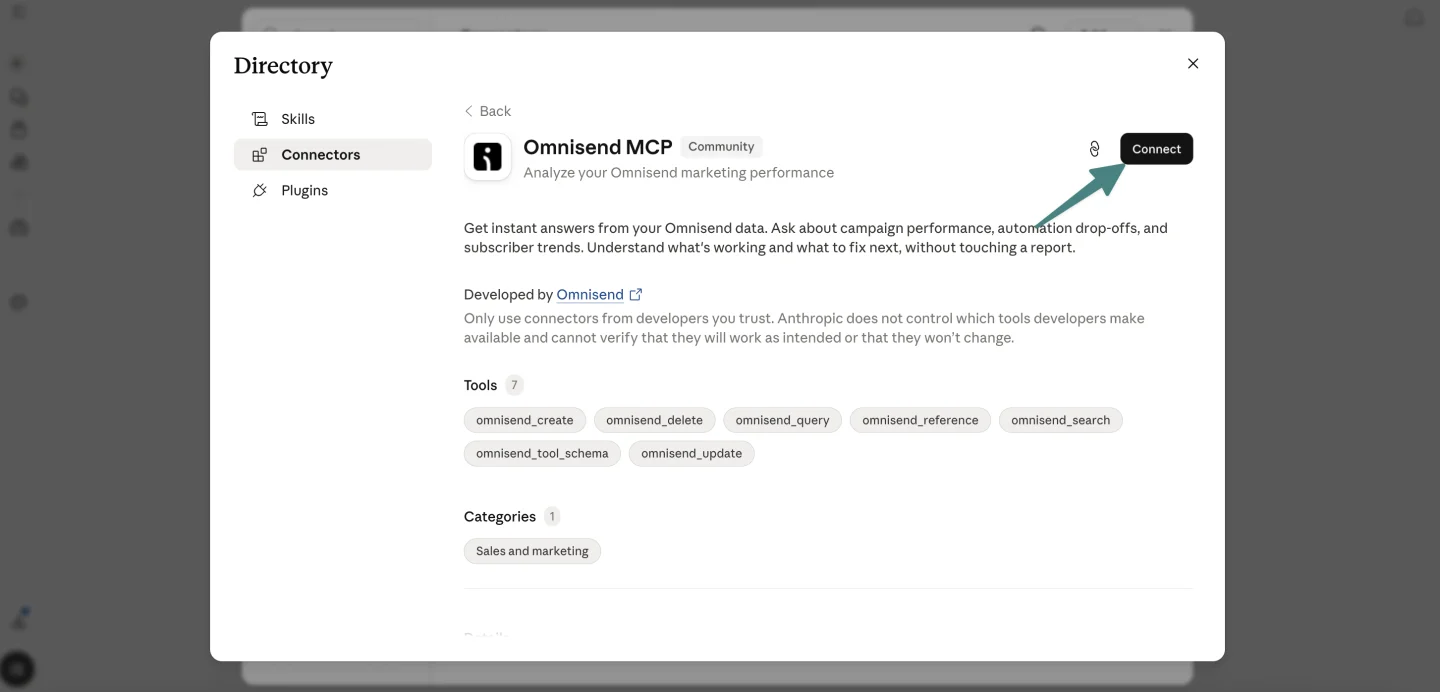
You can connect your Omnisend account to Claude straight from Claude’s Connector Directory. No custom URL setup, no copy-pasting endpoints.
Once you’re connected, you can ask Claude natural-language questions about your campaigns, automations, and performance data. It can also help you draft email campaigns, build segments, and compare results over time — all inside the tool you’re already working in.
To set it up, go to Customize → Connectors → Add → Browse connectors in Claude and search for Omnisend.
Better email templates through MCP
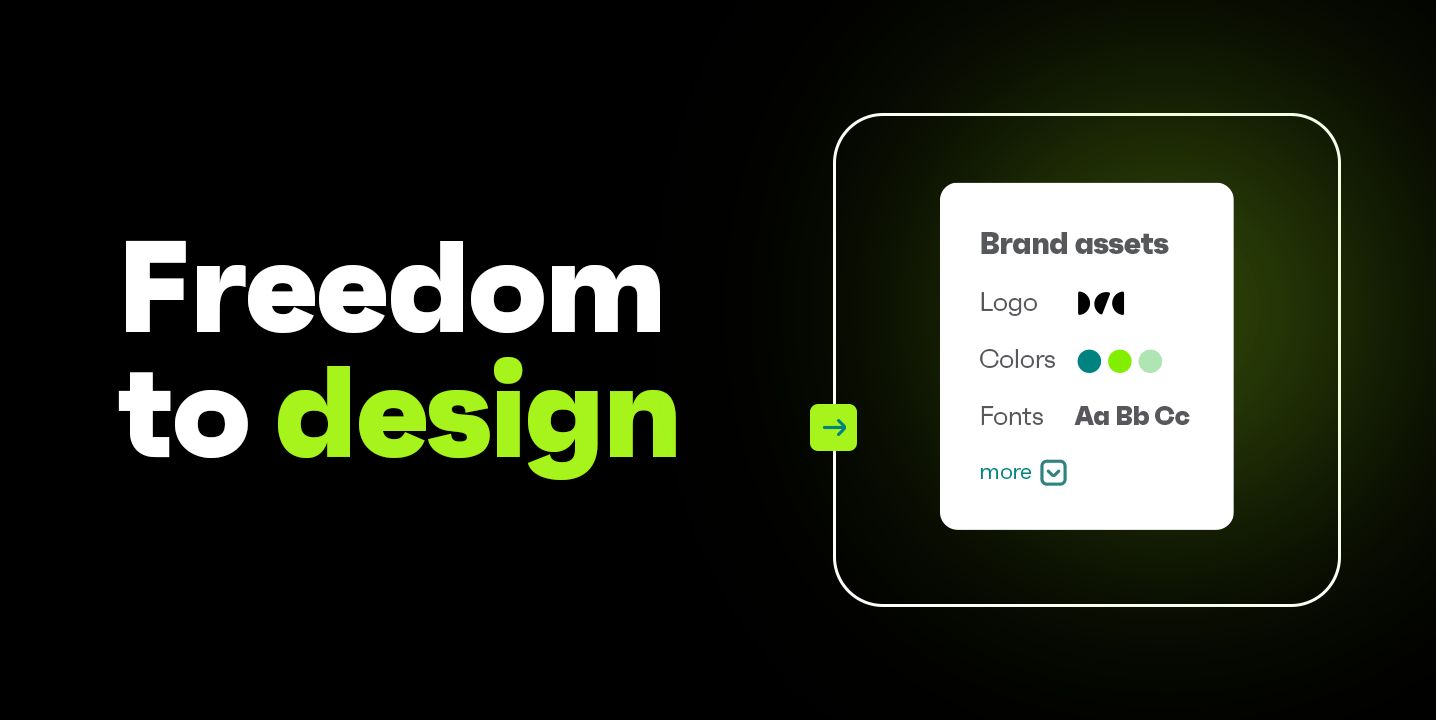
Templates generated through Omnisend MCP have taken a real step up. They now use Omnisend’s structured data format and your store’s Brand Assets, which means what you get back is on-brand from the first draft — your colors, fonts, and logo already in place.
Worth noting: you may need to reconnect to the MCP server for this, since a new permission has been added.
Granular permissions on MCP authorization
You now have proper control over what each connected AI tool can actually do in your Omnisend account. When connecting an app, the authorization screen lets you toggle read and write access separately for each data area. Grant exactly what’s needed, nothing more.
Small housekeeping note: ChatGPT doesn’t auto-update plugins, and Omnisend MCP is moving fast. Check in for updates periodically and reinstall when there’s a new version.
👉 Learn more about Omnisend MCP capabilities
Reports AI is now open to all paid users
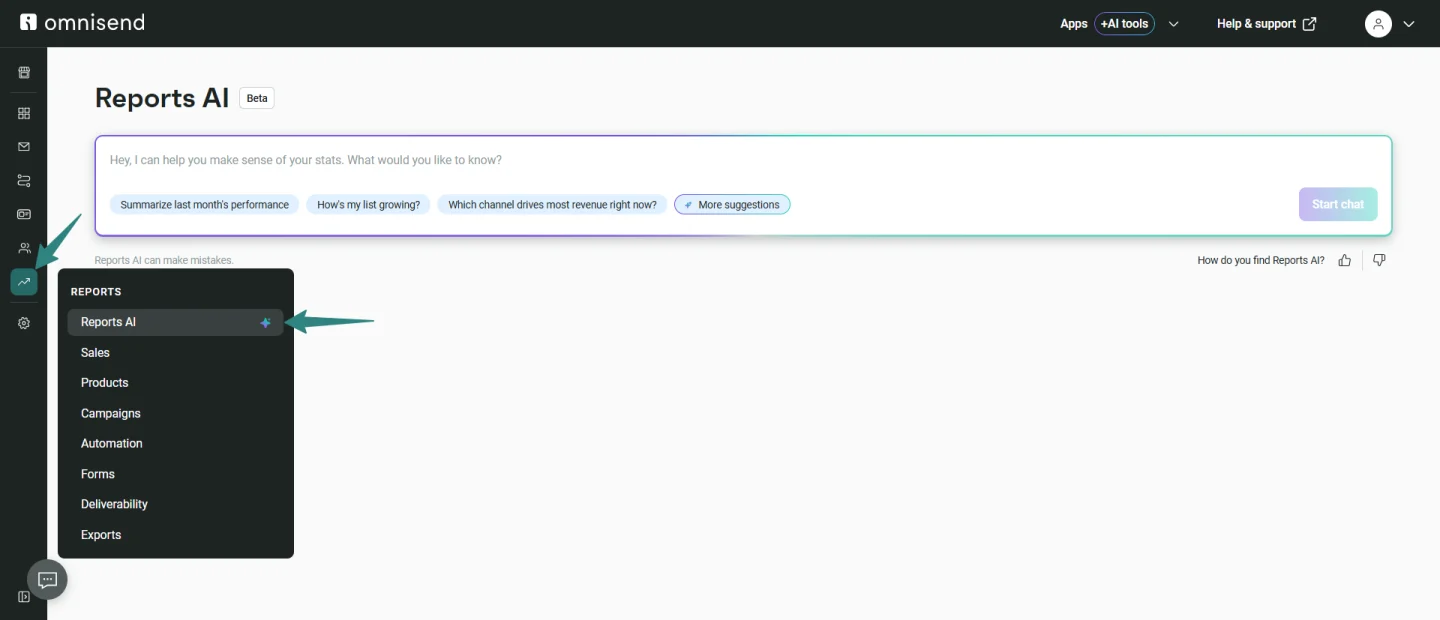
Instead of scrolling through charts trying to piece together what’s actually happening in your account, you can now just ask. Type a question in plain language, get an answer based on your real Omnisend data, right where you’re already working.
You can open Reports AI from any report page — Sales, Products, Campaigns, Automations, Forms, Deliverability — as well as from the Dashboard Overview or the standalone Reports → Reports AI page.
Here’s what it can do:
- Answer questions about your performance. Type your own or pick from predefined prompts, like “Which campaigns generated the most revenue this month?” or “Why did my open rates drop last week?”
- Summarize individual reports. Open any specific campaign, automation, or form report and click Get summary for a breakdown of your selected date range.
- Cover everything in one conversation. A single session can answer questions across every reporting area in your account, not just the page you started on.
- Suggest follow-ups. After each answer, you’ll see clickable follow-up questions so you can keep exploring without retyping.
- Run in the background. Ask a question, go do something else in Omnisend, come back when it’s ready.
- Pair form data with recommendations. Ask about form performance and Reports AI will combine the insights with actual improvement suggestions you can apply straight from the chat.
Included on Standard and Pro plans. Free plan users can see the chat and start typing, but sending a message will prompt an upgrade.
One thing worth keeping in mind: AI-generated responses can occasionally miss the mark, so always cross-check anything important against your actual report data before acting on it.
Fullscreen signup forms
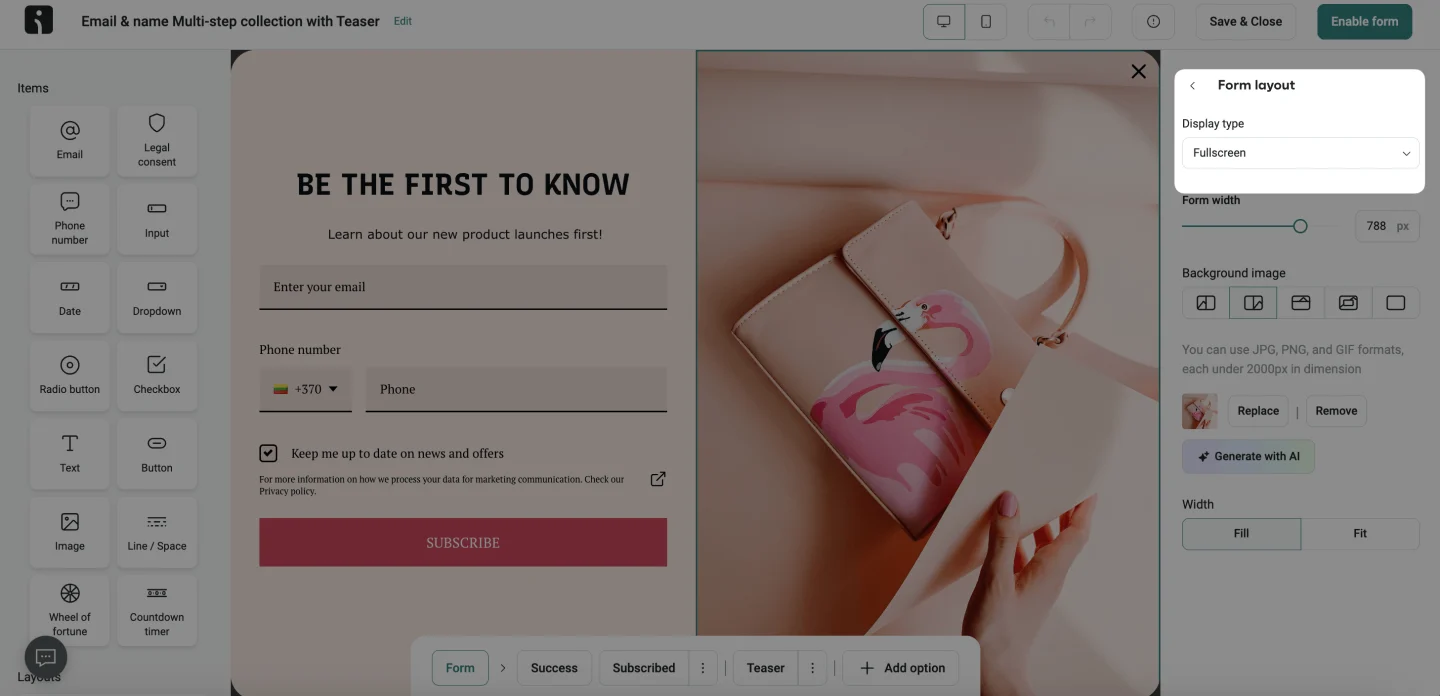
There’s a new form type in the mix. Fullscreen forms take over the visitor’s entire screen, stripping away everything else on the page so all the attention lands on a single message or offer. A strong pick when the moment calls for it — newsletter sign-ups, product launches, seasonal promotions, that kind of thing.
You can switch any existing popup or flyout to fullscreen under Theme Settings → Form Layout → Display Type.
👉 Learn more about Omnisend form types
Form-specific details now show in Contact activity
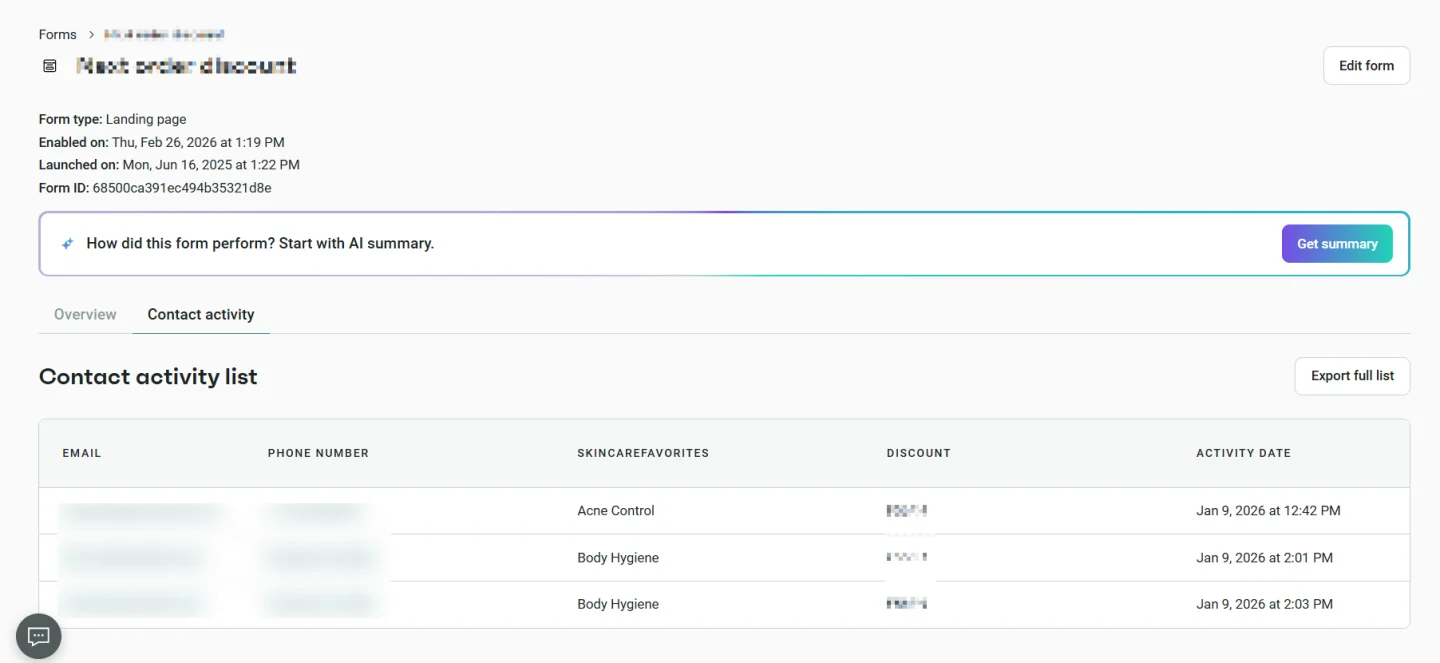
You can now see the exact details a contact submitted through a form directly in Contact activity — no more opening individual profiles or cross-referencing separate data. What’s shown matches the fields in the submitted form and what’s captured in Contact activity exports.
Particularly handy for surveys, quizzes, and preference-collection forms, where spotting patterns quickly actually matters.
A batch of new integrations
Plenty of new integrations landed this month across a few categories:
Analytics & Reporting
- Coefficient — Connect Omnisend to Google Sheets or Excel and pull in live campaign, automation, contact, and revenue data without the manual CSV export routine. Build auto-refreshing reports, combine Omnisend data with other sources, set up performance alerts.
Customer Support
- eDesk — Trigger Omnisend workflows in real time when eDesk tickets are created, resolved, or set to waiting. Good for support follow-up sequences and re-engagement after issues get sorted.
- Commslayer — Sync Commslayer contacts into Omnisend and trigger workflows when support conversations are opened, resolved, or snoozed.
- Help Scout — Trigger workflows in real time from Help Scout activity, including new chat sessions and conversations being created, moved, or assigned.
Returns Management
- Redo — Sync return events from Redo into Omnisend to trigger targeted email and SMS automations whenever a customer creates or updates a return.
- 8returns — Every stage of a return — registered, label created, arrived, inspected, refunded, canceled — flows into Omnisend as a custom event, ready to power automations.
Events
- Eventbrite — Trigger workflows from Eventbrite order and attendee activity, including placed and refunded orders, attendee updates, and check-ins.
Subscriptions
- Recurpay — Trigger email or SMS workflows when a Recurpay subscription changes status (created, paused, skipped, activated, canceled, or expired).
Loyalty & Referrals
- TrustWILL Loyalty & Rewards — Sync customer loyalty data, including points balance and VIP tier, for loyalty-based segmentation and personalized messaging.
- KickoffLabs — Trigger workflows from KickoffLabs giveaway, referral, and waitlist activity, including new signups, verifications, and referrals.
Customer Intelligence
- RetentionX — Pass behavioral data, purchasing patterns, and lifecycle signals from RetentionX into Omnisend to trigger event-based automations and personalize messaging for high-value customers.
- SurveySparrow — Trigger workflows in real time when survey responses come in. Handy for NPS follow-ups and post-purchase feedback sequences.
A few smaller UI things worth knowing about
We ship usability updates every week, but a couple from this month deserve a mention:
- “View in browser” is back in test emails. Test emails from Campaigns now include the link, so you can share a browser preview with your team without sending a live campaign to a segment first.
- “Let me choose segment” is now the default audience. When creating a new campaign, you’ll be nudged toward intentional targeting from the start, which is better for engagement and deliverability. Copying a campaign follows the same default, with one exception: copies of an “everyone except X” audience keep their original selection.
- Tidier tables on mobile. Campaigns, Automations, and Forms all got responsive design improvements, so managing lists on smaller screens is less of a squint.
And as always, a bunch of smaller polish updates scattered around the app — the kind you don’t notice until you do.