Omnisend AI


 OFFER
OFFER










Just because an email is delivered doesn’t mean it lands in an inbox. When important emails end up in spam or promotions, subscribers miss important updates. Brands can lose engagement, conversions, and customer trust.
That’s why it’s important to learn how to whitelist an email address. This process signals your email provider that emails from a certain sender are trustworthy. As a result, those emails are less likely to end up in spam.
This step-by-step guide explains how to whitelist an email address in major email providers. You’ll learn how to ask subscribers to whitelist your emails and what to do when messages still end up in spam.
What is email whitelisting (and why it matters)?
Email whitelisting involves adding a sender to an approved list, allowing their messages to bypass spam filters and reach your inbox. It allows recipients to control what reaches their inbox and also helps trusted senders stay visible.
Now consider this — you place an order, expect the confirmation email within seconds, and see nothing in your inbox. Then, you check your spam folder and find the message sitting there with the other junk mail.
This is exactly what email whitelisting helps prevent. It tells your email provider that you trust a sender and want to receive their emails.
Depending on which platform you use, you may see this referred to as an allowlist or a safe sender’s list. While the terminology varies between Gmail, Outlook, and Apple Mail, the function remains the same.
An email whitelist is the opposite of an email blacklist. Where whitelisting helps trusted senders get through, a blacklist blocks senders you don’t want to hear from.
This post guides both recipients who want to keep important emails out of spam and marketers who need their campaigns to reach the inbox.
If you’re a recipient, we’ll show you how to whitelist an email address, so order confirmations, account updates, and alerts end up in your inbox. For marketers, you’ll learn how to guide subscribers to whitelist your email so campaigns are easier to find.
In 2023, spam made up 45.6% of global email traffic, down from nearly 49% in 2022, but still a majority of emails sent worldwide (Statista, 2023)
How to whitelist an email address in Gmail
To whitelist in Gmail, you’ll need to create a filter that sets a permanent rule for your inbox. This is more effective than simply clicking “Not Spam” on a single email. It also guarantees that future messages from that sender are delivered to your primary inbox.
Follow these steps for whitelisting an email address in Gmail:
Step 1: Open Gmail, and click the Settings gear icon in the top right corner
Step 2: Select See all settings from the dropdown menu
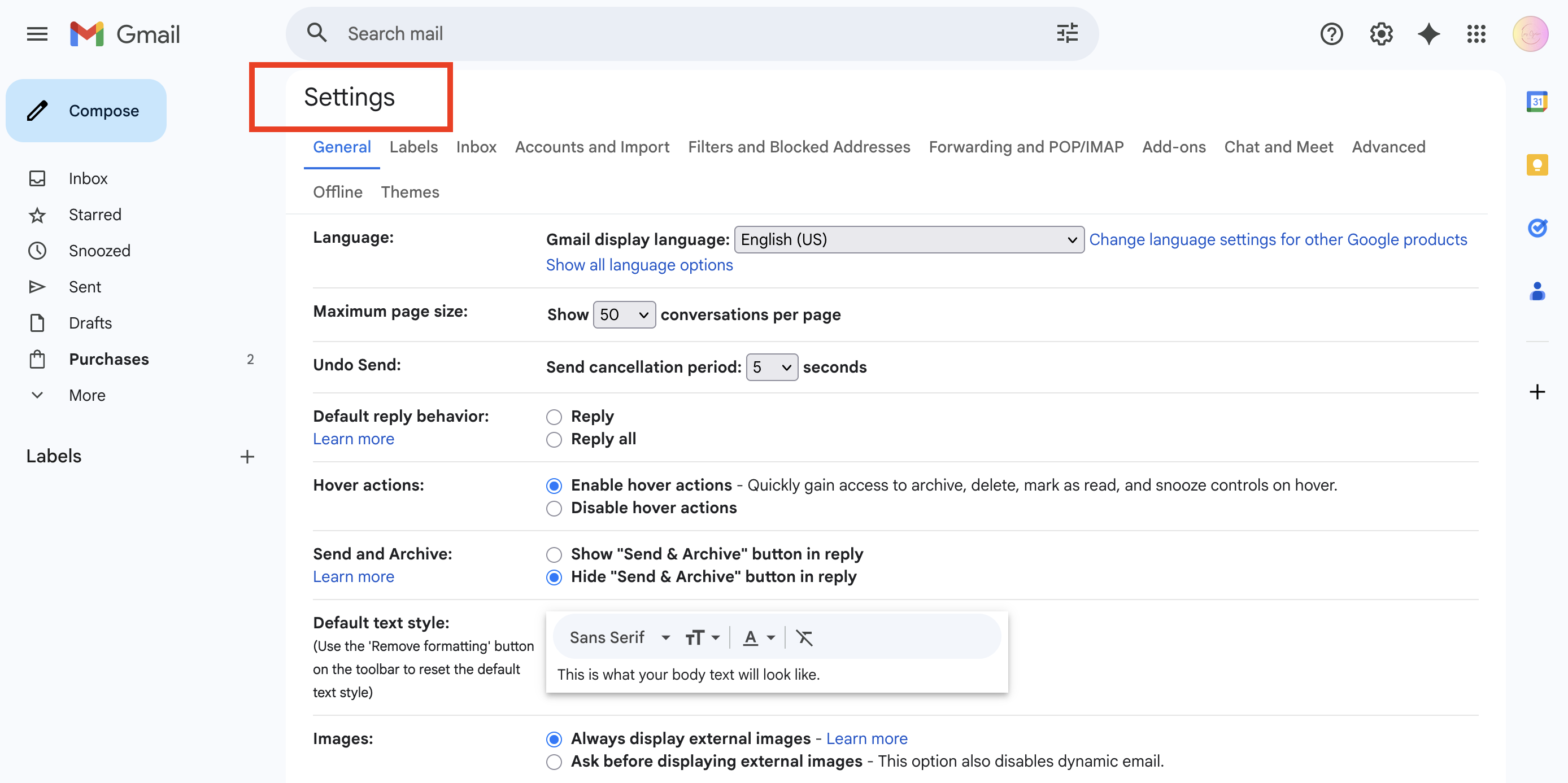
Step 3: Click the Filters and Blocked Addresses tab in the top navigation bar
Step 4: Select Create a new filter
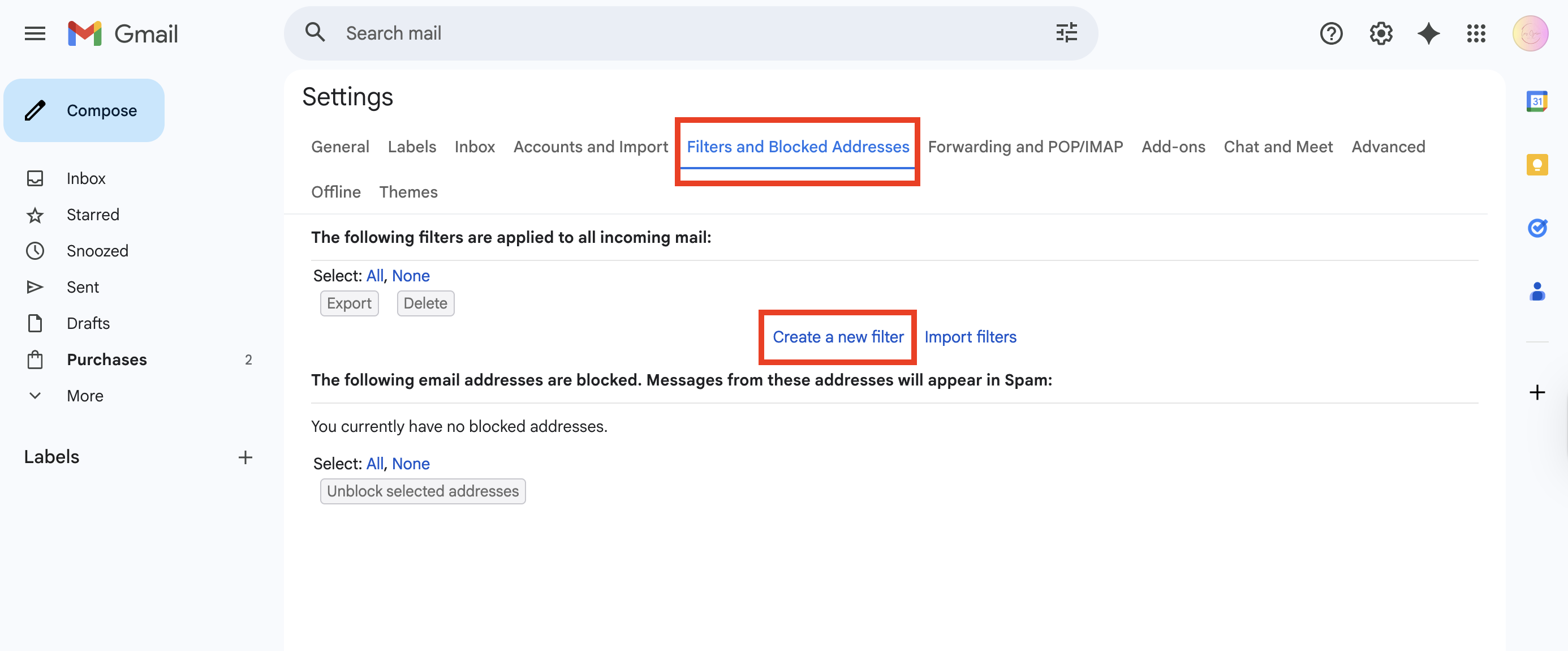
Step 5: In the From field, enter the email address you want to whitelist
Step 6: Click Create filter
Step 7: Check the Never send it to Spam box and click Create filter again to save your rule
If you want to receive every email from a company, whitelisting their domain works better than approving one sender address. Instead of typing a full email address in step five, simply enter the domain in this format @brand.com. This whitelists every address from that domain or brand.
Furthermore, if you find a legitimate email in your Promotions tab that you’d rather see in your Primary inbox, you can use the drag-and-drop method. Click and hold the email, drag it over to the Primary tab, and release.
A small box will appear asking if you want to do this for all future messages from that sender. Click “Yes” if that’s what you want.
While these instructions are tailored for desktops, the steps remain the same for Android users. This is because Gmail is the default client on Android devices. Any filter you create on your desktop will automatically apply to your mobile devices.
How to whitelist an email address in Outlook
Whitelisting an email address in Outlook involves adding the sender to your Safe Senders list. The steps to follow depend on whether you’re using the new Outlook interface or the classic desktop app.
New Outlook and Outlook on the web
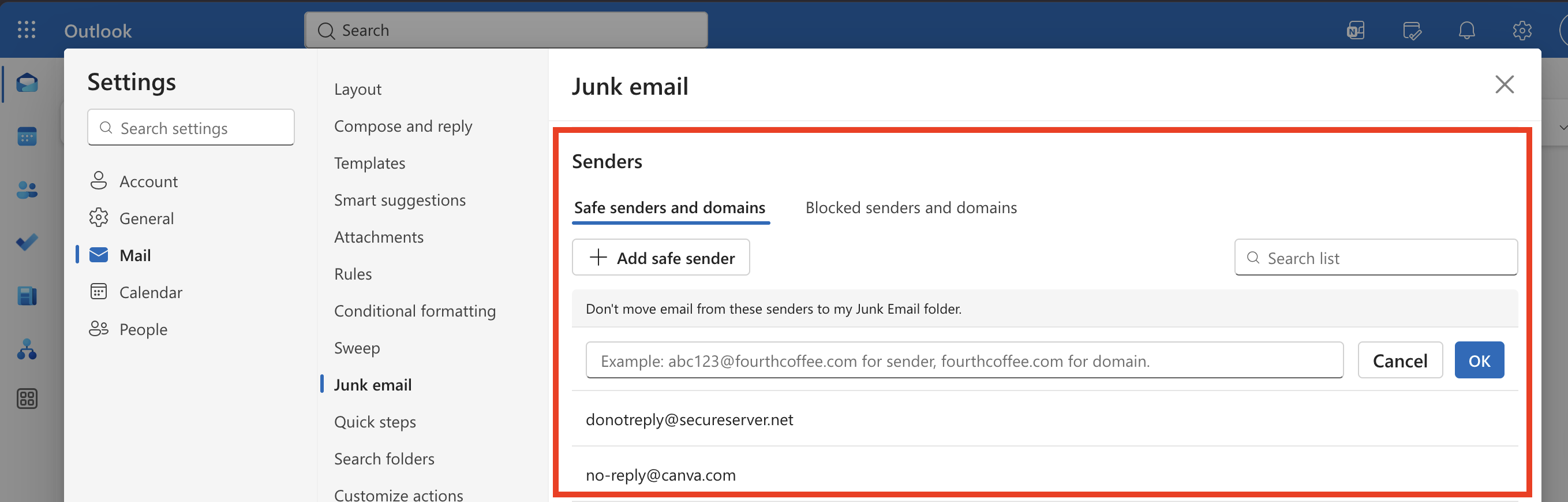
In new Outlook and Outlook on the web, you can whitelist a sender by adding them to the Safe senders and domains tab under Junk email settings.
If you want to know how to add a safe sender in the new Outlook, follow these steps:
Step 1: Open Outlook and click the Settings gear icon in the top-right corner
Step 2: Select Mail in the left sidebar
Step 3: Click Junk email
Step 4: Under Senders, open the Safe senders and domains tab
Step 5: Click the + Add safe sender button and enter the sender’s full email address
Step 6: Click OK and Save
Classic Outlook (desktop app)
In the classic Outlook, you can whitelist a sender from the Junk E-mail Options window.
Step 1: Open classic Outlook and go to the Home tab
Step 2: Within the Delete group, click Junk
Step 3: Select Junk E-mail Options
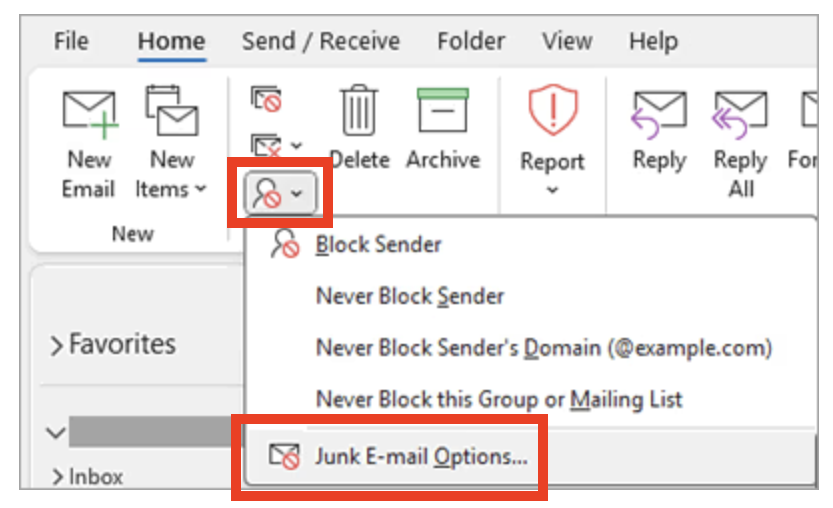
Step 4: Open the Safe Senders tab and click Add
Step 5: Enter the sender’s email address or domain
Step 6: Click OK
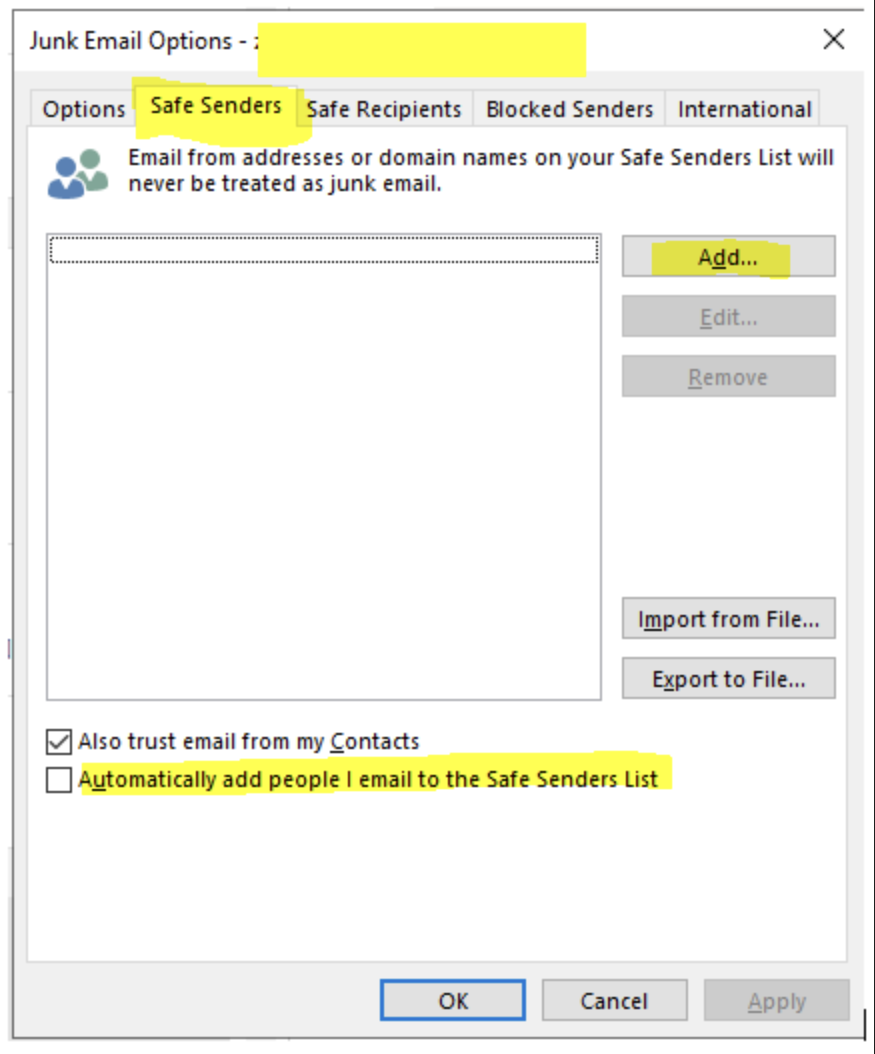
Whitelisting a domain with @brand.com in the Safe Senders field also works in Outlook.
If you manage Microsoft 365 for an organization, individual whitelisting isn’t the best option. In these cases, it’s best to set organization-wide allow rules. Admins should navigate to the Microsoft Defender admin center to configure “Tenant Allow/Block Lists.”
Even with safe sender settings in place, inbox providers look at other trust signals. Deliverability insights from tools like Omnisend can help you spot issues affecting inbox placement that go beyond a single subscriber’s settings.
How to whitelist an email in Yahoo Mail, Apple Mail, and other clients
The steps for whitelisting an email address depend on the app you use. Yahoo uses filters, while Apple Mail uses rules on Mac and contact-list trust on iPhone and iPad.
Yahoo Mail
In Yahoo Mail, whitelist an email address by creating a filter that sends messages from that sender to your Inbox.
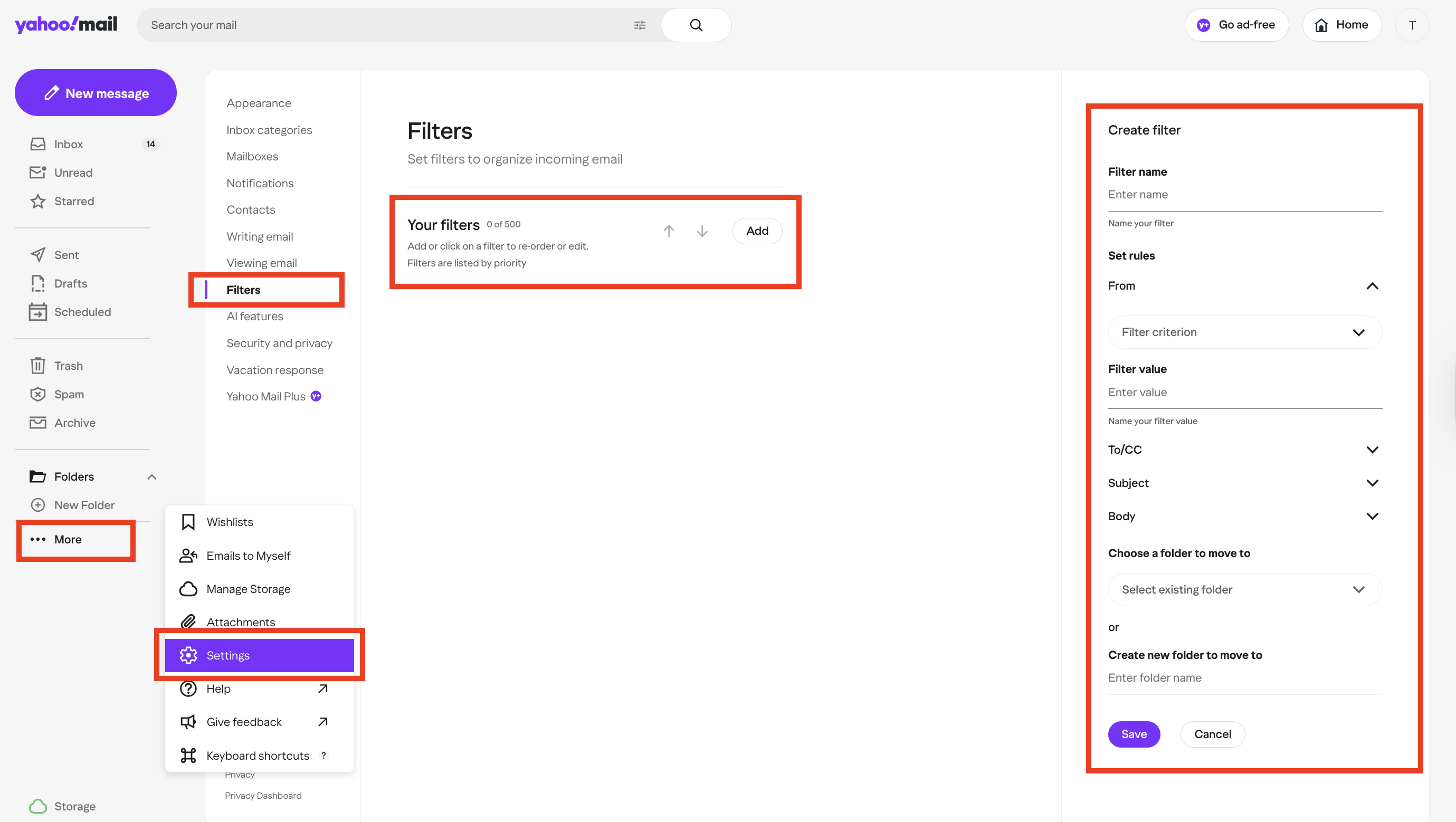
Step 1: Open Yahoo Mail and click More
Step 2: Select the Settings gear
Step 3: Click Filters
Step 4: Select Add new filters and name it (e.g., Safe Senders)
Step 5: Under the Set rules section, ensure the Sender field is set to Contains
Step 6: Type the email address or domain into the value field
Step 7: Under “Choose a folder to move to,” select Inbox and click Save
Apple Mail
To whitelist an email in Apple Mail, use a rule on Mac or add the sender to your contacts on iPhone and iPad.
macOS
On a Mac, create a rule in Mail to make sure messages from a sender reach your inbox.
Step 1: Open the Mail app on your Mac
Step 2: In the top menu bar, click Mail
Step 3: Select Settings or Preferences, depending on your macOS version
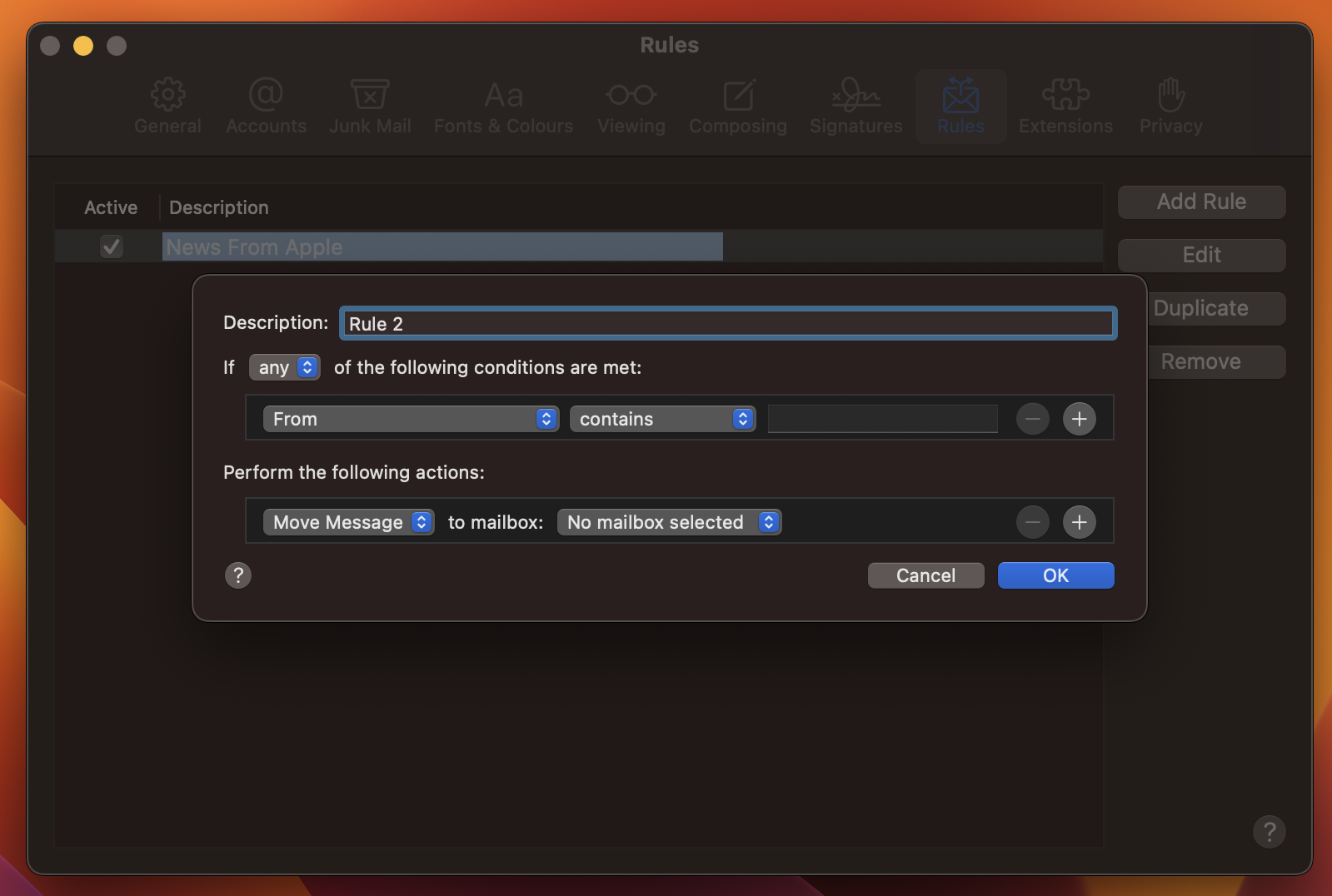
Step 4: Click Rules > Add Rule
Step 5: Name the rule
Step 6: Set the condition to If [any] of the following conditions are met: [From] [contains]
Step 7: Enter the email address or domain in the text field
Step 8: Under “Perform the following actions,” select Move Message to mailbox: Inbox
Step 9: Click OK and apply the rule to your current messages
iPhone and iPad
Whitelist an email address on iPhone and iPad by adding the sender to your contacts. This helps Mail recognize the sender as trusted, making future messages easier to identify.
Step 1: Open the email from the sender in the Mail app
Step 2: Tap the sender’s name or email address
Step 3: Choose Create New Contact or Add to Existing Contact
Step 4: Save the contact
For clients like AOL Mail, whitelist senders by clicking their name and selecting Add Contact from the dropdown menu. You can also mark wanted messages as not spam.
On Android, the exact steps depend on your email provider. However, in most cases, the mobile experience mirrors the desktop version, so saving a contact on one device usually syncs that trust signal across your account.
How to ask your subscribers to whitelist your email address
The best way to teach subscribers how to whitelist your email address is to provide clear, simple instructions directly in your email copy.
As a marketer, you can’t whitelist your own emails on a subscriber’s behalf. They must do it themselves in their inbox, so you need to ask them via your email campaigns.
The best way to do this is to ask early and repeat your request where it’s visible. The two strongest placements are:
- Welcome automation: This aligns with welcome email best practices because the first message a new subscriber opens is the best place to ask them
- Campaign footer: This way, the request is visible in regular emails without interrupting the main message
A double opt-in confirmation email is also a smart third placement option. At that point, the subscriber already expects your message, so trust is stronger, and the request doesn’t feel forced.
In subscriber-facing copy, it’s usually better to avoid the word “whitelist.” Clearer wording works better. Say things like “Add us to your contacts,” “Mark this email as safe,” or “Move us to your primary inbox.” These instructions are easier for subscribers to understand and act on.
If subscribers can quickly recognize your sender name and address, they’re more likely to act on your request. This leads to stronger engagement, which may also help improve email deliverability.
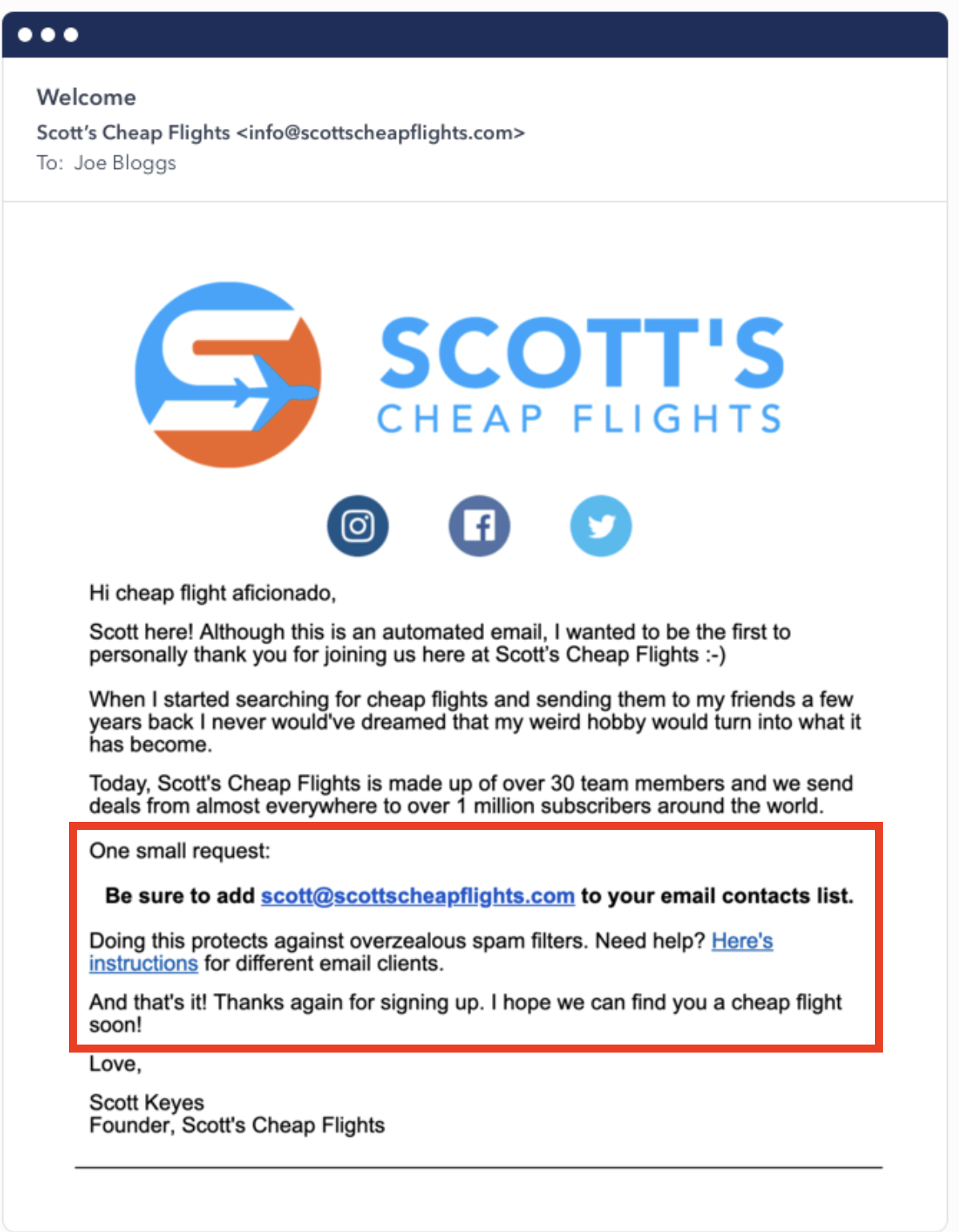
Here’s a ready-to-use template you can place in a welcome email or footer box:
One small request:
Be sure to add [your brand email address] to your email contacts list.
Doing this protects against overzealous spam filters. Need help? Here are instructions for different email clients.
If you want a more ecommerce-focused message, mention the specific benefits. For example, order confirmations, shipping updates, restock alerts, or subscriber-only offers. This makes the request feel relevant and less technical.
Email whitelisting best practices for ecommerce marketers
Email whitelisting for ecommerce marketers works best as a support tactic, not a substitute for strong sender practices. Good authentication, consistent sending, and smart email list management help more messages reach the inbox.
Here are five email whitelisting best practices to follow:
- View whitelisting as a supplement, not a substitute
Whitelisting helps individual subscribers, but it doesn’t replace technical sender authentication. Google’s sender guidelines still expect bulk senders to authenticate emails with SPF, DKIM, and DMARC.
Action: Set up SPF, DKIM, and DMARC correctly before asking subscribers to whitelist your emails.
- Use one consistent sending address
Subscribers can’t whitelist an address they don’t recognize or can’t find again. Using the same sender address across campaigns and automations makes your request clearer and easier to act on.
Action: Send from a single, consistent email address or domain so subscribers know exactly what to add to their contacts or mark as safe.
- Keep your list clean
Google notes that bulk senders must avoid sending unwanted email. Whitelisting will not protect your email sender’s reputation if your list contains too many inactive or low-quality contacts.
Action: Remove inactive contacts regularly. Suppress unengaged segments before they start dragging down your performance.
- Enable double opt-in
Double opt-in helps verify that an email address is real and that the subscriber genuinely wants to hear from you. Platforms like Omnisend also offer automation tools that can automatically ask new subscribers to add your address to their safe sender list right after they confirm their signup.
Action: Turn on double opt-in and add a short safe sender request to the confirmation flow
- Monitor domain reputation in Google Postmaster Tools
Google Postmaster Tools shows you how your emails are performing, including spam rates, delivery errors, and whether your domain meets authentication standards. It’s a useful way to catch delivery issues early, before they start affecting performance.
Action: Verify your domain in Google Postmaster Tools. Check reputation and compliance data regularly.
These practices can help improve your chances of landing in the inbox, but whitelisting is only one piece of the puzzle. For more detailed strategies, check out our guide on how to avoid spam filters and improve your inbox placement.
Why emails still go to spam even after whitelisting
Whitelisting doesn’t guarantee inbox placement because mailbox providers still consider your domain, engagement rate, and email content. While it helps at the inbox level, it doesn’t improve your sender reputation with major Internet Service Providers (ISPs).
Think of whitelisting as a single homeowner inviting you in, while the neighborhood security (the ISP) still views your vehicle as suspicious.
When one person adds your address to their contacts or safe senders list, that action affects only their inbox. It doesn’t tell Gmail, Outlook, Yahoo, or other providers to trust your domain entirely.
This is one reason emails go to spam even after whitelisting. While personal inbox settings can help, mailbox providers still apply broader filtering rules. Those rules often carry more weight than one recipient’s preferences.
Even if a subscriber has added you to their safe senders list, four other factors can override that individual filter.
One major factor is server-level ISP filtering. If a provider notices signs of risk at the domain level, it may still route the email to spam. The recipient’s personal filter won’t have much effect.
High bounce rates and spam complaints can outweigh individual whitelisting efforts. If too many emails are sent to invalid addresses or too many recipients mark your messages as spam, mailbox providers may start to see your sending domain as untrustworthy.
Poor engagement signals can have a similar effect. If recipients stop opening, clicking, or replying to your emails, providers may read that as a sign that your messages are unwanted. Over time, weak engagement can make inbox placement harder.
Content issues matter as well. Broken images, misleading subject lines, spam-trigger phrases, and messy HTML can all raise red flags. Even if the sender is trusted, the message itself can still look suspicious enough to be filtered.
Here are four quick fixes to these issues:
| Issue | Why it hurts deliverability | What to do |
|---|---|---|
| Server-level ISP filtering | Mailbox providers may flag your sending domain as risky and route emails to spam regardless of individual whitelisting. | Authenticate your domain with SPF, DKIM, and DMARC and maintain a strong sender reputation. |
| High bounce and spam complaint rates | Too many invalid addresses or spam reports can make providers view your domain as untrustworthy. | Remove inactive or invalid contacts and monitor complaint and bounce rates closely. |
| Poor engagement | Low opens, clicks, and replies can signal that recipients don’t want your emails, making inbox placement harder over time. | Improve targeting, segmentation, and email relevance to encourage engagement. |
| Content issues | Broken images, misleading subject lines, spam-trigger phrases, and messy HTML can make individual emails look suspicious. | Review subject lines, images, links, and email formatting for potential spam signals before sending. |
If you want to know why emails go to spam, you need to look beyond whitelisting and fix the sending issues that affect inbox placement at scale.
Quick sign up | No credit card required
FAQ
Is whitelisting the same as adding an email address to contacts?
It’s not always the case, but they’re closely related. In some email apps, adding a sender to your contacts helps mark them as trusted. In others, you may also need to create a filter or add the sender to a safe list.
Is a whitelist the same as an allowlist or a safe senders list?
In most cases, these terms mean the same thing. Different email providers use different labels, but they all refer to a list of trusted senders. Gmail often uses filters, while Outlook calls it Safe Senders. The goal is the same: preventing wanted emails from ending up in spam.
Can I whitelist a full domain instead of one email address?
Yes, many email clients let you whitelist a full domain rather than a single sender address. That means emails from an entire brand can be treated as trusted. This is useful when a company sends messages from different addresses but uses the same domain across campaigns and updates.
Does whitelisting guarantee inbox placement?
No, whitelisting doesn’t guarantee inbox placement. It can help your emails get through more consistently for a specific recipient, but mailbox providers still rely on things like domain reputation, spam complaints, engagement, and content quality. Because of that, emails can still end up in spam even if the sender has been whitelisted.
How can I check if an address is already whitelisted?
The easiest way is to check your email client’s trusted sender settings. In Gmail, review Filters and blocked addresses. In Outlook, check Safe senders and domains. In Apple Mail or mobile apps, look at your contacts or saved rules to confirm whether the sender is already marked as trusted.
Can I whitelist an email address on mobile?
Yes. Learning how to whitelist an email address on mobile depends on the app you use. Whitelisting often means adding the sender to your contacts or marking a message as not spam. In most cases, mobile settings sync with the desktop, so trusted sender settings may carry across the account.