
 Omnisend AI


 OFFER
OFFER







Drive sales on autopilot with ecommerce-focused features
See Features
Improving your Shopify store's load times can boost email signups by 5% and significantly increase revenue through effective maintenance practices.
Adopting a marketing-first mindset for store maintenance allows you to prioritize tasks that directly impact revenue, conversions, and customer experience.
Implementing a structured maintenance framework with weekly, bi-weekly, monthly, and quarterly tasks can help prevent downtime and optimize your store's performance.
Regular audits and checks on integrations, content, and compliance are essential to avoid costly errors and ensure your marketing efforts remain effective.
Your bounce rate is high, so you should focus on improving load times. It leads to a 5% increase in email signups, and 1% of those new subscribers purchase, with that Shopify store maintenance cascading into significant additional revenue.
Using maintenance as a revenue lever is the best mindset flip you’ll make this year. It can lower your customer acquisition costs, grow average order values, and satisfy your itch for technical changes that keep email and SMS automations running properly.
You may have already put some improvements in place for your site. Tying those changes and others to marketing performance requires considering how they affect revenue.
This guide is a blueprint for revenue-based Shopify maintenance. You’ll learn:
- Why maintenance is a marketing lever
- A framework for weekly, bi-weekly, monthly, and quarterly tasks
- How to maintain your site safely
- Using Omnisend and other integrations
- How to estimate ROI from all your efforts
Quick sign up | No credit card required
The marketing case for Shopify store maintenance
Maintaining your Shopify store impacts revenue, conversions, and the customer experience, regardless of the updates. Even a theme update can cause downtime and change something, such as the spacing between elements in your cart.
A marketing mindset requires considering how different maintenance tasks, particularly those affecting site speed, uptime, and data integrity, impact revenue and ROI and then prioritizing and implementing them appropriately.
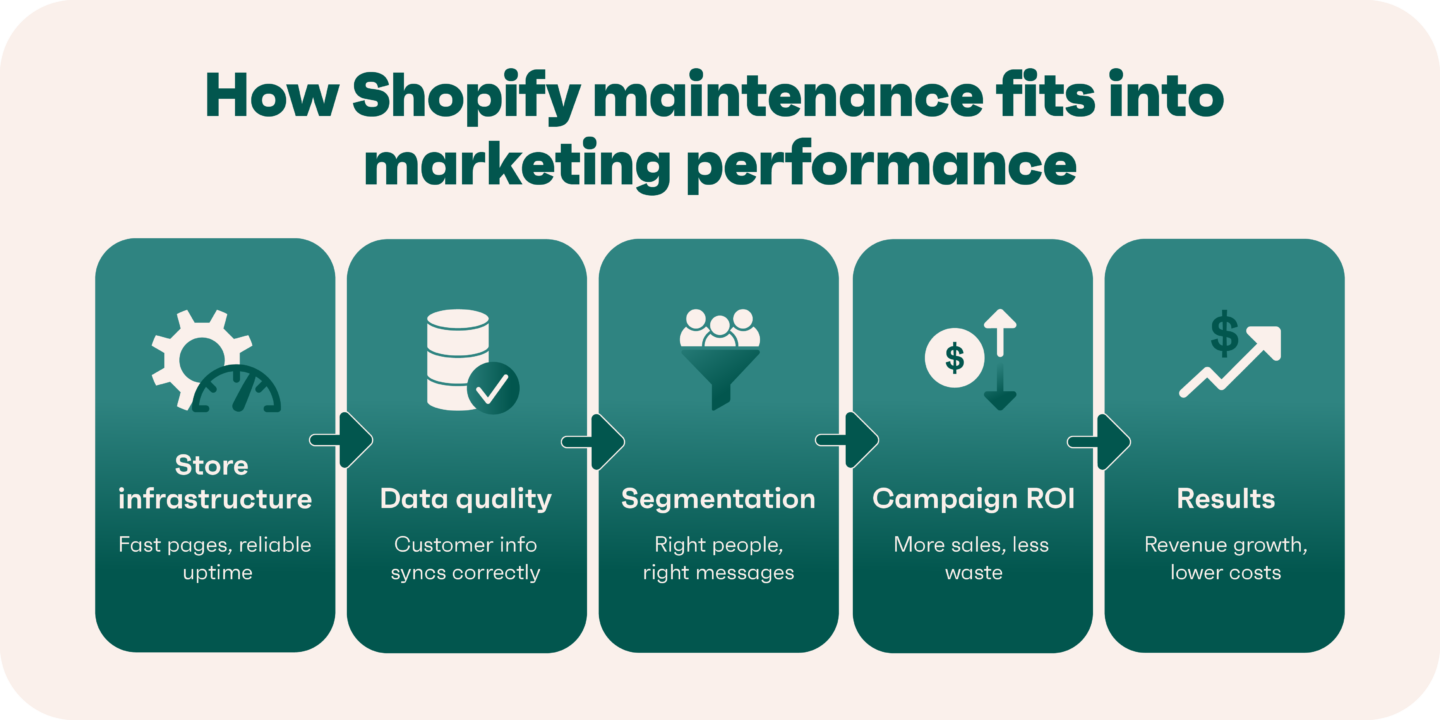
Here are some examples of these factors affecting your campaigns:
- Store downtime during one of your SMS campaigns sends customers nowhere. The average cost of one hour of downtime for 90% of midsize and large businesses is over $300,000 (Information Technology Intelligence Consulting).
- Slow-loading pages mean that click-throughs from your emails are less likely to convert, with mobile conversion rates increasing by 3% for every second saved (Yottaa).
- Inaccurate or poor data results in inappropriate targeting of SMS automations and wastes your credits, increasing costs.
Some of these could be small considerations, such as customers picking blue jeans, but your email tool not having a segment for customers who chose blue. Minor issues like that compound and become maintenance debt, slowly eroding your results.
Marketing-first Shopify store maintenance framework
Grouping maintenance tasks and prioritizing them into a neat list by revenue impact is where most Shopify store owners start, but a matrix framework is a better approach.
A framework gives you something to adjust and match with your marketing requirements, rather than just ticking off tasks without any link between them.
The table below provides a format you can reuse for your maintenance framework:
| Tier | Frequency | Tasks | Marketing impact |
|---|---|---|---|
| One | Weekly | Sync check, checkout test, page speed, forms | Campaigns convert, customers can buy |
| Two | Bi-weekly | On-site search, abandonment flows, open rates | Conversion rate optimization |
| Three | Monthly | Backups, updates, analytics, and SEO scan | Store continuity, data accuracy |
| Four | Quarterly | Content audit, integration audit, compliance | Long-term performance, legal safety |
Now, let’s cover the framework in more detail.
Tier one: Revenue-critical tasks, weekly
These are your most pressing tasks, those that affect whether customers can purchase and whether your campaigns are working. Run these Shopify store maintenance tasks:
- Shopify and Omnisend sync check: Confirm your customer data is flowing between the two so it’s up to date.
- Cart and checkout testing: Add multiple products to the cart as a customer and complete all steps to checkout. Make payments and refund yourself.
- Loading times check: Run your homepage and at least two product pages through GTmetrix and Google PageSpeed Insights. Note your score for reference.
- Form and popups: Visit your Shopify store via an Incognito/private tab so you see any first-time visitor welcome forms. Test all forms and popups for follow-up emails to ensure your welcome series runs properly.
Make time for these weekly tasks to prevent short-term sales losses and maximize conversions from your marketing campaigns.
Tier two: Conversion-supporting tasks, bi-weekly
Any tasks that support your customer journey and nudge them towards purchase enter your framework here, such as:
- On-site search and suggestions review: Check whether the quality of your search results and product recommendations align with what customers are looking for. Are they relevant enough to generate sales? If not, improve them.
- Abandonment flow triggers: An automation should run without fault, but over time, you might need to adjust your triggers for different segments. Delays and email design also affect conversion rate optimization.
- Review your open and click-through rates: Do this in Omnisend and then optimize your subject lines and content. Investigate any increases in unsubscribe rates. Review again in two weeks to check for sales upticks.
- Test your website’s responsiveness: Ensure the desktop and mobile versions look as they should. Your product and cart pages are most crucial here. Look for images that aren’t rendering and text with improper spacing.
Bi-weekly checks on your abandonment flows, website performance, and search results catch the small breaks that cost you sales before they add up.
Tier three: Foundational tasks, monthly
The forte here is anything that impacts your store’s continuity and keeps tabs on its workings. A few tasks we recommend include:
- Backups: You can use a Shopify app such as BackupMaster to automatically or manually back up your store each month — a recommended task because your site might get hacked or break if you change the code.
- Perform theme and app updates: Monthly to avoid random updates as they come out and the sporadic testing that comes with them.
- Have an analytics sanity check: Look at what Shopify’s built-in analytics and Omnisend’s email analytics say about sales, new vs. returning customers, unsubscribes, and more.
- SEO health scan: 404 errors, redirects, and drops in traffic via Google Search Console, which has a useful Insights tab for tracking pages on the up and down. Helps you figure out which content Google and your customers appreciate.
These tasks protect your store from downtime and data issues that cost you sales and waste your troubleshooting time.
Tier four: Strategic tasks, quarterly
The endgame, up until tier one comes around again next week. Tier four contains audits, reviews, and optimizations that prevent larger problems and solve many of the smaller ones that tiers one to three uncovered. Tasks to include:
- Content audit: Uncover your biggest underperforming posts and pages in Google Search Console, identify any non-evergreen content that needs fresh information, and update them to increase traffic to existing pages.
- Integration audit: Review all your Shopify apps and optimize your stack. Run site speed tools, cut non-essential apps that drag you down, and reduce the number of apps with more complex solutions, such as Omnisend for email, SMS, and push marketing.
- Compliance and privacy review: Check that your cookie policy and privacy pages are up to date. Check that your email and SMS capture touchpoints collect proper opt-ins, and that Omnisend is segmenting your marketing opt-ins properly.
Quarterly audits of your apps, content, and compliance help you avoid paying for tools you don’t need and risks you haven’t noticed.
 | “To’ak Chocolate’s automated emails account for just 2.1% of sends but produce 39% of email revenue. Its welcome series converts at 18%, its cart abandonment emails convert at 44%, and it continues to optimize its messaging and triggers as part of its Shopify store maintenance for even better results.” Read the Omnisend customer story: To’ak Chocolate. |
Shopify store maintenance checklist (marketing + technical)
Follow the checklist below to cover your Shopify maintenance framework from weekly to quarterly. A downloadable version is available here:
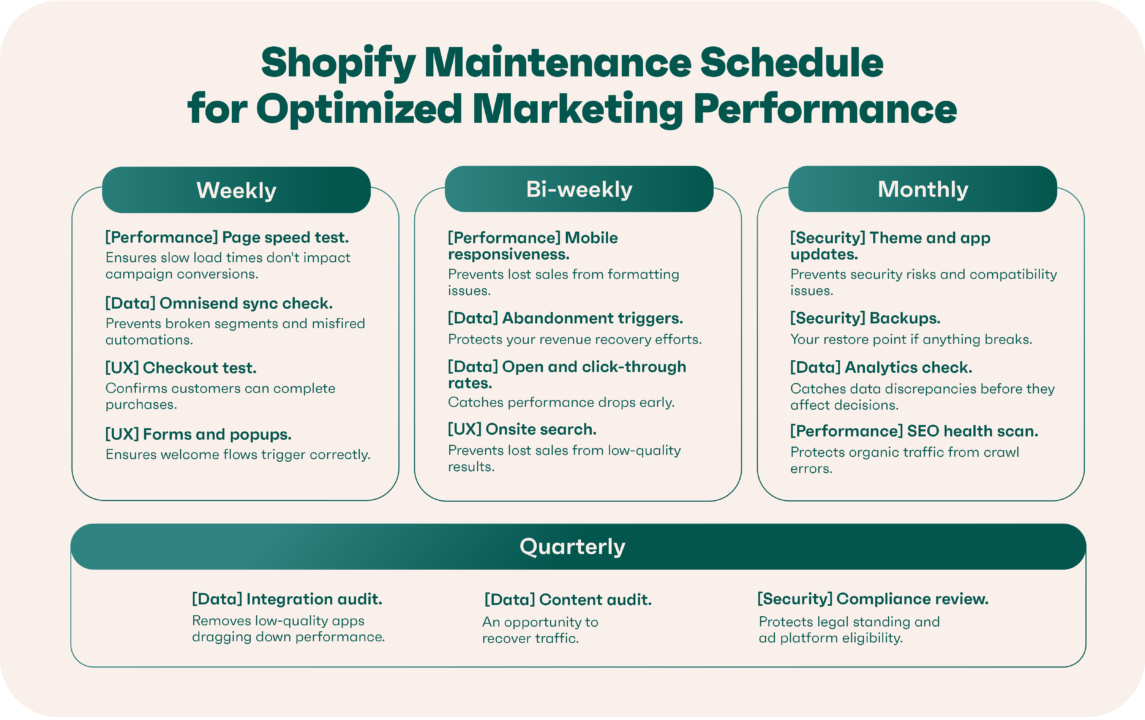
Weekly checklist, takes approx 20 minutes
Performance
- Page speed: Ensures that slow load times are not a purchase barrier. Write down the scores Pingdom, GTmetrix, and Google PageSpeed Insights provide for benchmarking.
Data
- Omnisend sync check: Prevents inaccurate contact information that reduces the effectiveness of segments. Create a test contact in Shopify and verify it appears in Omnisend within one hour with the tags you chose.
UX
- Checkout test: Ensures your customers can make payments and that discounts apply properly. Add a product, use a discount code, complete the payment, and verify that the confirmation emails look and arrive as they should.
- Forms and popups: Prevents broken welcome flows. Trigger popups/forms and use them, checking for confirmation messages and welcome series emails.
Bi-weekly checklist, takes approx 40 minutes
Performance
- Website checks: Prevents lost sales from website formatting issues. Visit your website and play around with it to ensure that spacing, images, and carts function properly across all devices.
Data
- Abandonment triggers: Protect your revenue recovery efforts. Abandon a cart on your Shopify store and see if you receive an abandoned cart email promptly.
- Open and click-through rates: Catch performance drops to improve the ROI of your email marketing. Check your Omnisend dashboard and filter your automations and campaigns to see which ones have the best and worst results.
UX
- On-site search: Prevents lost sales from low-quality results. Search for the keywords customers use to find you, and check that the results are relevant to what your customers want.
Monthly checklist, takes approx 60 minutes
Security
- Theme and app updates: Prevents security and compatibility problems. Check for available updates in Shopify and apply them when convenient for you.
- Backups: Your restore point in case anything breaks. Do backups before any updates and significant site changes, and monthly as part of your standard maintenance routine.
Data
- Analytics: Helps you make decisions based on data and identify winners and losers. Look at your visitors over the last two weeks, new vs. returning customers, conversion rates, unsubscribes, and revenue attribution to email and SMS.
Performance
- SEO: Provides insight into your organic marketing. Review your search engine positions (SERPs) in a tool such as Ahrefs alongside your Search Console Data.
Quarterly checklist, takes approx 90 minutes
Data
- Integration review: Protect your site from low-quality apps. Check your app integrations for functionality and their review pages to identify any issues you may need to investigate.
- Content audit: An opportunity to recover traffic. Review Google Search Console and your website analytics to find your least and most popular posts and pages for editing.
Security
- Compliance audit: Protect your legal standing. Your cookie bar, privacy pages, marketing opt-ins, and payment processing methods should fall under your review here.
Additional reading
Shopify checklist: Everything to check before launch in 2025
How to use Shopify maintenance mode without hurting marketing
Putting your Shopify store into maintenance mode is best practice to prevent marketing automation problems when you’re making significant code changes, backing up your site, and testing apps that affect the frontend.
If you’re looking for how to close a Shopify store for maintenance, you have two built-in options: password protection and the Pause and Build plan.
How to put your Shopify store in maintenance mode
The fastest way is with Shopify’s built-in password page. It only takes a few steps to enter maintenance mode using this method:
1. Log in to Shopify
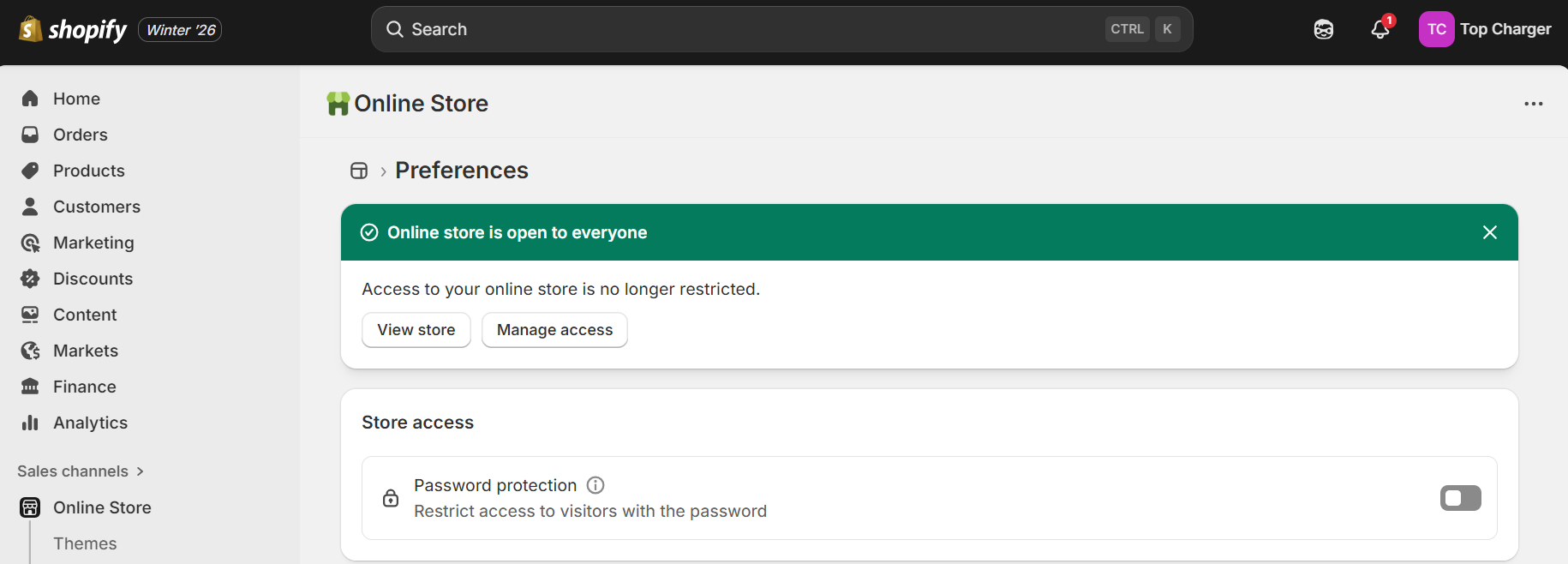
2. Navigate to Sales channels > Online Store > Preferences
3. Toggle the button on for Password protection:
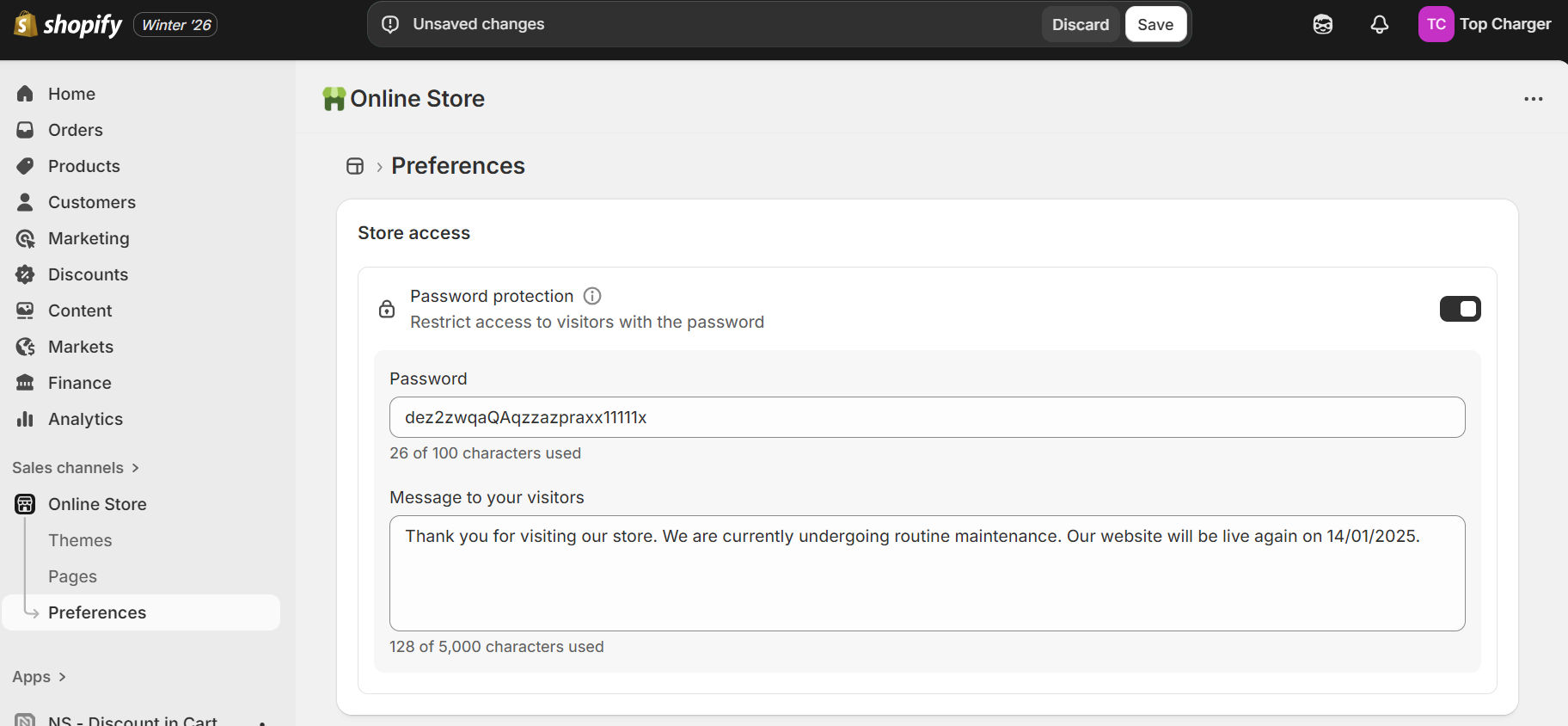
4. Enter a password and a message to your visitors as shown in the image above
5. Click Save
That’s it! Your Shopify store is now password-protected, letting you run maintenance tasks without your customers experiencing any frontend glitches.
To turn off password protection, head back to Sales channels > Online Store > Preferences, deselect Password protection, and click Save. You will then see the following confirmation:
How to pause or temporarily close your Shopify store
If you’re wondering how to close your Shopify store for maintenance temporarily, you can add password protection as per the instructions above, or use Shopify’s Pause and Build plan.
With the Pause and Build plan, your customers can still visit your store and browse your products, but they can’t purchase them.
Pausing your site helps keep your marketing activities going, such as email and SMS list-building efforts and data collection from heat map sessions.
Follow these steps to activate the Pause and Build plan:
1. Log in to Shopify
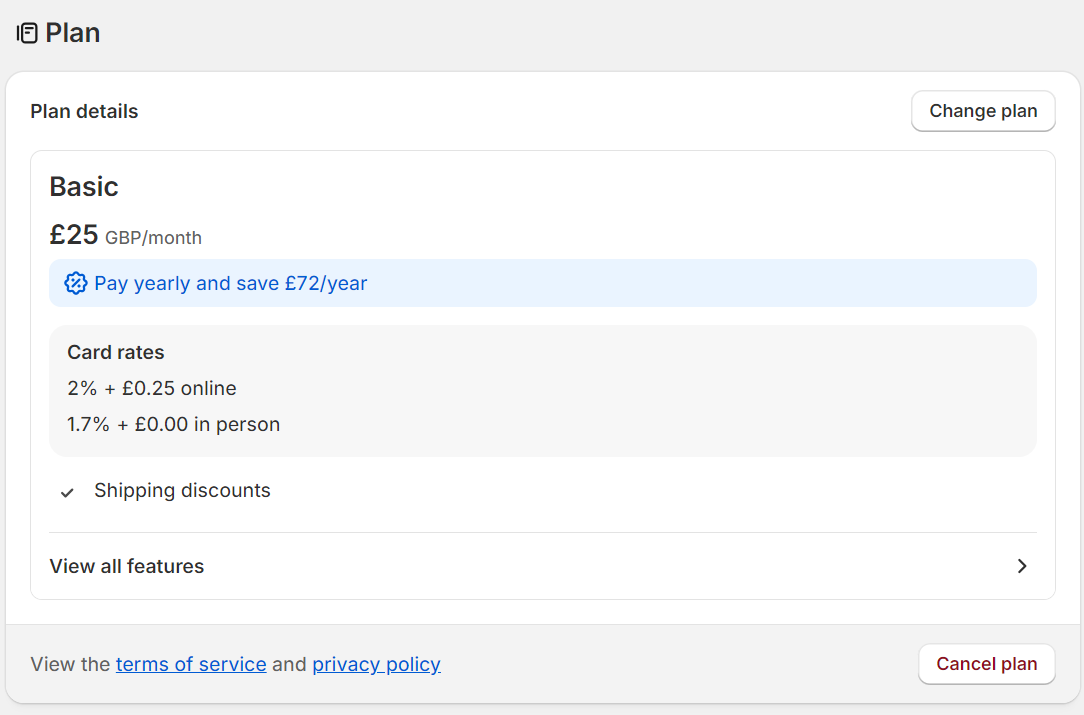
2. Navigate to Settings > Plan via the sidebar
3. Click Cancel plan:
4. A popup will appear with a few different options, including Switch to Pause and Build:
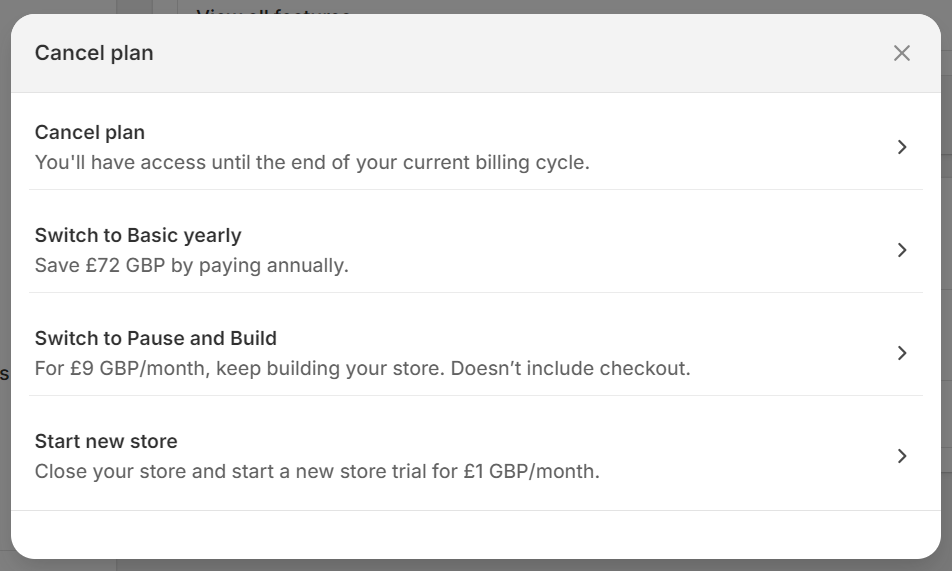
5. Review the plan pricing and click Switch to Pause and Build to complete the process
When to close, pause, or use password protection
Password protection works best when you’re running a fully operational Shopify store and need only to restrict frontend access during standard maintenance tasks. In other words, you’re going to set your site live again immediately after maintenance.
The downside to password protection is that it isn’t suitable for temporary closures or pauses in trade when you want to continue collecting signups and running email automations.
Pausing or temporarily closing your Shopify store via the Pause and Build plan makes sense when you need to stop taking payments, for example, during vacations, and want to continue with marketing activities.
Customer communication best practices during maintenance
It’s best to add a polite notice with an email address for customer service to your password protection page, such as, “Thank you for stopping by. We’re updating our site. Please revisit us on [DATE/TIME] to shop. Email [email protected] for support.”
If you use Shopify’s Pause and Build plan, then a sitewide top banner that reveals you aren’t accepting payments is best to avoid frustrating your customers.
For instance, your banner could say, “NOTICE: We are improving our payment facilities, and as such, are not currently taking payments. Please sign up for updates.” The request for signups could trigger a popup or flyout form with a discount.
Any email signups during maintenance should have content that reflects your operations, so if you aren’t taking payments, your welcome series should mention that.
Maintaining high-performing integrations
Your app and third-party integrations share data between themselves and Shopify, and these are susceptible to downtime too.
In Omnisend’s case, customer and order information syncs from Shopify and triggers automations, populates segments, and enables personalization. Keeping these data flows healthy is essential to your marketing performance.
Omnisend + Shopify: Key data flows to protect
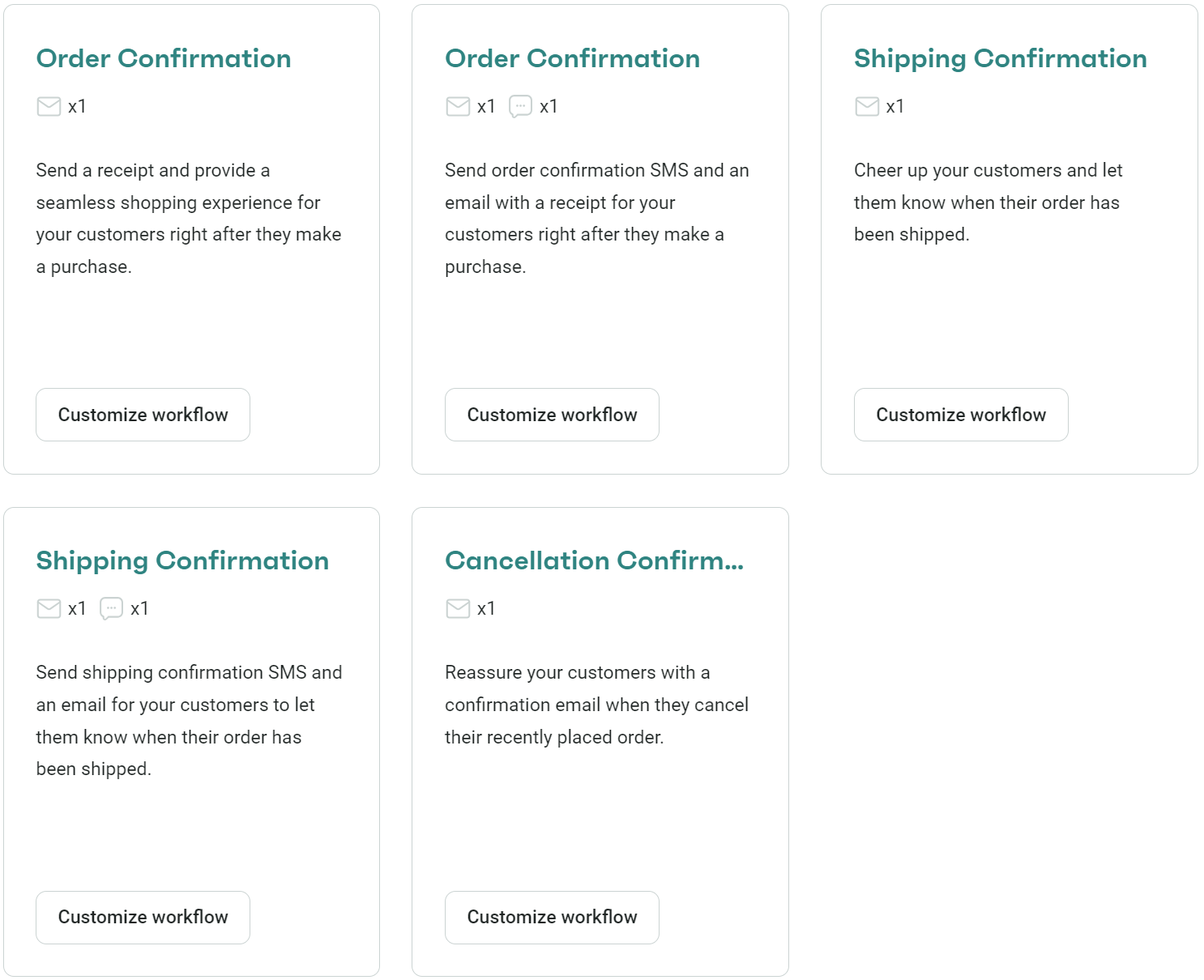
- Purchase events: Order confirmations, post-purchase flows, and revenue attribution all rely on purchase data syncing correctly. Omnisend’s pre-built transactional flows let you replace Shopify’s default confirmations with branded ones:
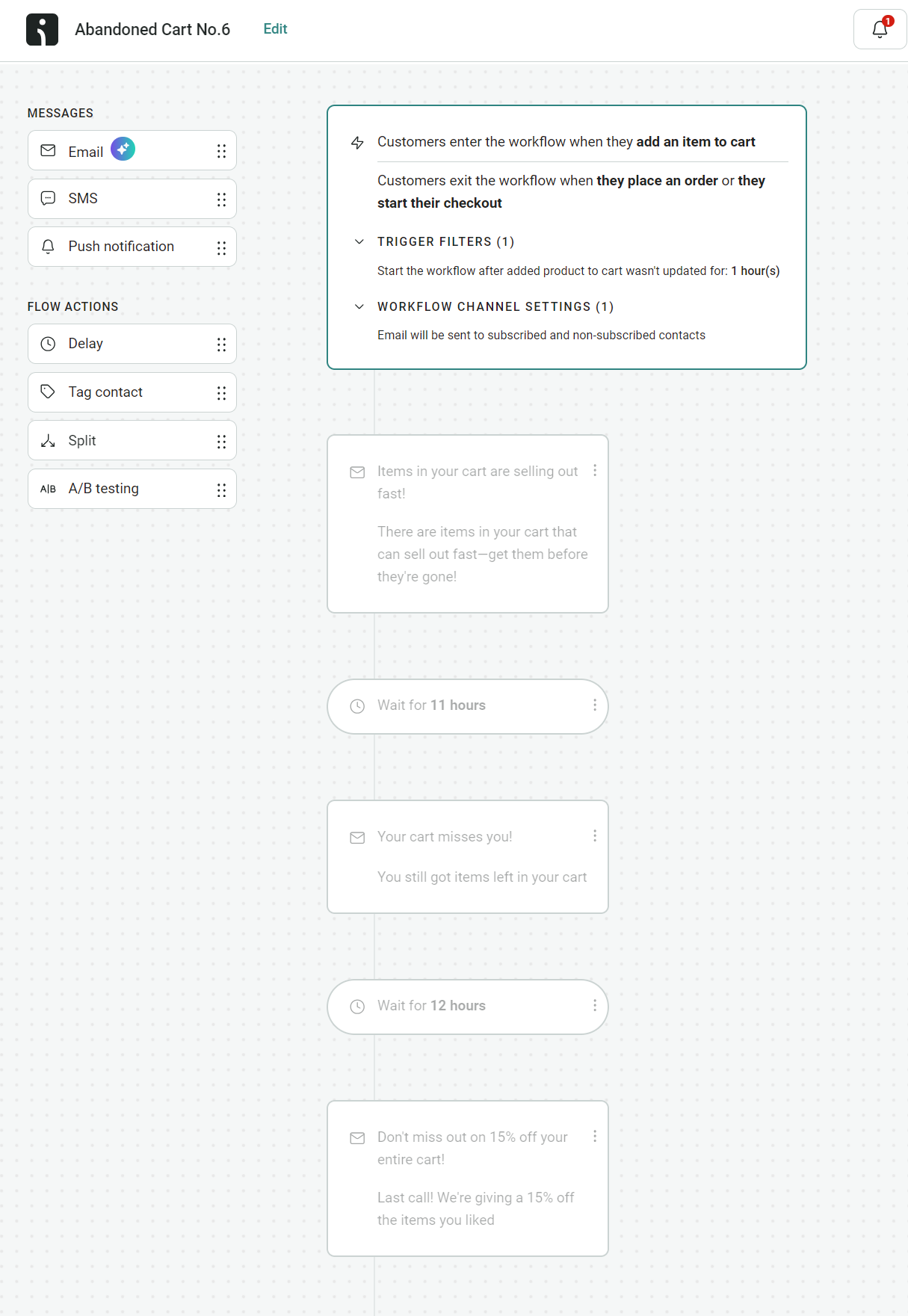
- Cart events: Your abandoned cart emails and SMS messages rely on Shopify sending cart data to Omnisend in real time. The image below shows an abandoned cart flow in Omnisend with a three-email sequence:
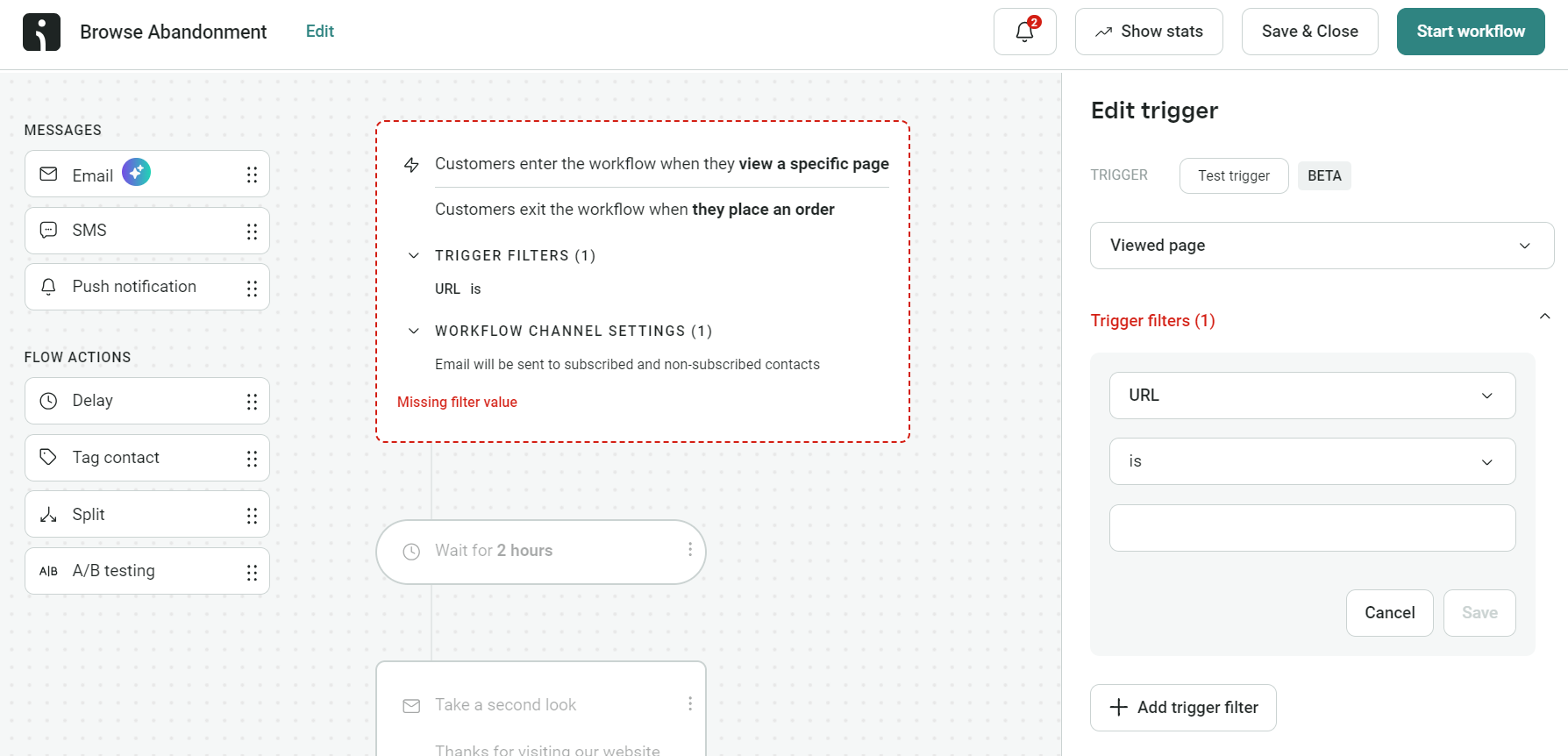
- Browse events: Browse abandonment flows use product view data to re-engage shoppers who looked but didn’t add to cart. For instance, Omnisend’s pre-built flow uses the Viewed page trigger by default:
- Contact data: Email addresses, phone numbers, tags, and custom fields must stay current for accurate segmentation and personalization
- Product catalog: Dynamic product blocks pull from your catalog, so outdated syncs mean outdated prices, missing images, or broken links in your emails
Pre-campaign integration health checks
Follow these pre-campaign checks:
1. Open Omnisend’s integration settings and check the last sync point. Head to Store settings > Connected store. Anything over an hour old needs a closer look:
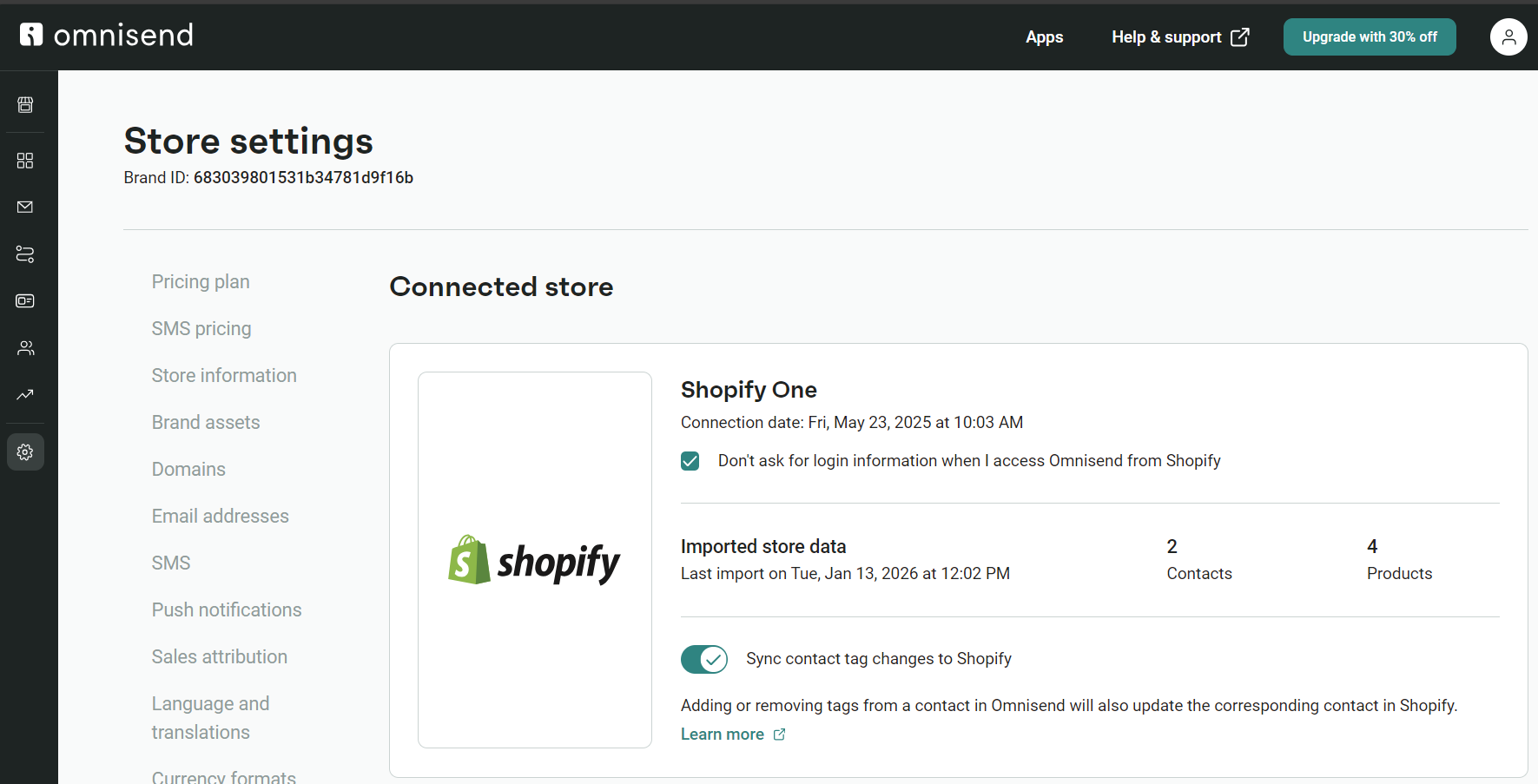
2. Add a test contact in Shopify and see if it shows up in Omnisend with the tags you assigned. Tags typically sync within two minutes if you’ve enabled Sync contact tag changes to Shopify in your connected store settings:

3. Place a test order to confirm purchase events appear in the contact’s activity log.
4. Check your target segments. Do the contact counts match your expectations?
5. Preview emails that use dynamic product blocks. Make sure prices, images, and links are pulling correctly.
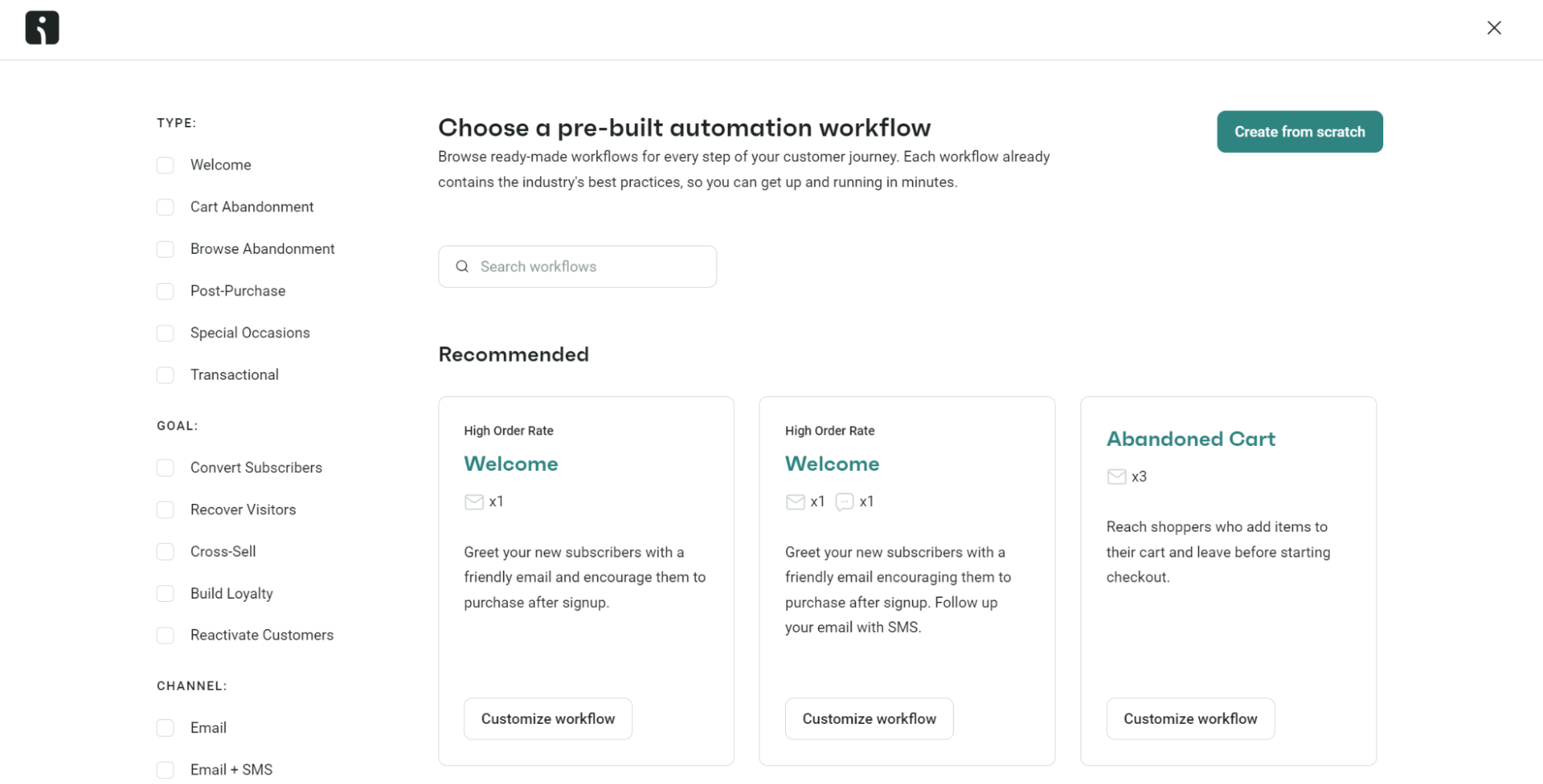
6. Create and trigger your key automations, such as welcome series and abandoned carts, to confirm they perform as expected. Omnisend has pre-built segments and also lets you create them from scratch:
Troubleshooting common integration issues
Omnisend rewards good maintenance with a more reliable experience. Most sync problems stem from a few common causes. Here’s what to check first:
Delayed data sync
Initial syncs complete within an hour. If data is stuck, check your connected store settings for errors. Contact updates in Shopify (orders, tags, profile changes) trigger resyncs for individual contacts.
- Check connected store settings in Omnisend for sync errors
- Make a minor update in Shopify to trigger a resync
- Allow up to an hour for larger contact lists
Missing events
Contacts uploaded manually to Omnisend or collected via third-party apps won’t sync to Shopify automatically. Upload these contacts directly to Shopify if you need purchase and cart events tracked.
- Check the contact exists in Shopify, not just Omnisend
- Verify the event type in your integration settings
- Place a test order to confirm events are tracking
Form submissions are not appearing
Omnisend forms sync contacts when submitted, but welcome automations won’t trigger for checkout subscribers since they enter other workflows first. Check that your form connects to the correct list.
- Confirm the form connects to the correct list
- Test the form in incognito to rule out browser issues
- Check the contact’s profile in Omnisend for activity
Anonymized contacts from marketplaces
Amazon, eBay, and similar integrations create anonymized emails that affect billing and deliverability. Create a segment filtering these domains and exclude it from campaigns and automations.
- Create a segment filtering anonymized domains
- Exclude this segment from campaigns and automations
- Unsubscribe/remove relevant contacts monthly before your billing cycle
When to contact Omnisend support
Contact support when troubleshooting isn’t fixing your problems.
Omnisend offers 24/7 email and live chat support across all plans, covering technical and setup issues. You can also email [email protected] for the same.
Good to know
Omnisend customers see an average $79 ROI for every $1 spent, and its Shopify app has a fantastic 4.8/5 rating based on 2,900+ Shopify reviews.
“Shopify customers love Omnisend for its seamless integration and consistent marketing performance even during maintenance. Its intuitive automation and segment builders let all sizes of ecommerce store create revenue-generating customer experiences across email and SMS.”
— Agnė Ganchev, Director of Customer Success at Omnisend
Campaign and seasonal Shopify maintenance
Follow these seasonal campaign protocols for good Shopify maintenance:
Pre-campaign technical and marketing audit
A few hours of pre-campaign checks can prevent lost revenue and maximize ROI. For a Black Friday or other seasonal campaign, run this audit at least 48 hours before your first send. You need time to fix problems, not just find them:
- Load test your key pages. Test your homepage, collection pages, and checkout in GTmetrix or Google PageSpeed Insights, because anything slow now will be even slower when traffic spikes.
- Run your integration and automation checks. Create a test contact in Shopify and confirm it syncs to Omnisend, place a test order to verify purchase events track, and trigger your key automations manually.
- Check inventory and pricing. Confirm stock levels are accurate for promoted products and pricing matches what your campaign promises. Dynamic product blocks pull live data, so any errors show up in customers’ inboxes.
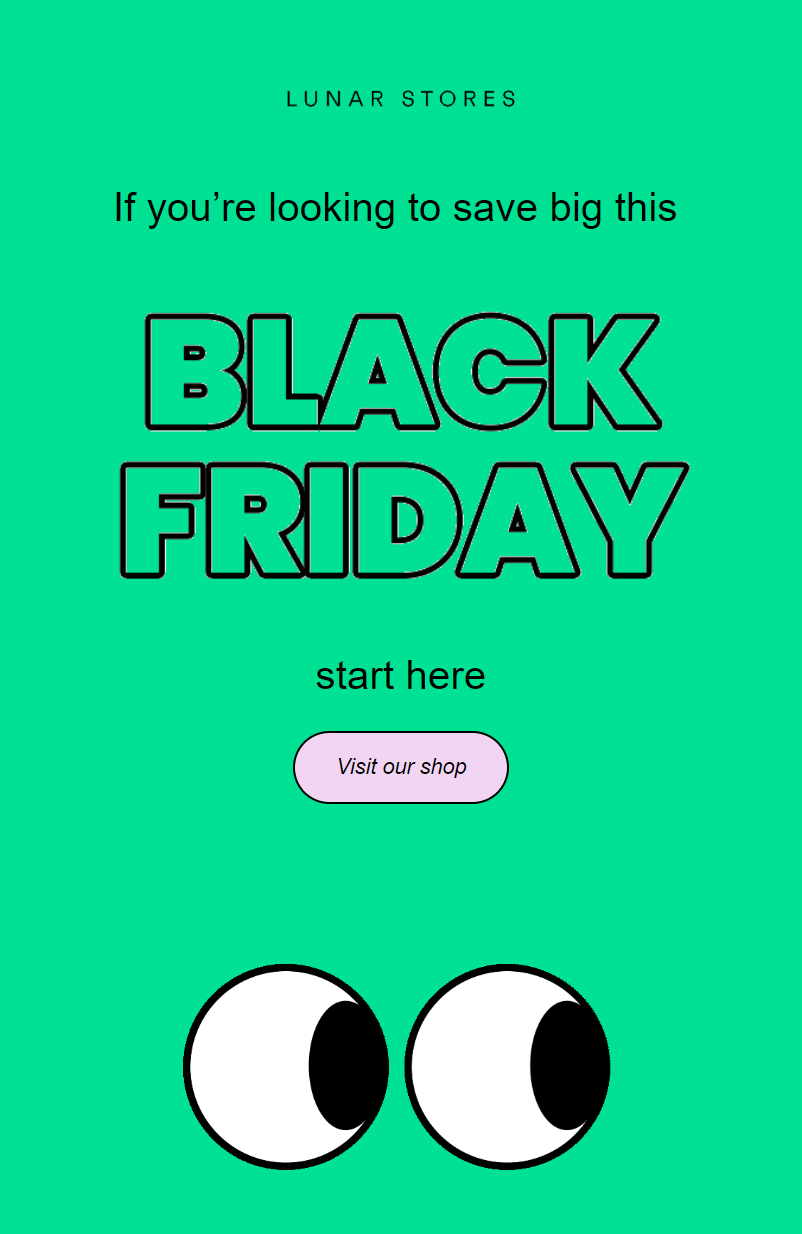
- Review your email design: Check its spacing, image quality, colors, and CTA buttons. Does it look professional? Omnisend has 250+ pre-built email templates to give you a head start, such as this one for Black Friday:
Monitoring performance during campaigns
High-traffic periods expose your store’s weak points. Keep a close eye on these:
- Page speed and availability. Check every few hours or use a monitoring tool, such as Uptime. Slow-loading and unavailable pages during high traffic cost you sales.
- Funnel metrics. Watch add-to-cart rates, checkout completions, and abandonment. A sudden drop usually means something broke.
- Who can fix what? Assign people to handle Shopify, Omnisend, and hosting settings before you need them. If checkout breaks mid-campaign, pause your sends immediately.
Post-campaign cleanup and optimization
You’ll now have a mountain of customer and sales information to go through, but before that, remove any campaign elements from your marketing activities. The main steps are as follows:
- Remove temporary scripts and popups. Take down countdown timers, banners, and campaign-only popups to avoid confusing customers.
- Archive old automations. Disable or archive any campaign flows, such as price drop alerts, to prevent unwanted sends.
- Clean your segments. Remove temporary segments and review your main segments for contacts you can exclude from future campaigns.
Estimating Shopify maintenance cost and ROI
Maintenance costs fall into three categories:
- Internal time. The hours you or your team spend on checks, updates, and troubleshooting.
- External services. Freelancers, agencies, or Shopify Experts for technical work.
- Tools and apps. Backup apps, speed monitors, SEO scanners.
If you have a small store, circa <$1k in sales/month, you’ll typically spend two to five hours per month. Scaling stores may need 10+ hours or external help at $50-150/hour.
Simple ROI calculator for maintenance investments
Does the revenue you gain or protect outweigh what you spend on maintenance? The calculation below is all you need to find out:
(Revenue gain – maintenance cost) ÷ maintenance cost × 100 = ROI %
To calculate yours:
- Find your monthly revenue and conversion rate in Shopify
- Add 0.1% to your conversion rate and recalculate revenue (or replace 0.1% with a quantifiable number)
- The difference is your revenue gain
- Subtract what you spend on maintenance
For instance, if maintenance costs $300/month and generates $1,000 in additional revenue via better conversions, your ROI is 233%.
What you risk without maintenance
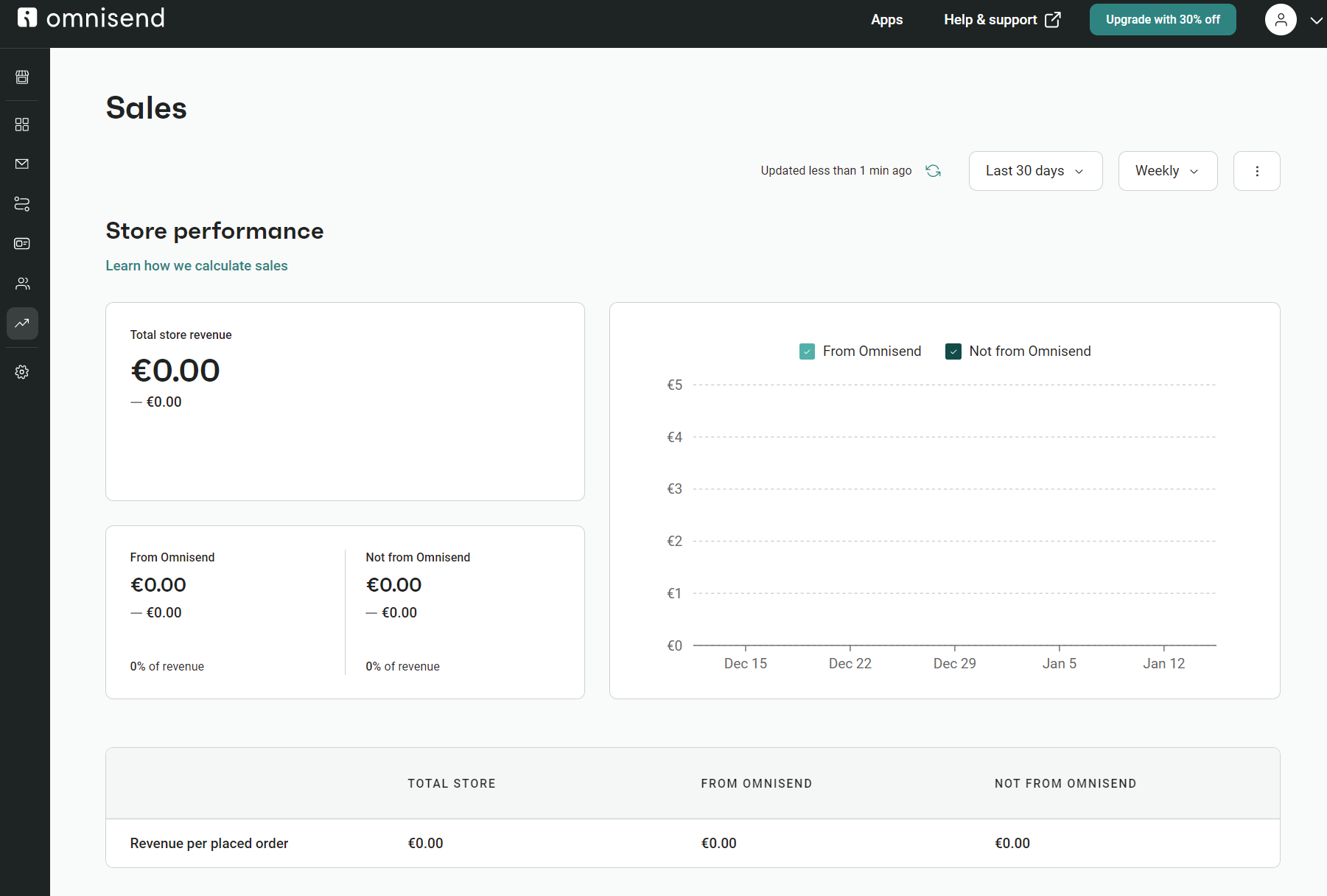
Omnisend’s Sales tab splits your revenue into From Omnisend and Not from Omnisend, showing how much depends on your campaigns and automations:
To calculate your risk:
- Open the Sales tab and note your From Omnisend revenue
- Check the channel breakdown for email, SMS, and push
- Divide your monthly automation revenue by four to see what a week of downtime costs
- Ask yourself if your maintenance spend covers that risk
There’s a big chance that it does. Splunk and Oxford Economics put the cost of downtime at $400 billion annually across Global 2000 companies in 2024, with lost revenue taking 75 days to recover (The Hidden Costs of Downtime).
Example ROI scenarios
Small store
You do $10,000/month with Omnisend, generating $2,500 through automations. Two hours a week on maintenance costs you about $200/month in time.
A 5% conversion lift adds $500, and catching a broken sync before it runs a week saves another $625. Your $200 returns $1,125.
Scaling store
At $100,000/month with $25,000 coming from Omnisend, you pay a freelancer $1,500/month to handle maintenance.
A 2% conversion lift from their speed optimizations adds $2,000. Preventing a week of broken automations protects $6,250. That $1,500 covers itself more than five times over.
The table below provides a breakdown:
| ROI factors | Small store | Scaling store |
|---|---|---|
| Monthly revenue | $10,000 | $100,000 |
| Omnisend revenue | $2,500 | $25,000 |
| Maintenance cost | $200 | $1,500 |
| Conversion lift gain | $500 | $2,000 |
| Protected automation revenue | $625 | $6,250 |
| Total return | $1,125 | $8,250 |
When to get Shopify store maintenance services or support
Shopify store maintenance services are helpful when you’re struggling to resolve problems, are out of ideas, or would rather spend your time on marketing and sales.
DIY vs. hiring maintenance services
DIY maintenance is enough if you operate a small Shopify store and don’t have a particularly complex integration list. Hiring an expert makes sense when you need to follow Shopify store maintenance best practices at scale, and for these tasks:
- Coding and custom app/theme configurations
- Complex migrations, such as from one email app to Omnisend
- Fixing technical glitches
- Deep performance work, such as permalink and redirect changes
You do not typically need Shopify store maintenance and support for these situations:
- Updating themes and apps
- Testing site speed
- Optimizing images and media
- Syncing your store with external tools
- Learning how to close my Shopify store for maintenance and similar tasks (Shopify provides self-help guides for these)
How Omnisend’s support fits into your maintenance stack
You can count on Omnisend’s 24/7 live chat and email support for initial app configurations, automation and segmentation setups, and ongoing maintenance such as list cleaning exercises and creating A/B tests for multiple campaigns.
Omnisend provides an external dashboard separate from Shopify’s, so the maintenance services and support you receive are limited to the Omnisend app and its internal features.
For instance, if you need help creating an automation and assigning a segment, Omnisend will help you do that. However, if you need to add custom code that changes how Omnisend displays popups by default, you will need an external developer.
Tools and resources for ongoing Shopify store maintenance
Check out these tools and resources to make your Shopify site maintenance even easier:
Performance and uptime monitoring tools
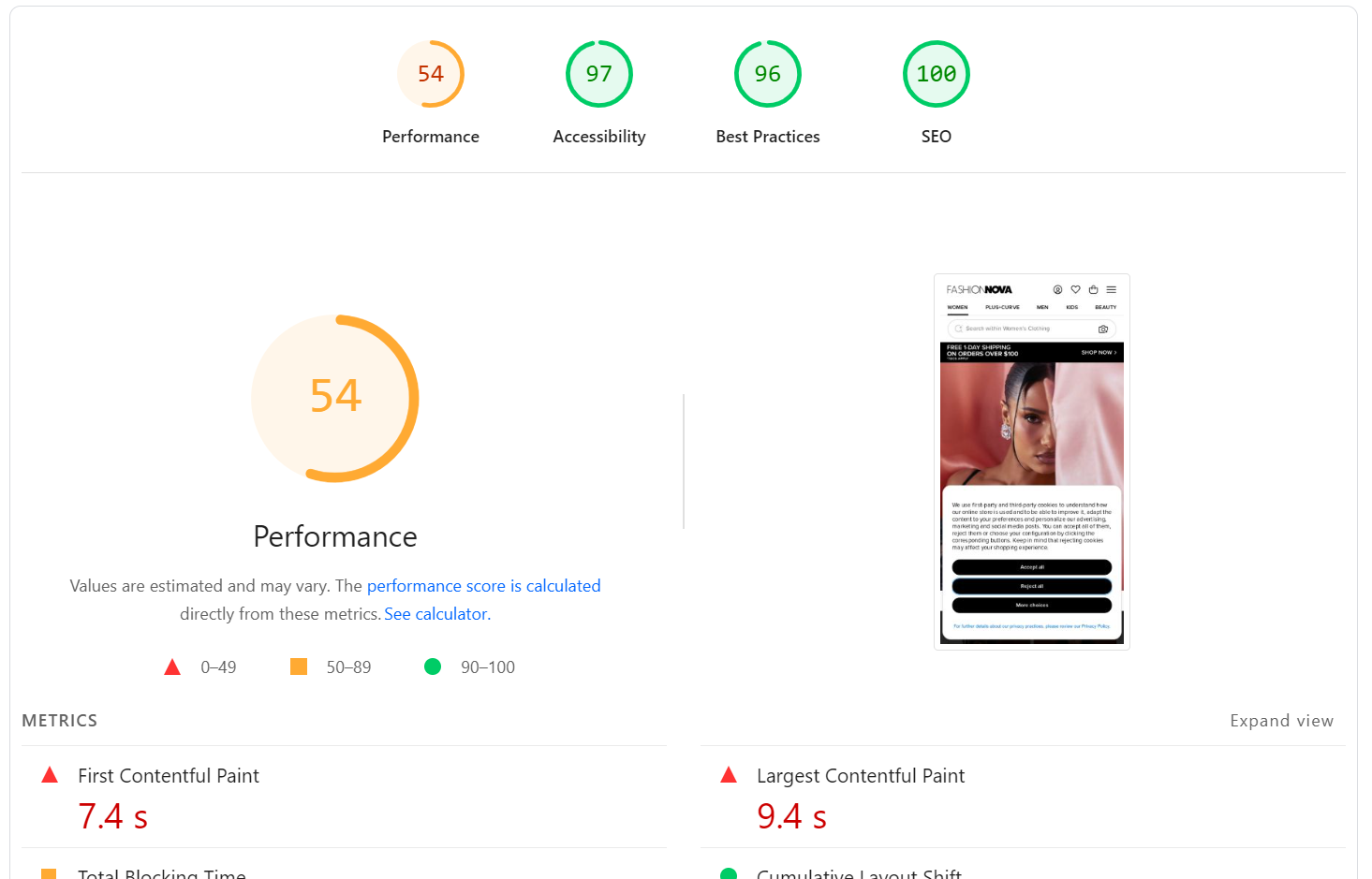
- Google PageSpeed Insights: See if your Shopify store provides fast enough load times according to Google’s best practices:
- GTmetrix: Run your tests alongside PageSpeed Insights and dive into your site structure, including the Waterfall Chart, which visualizes all requests
- Shopify Status page: Worth checking before any campaign to ensure that Shopify’s own infrastructure is running correctly
- Uptime – Automated Store Tests: A premium app that monitors your other apps and provides alerts if your integrations have problems
Data and analytics tools
- Shopify Analytics: It’s built into your Shopify store by default and is where you’ll find revenue, sales, sessions, and conversion rates
- Google Analytics: A third-party install that’s worth it if you run ads because it shows which sources (for example, Facebook and TikTok) lead to purchases
- Google Search Console: Free and essential for maximizing your visibility across Google search, with daily insights into search engine rankings
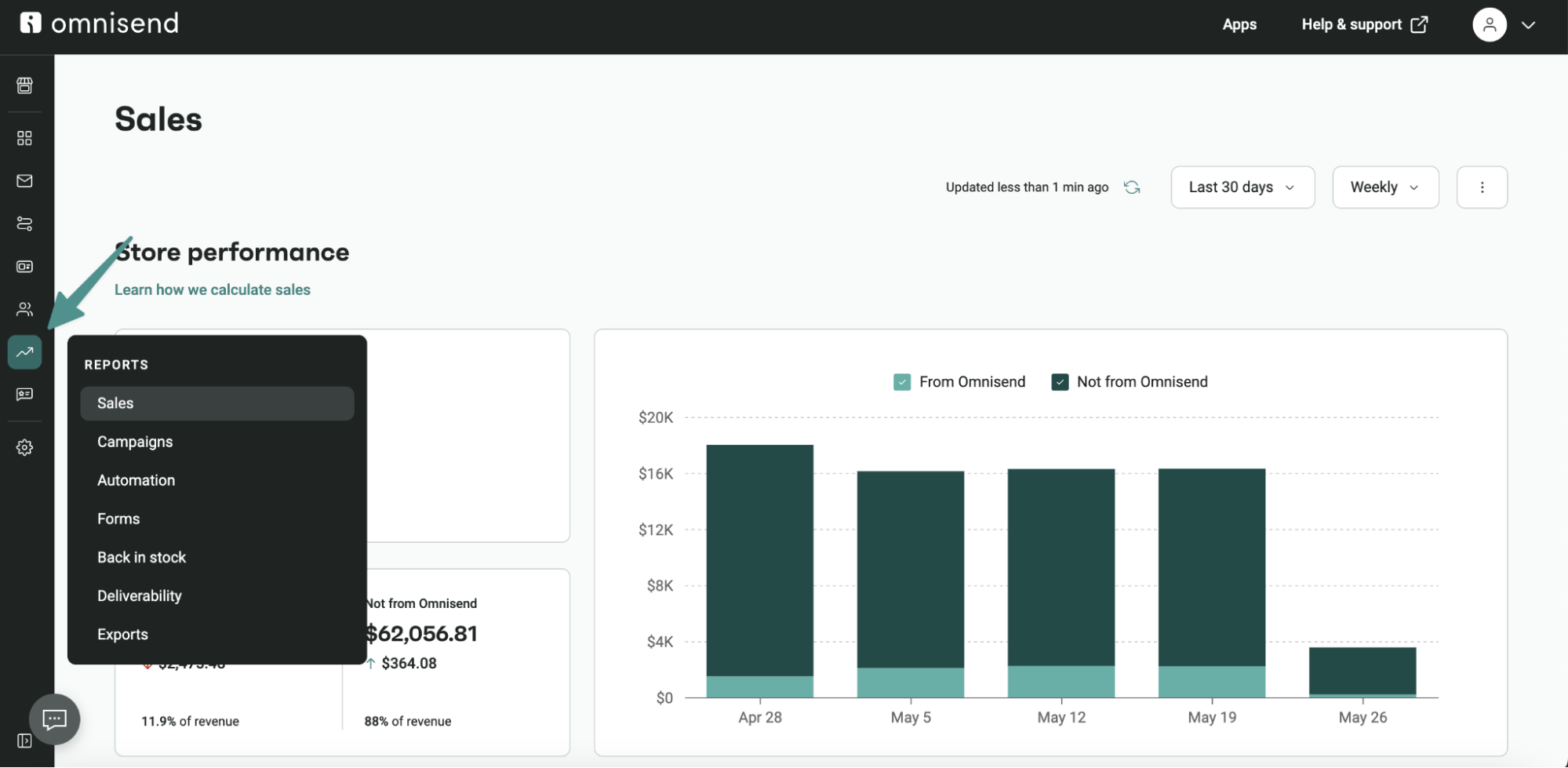
- Omnisend reports: Provides complete metrics for campaigns and automations, plus attributes Shopify revenue to the same to help you determine ROI from your email, SMS, and push notification marketing:
Helpful Shopify and Omnisend resources
- If you’re starting on Shopify and want to tick off all the boxes: Shopify checklist: Everything to check before launch in 2025 (Omnisend)
- For dropshipping and making the most of sales with good maintenance: How to dropship on Shopify: Complete beginner’s guide (Omnisend)
- To find answers and self-help guides for your Shopify maintenance tasks: Shopify Help Center (Shopify)
Conclusion
Many of the Shopify store maintenance tasks you perform directly or indirectly impact revenue. A direct example is your abandoned cart automations, which recover lost sales. An indirect example is site speed, which affects conversions across every campaign you send.
Your overall marketing performance and ROI depend on good Shopify maintenance, and that begins with the weekly checks that protect your revenue and the integrations that power your campaigns.
A four-tier matrix, or framework, covers you up to the quarterly level. Use the table below as a starting point and replace the tasks in the table with your own to start your structured approach to Shopify website maintenance.
| Tier | Frequency | Tasks | Marketing impact |
|---|---|---|---|
| One | Weekly | Sync check, checkout test, page speed, forms | Campaigns convert, customers can buy |
| Two | Bi-weekly | On-site search, abandonment flows, open rates | Conversion rate optimization |
| Three | Monthly | Backups, updates, analytics, and SEO scan | Store continuity, data accuracy |
| Four | Quarterly | Content audit, integration audit, compliance | Long-term performance, legal safety |
Quick sign up | No credit card required
FAQs
Shopify’s maintenance mode is called password protection mode, which you can activate by heading to Online store > Preferences in your Shopify admin and toggling the Password protection box under Store access at the top of the page.
Freelancers and virtual assistants are the typical professionals you’d approach at $50 to $150/hour. However, consider whether you’re happy handing over administrative control. If you head to Users > Roles in your Shopify Settings, you can restrict access to certain features by email address. Consider doing that to maintain security.
Yes. Your Shopify theme and apps will eventually require updates, and after each update, you should test and verify your existing functionality, such as bundles, email automations, and discount codes.
Not much compared to your ROI from Shopify store maintenance. It’s 2.9% + 30¢ per online sale via Shopify Payments on the Basic plan, so $3.20 per $100 sale. For every $1,000 in revenue, Shopify takes $32. Your net is $968, not $1,000.
Add these to your checklist:
— Weekly site speed and performance tests
— Weekly popup, form, and automation sequence tests
— Bi-weekly onsite search and product recommendation checks
— Bi-weekly checks of your campaign and automation open rates
— Monthly theme, app, and integration update checks
— Monthly backups
— Quarterly content audits
— Quarterly automation workflow optimization
Weekly is the starting point for routine tasks, ideally in one afternoon or morning, so you aren’t hopping between days and losing productivity.
The highest cost is your time, unless you pay someone else to maintain your store, in which case, your highest cost is their time at circa $50-$150/hour. However, even if you spend big on maintenance, it keeps your marketing and sales rolling. The ROI potential is enormous when you continually improve your automations.

TABLE OF CONTENTS
TABLE OF CONTENTS


No fluff, no spam, no corporate filler. Just a friendly letter, twice a month.