Omnisend AI


 OFFER
OFFER









Images in email best practices: Best sizes and how to embed
With over 130+ pre-built integrations and flexible APIs, you can easily centralize data from across your tech stack
Make the most out of your data and unlock powerful growth marketing possibilities with these other top marketing tools.
Build any custom integration with our open, flexible APIs that are simple to use and implement.
Check out apps that have been stealing all the spotlight.
Email and SMS marketing insights, ecommerce resources, and the latest Omnisend news
Expert-led sessions covering email, SMS, and ecommerce marketing strategies.
Educational video and live training to help you make the most out of Omnisend.
Drive sales on autopilot with ecommerce-focused features
See Features
Adding GIFs to your emails enhances engagement by introducing movement and personality, making your messages more visually appealing.
You can easily embed GIFs in emails using methods like uploading files, drag-and-drop, or inserting via image URLs, depending on your preferences.
Ensure your GIFs are optimized for size (ideally under 1MB) to improve loading speed and maintain viewer interest, especially on mobile devices.
Always test your emails across different platforms to confirm GIF compatibility, as some email clients may only display the first frame of the animation.
Want to make your emails more fun and eye-catching? Learning how to put a GIF in an email is a simple way to add movement, personality, and visual interest to your messages.
Emails that are text-heavy and present information in plain black-and-white can seem bland and boring and fail to capture attention.
GIFs are short, looping animations that grab attention, explain something quickly, or add a bit of humor without taking up much space.
In this post, you’ll learn how to embed a GIF in an email step by step, whether you’re using Gmail, Outlook, or an email marketing automation platform like Omnisend. You’ll also find tips to ensure your GIF displays correctly for your readers and discover where to find engaging GIFs.
Here’s a quick rundown of what this post covers:
Quick sign up | No credit card required
Using GIFs in emails may seem like a tech-heavy task that requires coding, but it’s actually pretty easy and can be done in minutes. Whether the file is saved on your computer or hosted online, most email platforms make the process simple.
Below are three easy methods you can use to put a GIF in an email, depending on where your GIF is stored and how you prefer to insert it.
Best for: GIFs saved on your computer
Works in: Gmail, Outlook, Apple Mail, most email marketing platforms
Best for: Fast and simple insertion
Works in: Most modern email clients and email builders
If dragging the file doesn’t work, switch to the upload method instead. Some older email clients don’t fully support drag-and-drop features.
Best for: GIFs hosted online
Works in: Gmail, certain Outlook versions, most email builders
Confirm the link ends in .gif. Here’s what it should look like:
https://example.com/image.gif
If the link doesn’t end in .gif, you probably copied the page URL instead of the actual image file. Try copying the image file again and then inserting it.
Gmail is one of the most popular email clients out there. However, when using Gmail, adding a GIF to an email is slightly different from the general process.
To add a GIF in Gmail:
1. Click on Compose to open the email drafting box
2. Click on the Insert Photo button to open a dialog box

3. You can either click on Upload and drag-and-drop your GIF or click on Web Address (URL) and paste the GIF’s URL there
4. Click on Insert to add the GIF to your email
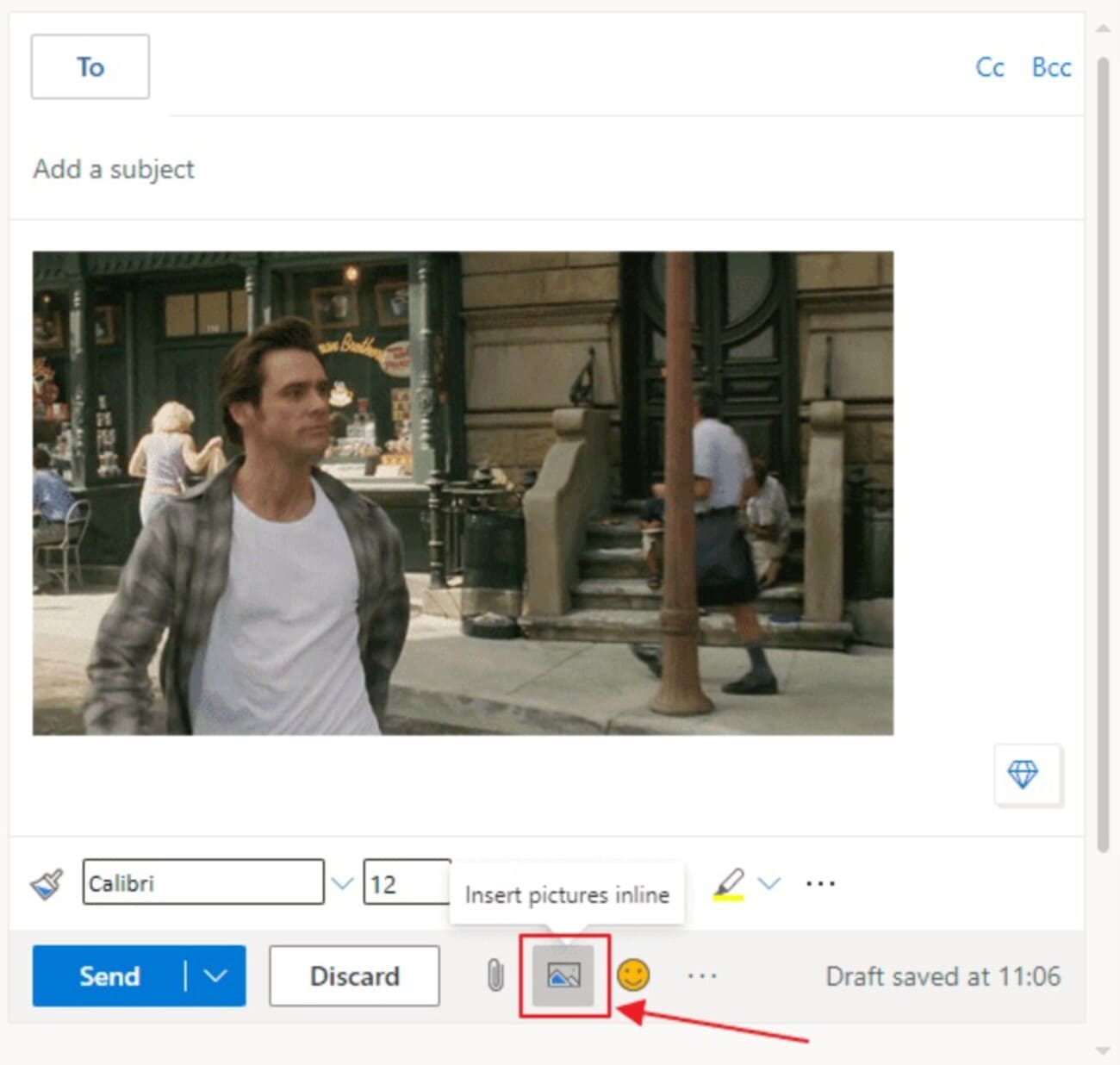
Adding a GIF in Outlook is slightly different from adding one in Gmail. But once you know where to click and how to do it, you can seamlessly embed a GIF in an email in Outlook.
Follow these simple steps below to add GIFs easily:
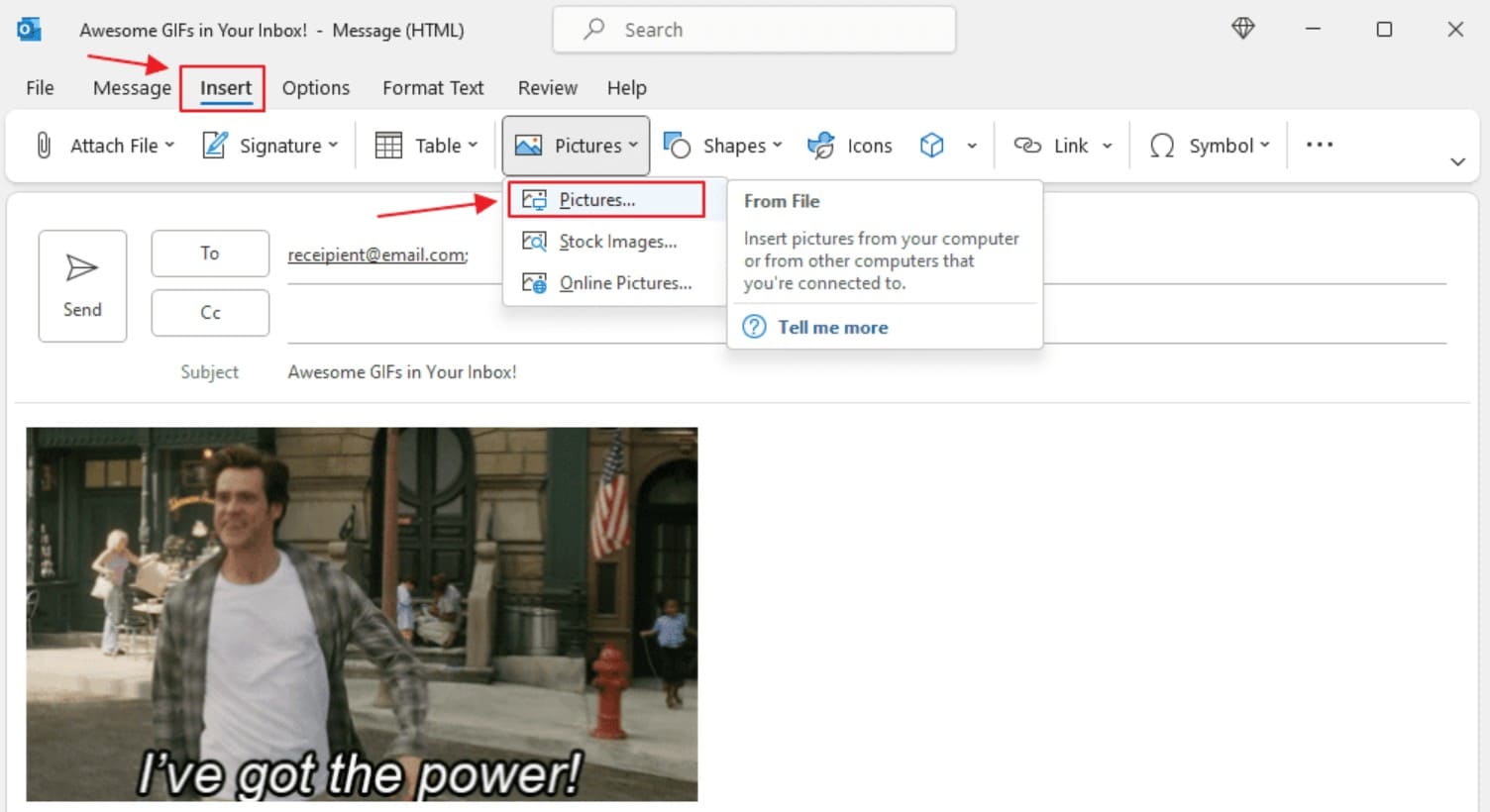
4. Select your GIF file or paste the image link, then click Insert
5. Adjust the size and placement of the GIF so it fits your email layout
The way your GIF appears depends on the version of Outlook your recipient is using. Outlook on the web generally supports full animation, so a GIF in email will play as expected.
However, some desktop versions may only display the first frame instead of the full animation.
Tip: Make sure the most important message or visual appears in the first frame so the email still makes sense even if the GIF doesn’t move.
If you put a GIF in an email but it appears frozen in the Outlook desktop app, you may need to adjust a setting. Try this:
If you’re using Omnisend for email marketing campaigns, you can add a GIF to an email template using the drag-and-drop builder.
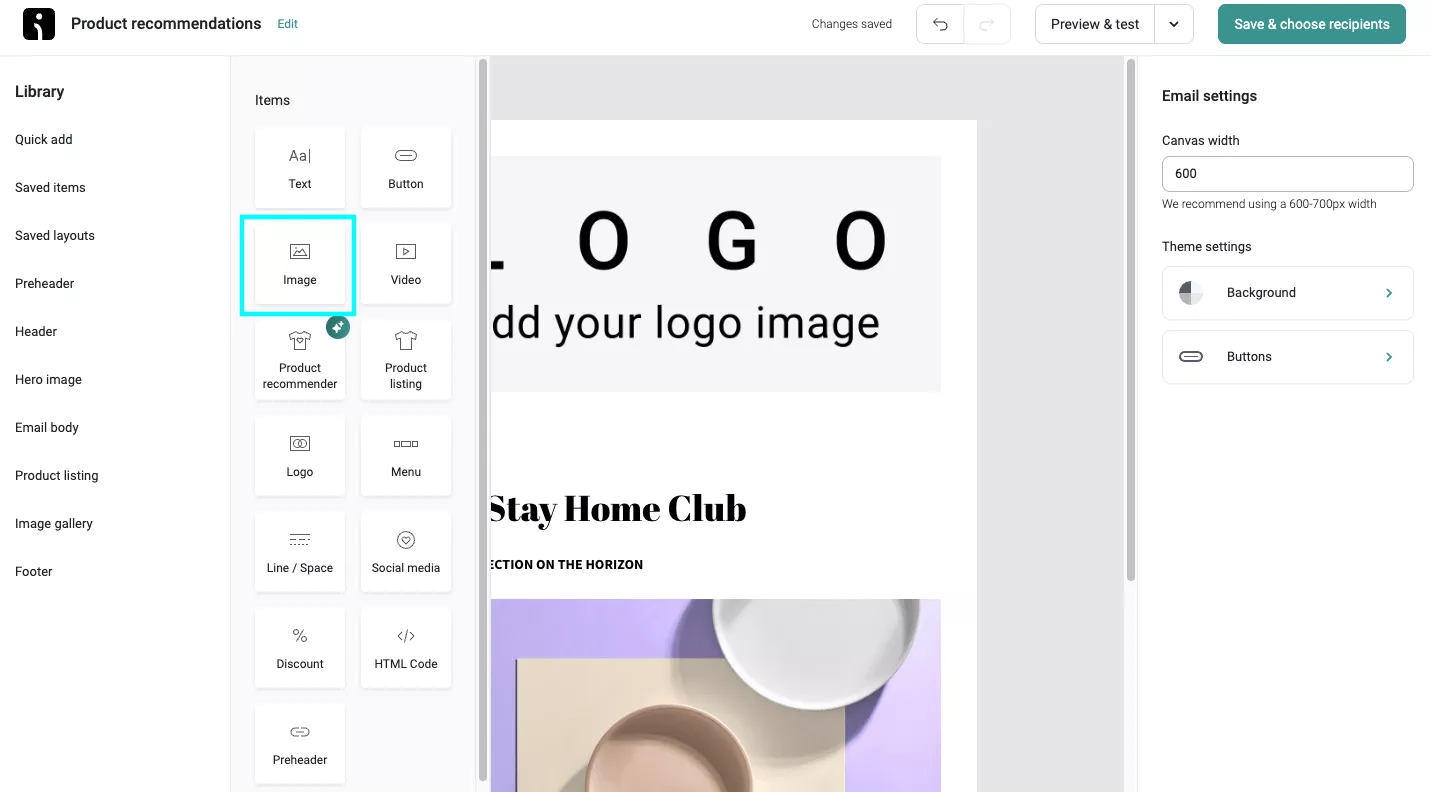
Here’s a step-by-step guide you can follow to add GIFs to your emails easily:
Click on Quick add, drag the Image element into the email body, and drop it where you want to add the GIF.
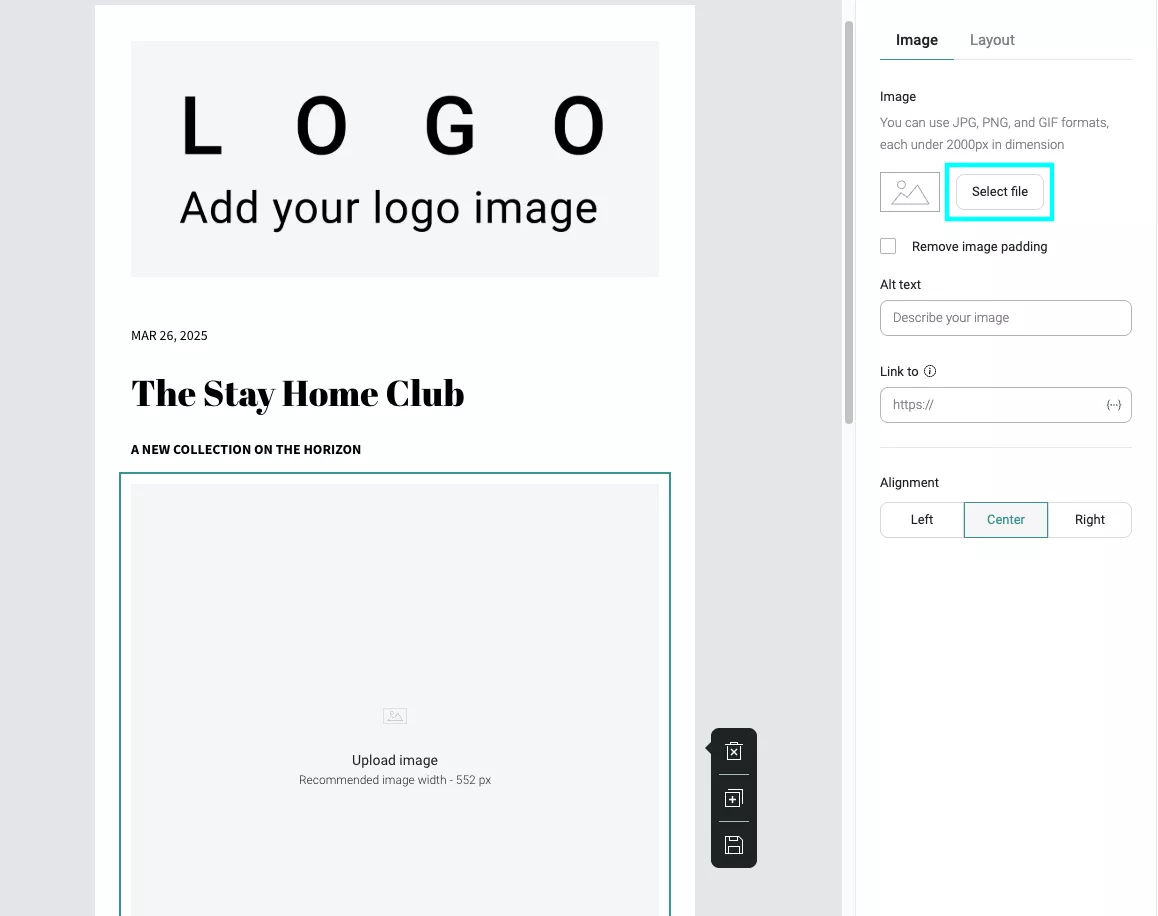
Click Select file in the menu on the right
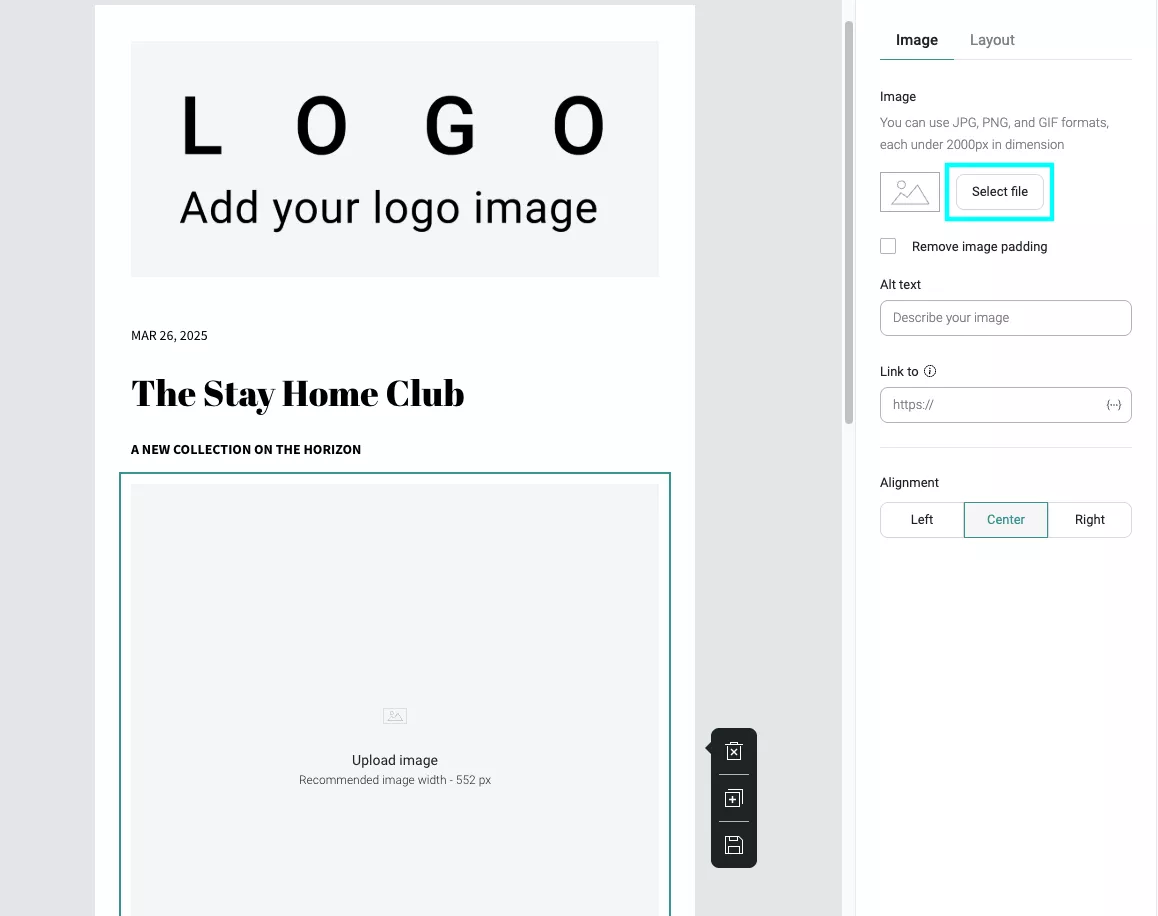
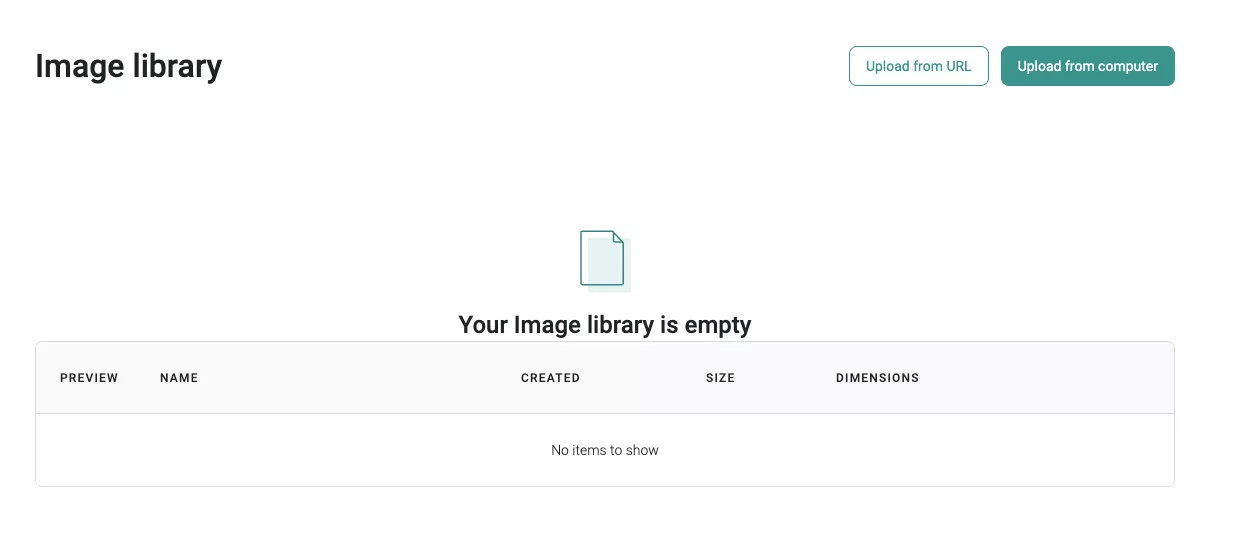
Click Upload from URL or Upload from computer. Once uploaded, the image will be stored in your Omnisend Image library. Choose the GIF from your computer or add the URL you’ve copied. That’s it!
Quick sign up | No credit card required
When deciding how to attach a GIF to an email, you have two main choices: use ready-made GIFs or create your own. Ready-made options are faster and easier, while custom GIFs give you more control over branding and messaging.
The right choice depends on whether you want speed or brand control. No matter which option you choose, make sure your GIF in email campaigns is high-quality and relevant to your message. That’s what increases click-through rates and conversions.
Platforms like GIPHY and Tenor are large, searchable databases filled with millions of GIFs. They’re great for quick campaigns, adding humor, seasonal emails, or creating social-style content.
If you’re short on time, these libraries make it easy to find something that fits your message in seconds. Here’s an example for Black Friday:
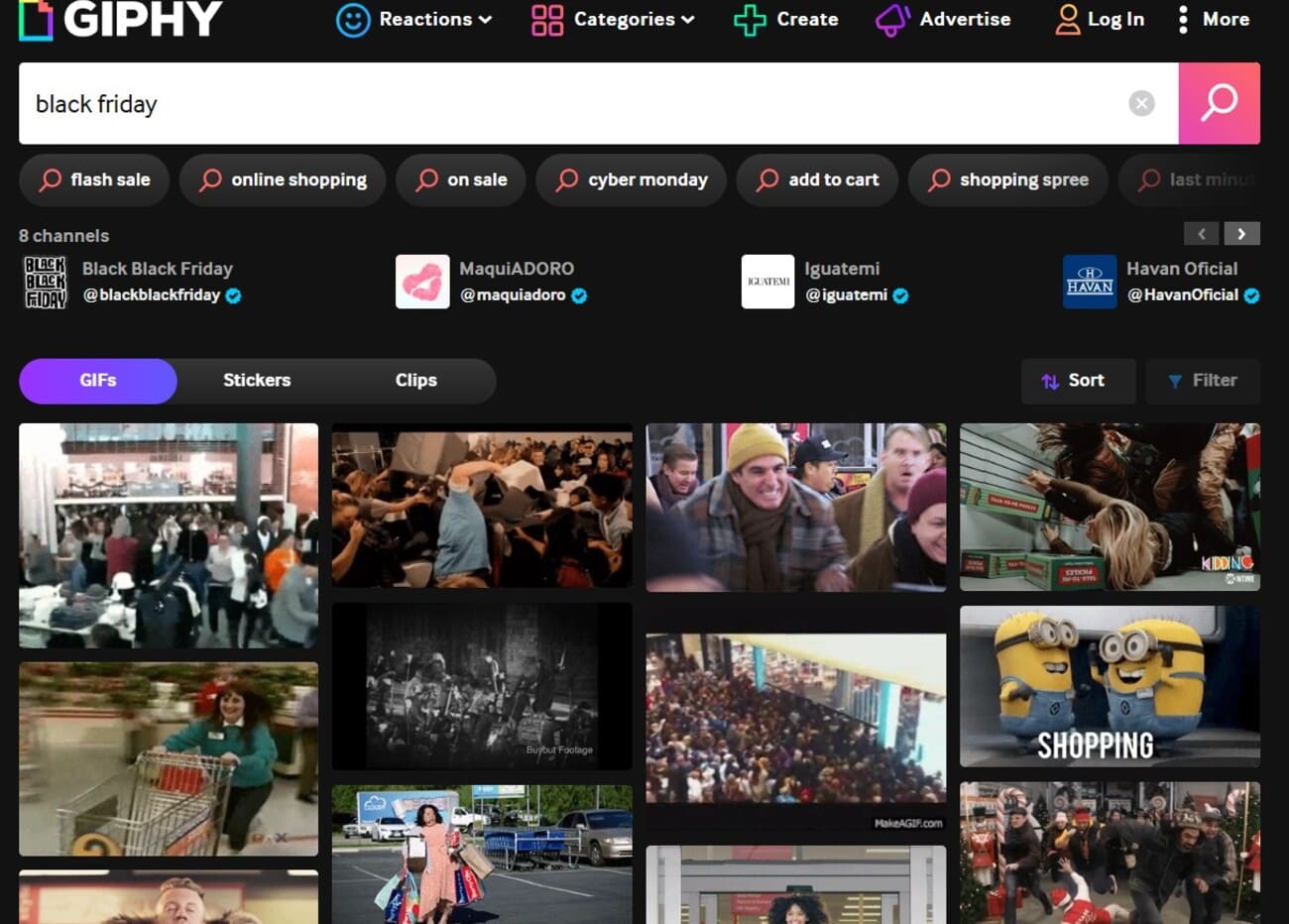
When using a GIF from these platforms, download the .gif file instead of copying the webpage link. Uploading the file directly ensures it displays properly in your email.
Also, check the file size before inserting a GIF in an email. Large GIFs can slow down loading. Finally, ensure the GIF is brand-appropriate and free to use commercially so you don’t run into any licensing issues.
Custom GIFs give you full control over branding, visuals, and messaging. You can use them in product demos, feature walkthroughs, to highlight multiple images in one space, or to draw attention to an email CTA button.
A simple workflow using GIPHY looks like this:
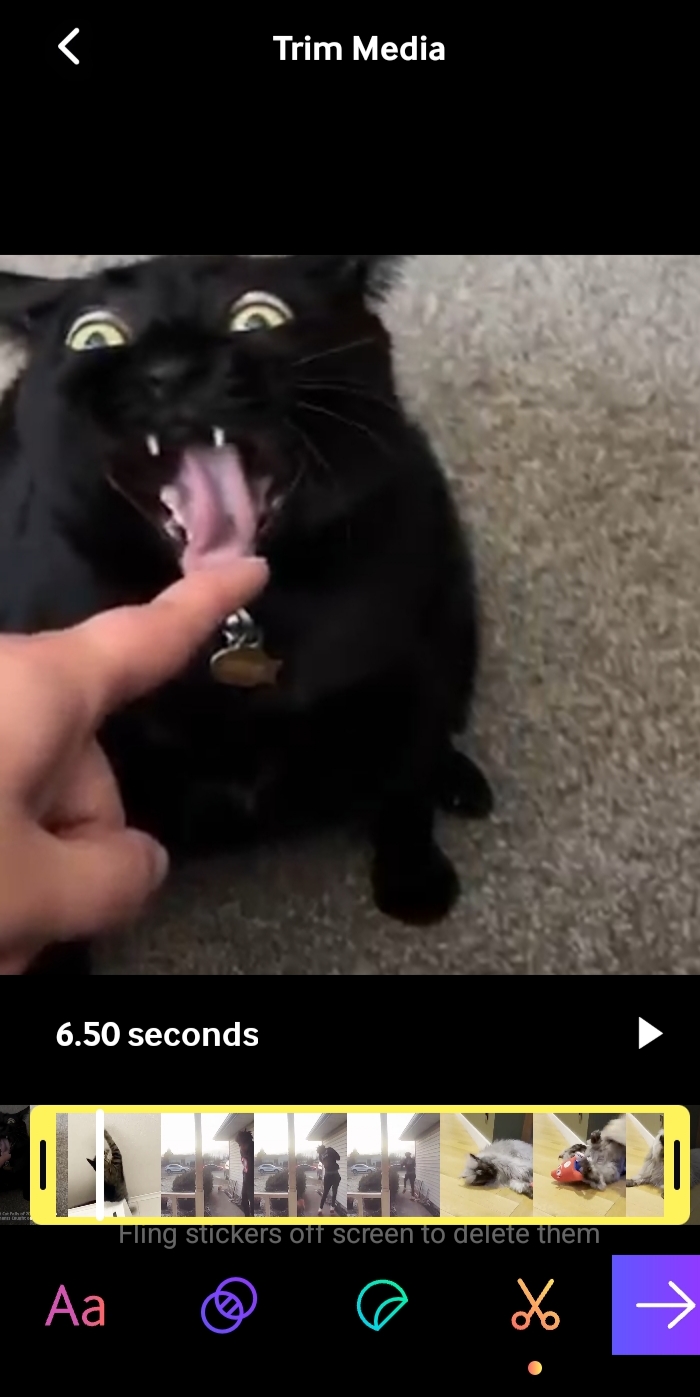
3. Click the arrow, then select Save GIF. The file automatically saves to your device.
4. Use an online tool to compress the file size
Long GIFs can slow loading speed, which can annoy users even before the email is opened. You should keep it short, ideally five to 10 seconds, and aim for around 1MB or less for smooth loading. You can use tools such as Canva, Photoshop, and screen recording software like Loom.
Learning how to put a GIF in an email can increase engagement, but only if it’s optimized and used strategically. A good GIF should always add to the user experience without being intrusive and off-placed.
A few adjustments can improve load speed, clicks, and overall performance. Below are practical tips to achieve a good-looking GIF in an email.
Keep your GIF around 500KB – 1MB for faster loading, especially on mobile. Shorten the duration, reduce unnecessary frames, and limit the number of colors to shrink the file. These limits are similar to the recommended best sizes for images in email, which help improve the loading speed and performance of your GIF. A slow-loading email increases the likelihood that subscribers will abandon it before the animation plays.
Turn your animation into a clickable image that links to a landing page, product, or special offer. This way, the GIF in the email becomes a conversion tool. You can add UTM parameters to the link to track clicks and measure performance.
Not all email clients display GIFs in emails the same way. For example, some desktop versions of Microsoft Outlook only show the first frame. Always test your email across major email platforms and devices before sending to ensure everything displays correctly.
Use colors, fonts, and animation styles that match your brand guidelines. The GIF should feel like a natural part of your email, not something random. Consistency builds trust and makes your message easy to understand.
Add descriptive alt text so screen readers can explain the GIF in the email to visually impaired users. You should also avoid flashing or overly rapid animations, as they can be distracting or trigger sensitivity issues.
There you go! These are the simplest steps for putting a GIF in an email. The process is no more complicated than inserting a regular image. Whether you upload a file, drag and drop it, or paste an image URL, most email platforms allow you to put GIFs in emails with only a few clicks.
As you follow our steps on how to send a GIF in an email, keep performance in mind. Make sure the file size is small for faster loading, especially on mobile devices. Also, design the first frame to clearly show your main message in case some Outlook versions display it as a static image.
Most importantly, add GIFs to emails only when they’re relevant. It should support a goal, such as driving a click, showcasing a feature, or highlighting an offer. Test different versions to see how subscribers respond, then track clicks to measure impact.
When used strategically, GIFs can make your emails more effective. Try adding a well-placed GIF to your next campaign in Omnisend and see how it improves clicks and conversions.
Quick sign up | No credit card required
It’s very easy to add GIFs to the body of an email. Just follow these steps to learn how to add a GIF to an email:
1. Source GIFs from sites like GIPHY or use your own custom file
2. Open a new message
3. Upload the .gif file
4. Drag and drop it into your draft or insert the image URL
5. Place your cursor where you want it
6. Add the file
7. Resize if needed
Here’s how to insert a GIF into an email:
1. Open your email draft
2. Click the image icon (Insert Image)
3. Select your saved .gif file or paste a direct image link
4. Once inserted, adjust the size and alignment to fit your email layout
5. Test your email on both desktop and mobile to ensure the GIF displays properly
Some email clients, especially certain Outlook desktop versions, only show the first frame of a GIF instead of playing the animation. It could also be due to a large file size or an incorrect file format.
To resolve this problem, make sure the file ends in .gif and keep the file size under 1MB. Also, check whether you’ve enabled animations in your email settings.
Yes, animated GIFs work in most modern email clients, including Gmail and Outlook on the web. However, a few desktop versions of Outlook may display only a static first frame. Hence, you can put a GIF in email campaigns, but make sure to test before sending.

TABLE OF CONTENTS
TABLE OF CONTENTS

What’s next


No fluff, no spam, no corporate filler. Just a friendly letter, twice a month.