Omnisend AI


 OFFER
OFFER










Adding a WordPress email link is a straightforward process. If done carelessly, however, it opens the door to bots scraping your contacts, which leads to spam floods and a loss of credibility.
While it’s true that after adding a clickable email link, known as a mailto link, the WordPress site becomes more convenient, that option comes with the aforementioned risks. Leveraging contact forms avoids such complications and adds other benefits, but it takes a bit more effort to set up.
Before you decide which WordPress email link option to use and how to implement it, there are a couple of caveats to know that will guide your decision.
We’ll cover spam protection options, two methods of adding email links to your WordPress site, and how to choose between them.
Quick sign up | No credit card required
How to add an email link in WordPress
There are two ways to add a WordPress email link: the hyperlink button and HTML.
We’ll walk you through both methods, but it’s worth mentioning again that using mailto links isn’t the most secure practice due to the risks of spam bots and other malicious activity.
If you’re uncomfortable with this and want a better way to link emails, we recommend skipping ahead to the bottom to learn about the advantages of contact forms. If you have already implemented an email link in WordPress but it’s not working, look into the Common issues section.
Otherwise, let’s take a closer look at the link email WordPress option.
Adding an email link in WordPress (Gutenberg block editor)
This is the fastest and easiest method of using an email link in WordPress.
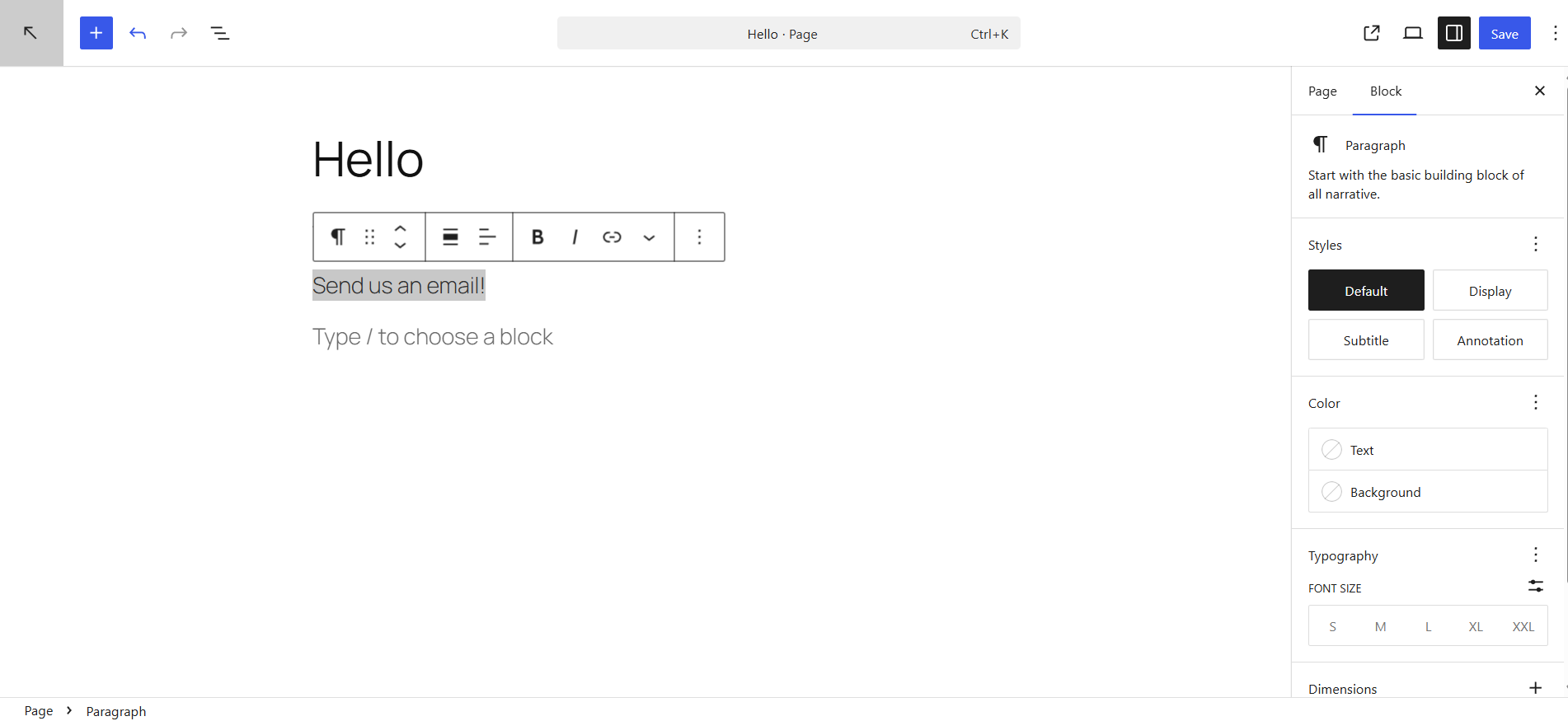
Step 1: Open the WordPress block editor and write your anchor text. Let’s use “contact us today.”
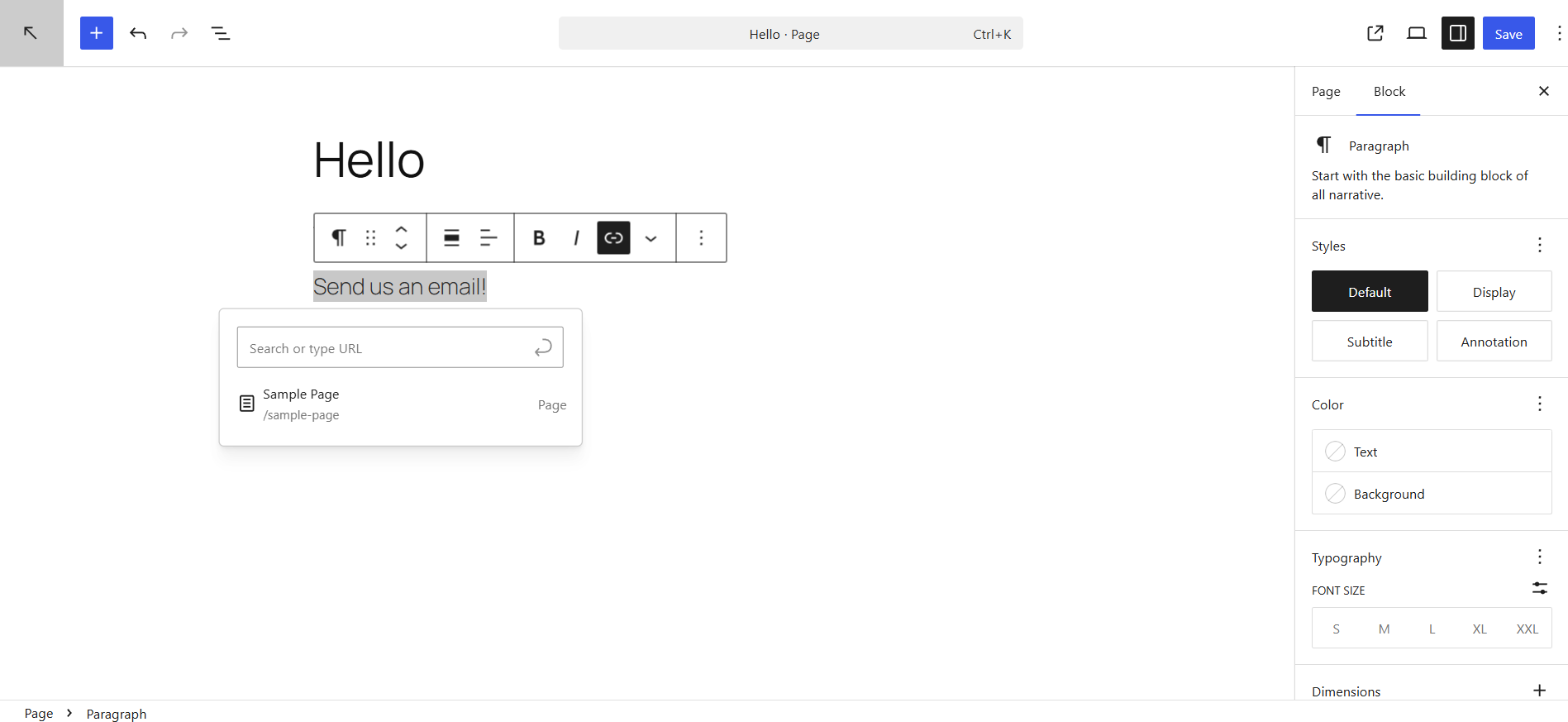
Step 2: Highlight your text and click the hyperlink button in the editing box. You should see something like this:
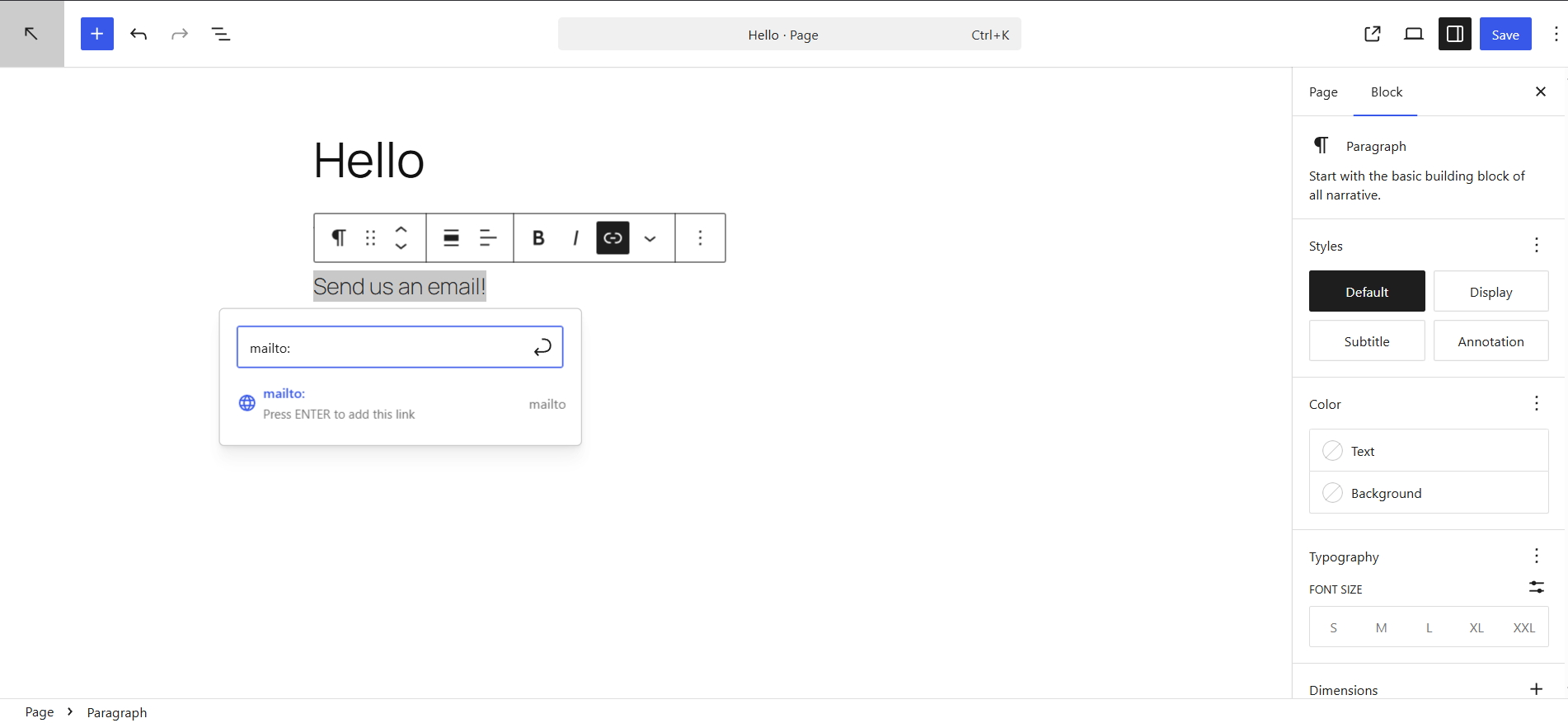
Step 3: Type in mailto: followed by your email address. There should be no spaces.
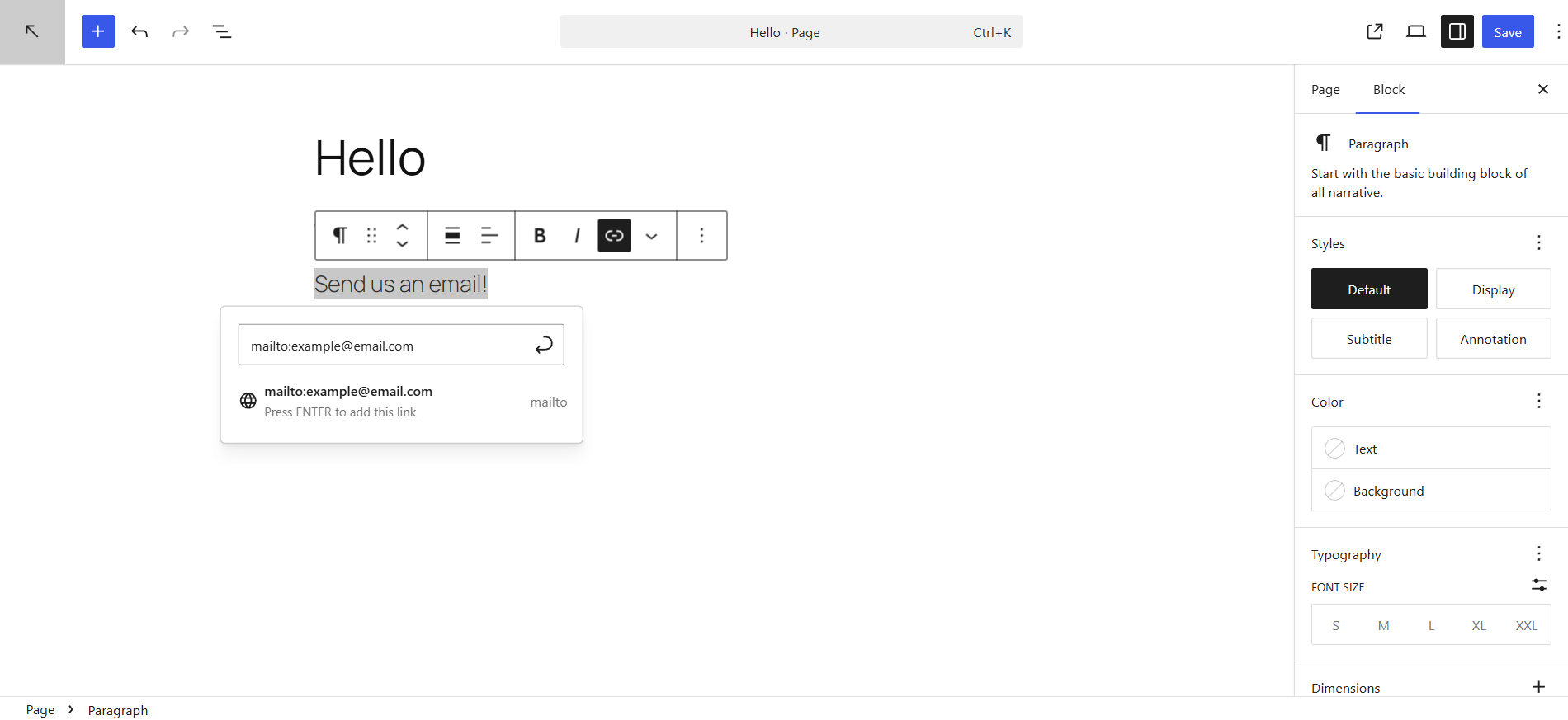
Step 4: Press Enter (or click the blue arrow). Your mailto link is ready to go.
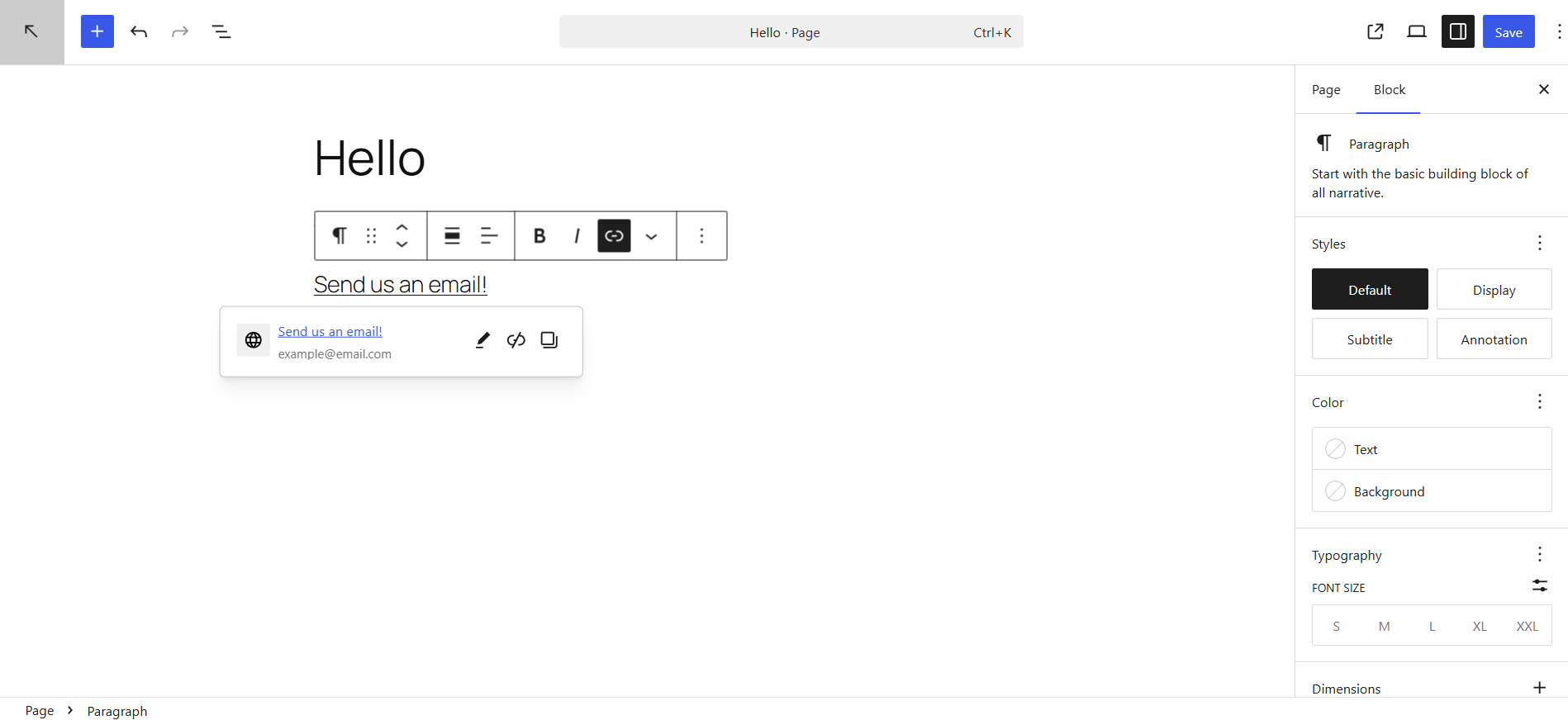
Step 5: Click Save in WordPress to confirm your changes. Now you know how to add email link in WordPress.
Adding email links in WordPress using HTML
You can also use code to embed an email link. WordPress includes it as the only way to add a clickable email link to a text widget or theme file.
For simplicity, let’s assume you’re using this method on a WordPress post.
Step 1: Open the post you want to edit and press the three dots in the top right corner. Select Code editor under EDITOR.
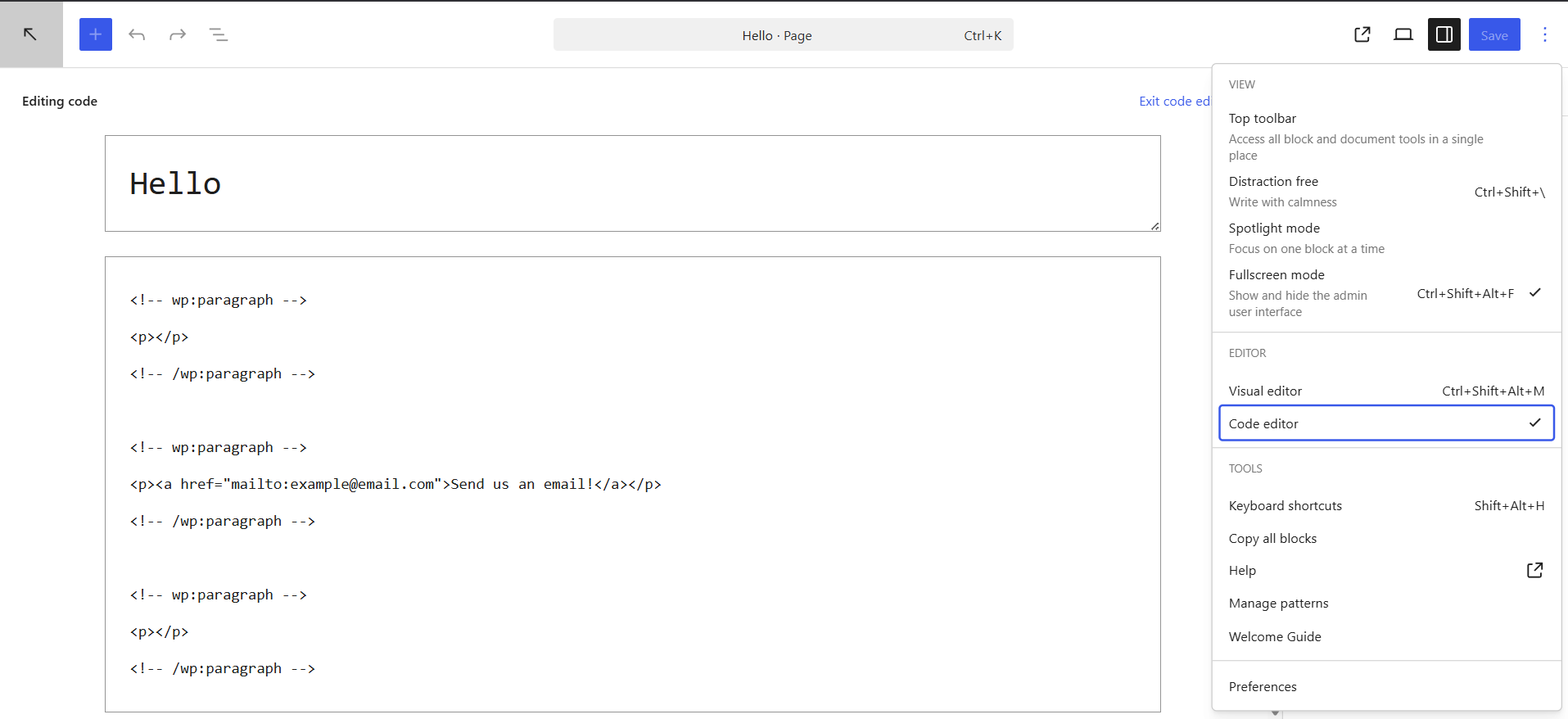
Step 2: Add the following code to the text box:
<p><a href=”mailto:[email protected]”>Send us an email!</a></p>
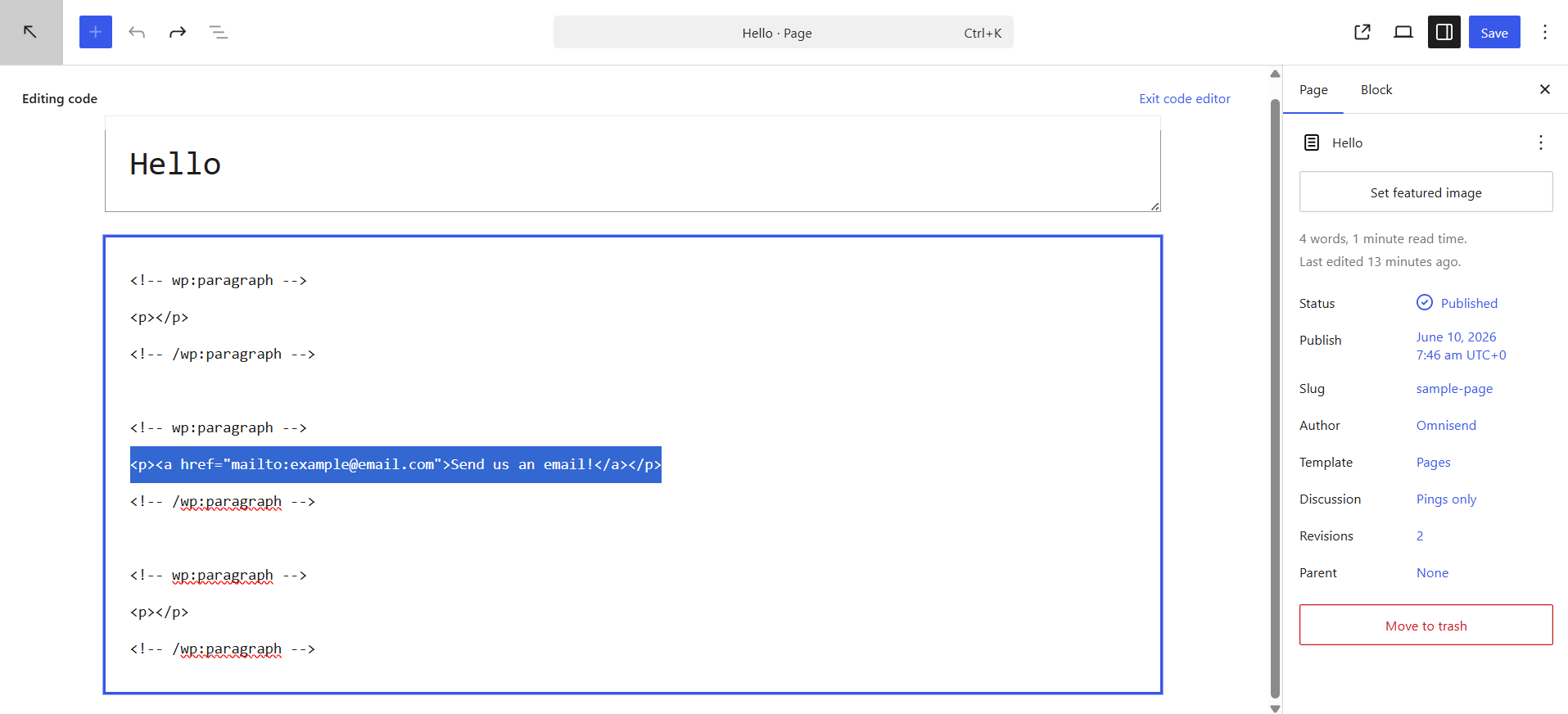
Step 3: Click Save. Your mailto link is now live.
If you want to, you can also customize your mailto link. WordPress allows subject lines, images, and more.
Understanding mailto links
Mailto links in WordPress look like regular hyperlinks. The only difference is when a visitor clicks on a WordPress email link, their email client opens the compose window with a pre-populated address field, like so:
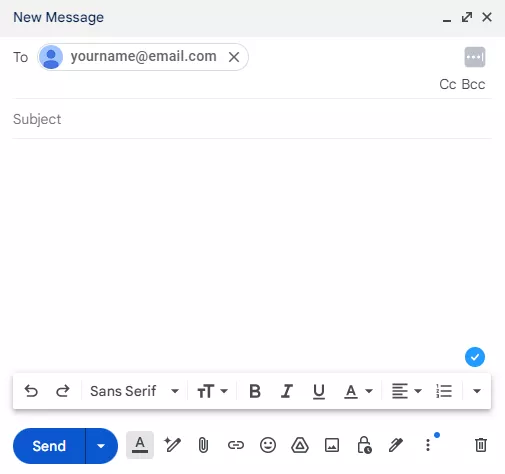
You can easily create clickable email links in WordPress. Just open a WordPress post, type out and highlight your email address, then press Ctrl+K to create a mailto link. You can create a phone number (e.g., tel:+1234567890) as a clickable link in the same way.
Customizing email links
With a bit of code, you can customize your email links. WordPress allows custom colors, styles, and even pre-populated text. Here are three ways to customize your email links.
1. Pre-populate subject lines in email links
Here’s how to link an email in WordPress and pre-populate subject lines for users using HTML in the code editor.
Step 1: Paste your mailto link into a WordPress post. It should look something like this:
<a href=”mailto:[email protected]”>Contact us today</a>
Step 2: Add ?subject= to the end of your email address. Then, add the word you want in the subject line after the = symbol. Your code should now read:
<a href=”mailto:[email protected]?subject=Hello”>Contact us today</a>
Here’s what this looks like:
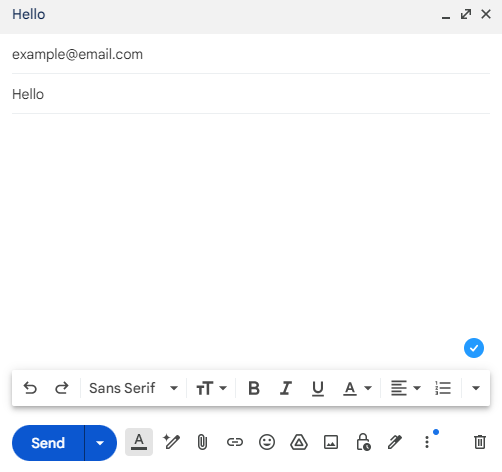
Step 3: If your subject line contains spaces or special characters, you need to encode them.
Otherwise, they won’t appear. To add a space, you’d write %20. Special characters have their own encodings — the exclamation mark, for example, is %21. You can use various URL encoder tools to find the needed special characters.
So if you wanted the subject line to be “Hello there!” you would write the following:
<a href=”mailto:[email protected]?subject=Hello%20there%21”>Contact us today</a>
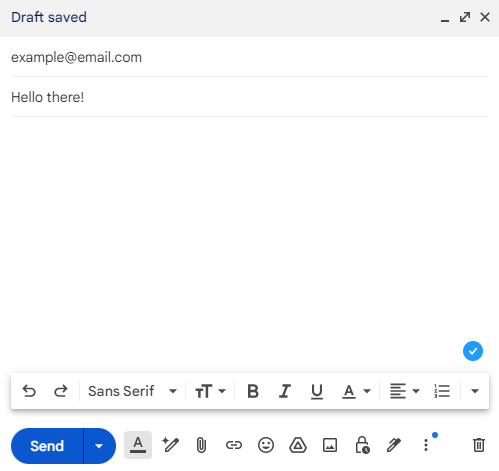
Step 4: If you want to pre-populate more than the subject line, you can add extra parameters to your mailto link using the & symbol. You can pre-fill the message body (&body=), add a CC email address (&cc=), or a BCC email address (&bcc=).
If you want to add the body and a CC email address, your code should read like the following:
<a href=”mailto:[email protected]?subject=%20there%&body=I%20wanted%20to%20ask&[email protected]”>Contact us today</a>
2. Customizing email link appearance and texts
If you want to change the color or style of your email link, WordPress lets you use CSS (aka Cascading Style Sheets).
Luckily, this isn’t difficult to do.
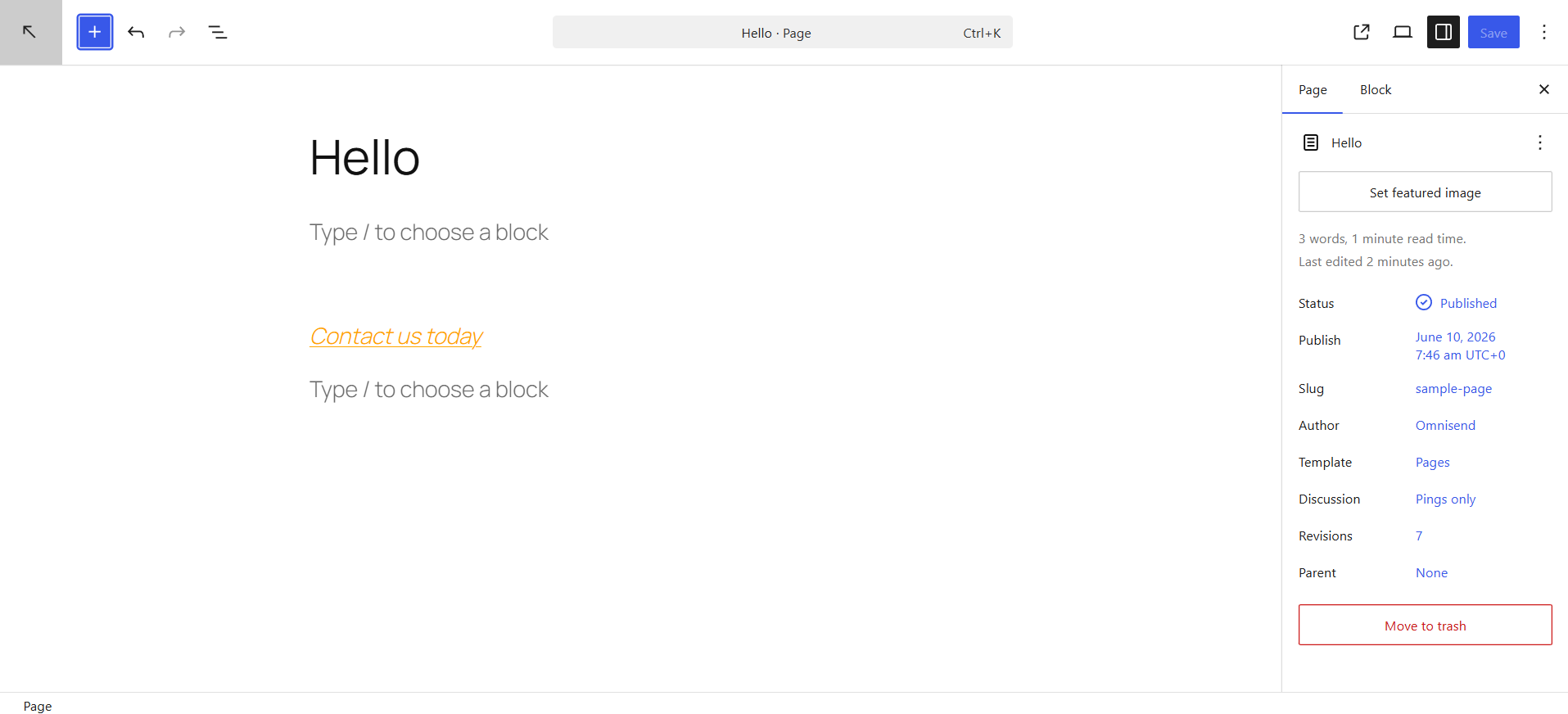
Let’s say you want to create an orange link in italics:
Step 1: Start with a basic mailto code that you can insert in the Code editor.
<a href=”mailto:[email protected]”>Contact us today</a>
Step 2: Next, add style= after the href field. You need to include the color and text-decoration properties, followed by a semicolon.
Here’s what that looks like:
<a href=”mailto:[email protected]” style=”color: orange; font-style: italic;”>Contact us today</a>
This should be the final result:
3. Using images or icons as email buttons
If you don’t want to use basic anchor text, learn how to add an email button in WordPress. It will turn an image or icon into a contact button.
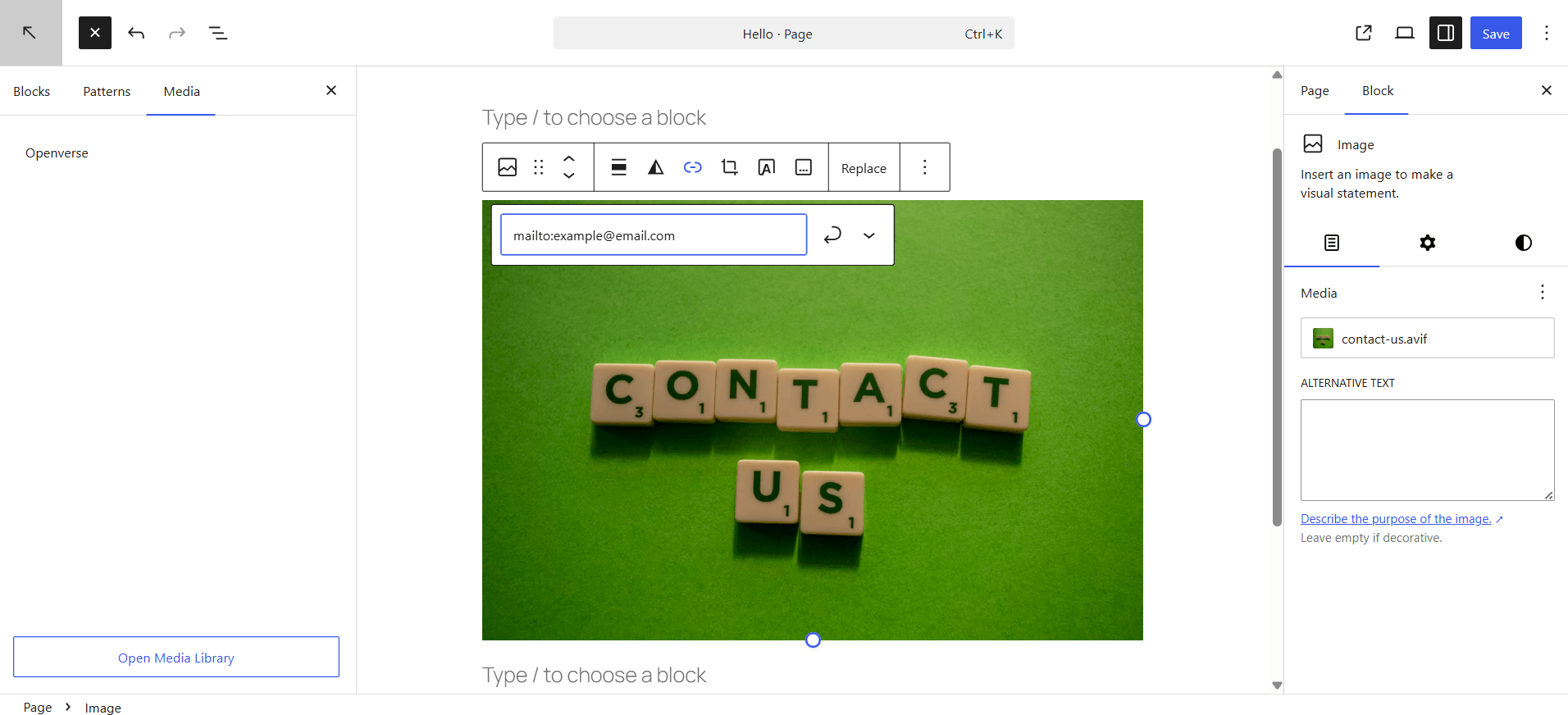
Step 1: Download the image you wish to use. Click the Block inserter button with the “+” sign in the top-left corner. Choose media and click on Open Media Library. You’ll be able to drop or select files from your device.
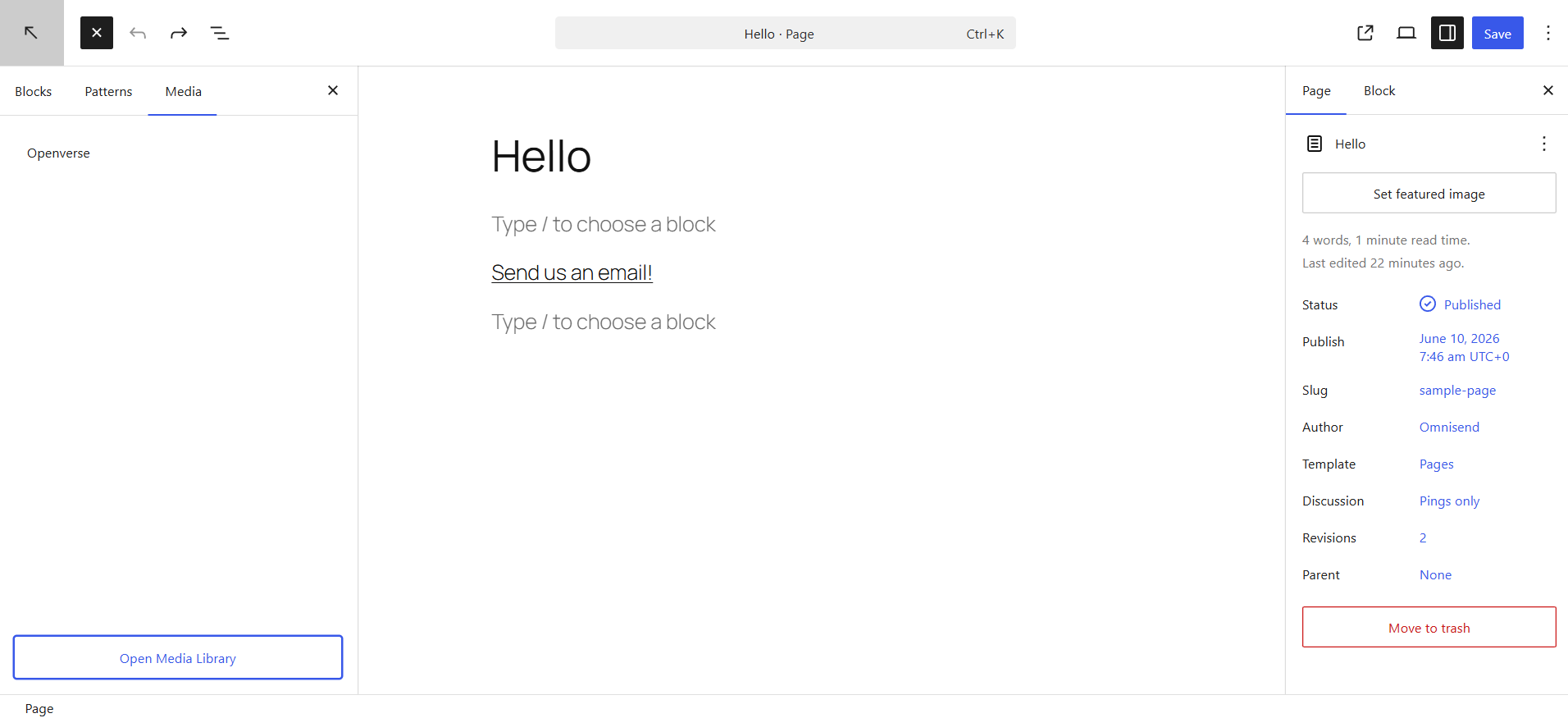
Step 2: Once you add an image, click on it and select the hyperlink button in the editing box. Then, enter mailto: followed by your email address just as with text. Press save.
Common issues with email links in WordPress
Adding a simple WordPress email link may seem like a quick win to make contact information readily available. However, it often comes with several downsides for both user experience and security, leading to frustration when troubleshooting. Here are some common issues to keep in mind:
- Inconsistent user experience across devices: Clicking a WordPress mailto link may open the wrong email client or none at all, especially on shared or public devices. That’s because mailto links rely on the user’s system settings to launch a default email app. This may be misconfigured or set to an unused application like Outlook or Apple Mail.
- Increased exposure to spambots and email harvesting: Using a visible email link in WordPress exposes your raw email address to web crawlers. Automated bots can scrape these addresses and flood inboxes with spam, phishing attempts, and unwanted promotional emails.
- No fallback for users without email clients: Many people browse on mobile or public computers where no default email client is configured. For them, clicking the link does nothing — no popup, no warning — leading to frustration, confusion, and missed opportunities.
- Manual updates required across multiple pages: If your address changes, every individual link to email in WordPress must be manually found and updated. This becomes tedious and error-prone on larger websites, especially compared to contact forms, where one update can handle all submissions.
- Absence of modern features: Unlike contact forms, mailto links can’t validate inputs, segment users with conditional fields, or integrate with analytics and lead tracking tools. That means lost insights on user engagement and zero data on how often your email link is used.
Luckily, there are a few known issues that cause your email links in WordPress to not work as intended. Consider learning about them before implementing mailto links on your site.
Why is my WordPress mailto link not working?
- No default email client. The most common reason WordPress mailto links don’t work is that no email app is installed on the visitor’s device. Clicking a hyperlink won’t function as a mailto link. WordPress site won’t show any error messages. The best solution is to use contact forms instead.
- Mobile browser limitations. Many mobile browsers don’t handle mailto links reliably, especially if there’s no default mail app. If a significant portion of your traffic comes from mobile visitors, using a contact form provides much better compatibility.
- Incorrect HTML syntax. Missing prefixes, incorrect symbols, typos in email address or elsewhere will break your mailto links. Double-check that your links use the correct HTML code format:
<a href=”mailto:[email protected]”>Contact us today</a>
- Plugin conflicts. Various plugins for security, caching, optimization, and other purposes might interfere with how links behave. Temporarily disable your plugins one by one to see which ones are blocking your mailto link. Replace the plugins that create issues.
- Browser security settings. Some privacy browsers block external app links by default, including the mailto: prefix. Visitors can fix it by changing their browser settings and allowing protocol handlers, and site owners can use contact forms instead.
The problem of broken email links in WordPress can be resolved by implementing contact forms instead, which brings additional benefits.
Mailto link vs. contact form: which should you use?
In most cases, it’s better to create a contact form than an email link in WordPress. It’s not just about the safety compared to mailto links. WordPress sites gain other benefits of speed, data capture, and convenience from contact forms.
| Mailto link | Contact form | |
|---|---|---|
| Spam risk | High — email exposed to bots | Low — email hidden from scrapers |
| Setup time | Under 1 minute | 5–15 minutes |
| Mobile compatibility | Unreliable — requires an email client | Works on all devices |
| Data capture | None | Collects name, email, and message |
| GDPR suitability | Limited | Better — consent can be built in |
| Analytics | None | Trackable via form submissions |
| Best use case | Simple personal sites | Business contact pages |
- Cut back on spam: Spambots can harvest mailto links and repurpose the addresses for malicious purposes. Contact forms, especially those with CAPTCHA or other anti-spam measures, are much less susceptible.
- Improve user experience: Contact forms are a quick and easy way for visitors to reach out without leaving your website. It’s a seamless, more user-friendly experience than clicking a mailto link and navigating to an inbox.
- Organize and collect data: Multi-step contact and signup forms help you capture information for future use. With contact forms, you can create specific fields for names, phone numbers, and subject lines to store necessary details in an organized manner.
- Add customization and branding: You can customize a mailto link, but not in the same way as a contact form. It’s possible to customize the colors, backgrounds, and form fields of contact forms to suit the type of information you need.
- Automate responses: With contact forms, you can set up automated responses to acknowledge receipt of users’ messages. This provides senders with immediate feedback, which you can’t get with mailto links.
- Integrate with CRM and marketing tools: If you use customer relationship management (CRM) systems and marketing tools, you can easily integrate them with Omnisend contact forms. This streamlines workflows and automates repetitive tasks like adding contacts to a mailing list or database.
- Ensure accessibility for users without a default email client: Not all users set a default email client, which is required when you link emails. WordPress contact forms are universally accessible through web browsers, so you don’t have to worry about potential problems. link email WordPress
Best WordPress contact form plugins
Given the drawbacks we’ve covered, it’s clear that the traditional approach of a WordPress email link creates more problems than it solves.
WordPress mailto link implementations simply can’t compete with modern user expectations and security requirements. That’s why contact forms are the smarter alternative.
They protect your email address, provide better UX, and support lead-generation features you simply can’t get from a basic email link in WordPress.
Let’s explore some of the best WordPress email marketing plugins that offer contact forms to replace those vulnerable mailto links.
1. Omnisend
Best for email list growth + automation

Omnisend is a powerful email and SMS marketing platform that eliminates the need to expose email addresses through public links. As of 2026, it has 100,000+ active installations and a 4.8 rating.
Its customizable signup forms safely collect and store addresses while enabling automated follow-ups, keeping your inbox protected from spam.
You can launch popups, mobile-friendly forms, and gamified tools like the Wheel of Fortune, all with a forever-free plan. With hundreds of templates and a $79 back for every $1 spent, it’s a strong alternative to a basic WordPress mailto link.
“80% of our online visitors are on a mobile device, so to be able to target those with instant messaging was a great option. Combined with email, it was a powerful combination. Our mobile form was hovering at about the 18% signup rate in Klaviyo. We’re now up to about 32% at Omnisend using their multi-step forms. It was also very easy to set up with the step-by-step instructions and support given by Omnisend.”
Vape Superstore achieved a 77% increase in signup rates by switching to Omnisend. Read the full case study here.
2. Jetpack
Best for quick AI-assisted form creation
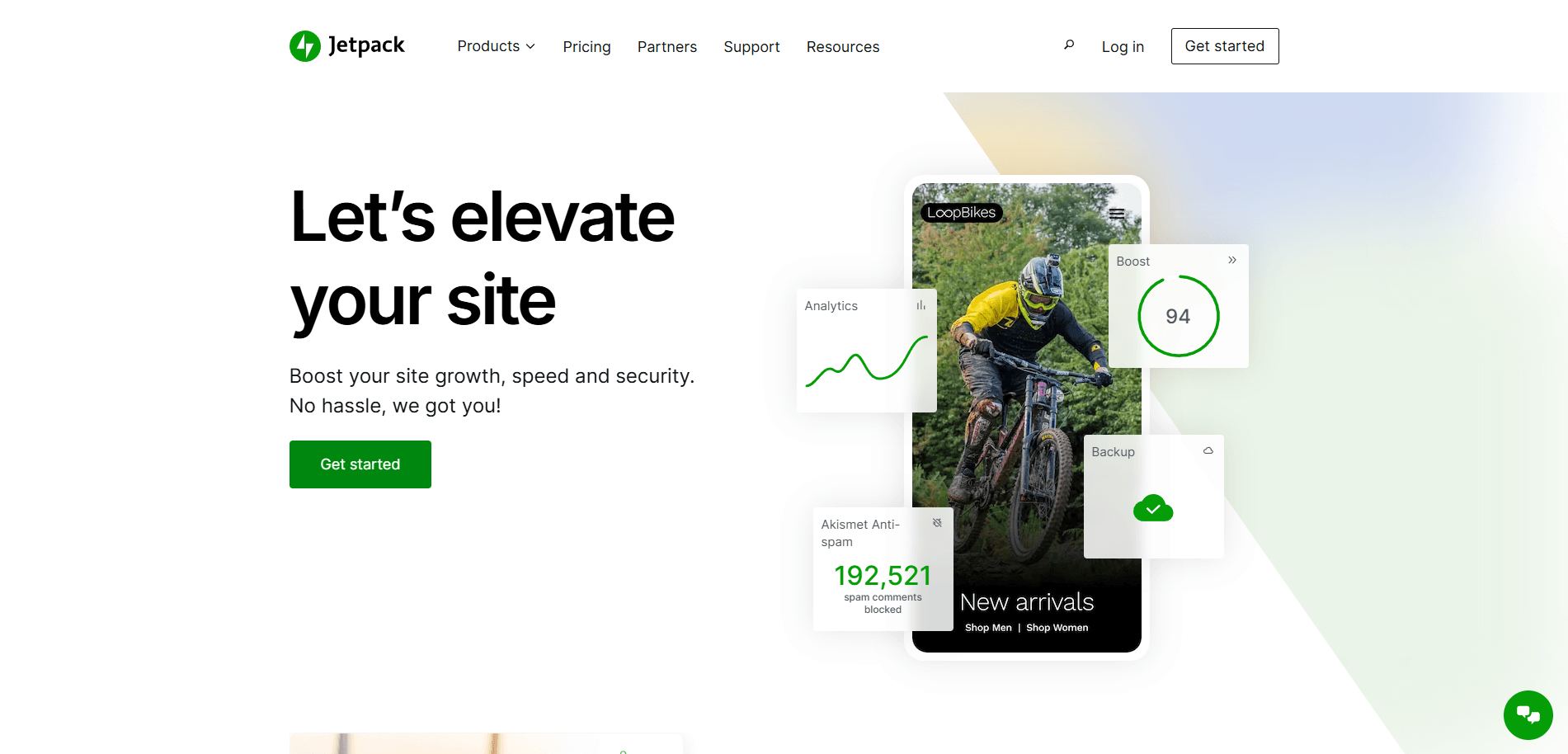
Jetpack offers contact forms that are uniquely integrated with AI. Once you supply a prompt with your needs and parameters, it immediately attempts to create a custom form layout. Their plugin is used by over three million users and is rated 3.8 in the WordPress store as of 2026.
But there are tradeoffs. You only get 20 free AI requests, prompt tuning has a steep learning curve, and Jetpack isn’t a full CRM or email marketing solution. If you’re after automation, analytics, or segmentation, you’re better off using a more comprehensive platform built for growth.
3. Ninja Forms
Best for payment-enabled forms on a budget
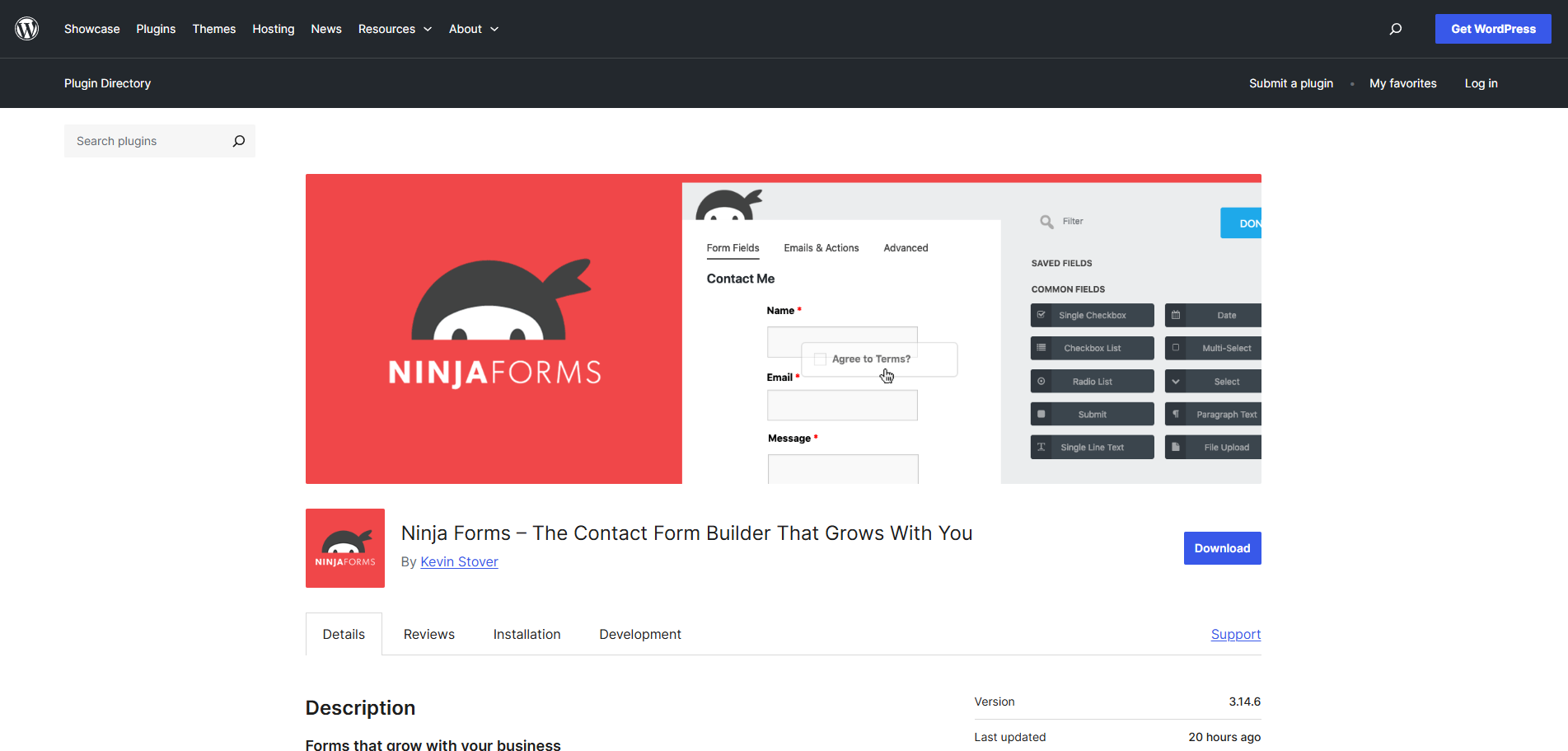
Ninja Forms (As of 2026, 600,000+ installations and a 4.4 rating) is a drag-and-drop contact form builder and a low-code solution for those unfamiliar with HTML. You can also set up payment forms with sites like PayPal or Stripe, which is useful for ecommerce sites.
However, you should know that Ninja Forms only serves one function: to build forms on your website. You won’t have access to other tools like advanced email automations, SMS functionality, or web push notifications.
4. Contact Form 7
Best for developers or advanced users
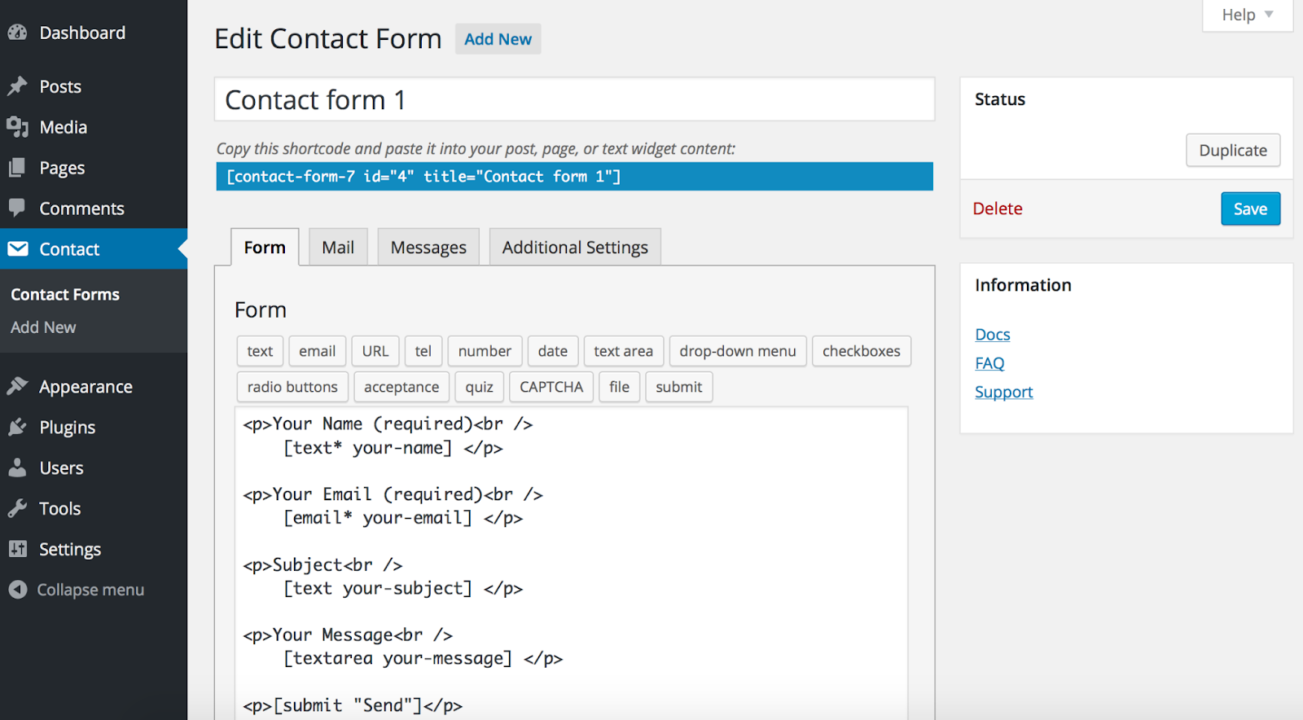
Contact Form 7 is a WordPress plugin supporting verification tools like CAPTCHA and Akismet spam filtering. If you want to save submitted contact forms for future use, you can also download its companion app, Flamingo.
While Contact Form 7 may be a good free choice for experienced builders, it’s not always a friendly option for those without coding experience. With over ten million active installations as of 2026, Contact Form 7 has a 4-star rating mostly due to negative reviews about unsafe email configuration.
Quick sign up | No credit card required
Avoiding spam and protecting email addresses
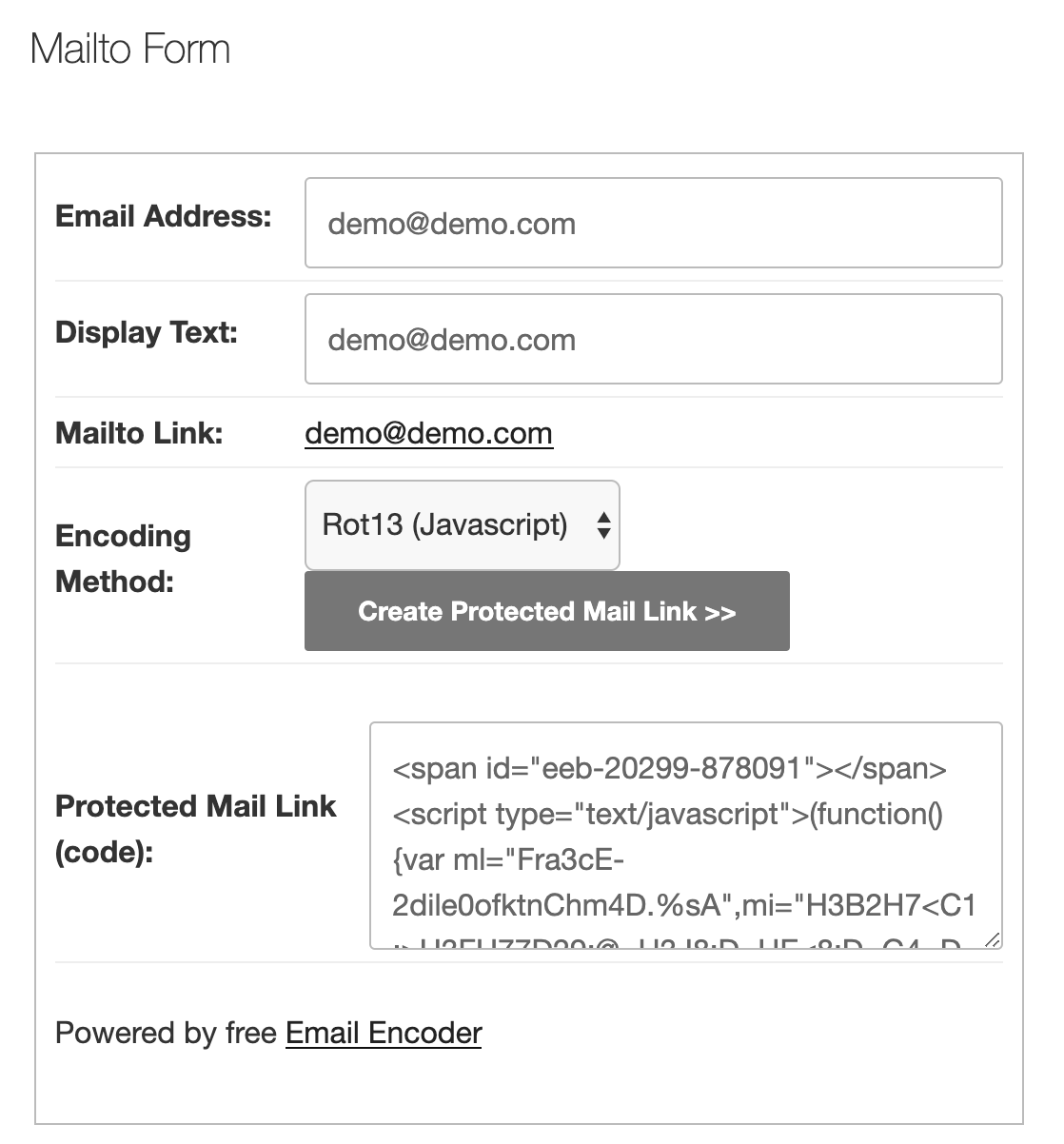
If you’re still set to use mailto links instead of contact forms, be sure to take additional steps for spam protection. Email encoder plugins are your best bet to ensure the safety of mailto links on your website.
- Email Encoder (over 90,000 active installations, 4.9 rating)
- Email Address Encoder
Posting your email address as a mailto link without encoding allows spammers to collect it, since it’s visible in your site’s HTML. Spam bots constantly crawl the web for WordPress email links with mailto: strings and collect them automatically.
Once collected, your email address gets added to spam lists and sold to senders, leading to your inbox receiving huge volumes of spam or even malicious attacks. The longer your address is posted as plain HTML, the greater the risks.
Skip the spam, grow your list smarter
We’ve explored how to insert WordPress email links using traditional mailto methods, but one thing remains clear. Contact forms offer superior protection, functionality, and user experience compared to exposed email links.
Adding a mailto link in WordPress might feel like the easy option, but it’s far from ideal. From spam exposure to poor UX and lack of tracking, it simply doesn’t support modern engagement goals. If you’re still weighing your options, revisit the FAQ section and mailto vs. contact form comparison table above for a quick reference.
Omnisend, on the other hand, offers a smarter solution. It’s intuitive without being clunky, with professionally designed forms built to convert. Plus, there’s no exposure to spambots, clunky email clients, or extra tools for following up.
With powerful marketing automation, a generous free plan, and seamless integration of email links in WordPress, Omnisend lets you grow your list and your business without risk.
Quick sign up | No credit card required
Frequently asked questions
How do I insert an email hyperlink in WordPress?
Open the WordPress block editor, type in your link text, select and highlight it, and type mailto: followed by your email address. Press enter (or the blue arrow) and save. Find more detailed instructions for adding an email link in WordPress on our blog.
How do I make my email address clickable in WordPress?
It’s easy to learn how to make email address clickable in WordPress. Once you’ve typed your email address as plain text, select it and click the link icon in the toolbar. Type mailto: in front of the address in the link field and press Enter.
Why is my mailto link not working in WordPress?
The most common reason for your WordPress mailto link not working is when the visitor has no default email client. Clicking your email links has nowhere to send them. As with many other mailto link issues, site owners can fix it with contact forms.
Should I use a mailto link or a contact form in WordPress?
A mailto link is best for simple sites where convenience matters more than spam protection. WordPress sites benefit from quality contact forms, such as those from Omnisend, because, compared to mailto links, they hide your email, work more reliably, and enable other features.
How do I add an email button in WordPress?
You can create an email button by wrapping a button block or styled text in a mailto link. We covered the full instructions, but in short, you need to add a button block or text and set its link to point to your email with mailto:.
How do I add an email link in WordPress without getting spammed?
Generally, there are two main ways to add an email link in WordPress without triggering spam bots. You can use email encoder plugins that hide your email in the HTML source or replace the mailto links entirely with contact forms.