
 Omnisend AI


 OFFER
OFFER







Drive sales on autopilot with ecommerce-focused features
See Features
Implementing back-in-stock notifications is essential for Shopify stores to recover lost sales, as 66% of customers will turn to competitors when products are unavailable.
Shopify lacks a built-in "Notify Me" feature, so merchants must utilize dedicated apps or marketing platforms like Omnisend to set up automated restock alerts.
Back-in-stock emails boast impressive open rates of over 50%, making them a powerful tool for re-engaging customers who have already expressed interest in specific products.
Combining email and SMS notifications enhances reach and response rates, ensuring customers receive timely alerts about restocked items on their preferred channels.
Although running out of stock is normal for Shopify stores, it can be expensive and cost you lost sales.
When shoppers land on your product page and see “out of stock,” they’ll likely leave and run to your competitors’ store.
Shopify restock notifications can help capture any lost demand as soon as inventory returns.
There’s a catch, though.
You can’t send back-in-stock emails with Shopify alone. The platform doesn’t have a “Notify Me” button to collect email addresses and send alerts to customers when an item becomes available again. This means if you want to bring these shoppers back, you have to set up a system yourself.
That’s what this detailed guide is all about.
Here, we’ll explore why back-in-stock email notifications in Shopify stores work so well, the apps used, how to set them up, and how to get the best results.
What are back-in-stock emails for Shopify?
A Shopify back-in-stock email is an automated notification sent to your customers when a previously out-of-stock product becomes available again. Customers can be notified by SMS, email, or push notification.
That customer wasn’t randomly browsing but intended to buy that item when they landed on your product page. Shopify back-in-stock emails keep this interest alive and give you a second chance to close the deal.
That’s why these emails are much more effective than regular promo emails. In fact, back-in-stock emails often have open rates above 50% because customers have already wanted that product.
Why Shopify doesn’t include native restock emails
Unfortunately, Shopify doesn’t have a built-in system to show a default “Notify Me” widget, which captures restock signups or automatically sends inventory-triggered alerts.
Shopify Email exists, but you can’t use it to send emails when you restock a product automatically. Additionally, it doesn’t track inventory changes and activate restock alerts on its own. To send back-in-stock emails, Shopify merchants can use the following:
- A dedicated Shopify back-in-stock app
- A marketing platform with this functionality
How back-in-stock notifications work
Back-in-stock alerts work using two main parts:
1. A signup form: This form shows up on an out-of-stock product page. It asks the customer to enter their contact information so they can be notified later.
2. An automatic trigger: When you restock a product, the system automatically sends a message to the customer to let them know that it’s available again.
Here’s what a typical Shopify out-of-stock notification flow looks like:
A customer visits your product page
↓
They find that the item they’re looking for is out of stock
↓
They click the “Notify Me” button, triggering a signup form
↓
They enter their contact details (email address or phone number)
↓
The system monitors inventory
↓
When you restock the item, the system automatically sends the customer an alert
That’s it! The entire process runs automatically without any manual intervention.
Why back-in-stock email notifications drive revenue for Shopify stores
Shopify back-in-stock emails are powerful revenue drivers for any Shopify store. They help recover lost sales and keep customers engaged even when products sell out.
Here are some reasons why they matter.
Recover lost sales from stockouts
Your customers will often leave if you can’t fulfil their demand immediately when they want to make a purchase. A 2024 AlixPartners study found that 66% will buy from a competitor when your product is out of stock. Without a back-in-stock alert system in Shopify, that sale is gone.
However, when you capture your customer’s contact information, you can:
- Stay connected with a shopper who already wants the product
- Bring them back to your store the moment you restock
- Turn strong buying intent into a completed sale
Back-in-stock alerts regularly achieve open rates of above 50%, which is almost double that of other automated campaigns. They also outperform post-purchase emails, delivering higher CTR. This is mainly because the customer already knows what they want.
Build customer loyalty and retention
Your customers feel frustrated when they come to your store only to find the items they want are out of stock. It’s worse if you don’t offer a way to notify them. Many will assume you don’t care and move on.
However, if you give them the option to sign up for a Shopify back-in-stock email, you’ll improve the customer experience. Instead of “We don’t have this product,” you’re saying, “We’ll let you know the second we restock it.”
This simple follow-up shows you’re keeping your word and showing initiative. Over time, this strengthens customer retention as shoppers learn they can rely on you.
Instead of checking your store constantly or guessing when you’ll restock, they’ll wait for your alert. When customers see your dedication and effective communication, they’re more likely to return.
Collect high-intent subscriber data
Back-in-stock alerts help you collect valuable subscriber data.
Every “Notify Me” signup is:
- A new email subscriber
- A potential long-term buyer
- A clear signal of interest in that item or similar products
You can also send the following emails to these subscribers:
- A welcome email series
- A reminder if they look at other products but don’t buy
- Special offers or sales emails
- Personalized product recommendations
Omnisend’s data show that automated emails drive 37% of all email sales, even though they account for only 2% of the emails sent. A Shopify back-in-stock email isn’t just another campaign. It’s an important aspect of your ongoing revenue strategy.
Two out of three shoppers leave when a product is out of stock. Shopify back-in-stock emails often get 50%+ open rates.
How to set up back-in-stock emails on Shopify: Three approaches
You can choose one of three ways to create an effective Shopify back-in-stock email system.
Option 1: Use a dedicated back-in-stock app
The Shopify App Store includes several standalone tools that focus purely on restock alerts. These apps let shoppers click “Notify Me,” and the system sends an email when inventory is back in stock.
Pros
- Built primarily for notifications
- Quick to install
- Often includes free plans
Cons
- Another separate tool to manage
- Limited to restock use cases
- Subscriber data may remain siloed from your main email marketing platform
- No broader email automation integration
If your only goal is to send a restock alert email, this can work. However, if you’re thinking more broadly or in the long term, this path can make your setup more fragmented.
Option 2: Use an all-in-one email marketing platform with built-in back-in-stock alerts
Some ecommerce marketing platforms, such as Omnisend, provide native back-in-stock alert features.
This approach combines:
- Form capture
- Automatic back-in-stock emails
- Email + SMS notifications
- Unified customer data
Omnisend displays back-in-stock forms as popups or embedded forms on the out-of-stock product page.
This setup works especially well if you have many SKUs or repeat buyers. Restock subscribers are automatically added to your broader email and SMS strategy. You can follow up later with product recommendations, cross-sells, or promotions without moving data between tools.
Option 3: Klaviyo back in stock vs. Omnisend back in stock
If you’re comparing back-in-stock features in Klaviyo and Omnisend for Shopify, here’s what you should consider.
Klaviyo
- Offers back-in-stock flows
- Tracks a “Subscribed to Back-in-Stock” event
- Requires adding code to your Shopify theme to display the “Notify Me” button
- Charges are nearly twice as high for comparable features
Omnisend
- Includes back-in-stock forms and automation in its free plan
- Uses a visual, no-code form builder
- Combines email + SMS in a single workflow
- Offers 24/7 customer support on all plans, including the free plan
- Delivers a high ROI of $79 for every $1 spent
It’s important to compare setup, multichannel messaging, and pricing when looking at Klaviyo and its alternatives. These factors directly affect cost, usability, and marketing performance.
Shopify back-in-stock email setup comparison table
The table below compares common ways to set up Shopify back-in-stock email notifications.
| Approach | Features | Email + SMS | Setup style | Data unification | Pricing |
|---|---|---|---|---|---|
| Standalone app | Basic restock alerts only | Usually email only | Quick app install | Separate from the main email tool | Free plans available |
| All-in-one platform | Stores that want restock + full marketing | Yes | Built into your marketing tool | All data connected | One platform cost |
| Klaviyo | Advanced segmentation | Yes | Requires adding code | Fully inside Klaviyo | Higher cost as your list grows |
| Omnisend | Value + simplicity for ecommerce brands | Yes | Visual, no-code form and automation builder | All ecommerce data in one place | Strong value, free plan available |
How to set up Shopify back-in-stock notifications with Omnisend
If you choose to set up Shopify back-in-stock emails with Omnisend, we’re here to guide you through the process. This full walkthrough shows exactly what to click, what to configure, and what to check before going live.
Step 1: Connect your Shopify store to Omnisend
Begin by linking your Shopify to Omnisend.
Here’s how to do it:
- Go to the Shopify App Store
- Search for Omnisend
- Click Install
- Complete the account setup steps
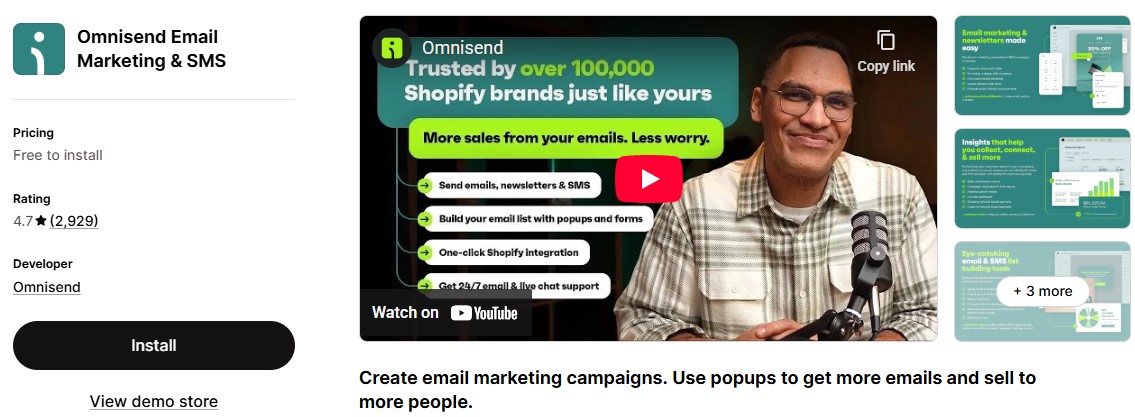
Once installed, Shopify automatically syncs your products, customer data, and order history into Omnisend. This is important because your back-in-stock emails rely on real-time inventory updates. When a product changes from “out of stock” to “available,” Omnisend can detect it.
This integration is what makes true email automation possible. You’re not uploading CSV files or manually triggering emails. Everything connects directly to your store.
If you’re wondering, yes, all of this works on the free plan. If you get stuck in any of the steps, you can rely on Omnisend’s 24/7 support.
Step 2: Create a back-in-stock signup form
Now you need a way to collect interested shoppers’ contact information when products are sold out.
Inside Omnisend:
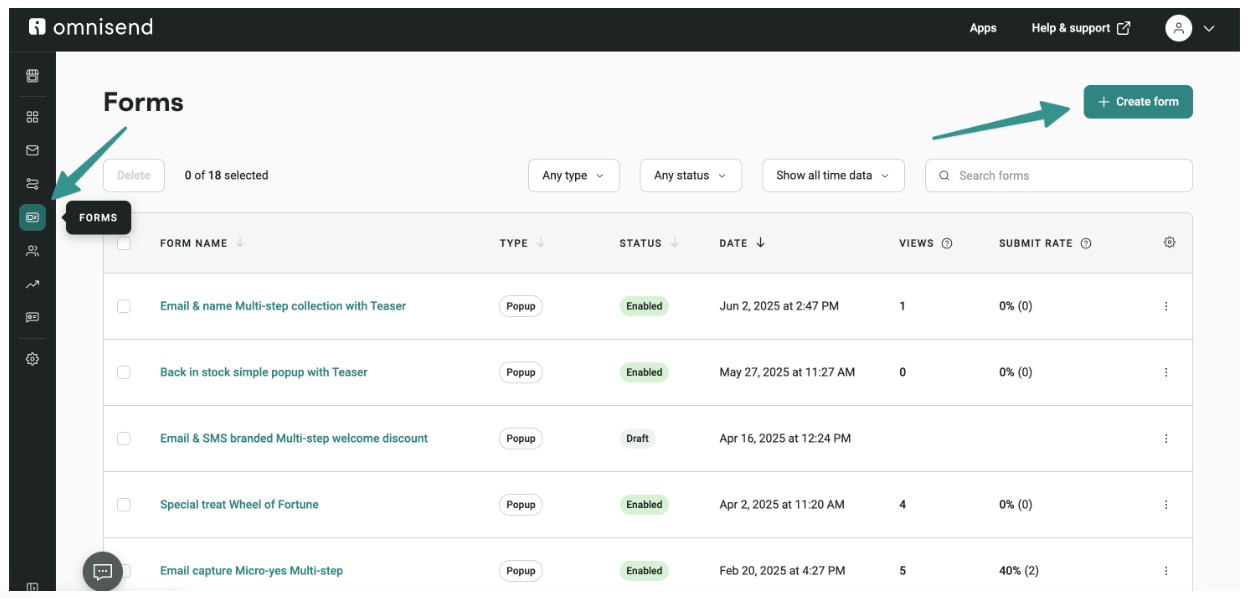
- Go to Forms > Create form
2. In the template library, tick the checkbox next to Gather interest in out-of-stock
3. Pick a template and click Use template
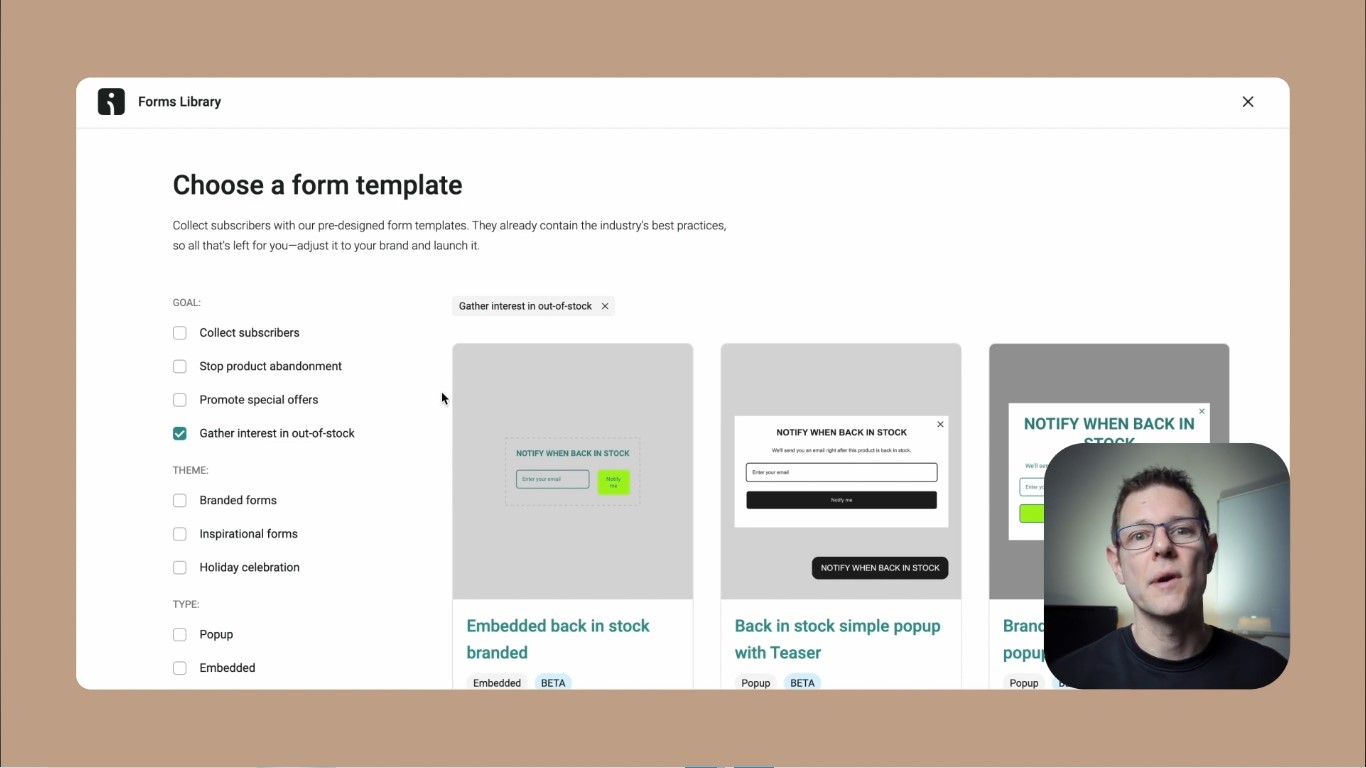
This opens the no-code drag-and-drop builder where you can:
- Collect email addresses
- Add a phone number field for SMS alerts
- Include custom fields
- Add text, images, or brand messaging
4. Navigate to the Behavior tab
5. Under Targeting, check Appears on pages for out-of-stock products
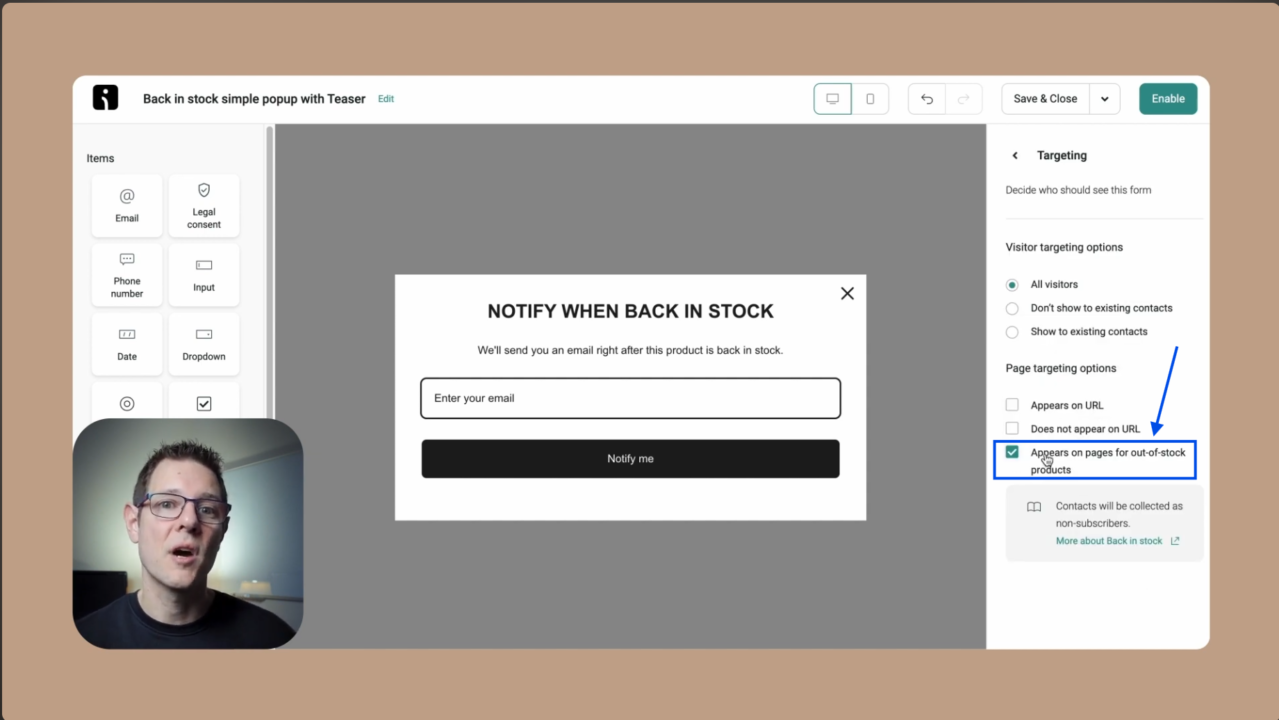
If you don’t set this correctly, the form won’t show where it should.
You can also:
- Choose a popup or an embedded form
- Set display triggers (time on page, scroll, exit intent)
- Tag contacts automatically
- Choose mobile, desktop, or both
Before publishing, go to a product that’s out of stock and confirm that the form appears. Always check this before moving to the next step.
Step 3: Build your back-in-stock automation workflow
Once your form is live, you need to create the workflow that automatically sends the alerts.
Go to Automation > Create workflow.
Then, look for the Back in Stock preset and click Customize workflow. With this preset, you don’t have to build the workflow from scratch.
Inside the workflow:
- The trigger activates when the product becomes available again
- The default email already includes a dynamic “Back in Stock” product block
- That block automatically pulls the product name, image, price, and link
You can adjust timing if needed, but most stores send the notification immediately. Speed matters here because customers won’t wait forever.
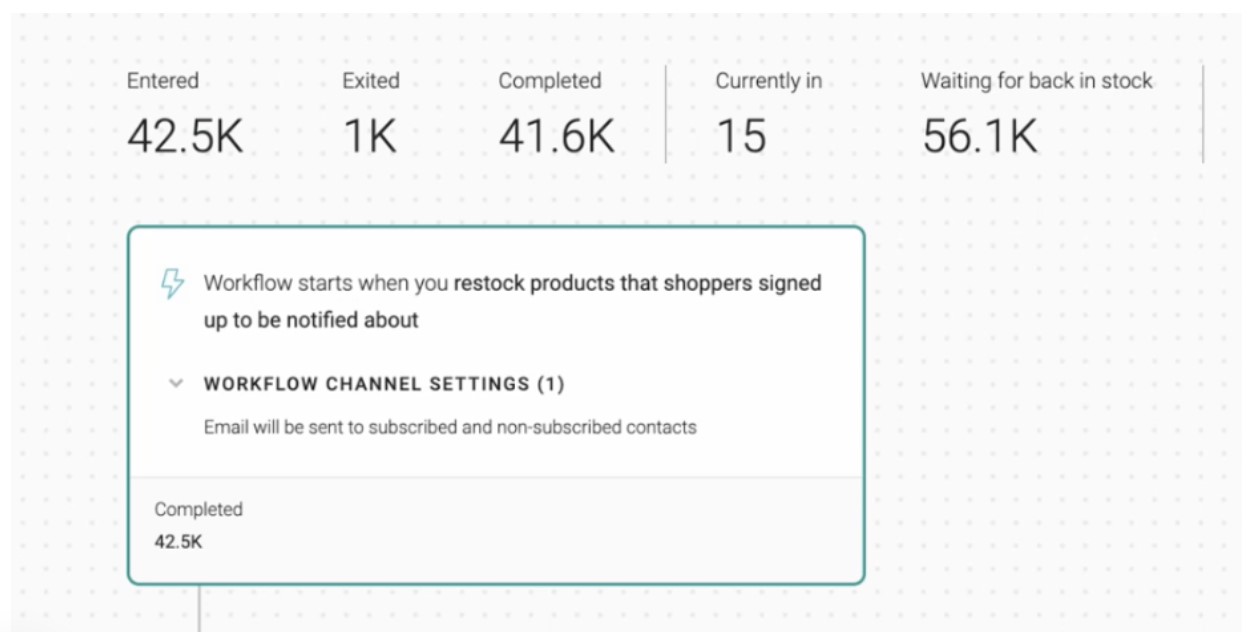
After publishing, you can relax. Omnisend tracks:
- How many people are waiting
- Open rates
- Clicks
- Sales generated
You’ll see everything in the automation stats dashboard.
Step 4: Customize your restock alert email
Now, it’s time to edit the email itself.
Click the email block, then Edit Content.
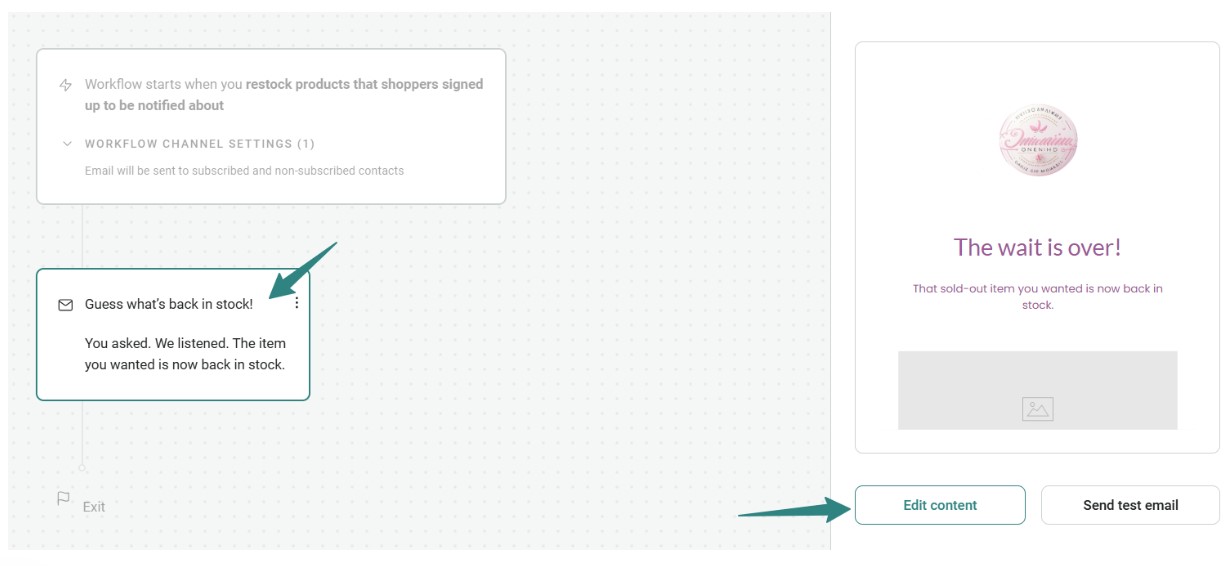
Focus on four key areas:
- Subject line: Keep it clear and direct
Example: “Good news — it’s back in stock.”
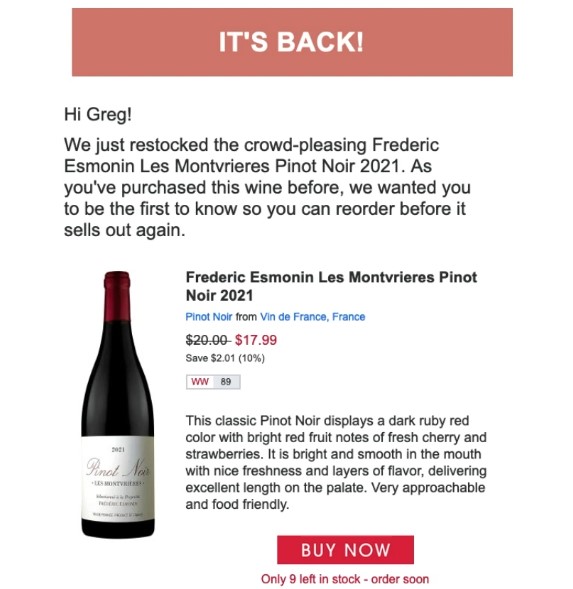
- Body copy: Keep it short, and remind them of their interest, and create light urgency
Here’s an example:
3. Product block: The dynamic product block is powerful because it automatically inserts the correct product. You don’t need to rebuild the email every time the inventory is updated.
However, ensure that the product image is high-quality, and the links are correct. Always include a direct link to the product page. Customers can just click on the link and buy right away.
4. CTA button: Use clear messages like “Shop now” and “Get yours before it sells out.” Keep the CTA simple. This email works because the customers have already shown interest in the product.
Step 5: Add SMS to your back-in-stock notifications
Yes, Omnisend can send SMS alerts as well.
Inside the same automation workflow, add an SMS step. This lets you send automated text messages alongside email.
However, SMS doesn’t support dynamic product details as email does. So, keep the message general.
For example:
“The item you asked about is back in stock. Grab it now before it sells out again.”
Why use both?
- Email provides details and product visuals
- SMS delivers immediacy
When using both, everything runs within a single workflow, so you’re not jumping between apps. That means less setup, fewer mistakes, and cleaner reporting.
Plus, Omnisend supports global SMS, so you can message customers in many countries without needing extra providers or tools.
Quick sign up | No credit card required
Back-in-stock email best practices for Shopify stores
Setting up back-in-stock emails for your Shopify store is just the start. To get the most out of them, it’s important to follow these best practices.
Send notifications immediately after restock
A customer’s interest in an out-of-stock product can wear off quite fast. That’s why it’s important to send a restock alert email as soon as the product becomes available again.
The good news is that once inventory updates from zero to available, the automated system immediately sends the notification. With Omnisend, this runs automatically using ready-made workflows. You don’t have to check stock or manually worry about delays.
Remember that the faster the customer receives the restock alert, the higher your chances are of closing the sale.
Personalize with product details and customer name
According to Hyken’s State of Customer Service and CX report, 82% of customers prefer stores that offer personalization.
A message like “Your item is back in stock” feels cold. Instead, use the exact product name, its image, and price. Most importantly, include the customer’s first name in the subject line or opening line.
So, instead of “Your item is back in stock,” say “Hey Kaylee, the red and white linen mini dress you wanted is back.” This approach makes the customer feel like the message is meant for them, increasing their chances of buying.
If you’re unsure about which message is better, Omnisend can help. The platform can automatically show dynamic product details from your store in your emails. It can also test different subject lines or messages to see which ones get more clicks.
Create urgency without false scarcity
Restock alert emails work best when they encourage quick action. After all, people are afraid of missing out.
If you only restocked 20 units, be clear and honest about it. Say something like “Back in stock — only 12 units available” or “Restocked in limited quantities” to urge customers to act without pressuring them.
Avoid fake urgency tactics, such as countdown timers or misleading claims like “Selling out fast,” if that’s untrue. These make customers feel tricked into buying, and they may no longer trust any of your emails.
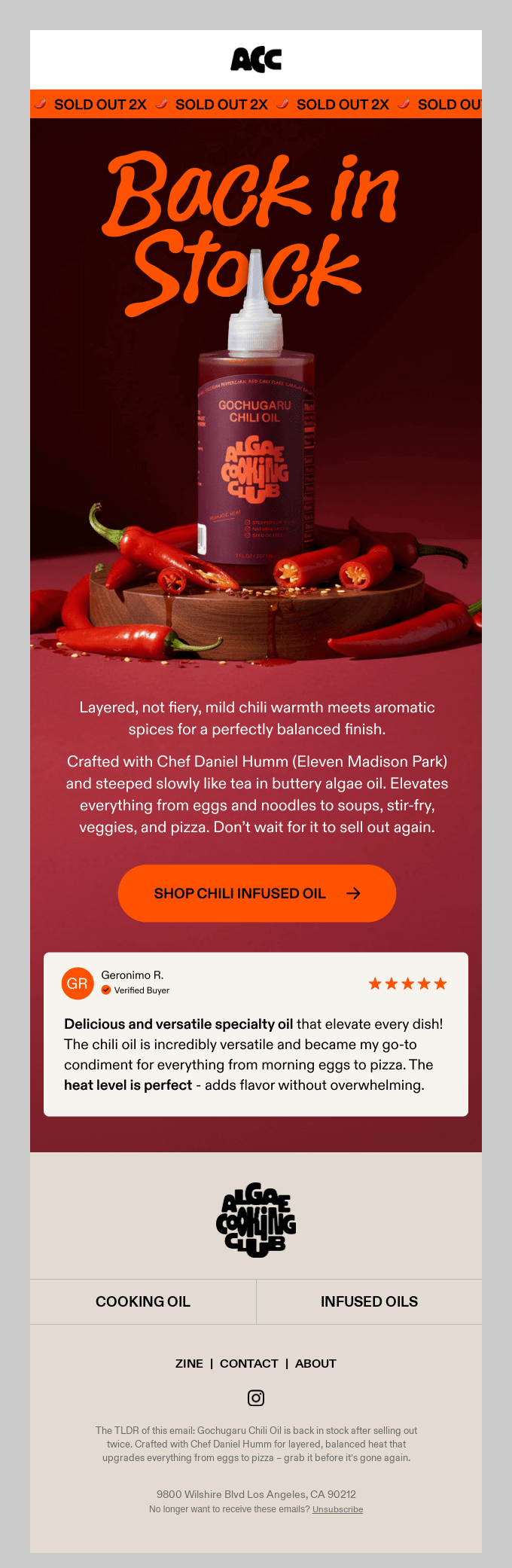
Here is an example of an excellent back-in-stock email where the headline is back in stock and the scarcity of the product is highlighted by saying “sold out 2X”:
Optimize for mobile
Most shoppers open their emails via mobile devices. If your Shopify back-in-stock emails aren’t easily visible on mobile, customers won’t bother clicking. To optimize them, use:
- Large, easy-to-tap CTA buttons
- Short paragraphs and a single-column layout
- Clear and fast-loading product images
- Easy-to-read font sizes
Omnisend’s easy-to-use drag-and-drop editor automatically optimizes emails for mobile devices. You don’t need to change any code or layouts manually. The platform handles the heavy design for you, removing friction and making buying easier.
Use multichannel alerts (email + SMS)
Back-in-stock emails work well, but not everyone checks their inbox often. Some customers check texts and reply to them faster. Certain platforms, like Omnisend, let you combine both channels into a single workflow instead of using multiple tools.
A well-designed Shopify back-in-stock email paired with SMS ensures:
- Broader coverage
- Faster reaction time
- Higher chances of converting
- Another reliable way to reach your customers
You can use the email to show product images and details. Then, pair it with SMS to deliver a short, direct message with a link.
Common mistakes with Shopify restock notifications
Even a strong Shopify back-in-stock email strategy can easily fail if not executed well. Here are the top mistakes you must avoid.
Delaying notification sends
Although interest is high when a product sells out, it doesn’t last long. The moment is gone if your restock alert email goes out late, even by a few hours. This alert should be sent the moment you replenish inventory.
A platform with built-in back-in-stock automation, like Omnisend, ensures these alerts are sent instantly, without manual work or inventory checks.
Using generic messaging
A simple message like “Your item is back” blends into inboxes. It doesn’t create any urgency or excitement and forces the customer to remember what they wanted and why it mattered. This extra effort, along with the lack of clear details, makes it less likely that they will take action.
Use tools like Omnisend’s dynamic product blocks to automatically pull in the product name, image, and price. This way, the alert shows the exact item the customer wanted instead of a generic message.
Not optimizing the product page for returning visitors
Your Shopify back-in-stock email brings the customer back, while the product page helps close the sale. Make sure the “Add to Cart” button is easy to find, and the checkout process is straightforward, so returning customers can complete their purchase quickly and easily.
Ensure that the product page loads quickly, shows clear product images, and places CTA buttons where they’re easy to see.
Fortunately, when your email system is properly connected, such as through Omnisend’s Shopify integration, product details stay accurate. Customers see accurate stock details, making buying easier.
Relying on a single notification channel
Relying on a single Shopify back-in-stock notification channel isn’t strategic. Inboxes are crowded, and people don’t always open emails immediately. The conversion window shrinks if the message sits unread for hours.
Limiting restock alert channels to either email or SMS reduces reach, visibility, and recovered sales.
This is where a platform that combines multiple alert channels, such as Omnisend, comes in handy. Sending emails and SMS messages from a single platform ensures your restock notifications reach customers faster.
Recover lost sales from stockouts starting today
Having a Shopify back-in-stock email system is necessary. When a popular product goes out of stock, you risk losing buying opportunities. That can add up to serious missed revenue.
Unfortunately, Shopify doesn’t provide built-in automated restock alerts. The smart move is to use an integrated platform that manages restock alerts along with your other marketing tasks.
With Omnisend, your back-in-stock signups don’t sit in a separate app that only sends one message. They’re part of your broader email and SMS strategy. Every restock alert subscriber can also receive welcome emails, product recommendations, and SMS updates.
Omnisend gives you:
- Back-in-stock forms
- Ready-made automation workflows
- Email + SMS in one platform
- Clear reporting
- 24/7 support
- Access to these features, even on the free plan
As an Omnisend customer, you enjoy $79 for every $1 you spend. This shows that automation can be effective when tied to real buying intent.
Quick sign up | No credit card required
FAQs
No, Shopify doesn’t natively support automated back-in-stock email notifications. You’ll need a dedicated app or a marketing automation platform like Omnisend to capture “Notify Me” signups and send automated restock alerts.
An easy approach is to use an all-in-one marketing platform like Omnisend. It offers native back-in-stock forms and automation. It also integrates restock alerts directly into your broader email and SMS strategy without requiring a separate app.
Yes, but you’ll need platforms like Omnisend to include SMS messages in your back-in-stock automation workflows. This ensures your customers receive restock notifications on their preferred channel.
Both platforms support back-in-stock flows for Shopify. However, with Klaviyo, you have to add code to install the “Notify Me” button. With Omnisend, you use a visual builder without coding. You also get competitive pricing and 24/7 support on every plan, even the free one.
Yes, back-in-stock emails consistently achieve among the highest open and click-through rates of automated emails. Open rates can exceed 50% because recipients have already shown strong interest in buying.

TABLE OF CONTENTS
TABLE OF CONTENTS


No fluff, no spam, no corporate filler. Just a friendly letter, twice a month.