
 Omnisend AI


 OFFER
OFFER







Drive sales on autopilot with ecommerce-focused features
See Features
Shopify product recommendations enhance customer experience by providing automated suggestions based on browsing and purchase history, ultimately leading to increased sales and average order value (AOV).
Implementing product recommendations is straightforward with Shopify 2.0 themes, allowing you to easily drag and drop sections or utilize third-party apps for enhanced functionality.
To maximize effectiveness, customize your recommendation sections with compelling headings, limit the number of displayed items, and ensure mobile optimization for a seamless shopping experience.
Utilize cross-channel strategies by integrating product recommendations into email and SMS campaigns to recapture lost sales and drive repeat purchases.
Build top-tier navigation, and some of your customers will still struggle to find the right products. Cart abandonment follows, and recovery attempts follow that. But what if you could avoid the scenario altogether with Shopify product recommendations?
Product recommendations are native features in most Shopify 2.0 themes, using collections and sales data. Drag the section into your page, and the basic setup is done.
It’s fantastic having that native functionality, and you can improve your recommendations further with design and layout changes.
You can also start recommending products in email and SMS with Omnisend, a cross-channel approach that’ll increase your sales and average order value (AOV).
This article is for newcomers and established stores wanting a complete guide to product recommendations on Shopify. You’ll learn:
- What they are and their benefits
- How Shopify’s algorithm works
- Setting them up
- The different types of recommendations
- Email and SMS approaches
- Optimization tactics
- Measuring their impact on sales and revenue
- Advanced strategies, such as using seasonality
Quick sign up | No credit card required
What are product recommendations in ecommerce?
Shopify product recommendations are automated suggestions, cross-sells, and upsells that your customers see while browsing your store.
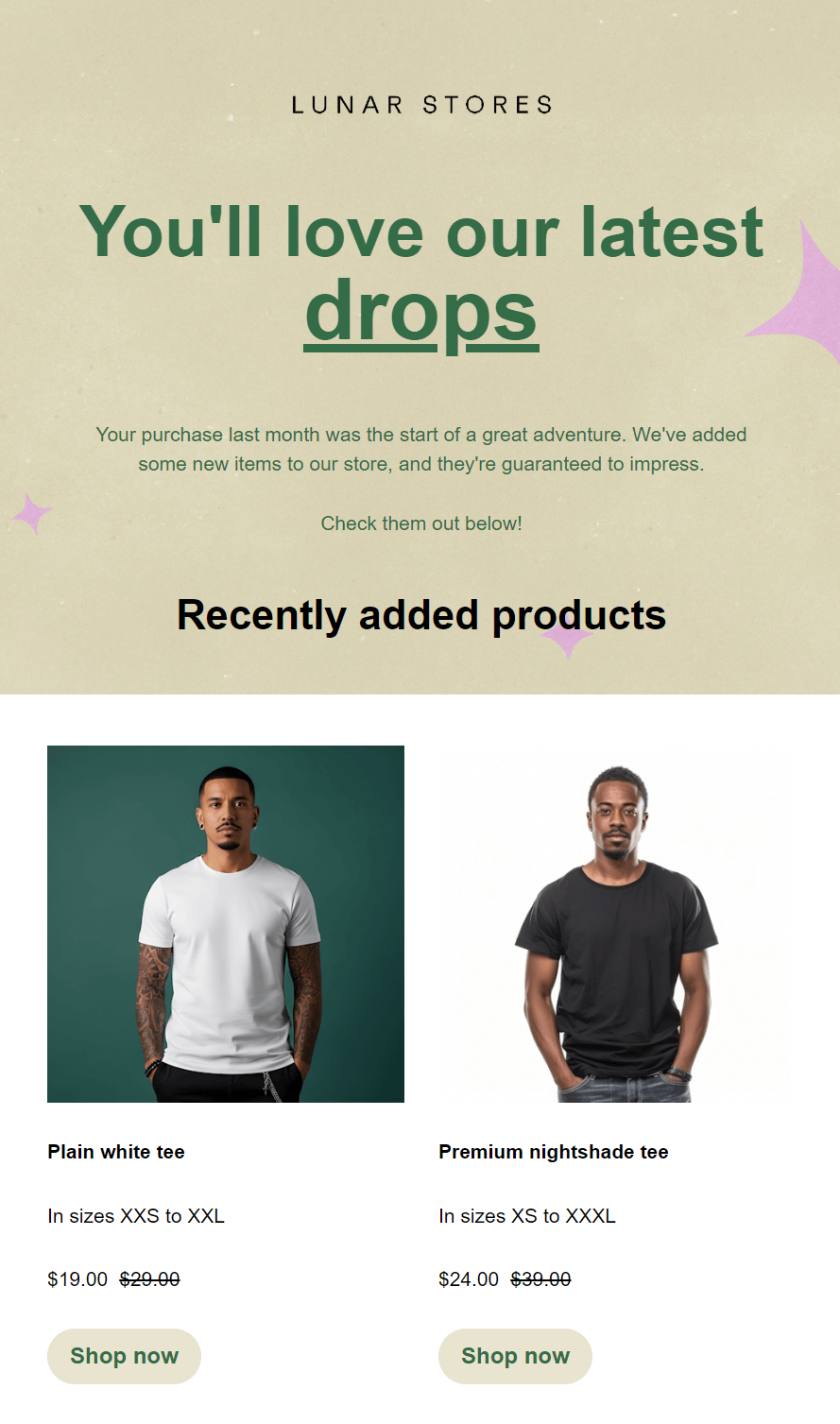
The most basic recommendation is a related product, typically pulled from one of your Shopify collections, or, in the case of an email, the most recently added products:
A more contextual approach includes recommendations based on your customer’s browsing or purchase history, such as what they viewed yesterday.
With high-quality, non-pushy recommendations, you can:
- Increase AOV, as your customers pick the upsell or add more products to their cart
- Increase customer lifetime value (CLV), your customers repeatedly buy the high-value products you match to them
- Improve customer experiences, they don’t have to search for products
- Reduce decision fatigue, customers skip the poor matches and see the most relevant product
- Drive discovery, particularly helpful when you have multiple SKUs
- Create more repeat buyers, retention increases from better product matches
- Increase conversion rates, your visitors find products faster and checkout sooner
Here are some examples of product recommendations in Shopify:
- Your welcome email shows best-sellers and recently viewed products
- Your store’s search bar auto-generates results before people stop typing
- Your product pages show a product add-on below the add-to-cart button
- Your customer’s thank-you email includes a cross-sell for a hot accessory
Shopify and your store theme will handle on-page product recommendations. Or you can use a product recommendations app for Shopify. For email and SMS recommendations, an app such as Omnisend provides the product recommendation item you need.
How Shopify’s product recommendations work
There are three ways Shopify product recommendations can work on your store:
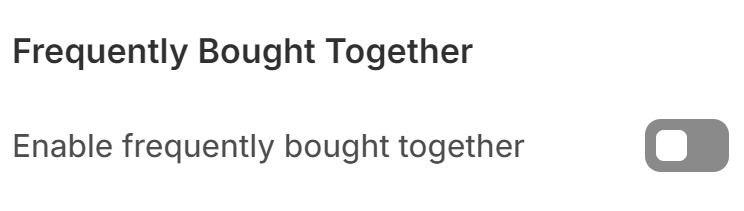
- Shopify’s Online Store 2.0 themes support recommendation sections, so most new themes have them. Adding them to your store is as easy as either dragging the section to where you want it or enabling the checkbox in your theme settings:
- Older Shopify themes might not have the sections, requiring you to add the code yourself in Liquid. A web developer/coder is the traditional approach to getting it done, but truthfully, an AI such as ChatGPT can do the code.
- There are Shopify apps that will add additional product recommendation features to your store, irrespective of Shopify’s default options. Good Product Recommendations is a decent pick. Shopify also offers the native Search & Discovery app.
Shopify’s recommendation algorithm explained
Shopify recommends products from three datapoints:
- Product description analysis: Matches products with similar descriptions
- Purchase history: Uses sales data, such as what your customers bought together
- Related collections: Recommends products from the same or similar collections
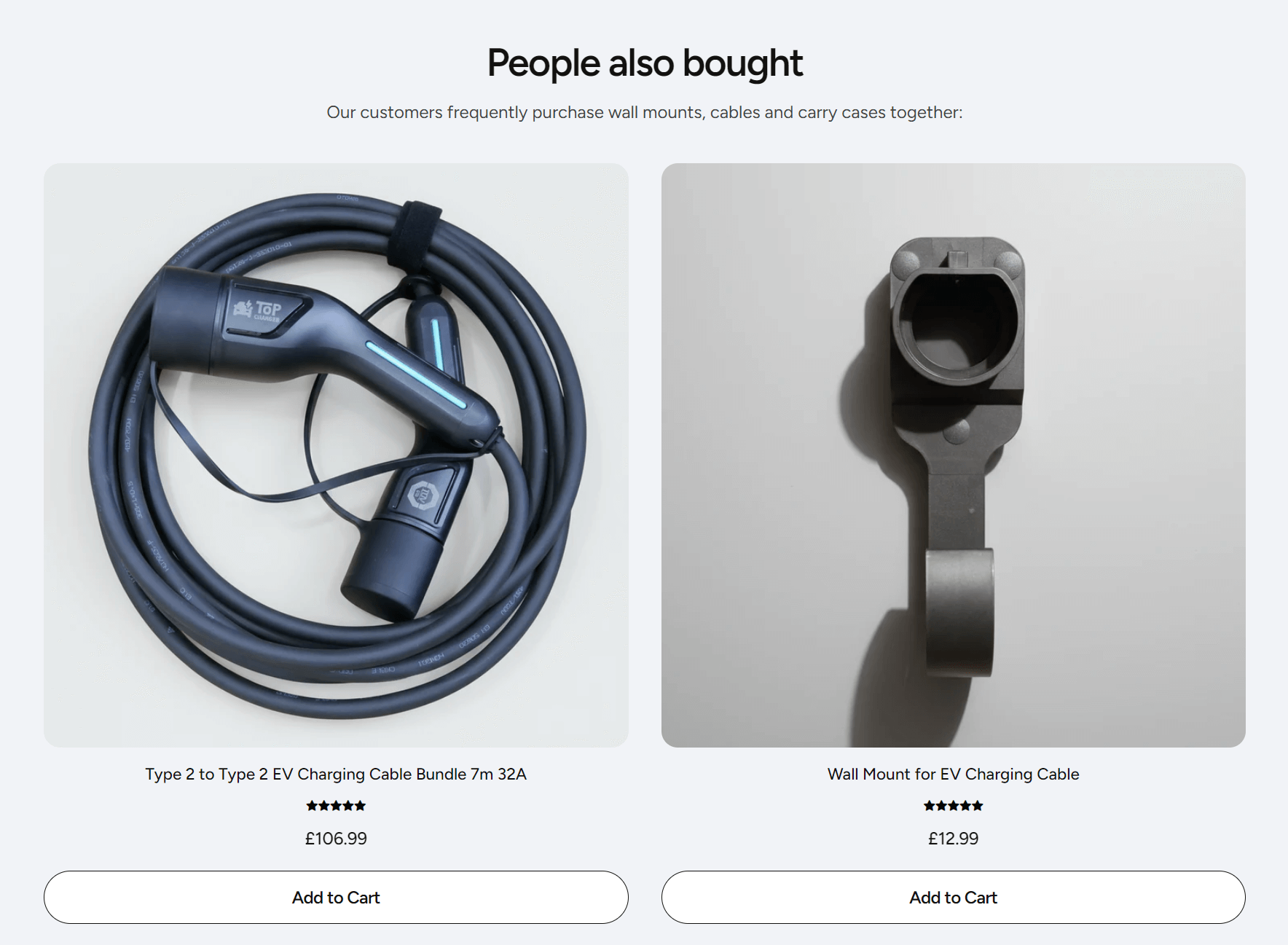
From these, Shopify generates items for the related products section. The image below shows how the related collections algorithm works in practice, showing two product recommendations on a product page selling an EV cable carry bag:
How it improves over time
New stores rely on related collections for recommendations. As you gather sales data, the algorithm shifts to more contextual recommendations based on customer behavior and purchase patterns.
What you need
Your theme must include a related products Shopify section for recommendations to display on product pages.
Limitations
Shopify’s native recommendations don’t track individual customer purchase history or work outside your website (like in emails). For advanced personalization across multiple channels, third-party apps are necessary.
Where recommendations appear in your store
Your Shopify theme must include a related products section for recommendations to display. 2.0 themes typically have this built in. Older themes may need it added manually.
Common placement locations
- Product pages: “You may also like” or “Customers also viewed” sections below product details
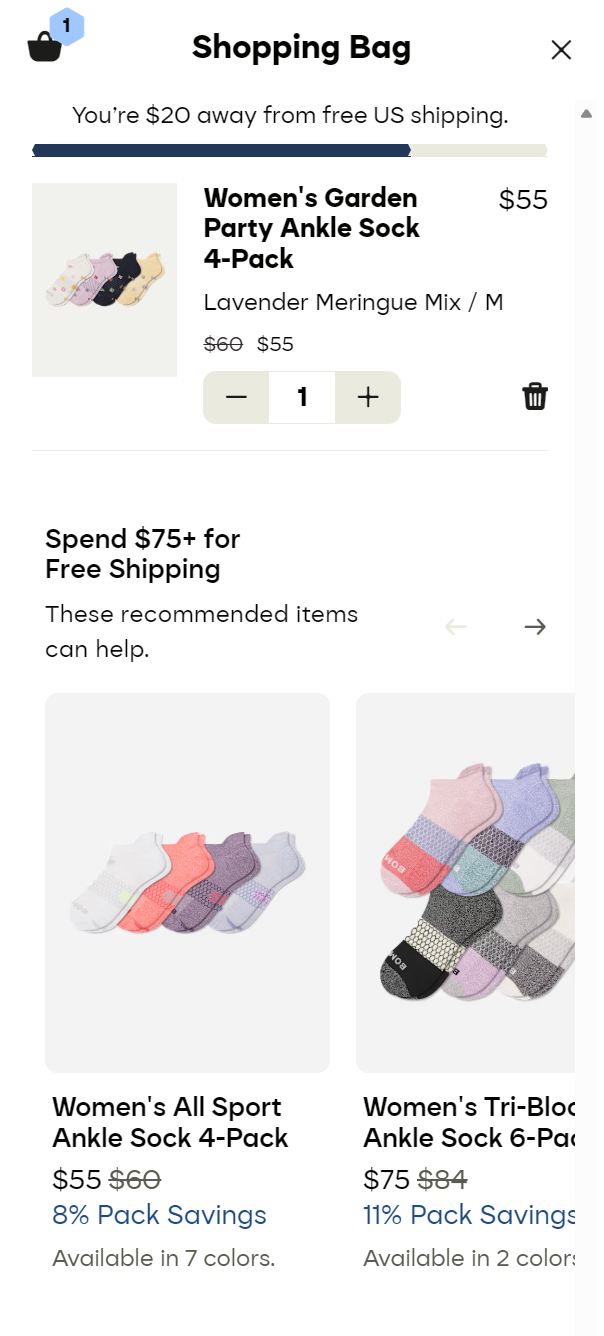
- Cart page: “Frequently bought together,” “Complete your purchase,” and “Free shipping value qualifiers,” such as these on apparel brand Bombas:
- Search results: Related product suggestions when browsing search results
- Collection pages: Additional product suggestions beyond the collection itself (less common)
The design and location depend on your theme’s configuration. Most themes let you customize these placements via the theme editor, which we’ll cover next.
Setting up product recommendations on Shopify
It’ll take you 15 minutes or so to learn how to set up product recommendations in Shopify if you’re a complete beginner. We’ll cover adding them, customizing them, and testing them below.
Adding recommendations to product pages
Here’s how to add related products in Shopify:
- Log in to Shopify
- Navigate to Online store > Themes
- Click the Edit theme button
- Click Home page at the top to reveal your online store menu:
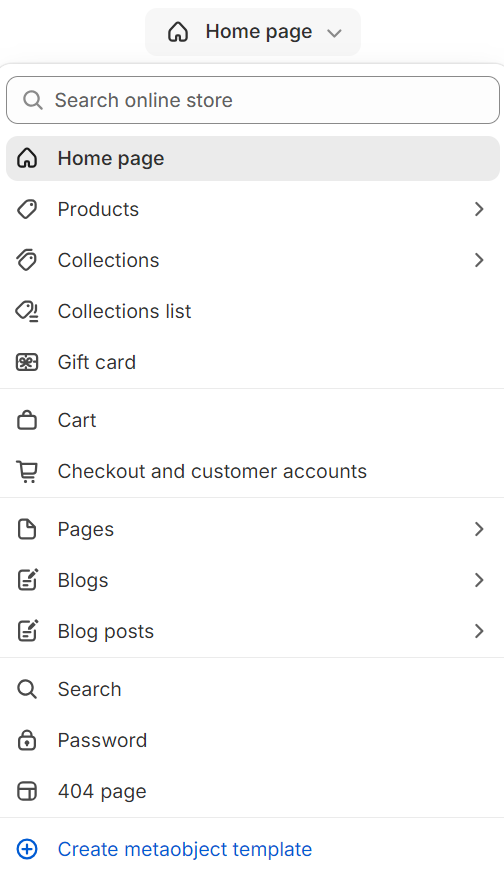
5. Click Products and then select the product page you want to add product recommendations to
6. You will now see a menu to your left with + Add section:
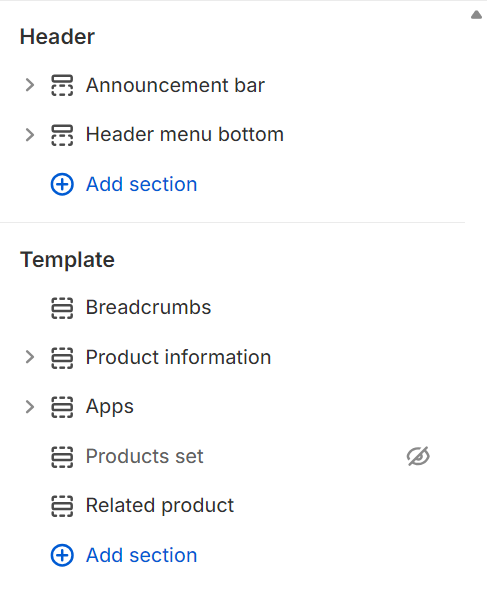
7. Click + Add section under Template to load a popup with options:
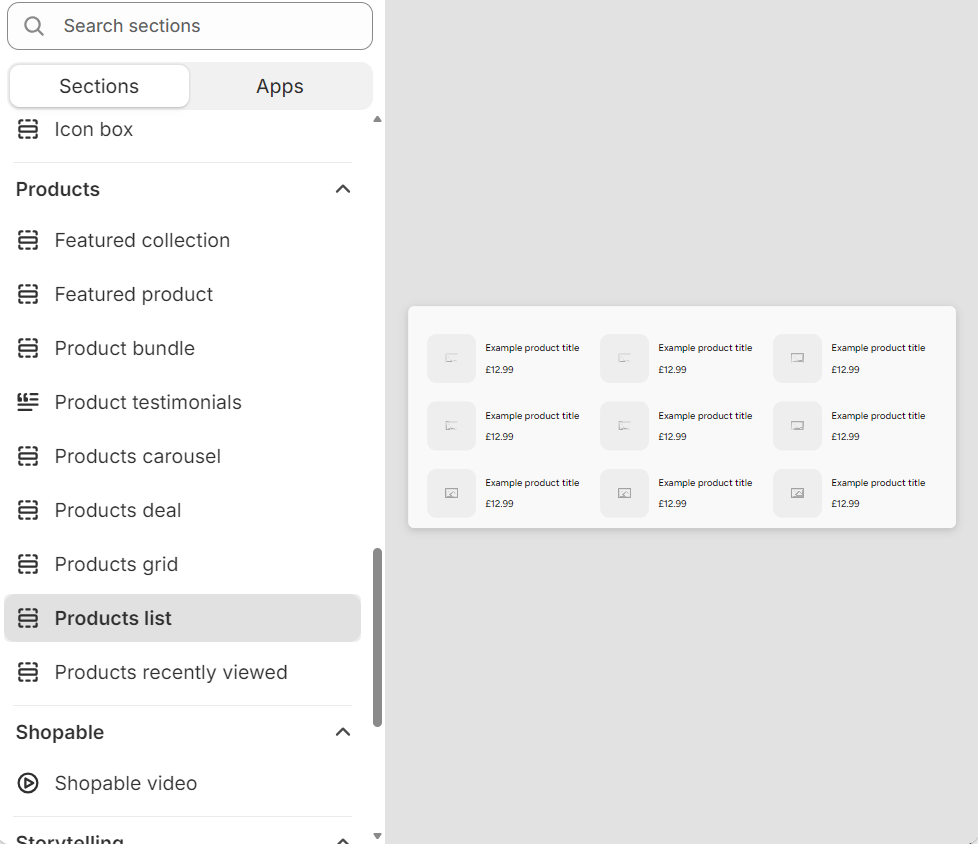
8. Scroll down until you see Products, and then select Products recently viewed, Related products, or Product recommendations (the wording depends on your theme) to add the section to your page template
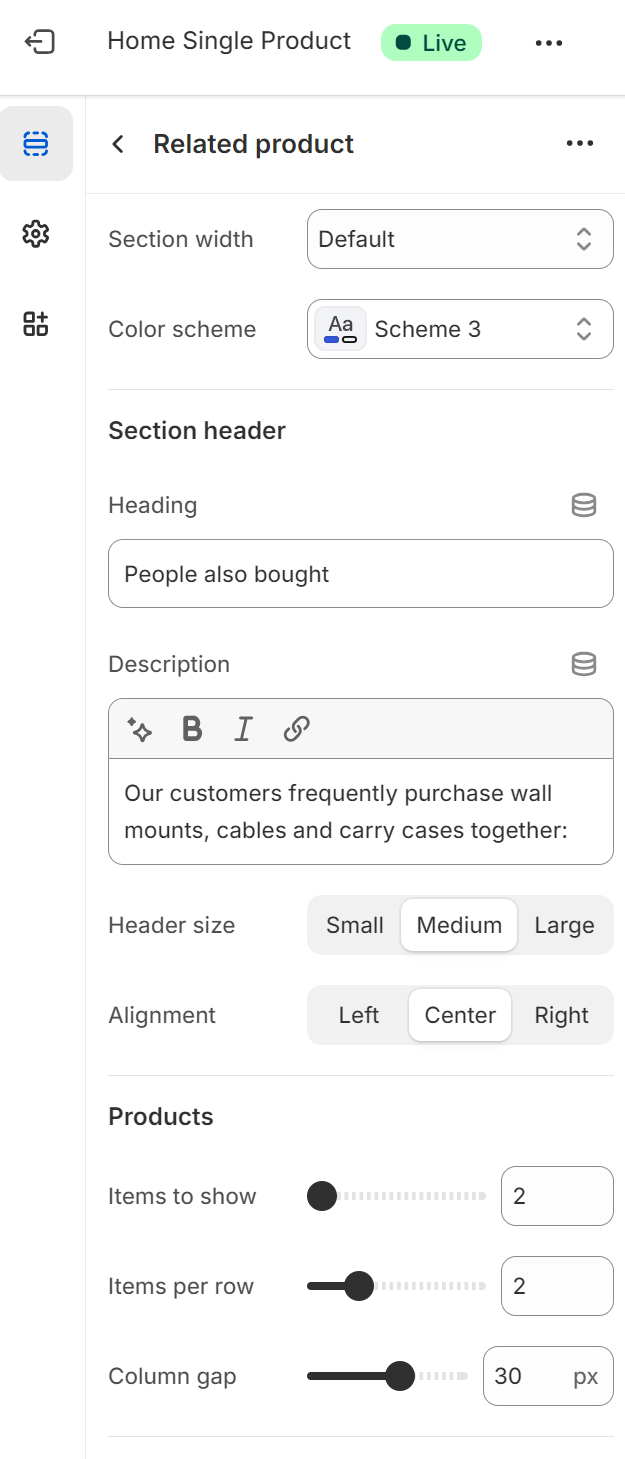
9. Now that the section is on your page, select the section to load its sidebar menu, and configure the heading, description, product quantities, and other settings to your liking. The options will look something like this:
10. Click Save to apply your changes
These steps are universal for Shopify 2.0 themes. However, it’s good practice to read through your theme’s documentation for any additional instructions.
Note: If you have an older or custom theme
The product recommendation Shopify section might not appear for you, in which case you will require a newer theme or custom code to create the section. The Shopify product recommendations API lets you add the functionality using Liquid.
Customizing recommendation sections
Shopify lets you configure product recommendations in a few ways, including the number of items to show, items per row, alignment, and so on. Some settings are theme-dependent, so the instructions below might contain some things you can’t do.
Follow these steps:
- Log in to Shopify
- Navigate to Online store > Themes
- Click the Edit theme button
- Click Home page at the top to reveal your online store menu, and select the product page you want to edit the section on
- Select the product recommender section on your page
- The section you selected will now have a sidebar with settings to customize. Start with these to cover the basics:
- Heading: Good options include People Also Bought, Our Customers Love, Best-Sellers, Frequently bought together
- Description: A one-liner, such as “Our customers frequently purchase these products with X”
- Header size and alignment: Set to match your other sections
- Products: These options could include items to show, items per row, and column gap, which you can play around with to see which layout your theme renders best
- Section padding: The distance between your product recommender section and the other ones below and above it
Tips for making your recommendations more effective
- Adjust the padding in 10px increments and check those changes on mobile and desktop using Shopify’s built-in previewer.
- There’s a custom CSS section available in most product recommender sections, located at the end of the sidebar. You can use it to style the section beyond what your theme allows. However, theme updates might remove your custom CSS, so write it down.
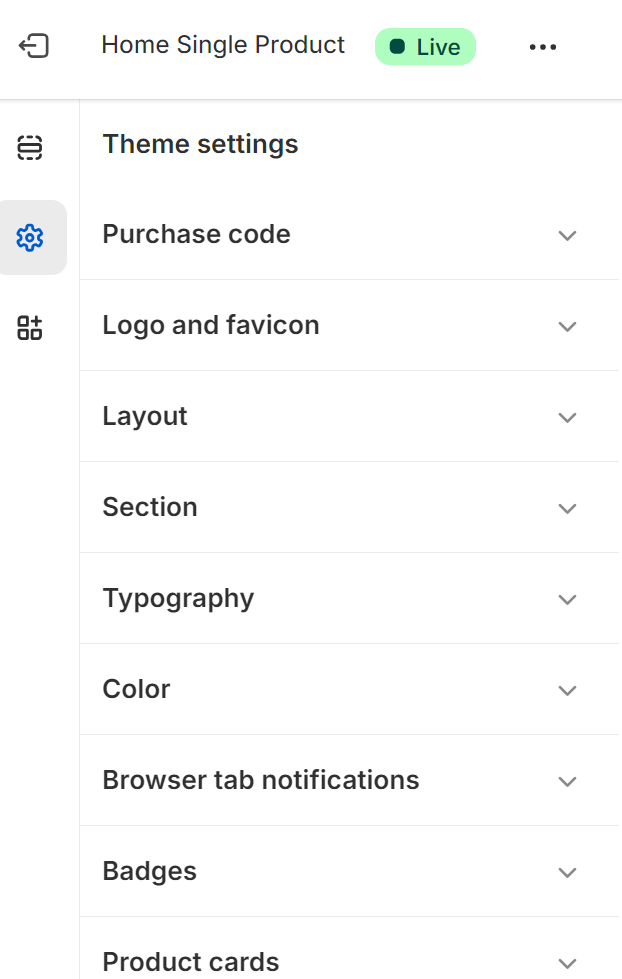
- Your theme settings might contain additional options for product recommendations. Click the settings cog on the right-hand side of the online store editor:
Testing your recommendations
Follow these steps to ensure your Shopify recommendations are good to go and continue performing well:
Immediately after saving
- Check the product recommendation section’s padding for consistency on desktop, tablet, and mobile.
- Ensure the product recommender is pulling the correct items, such as from collections you requested or products you have browsed. Also, be patient if you’re using data to show recommendations, since a lack of sales can lead to poor suggestions at first.
In the following weeks and months
- Try out different product recommendation types, such as purely collection-based and personalized recommendations.
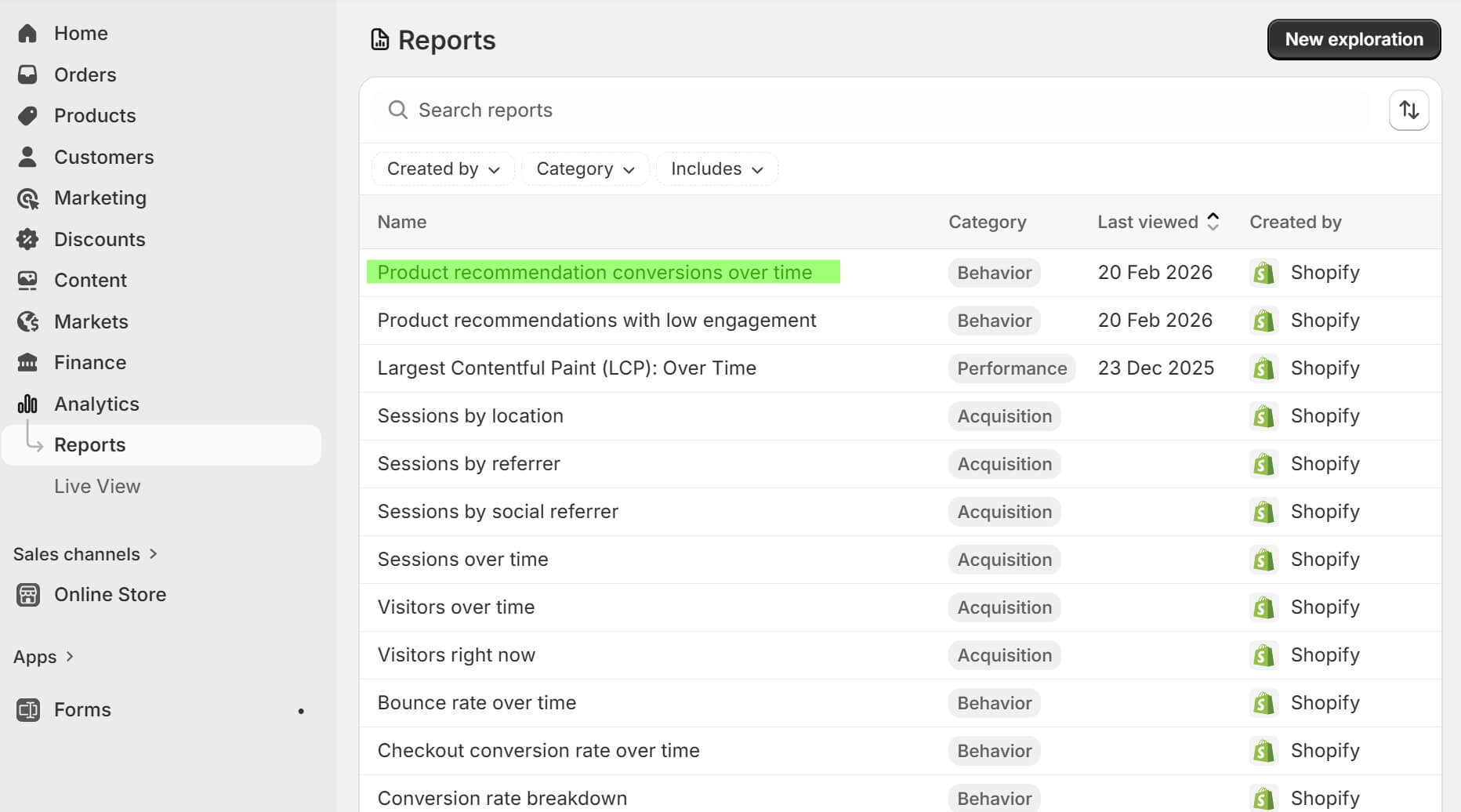
- Test section positions, such as directly below your product listing, at the bottom of the page, and underneath the add-to-cart button. Which gets the most conversions? You can find out in Shopify Analytics, under Product recommendation conversions over time:
Types of product recommendations and when to use them
Your cart cross-sell has a different recommendation type than the upsell on a product page. That cross-sell shows frequently bought together items, whereas your upsell shows a related product. Both can lead to more revenue, with complementary approaches.
Here are the main types:
Related products
Related products are items similar to what your customer is currently viewing. Same category, similar attributes, or matching style work here. They’re best on product pages where you want to show alternatives or variations.
Shopify looks at collection, type, tags, and vendor to figure out what matches. A customer browsing a blue t-shirt will see the same shirt in red or green, maybe a different cut. How well it works depends on your catalog setup.
Best practices:
- Call it “Similar items” or “More like this”
- Don’t show random products that have nothing in common
- Keep it to 4-6 items max
Works best for comparison shoppers hunting through variations.
Frequently bought together
Frequently bought together shows products that other customers commonly purchase in the same order. Use these on product pages and cart pages to bump up order value.
Shopify pulls from purchase data about what customers buy together. Lots of people buying cameras also grab memory cards and camera bags? Those show up as “frequently bought together” recommendations.
Best practices:
- Put them on product pages before customers add to cart
- Show them on cart pages with “Complete your order” messaging
- Point out the convenience of getting everything at once
- Try bundle discounts to push multiple-item orders
Frequently bought together works for complementary stuff like accessories, add-ons, and necessary extras, not alternatives.
Recently viewed products
Recently viewed products are items your customer has looked at during their session or recent visits, helping them return to items they were considering but didn’t buy.
Shopify tracks which products customers have visited and displays them in a section. Useful when customers are browsing multiple products and want to compare or revisit options without revisiting their browser history.
Best practices:
- Place in sidebar, footer, or dedicated section
- Useful on homepage or category pages
- Limit to 4-6 most recent items
- Exclude the current product from the list
Recently viewed products help customers who are comparing options or who abandoned browsing and returned later to continue shopping.
Personalized product recommendations
Instead of matching recommendations to product attributes, personalized recommendations track what customers do on your site and show items based on that.
A crucial limitation here is that Shopify’s native recommendations don’t do this. They focus on product relationships, not customer profiles. For personalization, you need a Shopify product recommendations app. Omnisend is a top option for personalized recommendations in email.
Best practices:
- Segment by purchase history and browsing patterns
- Deploy in post-purchase and re-engagement emails
- Adjust suggestions based on customer clicks
- Target returning customers with existing behavioral data
Returning customers and those who haven’t purchased in a while benefit from personalized recommendations, where the relevancy feeds into their satisfaction.
Beyond the website: Product recommendations in email and SMS
Your onsite Shopify product recommendations work while customers browse. Email and SMS extend that further, reaching people after they’ve left your store and continuing the conversation across multiple touchpoints.
Most Shopify stores only use recommendations on their website. They’re missing the bigger play:
- Someone abandons their cart at midnight, you send an email the next morning showing those products plus items that pair well with them. They complete the purchase.
- Your customer buys running shoes, you follow up three days later with socks, water bottles, and other gear based on what similar customers bought. Another order rolls in.
Product recommendations can recapture lost sales and generate repeat purchases outside of browsing sessions. Using both maximizes your sales.
Where email and SMS recommendations work:
- Abandoned cart recovery: Show cart contents plus related or frequently bought together items
- Browse abandonment: Follow up on viewed products with similar options
- Post-purchase: Suggest complementary products based on their order
- Re-engagement: Display products matching past purchase patterns
- Promotional campaigns: Include personalized grids based on browsing and buying history
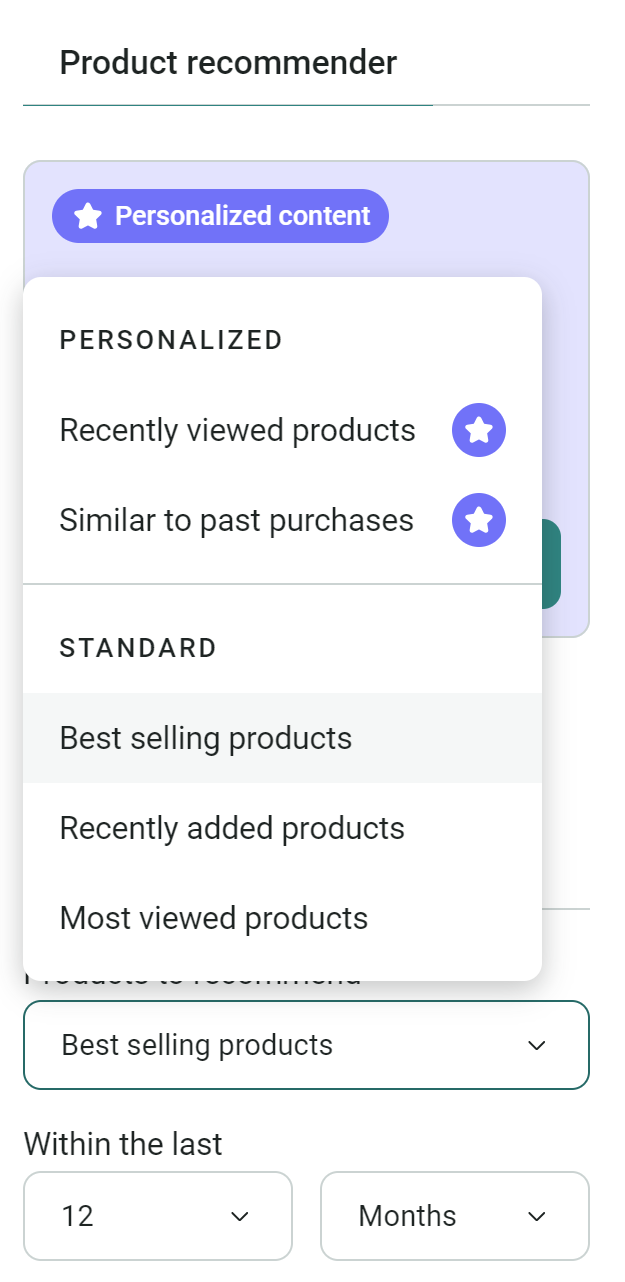
Omnisend’s Product Recommender pulls from order history to predict what each of your customers wants next. Drop the block into any email or automation, and it fills automatically with personalized picks, best sellers, or new arrivals:
Omnisend’s internal research shows that personalized recommendations get 5-8x higher click-through rates compared to non-personalized product blocks. If you’re on a Pro plan, you can use dynamic suggestions across all your emails.
As for SMS, you can provide links to collections and products, or create personalized landing pages with recommended products for Shopify customers.
Belle Fever used Omnisend’s Product Recommender in targeted emails to engage browsers who hadn’t purchased. The personalized approach achieved a 52% open rate and increased conversions by 40% compared to average campaigns.
Read the case study: Belle Fever.
Quick sign up | No credit card required
Optimizing product recommendations for better performance
Adding a product recommendation Shopify section to your store without optimization could reduce the quality of your customer experience. People will see less relevant suggestions, and your copy won’t attract eyeballs in the first place.
Follow these tips to make your Shopify recommendations effective:
- Write compelling section headings: Try benefit-driven language, such as “Complete your order” and “Pairs well with.” Social proof angles are decent, too. “Bestsellers,” “Customer favorites,” and “Trending now” can encourage clicks.
- Limit recommendations to avoid overwhelming browsers: Desktop can handle two to four items in a single row. Mobile works better with one item and a swipe-through slider.
- Shopify product image size recommendations: Size images at 600 x 600px and compress under 50kb for your recommendation section. Bloated files reduce your page speed and can take too long to load.
- Test multiple formats: Including standard sections, blocks below the add-to-cart button, and suggestions in the slide-out cart.
- Skip forcing product page visits: Quick add-to-cart buttons let customers buy recommended items without leaving the page. Check if your theme supports this.
- Consider pricing relationships: Recommendations should be priced within the same ballpark as the viewed product, unless they are small accessories.
- Add discounts: Some bundles, product combinations, and suggestions could have discounts, multi-quantity discounts, or reward points.
- Use social proof: Add Judge.me to your Shopify store. It has loads of widgets you can add to product pages in and around your recommendations.
Common product recommendation mistakes to avoid
Mistakes are normal, whether you’re manually configuring suggestions or using Shopify AI product recommendations. The fact that they will cost you revenue and sour your customer experience, though, is reason enough to avoid them from the start.
Here are the common ones to avoid:
- Recommending out-of-stock products: Keep your inventory counts accurate so Shopify can automatically filter out-of-stock items from recommendations. Shopify relies on inventory tracking to exclude products with zero stock.
- Showing irrelevant products: Such as socks already included in a multipack or a $500 product when your customers are looking at something for $20.
- Recommending the same product: A mishap you can avoid entirely with an exclusion rule when configuring manual recommendations.
- Overwhelming with too many options: Set a grid and row number that covers what your customer needs, and no more. Fatigue is real, especially if you have multiple SKUs.
- Using generic, boring labels: “Related products,” “Recommended,” “Similar things you might like.”
- Ignoring mobile experience: Shopify’s online store editor defaults to desktop mode. Switch to mobile mode and customize your sections in that, too.
- Not tracking performance: Shopify Analytics has reports for product recommendation conversions over time and product recommendations with low engagement. You can find these under Analytics > Reports.
- Forgetting about email recommendations: Add best-sellers, frequently bought together, and personalized suggestions to close the loop between browsing online and in inboxes.
Measuring the impact of product recommendations
Your Shopify Analytics serves up some essential metrics, such as gross sales, returning customer rate, total sales over time, and sessions over time.
However, these won’t tell you how successful your product recommendations are. To measure that, you need to know your clicks, conversions, AOV, and revenue from suggestions.
Metrics to watch
- Click-through rate on recommendations: How many customers click recommended products? Low CTR means recommendations aren’t relevant or the placement isn’t getting noticed. Compare rates across different sections, such as product pages, cart pages, and homepage.
- Conversion rate from recommendations: Clicks matter less than purchases. Track how many customers who click a recommendation buy it. High clicks with low conversions suggest you’re showing interesting but wrong products.
- Average order value: Pull AOV for orders with recommended products added versus orders without them. The gap tells you whether recommendations are increasing basket size or just shifting what customers would’ve bought anyway.
- Revenue from recommendations: Total sales generated by clicking recommendation links. Shopify tracks this through those pr_prod_strat parameters we mentioned earlier. Email platforms like Omnisend track it automatically for campaigns.
- Engagement rate: Scroll depth and hover time. Heat maps work here. Consider using Microsoft Clarity (it’s free and has a Shopify app).
- Cross-sell success rate: Track how often customers add multiple items from frequently bought together sections in one order versus adding just one.
Where to track
Set up a monthly report that includes data from these tools:
- Shopify Analytics: Head to Analytics > Reports and find the reports “product recommendation conversions over time” and “product recommendations with low engagement”.
- Google Analytics: Track recommendation clicks by setting up custom events using item_list_id and item_list_name parameters. Google’s ecommerce tracking supports tagging recommended products with identifiers like “related_products” so you can see their performance in conversion funnels.
- Omnisend: Tracks which products customers purchase after clicking recommendations in emails and automations. View can product-level performance under Reports > Products, showing units ordered and revenue attributed to each campaign or workflow.
Advanced strategies for product recommendations
Your Shopify product recommendations will be even more effective if you build some seasonality and scarcity into your customers’ decision-making process. A countdown, a bundle, an upsell. Consider these approaches:
- Showcase seasonal and trending products: Create a few Shopify product recommendation sections for winter, summer, Black Friday, etc. Then hide the out-of-season ones to avoid building them again.
- Create product recommendation rules: Use apps like Bold Upsell or Cartly to create if-this-then-that logic. If your customer adds a DSLR camera to their cart, you can force a memory card and lens cleaning kit into recommendations. Bought a necklace? Show matching earrings from the same collection regardless of algorithm suggestions.
- Leverage customer segments: Tag customers in Shopify by spend level or purchase frequency. Use Omnisend to send VIP customers emails featuring premium collections, new buyers get bestseller recommendations, and discount hunters see clearance items.
- Add scarcity and urgency: Install apps like Timex Low Stock Counter Timer or use custom Liquid code to display live inventory counts in recommendation sections. “Two left in stock” below the recommended products can encourage passive shoppers to buy.
- Test bundle offers: Create bundle products in Shopify that combine frequently bought items at a discount. Display these bundles in recommendation sections instead of individual products. Your theme might already support bundles. If not, Bundler is decent.
- A/B test recommendation types: Use Omnisend’s A/B testing to compare personalized recommendations versus bestsellers in emails. Send each version to 20% of your audience, wait 24 hours, then auto-send the winner based on click rate and revenue.
Final thoughts
Product recommendations are beneficial to your customer experience, but increasing sales, order quantities, and AOV depends on more than adding the section to a page.
Your sections need:
- Actionable headings and subheadings
- Images that load instantly on mobile
- Consistent section padding
- Clickable images and product titles
- Add-to-cart buttons, and ideally, popup previews to reduce clicks
Another must-have is a cross-channel approach via email and SMS. Customers should see personalized recommendations in their welcome series, abandoned cart, and thank-you flows.
Omnisend gets you started with pre-built flows, pre-built segments for appropriate targeting, 250+ email templates, and a product recommender item.
Quick sign up | No credit card required
FAQs
Yes, natively if you have an Online Store 2.0 theme. The product recommendation section lets you drag it into your theme as you want it. Your theme could also have a checkbox to add product recommendations without manually adding the section.
Your product page has a product add-on below the add-to-cart button, or your thank-you email cross-sells an accessory.
Go to Online Store > Themes > Edit theme, select the page your product recommendations are showing on, and scroll until you find the Related product section. You can delete it or toggle its visibility (hiding it leaves it in the backend, should you want to enable it quickly).

TABLE OF CONTENTS
TABLE OF CONTENTS


No fluff, no spam, no corporate filler. Just a friendly letter, twice a month.