Omnisend AI

 OFFER
OFFER








You can use Claude for email marketing with your Omnisend data by connecting the two through Omnisend’s official Claude connector.
Without that connection, a typical workflow involves opening a campaign report, copying the numbers into Claude, explaining what they mean, and repeating the process when you need more context.
Connect Omnisend, and Claude can access approved data from your account. You can ask about campaigns, automations, contacts, forms, segments, revenue, and performance without moving those numbers yourself. Claude can also complete supported tasks such as creating segments, drafting email campaigns, and creating pop-up sign-up forms.
The sections below cover setup first, then eight ways to use Claude and Omnisend for work you may already do each week.
What the Omnisend + Claude integration is
The Omnisend + Claude integration connects Claude to approved data and actions in your Omnisend account.
Under the hood, it runs on Omnisend’s MCP server; our MCP for email marketing guide explains the technology.
You could begin with:
Which email campaigns generated the most revenue last month?
Then ask:
What do the top three have in common?
And follow with:
Based on those results, which campaign idea should I test next week?
Claude can keep working with the account context instead of asking you to paste another report into the conversation.
What you can and can’t do with Claude and Omnisend
Claude can read Omnisend data and complete some supported actions when you give it the required permissions.
Available data includes email and SMS campaigns, email A/B tests, Boosters, automations, contacts, forms, segments, performance metrics, and historical revenue across date ranges available in your account. You can use that data for period comparisons, attribution questions, campaign analysis, and other reporting work.
The current Claude integration also supports tasks such as:
- Creating a segment
- Creating a draft email campaign
- Creating a new pop-up sign-up form
Reporting needs read access; segment, campaign, and form creation need the matching write permission, which you grant during authorization (details).
Claude may ask you to confirm an action before it changes data in Omnisend.
Note the word draft: Omnisend’s Claude documentation lists draft campaign creation, not sending.
Keep the final review in Omnisend. Check the audience, copy, links, products, discount details, and campaign settings before anything goes out.
How to connect Omnisend to Claude
You’ll need an active Claude account, an active Omnisend account, and the right account permissions before connecting.
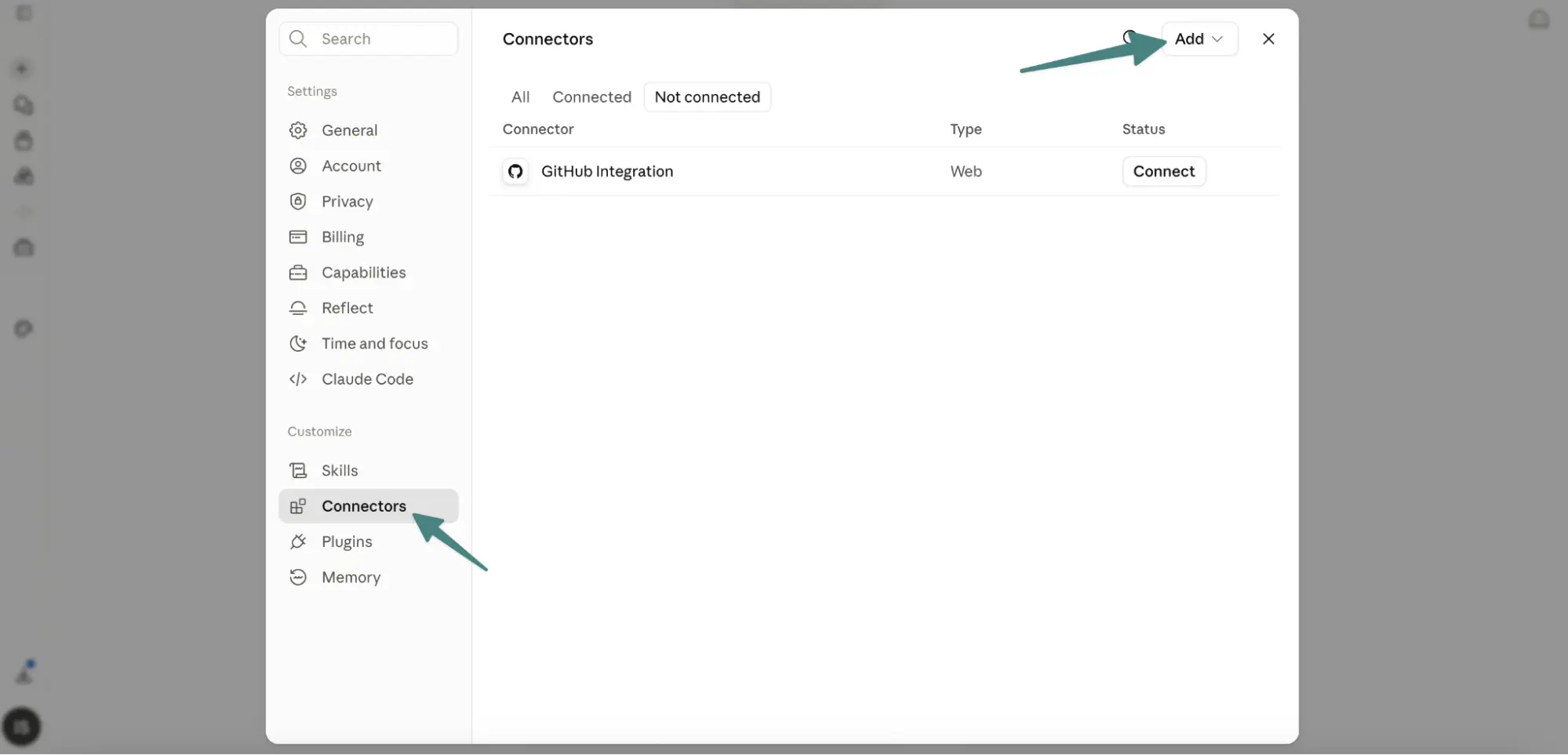
In Claude, go to Customize → Connectors → Browse connectors → Omnisend → Connect, then authorize the Omnisend store you want to use.
For more complex Omnisend tasks, use Claude Sonnet 5 or Claude Opus 5 with High effort or extended thinking when available.
For the full setup, permissions, store-switching, and troubleshooting steps, see Connect Omnisend to Claude.
If the connection fails or Claude returns partial answers, run through the troubleshooting checklist — the usual causes are the wrong store, a missing role, or a fast model.
Eight ways to use Claude for email marketing with Omnisend
The best Claude workflows start with a job you already need to complete, such as reviewing last week’s campaigns or finding an audience for the next send.
A note on sample size: If you sent fewer than eight to 10 campaigns in the period you’re analyzing, widen the window to 60–90 days before acting on the comparison. Also ask Claude how many campaigns its benchmark is based on — an “average” built from three sends can be misleading.
Here are eight examples.
1. Diagnose an underperforming campaign in three prompts
A campaign diagnosis should tell you where performance changed before suggesting what to edit.
Start with your normal benchmark:
Compare my latest email campaign with my average campaign performance from the last 90 days. Show me which metrics changed the most, and tell me how many campaigns the average is based on.
Next, give Claude stronger campaigns to compare against:
Compare the same campaign with my three highest-revenue campaigns from the last 90 days that were sent to a similar-sized audience. Compare revenue per recipient, click rate, and conversion rate, and show me the main differences.
Then turn those findings into tests:
Based on the comparison, give me three changes to test in my next campaign. Show the Omnisend data behind each recommendation.
The sequence gives Claude something more useful than a vague “Why did this campaign perform badly?” question.
What the output may look like:
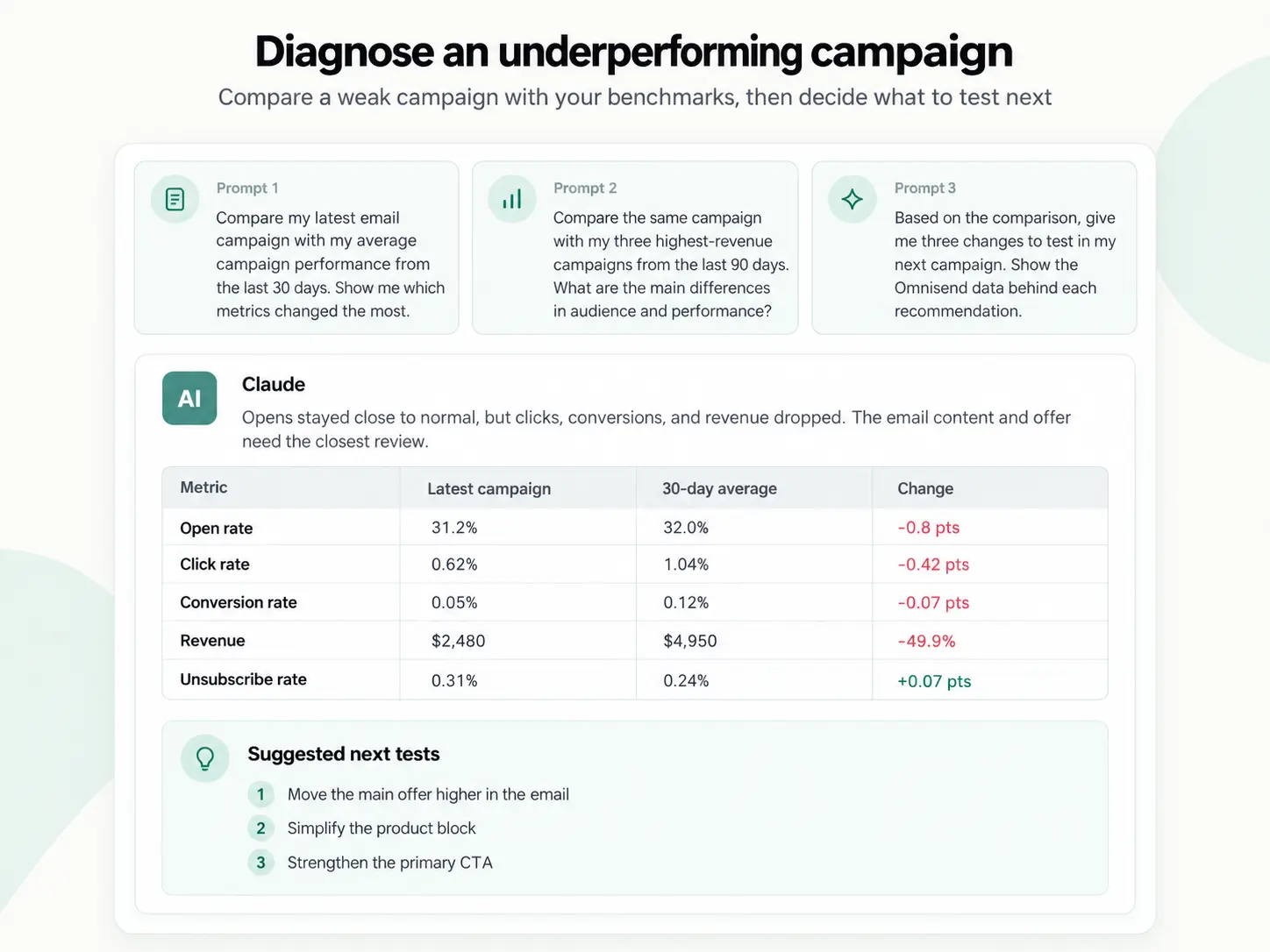
What to do next in Omnisend: Open the campaign report and compare Claude’s explanation with the campaign itself. Check the audience, offer, email content, product blocks, and CTA placement. Then ask Claude to turn the findings into a brief for your next test.
2. Find and create a re-engagement segment
Claude can help define a re-engagement audience and create the segment after you approve the rules.
Try:
Recommend a re-engagement segment based on my Omnisend data. Look for subscribers who engaged or purchased before but haven’t clicked or purchased recently. Give me the segment rules and explain the reason for each one.
Review the proposed criteria before going further.
If the segment fits the campaign you have in mind, follow with:
Create that segment in Omnisend.
Segment creation is a supported example in Omnisend’s Claude documentation. Claude may request confirmation before completing the action.
What the output may look like:
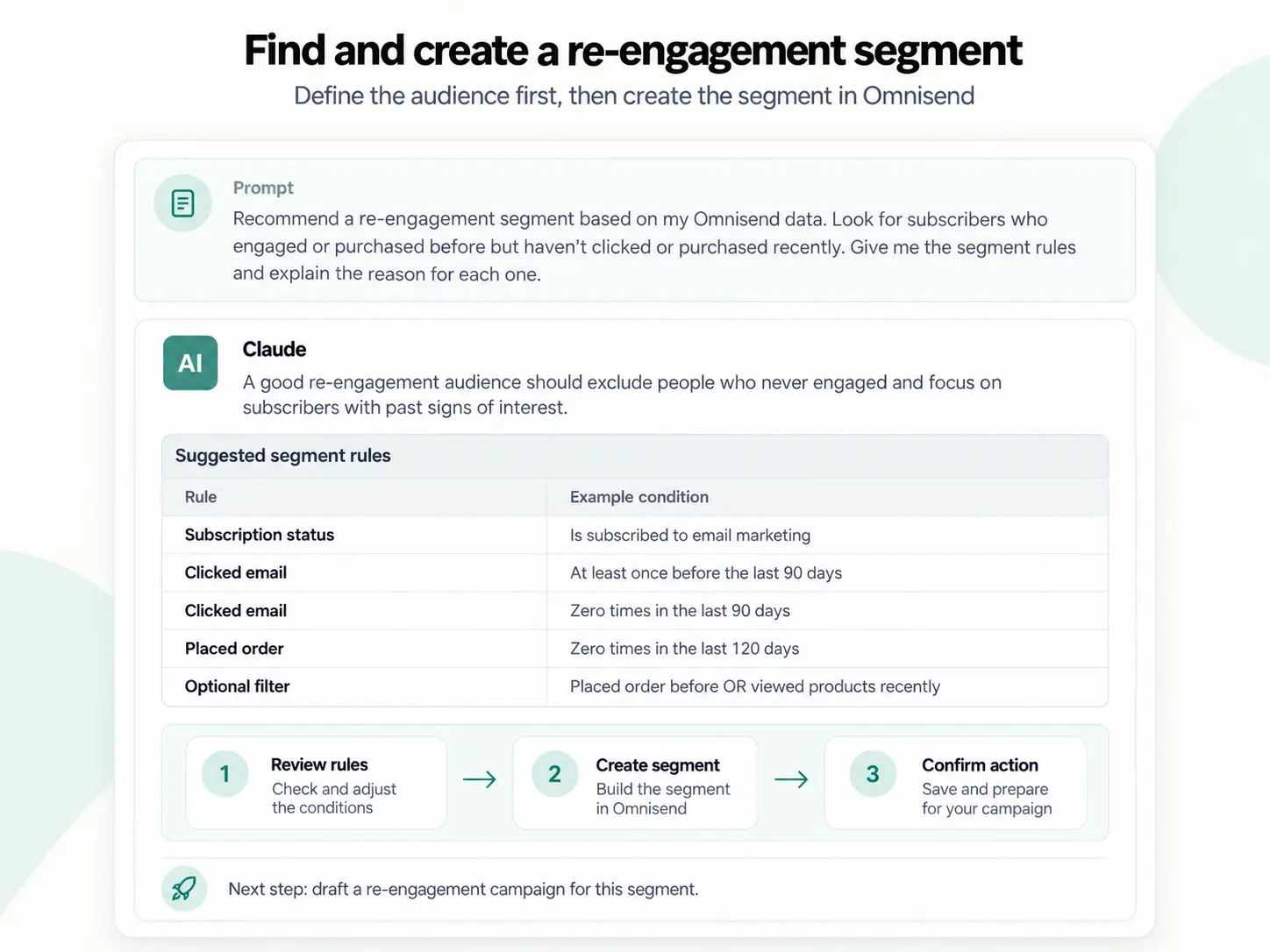
What to do next: Once the segment exists, keep working in the same conversation:
Review what this group previously engaged with or purchased. Create a campaign brief for bringing them back.
Then decide whether the audience needs a product reminder, a bestsellers campaign, a preference update, or another reason to return.
After the campaign, add a suppression step:
Which contacts in this segment still didn’t open or click? Create a segment of them so I can exclude it from regular sends.
Keep dormant contacts out of your main sends until they re-engage. This stops the re-engagement campaign from turning into repeated sends to subscribers who continue to show no engagement.
3. Audit your welcome automation message by message
A message-level audit can show which email in your welcome automation deserves attention first.
Ask:
Review my welcome automation performance from the last 90 days. Break down the results by message and rank the emails by priority. Show the metrics behind your ranking. Account for natural drop-off between messages — flag an email only if it underperforms relative to its position in the series.
Once Claude identifies the weaker message, ask:
Compare that email with the strongest message in the same automation. Where are the biggest performance differences?
Then:
Turn the findings into an improvement brief for the weaker email.
What the output may look like:
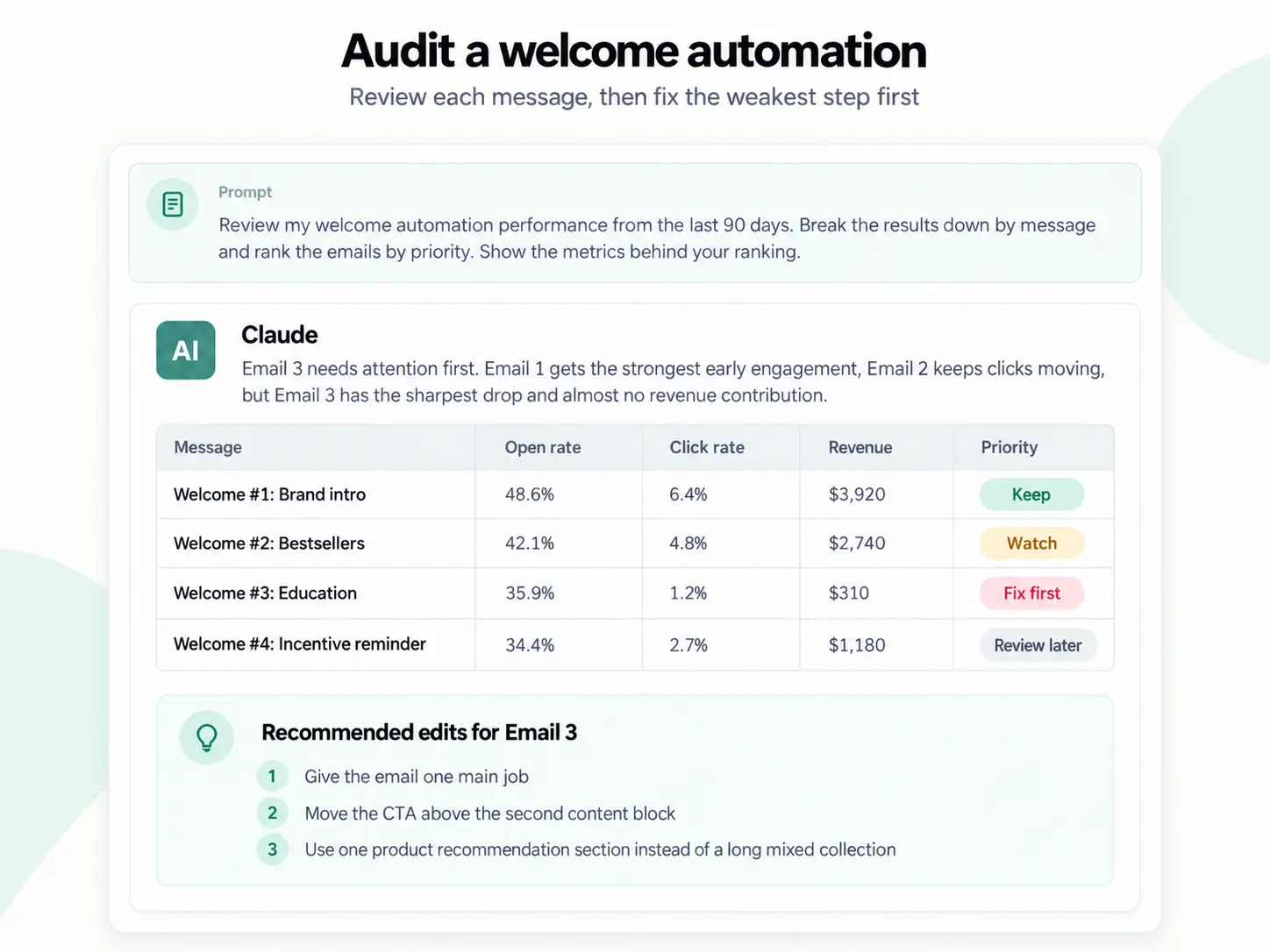
What to do next in Omnisend: Open the message Claude flagged and review it against the stronger emails in the series. If clicks dropped, review the content, offer, and CTA placement. If unsubscribes rose, review audience fit and sending frequency.
4. Plan next week’s send calendar from recent results
Claude can use recent campaign performance as the starting point for next week’s calendar.
Ask:
Review my email campaigns from the last 90 days and identify the strongest patterns by revenue, click rate, and conversion rate. Then look at the last seven days in that context and recommend three campaign ideas for next week. Tell me how many campaigns each comparison is based on.
Next, ask for a format you can use:
Put those recommendations into a send calendar. Include the audience, campaign angle, offer, suggested send day, and primary metric to watch for each campaign.
What the output may look like:
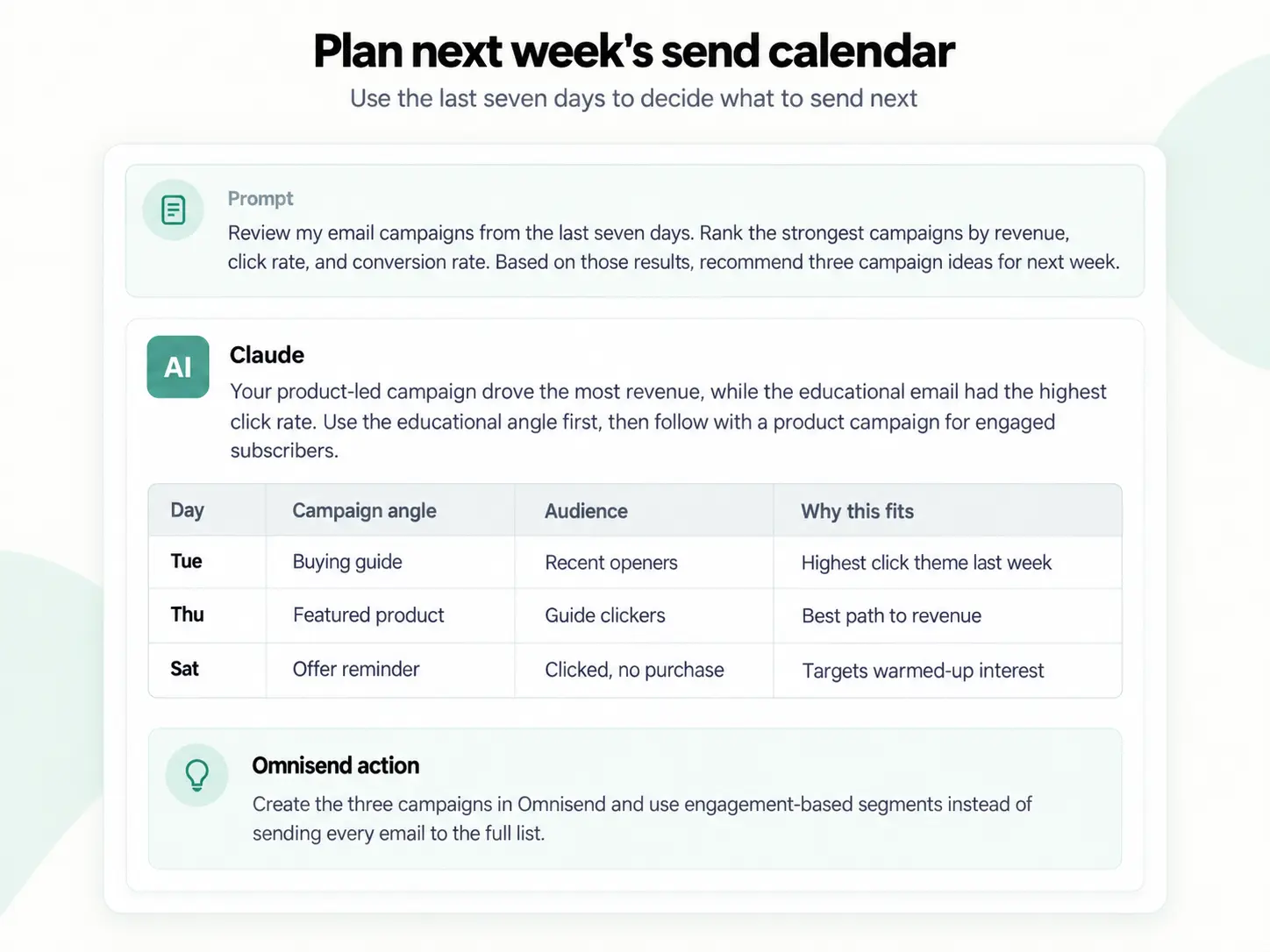
What to do next in Omnisend: Review each audience before building the campaigns. If Claude recommends a group that doesn’t exist as a segment yet, ask for the rules first. Then tell Claude to create the segment if the definition looks right.
5. Build a campaign brief from past winners
Claude can compare past campaigns and use the patterns it finds to prepare the next campaign brief.
Start with:
Analyze my five highest-revenue email campaigns from the last 90 days. What do they have in common in audience, offer, timing, engagement, and campaign structure?
Follow with:
Use those findings to create a campaign brief for [product/category/offer]. Include the audience, angle, offer, subject line direction, CTA, and suggested content blocks.
The brief now comes from your campaign history, not a generic email formula.
Create a draft from the brief
When you’re happy with the plan, ask:
Create a draft email campaign in Omnisend based on this brief.
Draft email campaign creation is one of the tasks listed in the current Omnisend Claude guide.
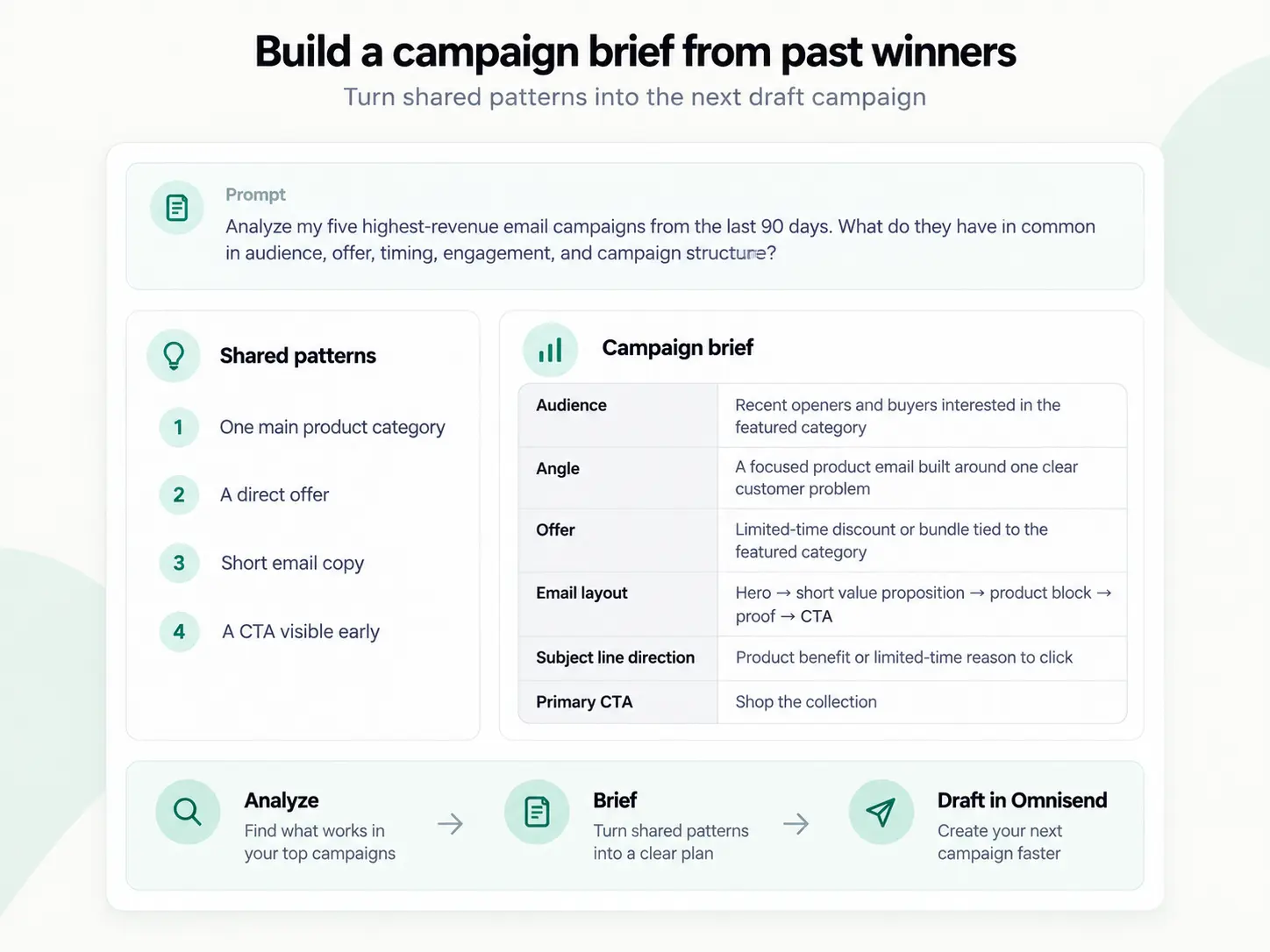
What to do next in Omnisend: Open the draft before scheduling anything. Review the audience, subject line, copy, links, products, discounts, images, and campaign settings. The historical pattern gives you a starting point; the final campaign still needs your judgment.
6. Review sign-up form performance
Claude can query your Omnisend forms to find strong performers, weaker forms, and areas worth testing.
Start with:
Show my active sign-up forms and their performance over the last 30 days. Rank them from strongest to weakest.
Then narrow the question:
Which form needs attention first? Show the data behind your answer and suggest one test.
Omnisend’s Claude guide specifically lists active forms and submission rates as an example query.
For a more detailed workflow, our guide to understanding form performance with Omnisend MCP covers overall form performance, top and underperforming forms, A/B tests, contact preferences, and attributed revenue.
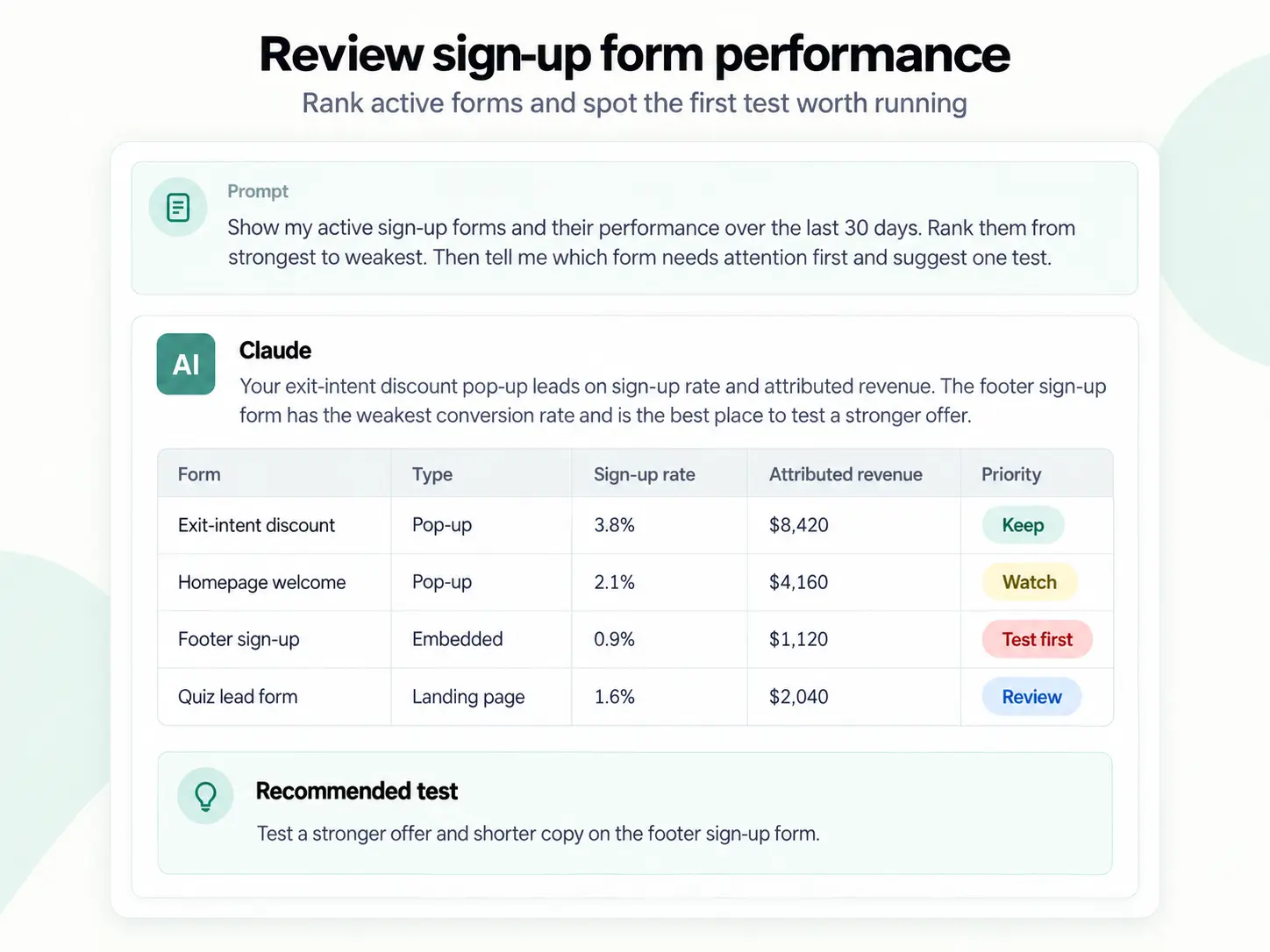
What to do next: Ask Claude to focus on one change at a time, such as the offer, timing, or form type. If you need a new form, the Claude connector also supports creating a new pop-up sign-up form when the relevant write permission is enabled.
7. Check deliverability and list health
Claude can review available Omnisend performance data for signs that engagement or list health is changing.
Try:
Review my email performance from the last 90 days for deliverability and engagement warning signs. Check bounce rates, unsubscribes, engagement trends, and other relevant metrics available in Omnisend. Tell me which area needs attention first.
Then ask Claude to locate the source:
Break the issue down by campaign or segment, where the data allows. Show the numbers behind your conclusion.
Similar Omnisend MCP workflows can examine bounce-rate trends, unsubscribe patterns, and engagement over time.
This is a list-health check that can surface a trend. It doesn’t show spam complaints or inbox placement — for those, use Omnisend’s deliverability reports or a seed-testing tool.
What the output may look like:
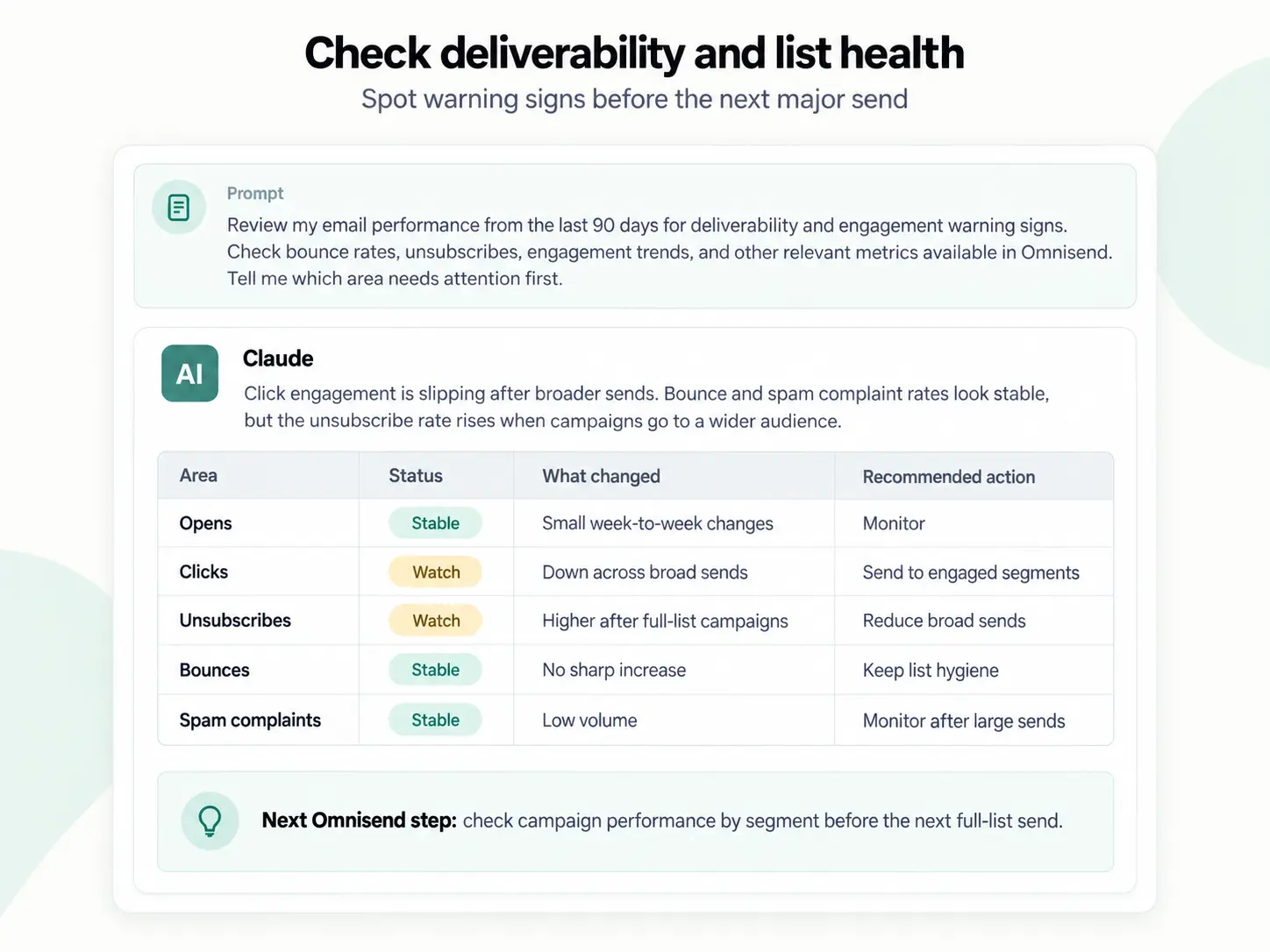
What to do next in Omnisend: Check the campaigns and audiences Claude flagged before changing your sending strategy. If the decline is concentrated in less-engaged segments, review those segments first rather than treating it as an account-wide deliverability problem.
8. Create a monthly executive recap
Claude can turn a month of Omnisend performance into a short report for a founder, manager, client, or marketing team.
Ask:
Create an executive recap of my email and SMS performance for last month. Include total attributed revenue, strongest campaigns, strongest automations, the biggest changes from the previous month, risks to watch, and three priorities for next month.
Then tighten the format:
Rewrite the recap into five concise bullet points. Include the Omnisend number behind every performance claim.
What the output may look like:
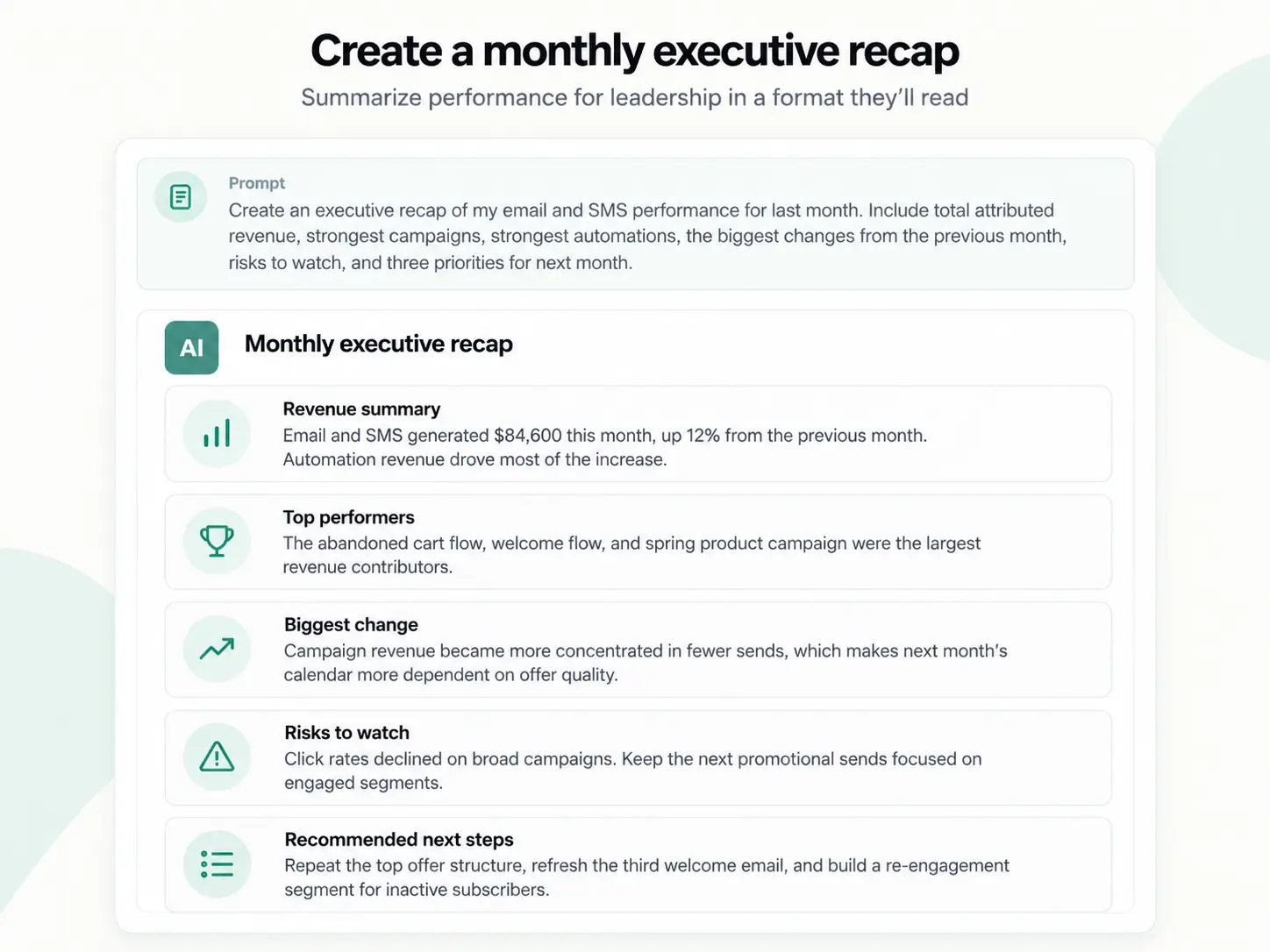
What to do next in Omnisend: Check the main figures against your Omnisend reports before sharing the recap. Add screenshots from the source reports when teammates need more detail behind a result.
A weekly Claude + Omnisend workflow: four prompts to run every Monday
Four prompts can take you from last week’s performance to this week’s campaign plan.
Run them in the same Claude conversation so each answer can use the context from the previous one.
1. Review last week’s performance
Review my email and SMS performance from the last seven days. Show total revenue, campaign revenue, automation revenue, strongest campaigns, weakest campaigns, and the main changes compared with the previous seven days.
Use the answer to see where last week’s results came from before planning another campaign.
2. Choose this week’s priority
Based on those results, what should I prioritize this week? Give me one campaign idea, one audience worth targeting, and one automation or form that needs attention.
The narrower request keeps the review focused on work you can assign or build.
3. Turn the priority into a send plan
Turn the campaign opportunity into a send plan. Include the audience, angle, offer, subject line direction, suggested send day, CTA, and the metric I should watch after sending.
If the plan requires a new segment, review Claude’s proposed rules and ask it to create the segment.
When the brief is ready, you can also ask Claude to create the draft campaign.
4. Write the Monday team recap
Summarize the review into a short Monday update for my team. Include last week’s result, this week’s priority, the planned campaign, the main risk, and the next action owner.
You’ll find more account-based prompt ideas in our Omnisend MCP email marketing guide.
Ten Claude prompts for email marketing
Save the prompts you use often and change the dates, campaign names, products, and audiences when needed.
Analysis prompts
1. Campaign performance breakdown
Analyze my [campaign name] campaign. Compare the main metrics with my average campaign performance from the previous [30/60/90] days and show the largest differences.
2. Top campaign patterns
Review my five highest-revenue campaigns from the last [90] days. What do they have in common in audience, offer, timing, and performance?
3. Underperformance diagnosis
Find the campaigns from the last [30] days that fell furthest below my normal results. Rank them by priority and show which metrics caused the difference.
Segmentation prompts
4. Re-engagement segment
Recommend a re-engagement segment using my Omnisend data. Focus on subscribers who engaged or purchased before but have become inactive recently. Give me the segment rules and explain why each rule is included.
5. High-intent audience finder
Find an audience worth targeting this week based on recent engagement, product interest, purchase history, or other available Omnisend data. Show which signals make this group worth testing.
Campaign and automation prompts
6. Campaign brief from past winners
Review my highest-performing campaigns from the last [90] days, then create a campaign brief for [product/category/offer]. Include the audience, angle, offer, subject line direction, CTA, and content blocks.
7. Follow-up campaign
Find subscribers who clicked [campaign] but didn’t purchase. Create a follow-up campaign brief for this audience with the message angle, offer, and timing.
8. Automation improvement brief
Review my [welcome/abandoned cart/post-purchase] automation and identify the message that needs the most attention. Show the supporting metrics and create an improvement brief for that email.
Reporting prompts
9. Weekly marketing recap
Create a weekly recap of my email and SMS performance. Include revenue, strongest campaigns, strongest automations, the main changes from the previous week, risks, and three actions for next week.
10. Executive summary
Turn last month’s email and SMS results into a short executive summary. Focus on revenue, performance changes, risks, and next steps. Include the number behind each point.
How to get better answers from Claude
Better Claude answers usually start with better boundaries: tell it when to look, what you need to decide, and how you want the answer presented.
Use an advanced model for complex Omnisend requests
Use the model recommended in the setup section, especially for requests that compare several periods or use multiple Omnisend tools.
A more capable model is especially useful when Claude needs to call several Omnisend tools, compare multiple periods, or combine analysis with a creation task.
Give Claude a date range
Compare:
How are my campaigns doing?
With:
Review my email campaign performance from August 1 to August 31. Compare it with July 1 to July 31. Show the largest changes in revenue, click rate, conversion rate, and unsubscribes.
The second prompt defines both periods and the metrics you care about.
Tell Claude what you’re deciding
Instead of:
Show my best campaigns.
Try:
Show my best campaigns from the last 60 days. I’m deciding which campaign angle to repeat next week.
The goal gives Claude another clue about which findings deserve more attention.
Ask for the format you need
Claude can return the same analysis in different forms.
Ask for a comparison table when you’re reviewing campaigns, a ranked list when you need priorities, or a campaign brief when the next person needs something to build from.
For example:
Rank the campaigns in a table by attributed revenue and include click rate and conversion rate.
Or:
Give me the three highest-priority actions and the number behind each one.
Keep follow-up questions in the same conversation
Start broad, then narrow as you learn more.
For example:
Which campaign had the largest drop in clicks?
Then:
Compare it with my three strongest campaigns from the same period.
Then:
Which difference should I test first?
Then:
Create a campaign brief for that test.
The later questions can use the context Claude has already gathered.
Ask Claude to show its evidence
Don’t stop at a recommendation such as “focus on Campaign A.”
Ask:
Which Omnisend metrics support that recommendation?
The same habit works for automation audits, segmentation ideas, and reporting.
Before you grant write access
Write permissions let Claude make supported changes in Omnisend, including creating segments, draft campaigns, and pop-up sign-up forms.
Grant only the write permissions you need for the tasks you plan to run, and review the proposed action before approving any account change. If your company has its own rules for customer data or AI services, follow those policies before connecting the account.
Claude or ChatGPT for Omnisend?
Both Claude and ChatGPT connect directly to Omnisend, so the practical choice often comes down to which AI workspace your team already uses. Omnisend is available in Claude’s Connector Directory and as the Omnisend Plugin in ChatGPT; neither standard setup requires a custom MCP URL.
| Claude | ChatGPT | |
|---|---|---|
| Setup | Omnisend connector in Claude’s Connector Directory | Omnisend Plugin in ChatGPT |
| Custom MCP URL needed | No | No |
| Shared use cases | Campaign and automation analysis, revenue comparisons, audience research, segmentation, reporting, and supported account actions | Campaign and automation analysis, revenue comparisons, audience research, segmentation, reporting, and supported account actions |
If ChatGPT is also part of your workflow, see our Omnisend ChatGPT integration guide and the Help Center instructions for the Omnisend Plugin in ChatGPT.
Shopify marketers looking for broader prompt ideas can also browse our ChatGPT prompts for Shopify stores.
What Claude can’t do with Omnisend
Claude won’t continuously watch your Omnisend account in the regular chat workflow covered here. The connector is request-driven: you ask Claude to retrieve data or perform an action, and the MCP server handles that request. Omnisend’s current MCP documentation doesn’t describe event subscriptions that proactively alert Claude when a metric changes.
That means Claude won’t independently notice an unsubscribe spike, a failed campaign, or a segment reaching a certain size and message you about it. For ongoing behavior such as event-triggered messages, use Omnisend automations and their triggers.
Claude’s account access also depends on the permissions you approve during authorization. Read-only access limits it to retrieving data, while write access is required for account changes. The exact actions available can change as Omnisend expands its MCP API, so check the current documentation before relying on Claude for a specific account operation.
What’s next
Start with one question that can change what you do next.
For example:
Review my email and SMS performance from the last seven days. What changed most compared with the previous seven days?
Then follow with:
Which result should I investigate first?
From there, Claude can dig into the campaign or automation behind the change, recommend an audience, prepare a campaign brief, or complete a supported creation task after you approve it.
You don’t need to redesign your marketing workflow around Claude. Connect the account, give it a specific job, and use the Omnisend data behind the answer to decide what comes next.
Quick sign up | No credit card required