
 Omnisend AI


 OFFER
OFFER







Drive sales on autopilot with ecommerce-focused features
See FeaturesKey takeaways 
Migrating from BigCommerce to WooCommerce requires rebuilding your storefront and integrations, as automated data imports do not transfer your entire setup.
Utilize tools like Cart2Cart or LitExtension to streamline the transfer of products, customers, and orders from BigCommerce to WooCommerce seamlessly.
Ensure thorough testing of your new WooCommerce store, including order processing and email notifications, to deliver a top-notch customer experience post-migration.
Leverage your migration as an opportunity to enhance email and SMS marketing flows, targeting past customers and creating engaging campaigns to boost sales.
Reveal key takeaways
When you migrate BigCommerce to WooCommerce, there’s some welcome automation from importing, but the setup doesn’t move with your data. Your storefront, integrations, settings, and flows require a rebuild before you can sell with the same vigor.
Cart2Cart and LitExtension do the job for pulling your products, customers, and orders from BigCommerce to WooCommerce and feeding the backend.
The manual configuration involves connecting your WooCommerce store to the real world. How it charges, ships, taxes, markets to, and sells to customers.
This article is a complete guide for BigCommerce to WooCommerce migration, from pre-migration checklists to picking a host, handling data, and customizing and testing. You’ll be ready to make the move by the end.
Omnisend connects to WooCommerce, importing your customers, orders, and sales. Your email marketing migrates with you
Quick sign up | No credit card required
Why switch from BigCommerce to WooCommerce?
BigCommerce’s revenue tiers and customization limitations can work against you as you grow into building personalized customer experiences.
It’s a tempting ecommerce platform for its 0% transaction fees and fully hosted setup that effectively handles security and maintenance for you. The trade-off is control. These are the considerations that could tip WooCommerce in your favor:
- BigCommerce pricing scales with revenue, with $39/month becoming $105/month after $50k in online sales, $399/month after $180k, and custom pricing after $1m
- Running more than one storefront on BigCommerce costs an extra $30/month, and you’re limited to adding three, five, or eight across its plans
- WordPress (the CMS WooCommerce lives on) gives you native blogging and content marketing that BigCommerce bolts on as an afterthought
- Your store runs on open-source code you fully own, hosted wherever you choose, meaning you can take it with you wherever
- WordPress has a plugin for practically everything, and since you can code them, there are no limitations to integrations
- With WooCommerce, you get complete developer freedom to customize your checkout, product pages, and store logic without restrictions
- BigCommerce limits API calls unless you’re on Enterprise, whereas WooCommerce’s REST API has no caps for connecting to external systems and resources
“Stores that move from BigCommerce to WooCommerce typically have outgrown what their plan allows them to do, not what the platform is capable of. The frustration is paying more to access features that should already be available.”
— Iryna Shatalo, Lead of Product Knowledge Enablement at Omnisend
Pre-migration checklist
Migrate BigCommerce to WooCommerce with this checklist:
- Back up your BigCommerce store:
- Products: Products > Export, select Bulk Edit template, export as CSV.
- Customers: Customers > Export, select Bulk Edit template, export as CSV. Note that passwords won’t export due to PCI compliance.
- Orders: Orders > Export, select Default template, export as CSV.
- Product images: Connect via WebDAV using Cyberduck to download the product_images folder. Your credentials are under Settings > File Access.
- 301 redirects: Export these from Settings > 301 Redirects as a CSV.
- Pages, blog posts, and menus: These aren’t included in any CSV export. Save the content manually.
- Custom data: Look for SKUs, variants, and metadata that BigCommerce hasn’t exported to CSV. If it’s crucial to your store, manually enter it.
- Document your URLs: You can then match them to your WooCommerce build and preserve structure and SEO value. Include live URLs, 301 redirects, and media file links.
- Record content: Copy your pages and screenshot the layouts. Any custom code (e.g., CSS, HTML) needs to go into a text document in case you need it. Download all media, too, after deleting anything not in use.
- Audit apps and integrations: Do your apps have WooCommerce equivalents? For those with a tick, check their documentation for migration advice. Apps that aren’t available on Woo via native plugins either need replacing or code to tap into their API.
- Set up a WooCommerce staging site: A subdomain, such as staging.yoursite.com, works well. It’s where you can deposit your media and other exports from BigCommerce. Eventually, it’s where you will develop your store.
- Plan your DNS switch for a low-traffic window: Your web analytics will have filters for engagement windows. Pick whichever window shows the fewest people visiting (usually in the depths of night, 2 AM to 3 AM).
How to migrate BigCommerce to WooCommerce
The technical side of exporting and importing data is the most mind-numbing part. The much more enjoyable aspect when you migrate BigCommerce to WooCommerce is building out your infrastructure (host, backend) and theme (frontend).
Here are the steps to handle your BigCommerce to WooCommerce migration effectively:
1. Choose a WooCommerce hosting provider
BigCommerce hosts your store for you as part of its package. You lose that when you migrate to WooCommerce, which requires a third-party to do the hosting.
A few popular hosts include:
- Pressable
- WordPress VIP
- SiteGround
- Cloudways
- Bluehost
- Hostinger
Depending on the provider, you can create a standalone web hosting account for one website, a multi-site account, or a reseller account.
A few important points:
- The cheapest plans will put you on shared hosting, meaning your site sits alongside others on a server and shares resources. If you have <10,000 visitors/month and fewer than a hundred products, then shared hosting will do.
- VPS hosting gives you dedicated resources on a virtual server, better if you’re serving around 100,000 visitors/month.
- If you’re on your own or have a small team, managed WooCommerce hosting places the burden of updates, security, backups, and performance on your host.
- Dedicated hosting gives you a physical server to yourself, so there aren’t performance limitations, other than the hardware. Consider it if you serve over 100,000 people/month.
2. Export data from BigCommerce
Your BigCommerce store has customer, sales, order, and product data that you can export to CSVs. Here’s where to export from inside your BigCommerce admin:
- Products live under Products > Export. Click Start export and download the CSV when it finishes:
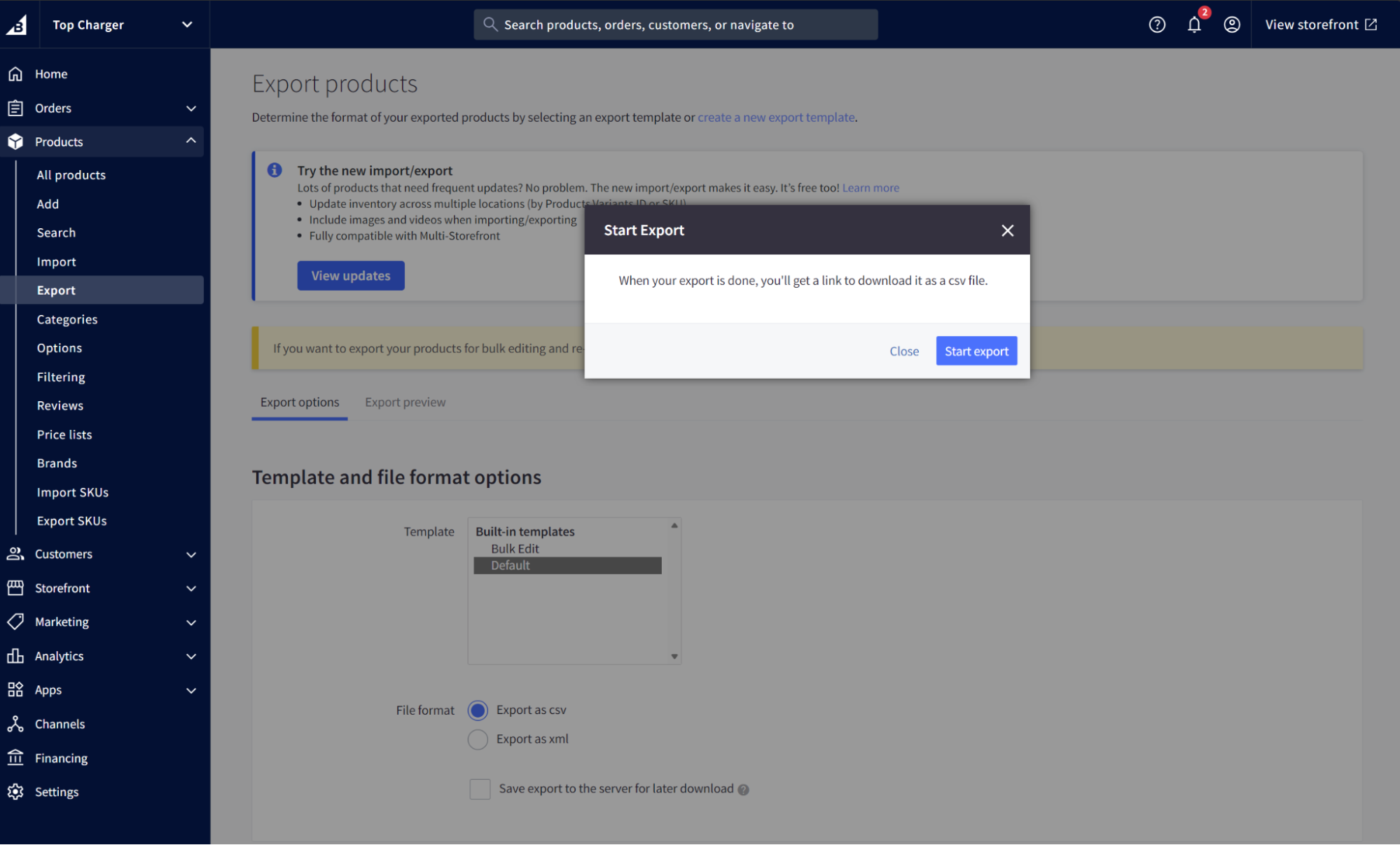
Note: The modern export experience doesn’t support custom export templates or XML, and references categories by ID, not name.
- Customers export from Customers > Export using the Bulk Edit template:
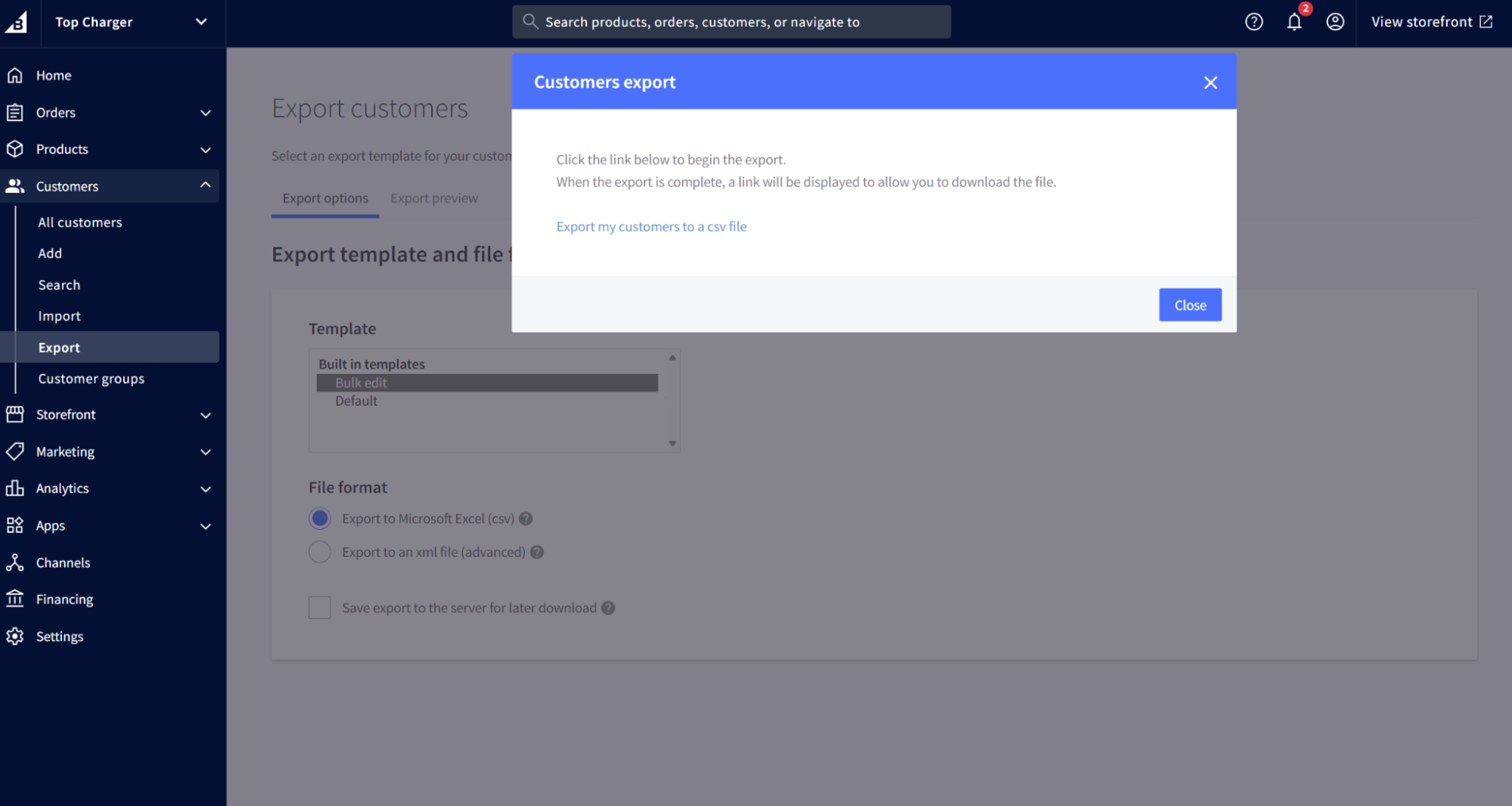
Note: BigCommerce excludes passwords from all exports under PCI compliance rules. You should send customers an email asking them to reset their password when appropriate.
- Orders export from Orders > Export Orders. You can export all orders or filter by date range through Orders > Search first. BigCommerce only allows order imports via API, not CSV, so treat this export as a record.
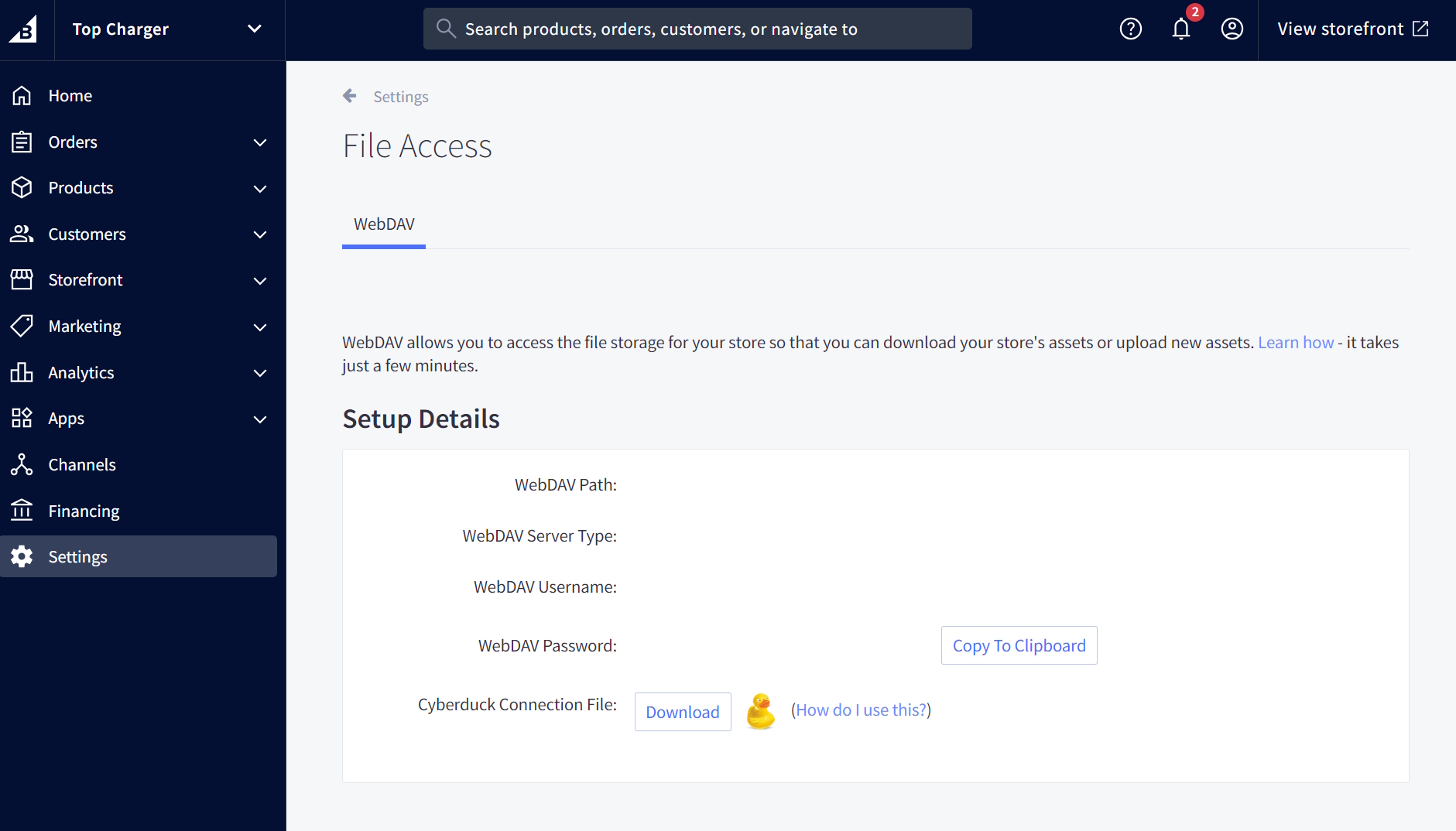
- Product images require a WebDAV connection using Cyberduck. Find your credentials under Settings > File Access:
- 301 redirects export from Settings > 301 Redirects as a CSV. You can then use a WordPress plugin to handle the redirects.
Import data into WooCommerce
There’s a bit of an unavoidable downer from those BigCommerce data exports. They aren’t directly importable into WooCommerce because the column headers won’t match, so you’re going to have to run through four possible solutions:
- Use Cart2Cart or LitExtension to skip the CSV entirely. Both connect to BigCommerce via API, pull your data, and format it for WooCommerce automatically.
- Use WooCommerce’s built-in column mapper during import. It can match BigCommerce’s column to the WooCommerce equivalent. Some columns might get overlooked, so the automation needs reviewing after completing. Head to Products > All Products and click Import to open the options:
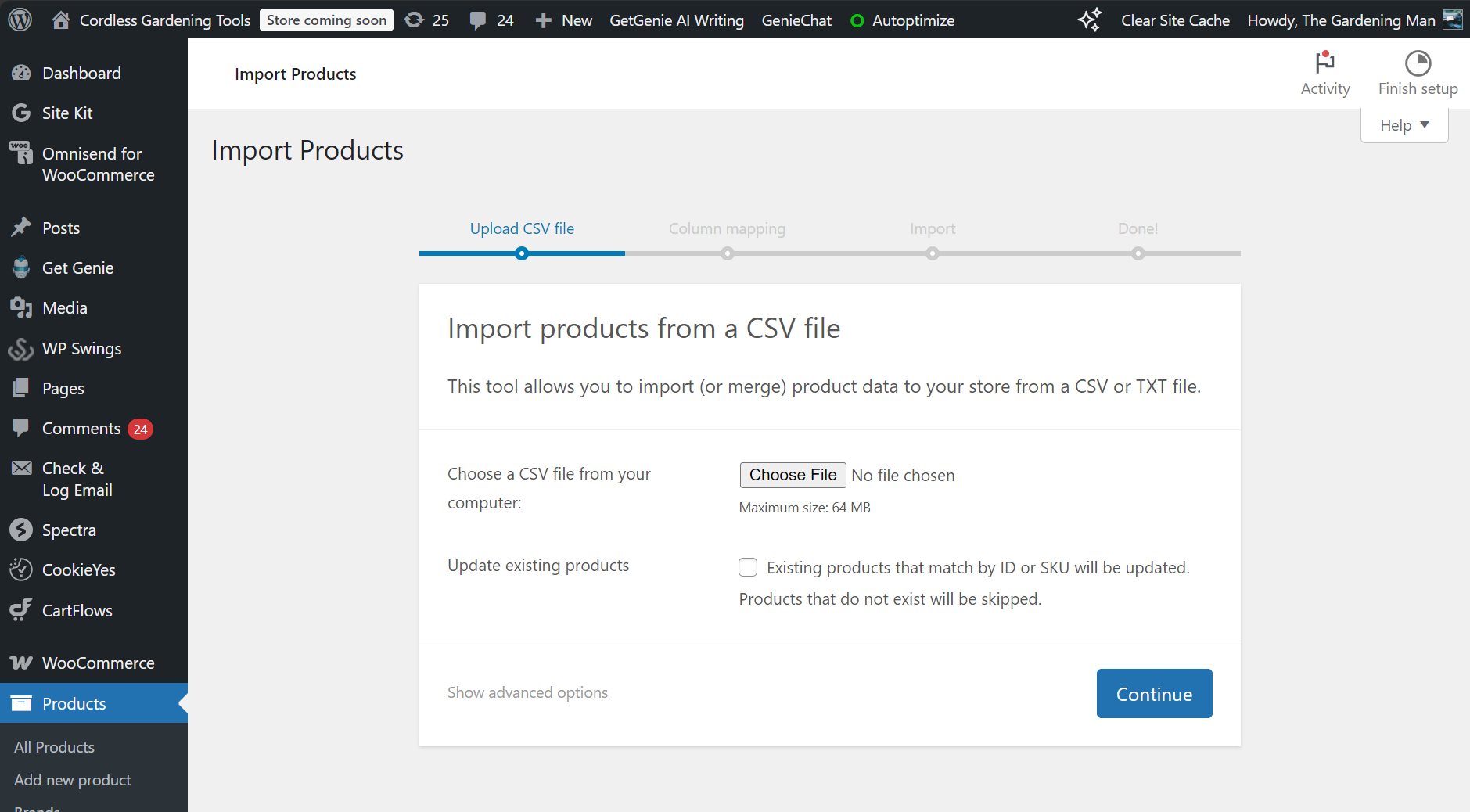
- Use the WP All Import plugin. It accepts BigCommerce CSV’s as-is and lets you drag and drop columns to the WooCommerce field.
- Manually edit your spreadsheets and rename the CSV columns. The link below provides the column names you need:
Customize your WooCommerce store
Your data’s imported, you can now start building your store and developing it.
Selecting a theme
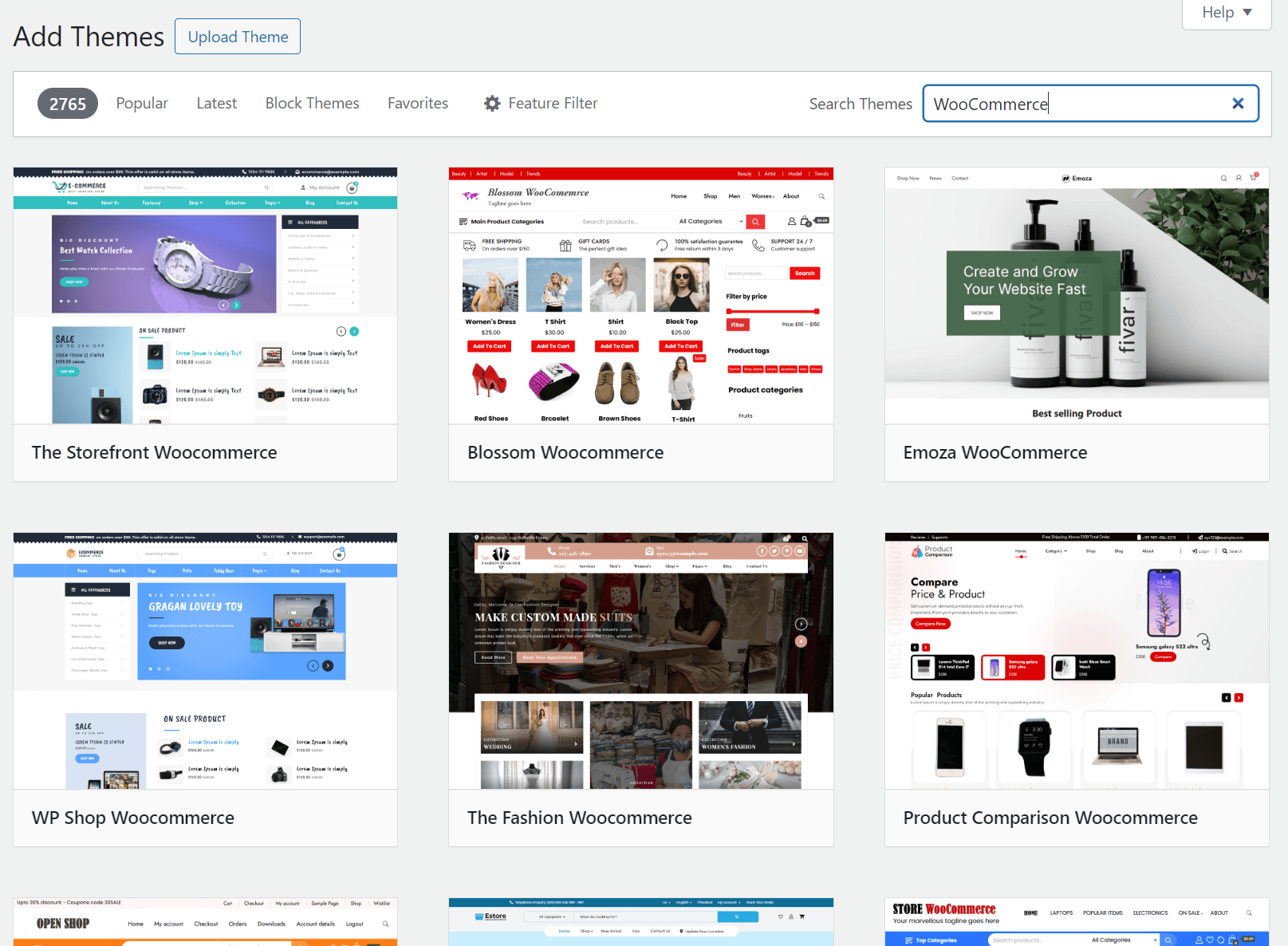
Select a high-quality WordPress theme for your store, built for WooCommerce. The first place to look is the WordPress backend, which lets you search for, preview, and install themes:
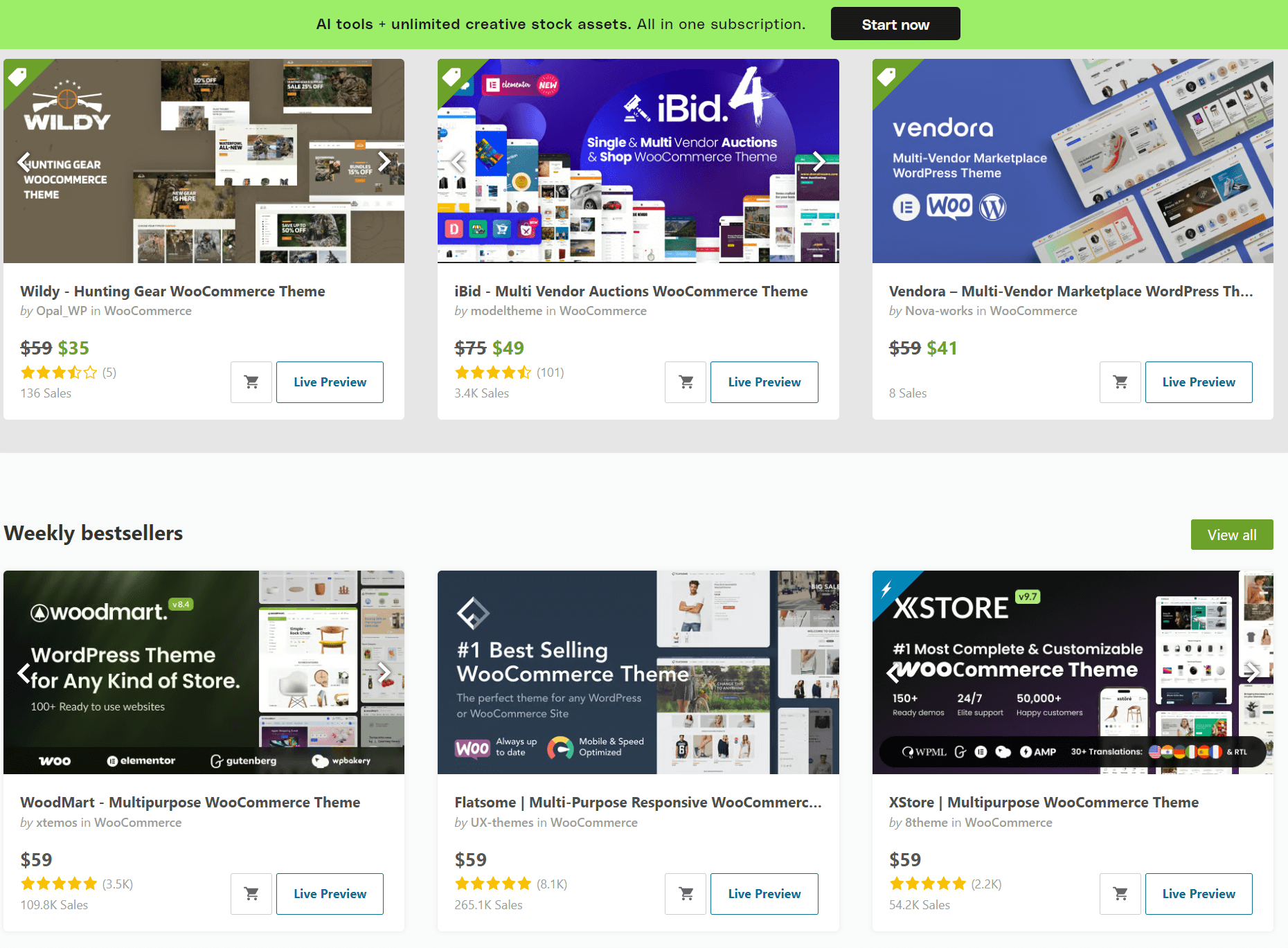
Another option for premium themes is ThemeForest. The pool here is better than on WordPress, with plenty of themes with five-star ratings across thousands of reviews:
Theme setup and page building
Here’s how to approach your theme and customize your store:
- Install your theme’s required plugins. Your theme will probably hit you with a list of plugins it needs, such as Elementor, Divi, and a slider. Some are required, some are just recommended for all the theme’s features. Don’t skip the required ones, or your theme won’t look anything like the demo you bought it for.
- Run the demo import. Most themes offer this, and you should take it. One click loads pre-built pages, menus, and layouts that match the theme preview. Deleting what you don’t want takes five minutes. Recreating what you can’t figure out takes hours.
- Find where your design controls live. A few points regarding how themes work:
- Block themes are editable in Appearance > Editor and use Gutenberg, WordPress’s standard builder
- Elementor/Divi themes use their own page builders
- The WordPress Customizer (Appearance > Customize) handles logo, colors, and fonts on most setups
- Some themes have a settings panel for appearance and branding
- WooCommerce tucks the catalog layout and image sizing under its own tab
- Rebuild your pages. WooCommerce auto-generates cart and checkout. Everything else, homepage, product pages, About, FAQ, policies, you’re building from the content you saved during pre-migration.
- Install your plugins: Including your email marketing tool, CRM, subscription apps, loyalty and rewards programs, and everything else you use.
Test everything
These steps will help test your ordering, emails, design, and loading times. Don’t skip them, otherwise you could launch with a poor customer experience:
- Create a new customer account, and see that it works
- Place an order and ensure that the payment goes through
- Trigger these emails. Do they go through and look professional?
- Order confirmation
- Shipping confirmation
- Welcome series
- Abandoned cart
- Thank you message
- Visit your homepage, all product pages, categories, and static pages (such as your returns policy) on mobile and desktop, and ensure that:
- Headings and text sizing are appropriate for the device
- Images load properly with adequate resolution
- The spacing between sections and blocks is consistent
- Run all your content through Grammarly and edit any mistakes
- Use PageSpeed Insights and GTmetrix to catch any performance problems, take any necessary steps to get things loading fast
Point your domain to WooCommerce
Your domain has been pointing to BigCommerce throughout your WooCommerce build so that you can continue selling. Now that WooCommerce is ready, you can point your domain to it and finally migrate from BigCommerce for good.
Take these steps:
- Log in to your domain registrar
- Click domains or domain settings
- Select your domain
- Look for the DNS or nameserver settings
- Replace the DNS and nameservers with the ones your WordPress host gives you
- Save the changes
Monitor performance
To Google, other search engines, and your customers, your website has been live the whole time, but the sudden change in platform and design (potentially, if your design is new) means there will be different levels of engagement than before.
Use Google Analytics to monitor your bounce rate and sessions, Google Search Console to keep tabs on your appearance in search, and Omnisend reports for email + SMS analytics.
Connecting your WooCommerce store to Omnisend
If you were an Omnisend customer while using BigCommerce, you can connect to your new store and retain all your data. If not, you can create a new account.
Follow these steps:
- Install the Omnisend for WooCommerce plugin
- Click Omnisend for WooCommerce in your sidebar
- Select Create new account or Connect your account:
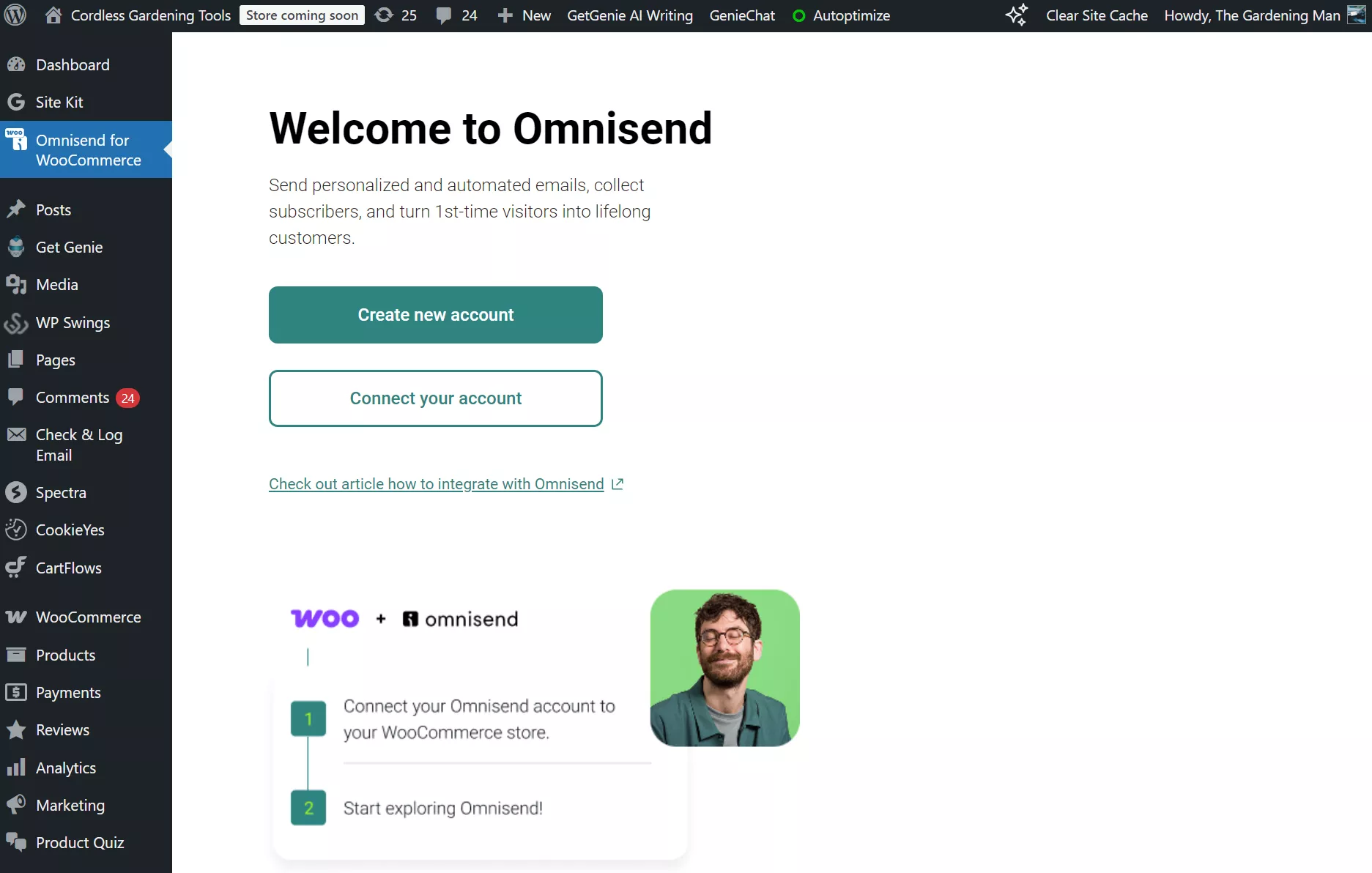
4. Follow the steps provided by Omnisend to complete the setup
Alternatively, log in to Omnisend, click your profile icon in the top right corner, select Stores, and then click + Add new store to connect:
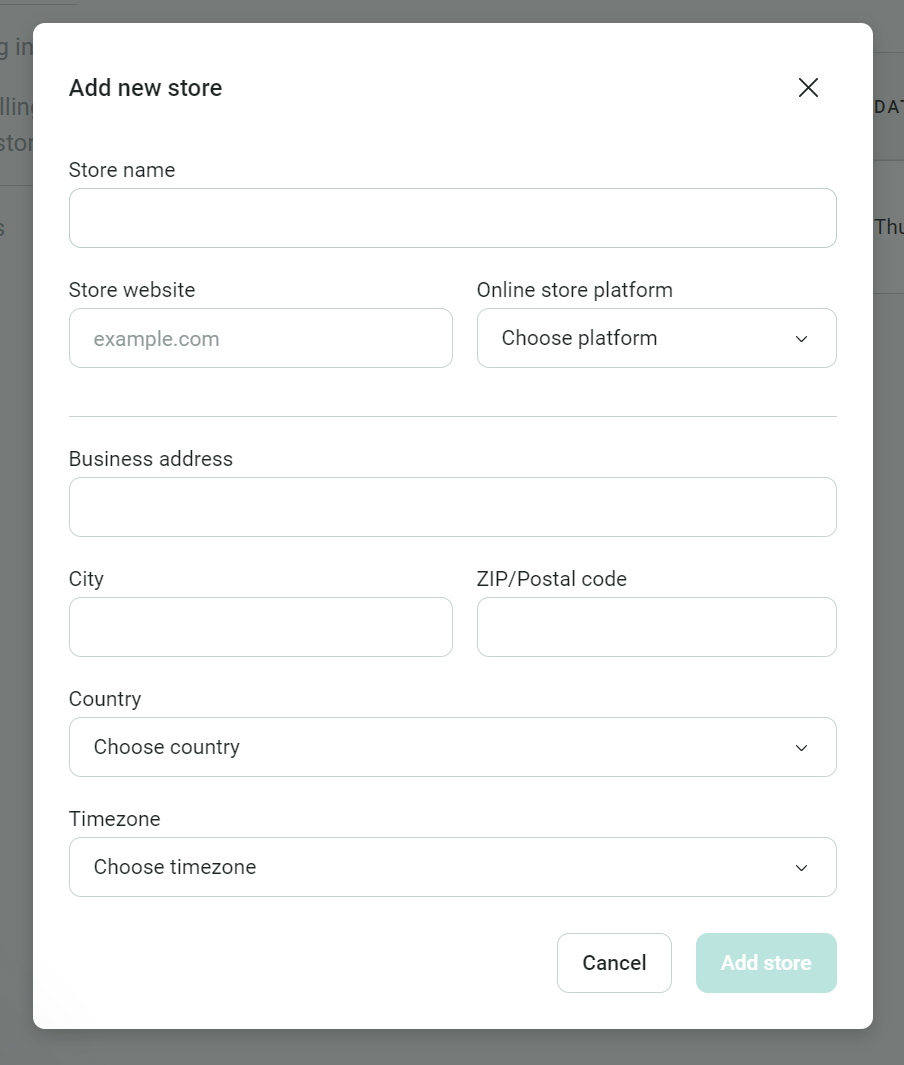
Any additional orders and customer data will sync to Omnisend automatically, bridging the gap between your old BigCommerce data and new WooCommerce data.
Post-migration email & SMS tips
Recent purchasers, active browsers, and dormant customers alike need contextual and appropriately-timed emails to feed your sales.
These email + SMS tips will maximize your performance after you migrate BigCommerce to WooCommerce:
- Create an announcement campaign: Use the subject line “We’ve moved,” or “We’ve made some exciting changes,” and make it about the customer. How does your new store make their experience better? That’s your content.
- Rebuild your flows: Migrating to WooCommerce is a great opportunity to revisit and improve your existing flows. Keep in mind that WooCommerce uses different triggers than BigCommerce, so your automations will need to be rebuilt from scratch anyway.
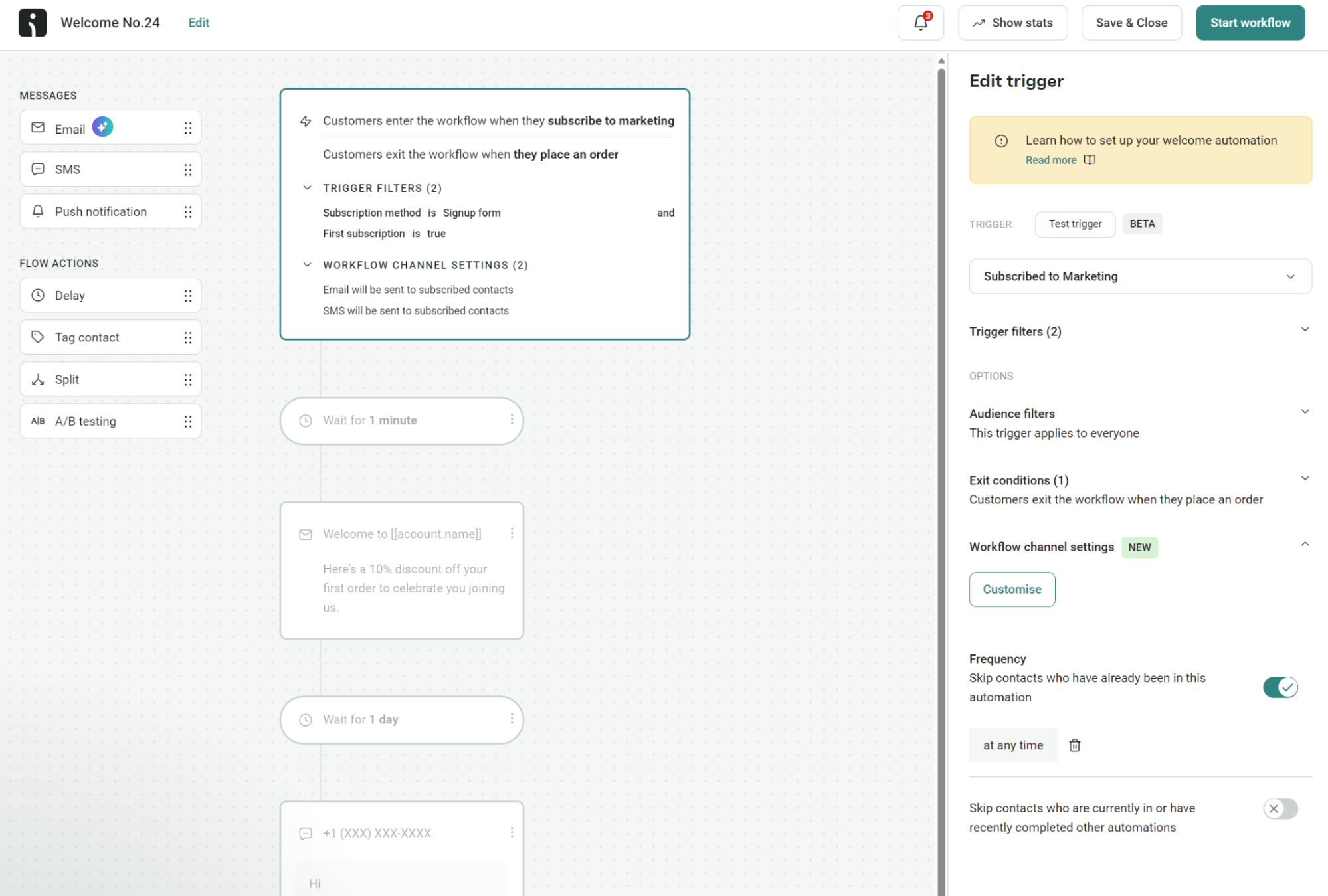
- Build new flows for crucial touchpoints: You should have a welcome series and an abandoned cart flow at least. These won 76% of all automated orders in 2025. Back-in-stock emails delivered the highest conversion rates (6.46%). The flow below, for a welcome series, combines an email + SMS:
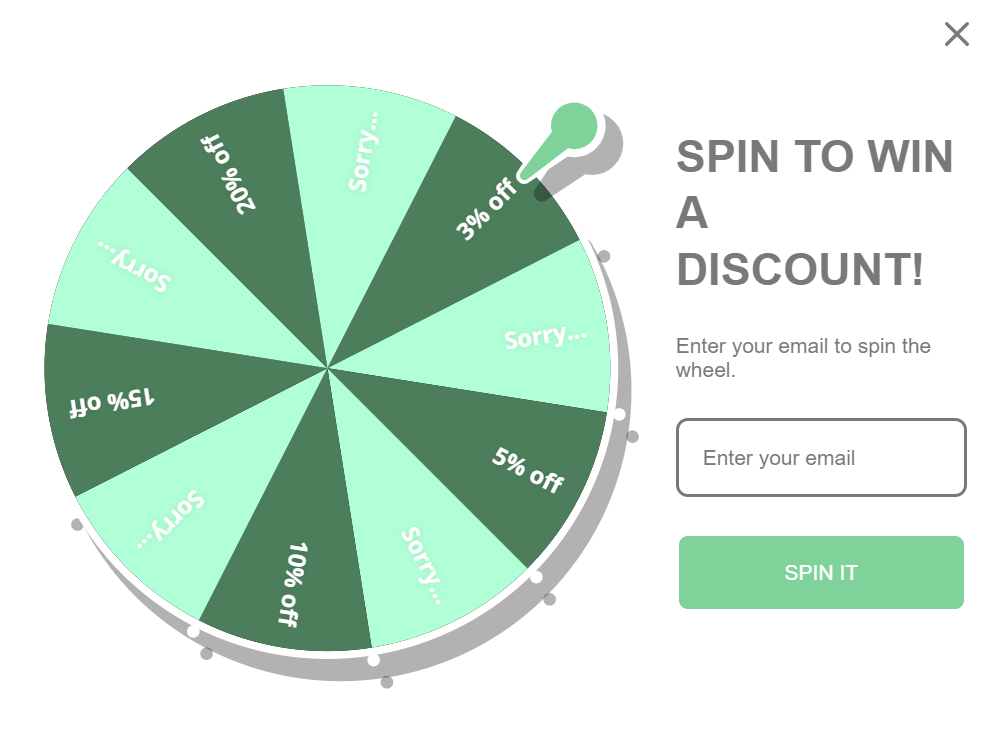
- Create a new welcome form: Capture new visitors with a gamified Wheel of Fortune form to kick off your BigCommerce to WooCommerce list-building efforts:
- Target past customers: Existing customers already have acquisition costs baked in, and your past relationship can lead to additional sales. Send them a discount email and reference their most recent activity (browsing, an order) to make it contextual.
- Combine SMS into your flows: Customers who opt in to receiving marketing texts will appreciate you sending them timely offers and notifications. Always pivot into SMS when your customer experience will benefit from it.
Join Omnisend to automate your customer journey with email + SMS
Quick sign up | No credit card required
FAQs about migrating BigCommerce to WooCommerce
Is it safe to migrate BigCommerce to WooCommerce?
It’s completely safe, and you can keep your BigCommerce store available during your development. Creating a subdomain to develop your WooCommerce store has no risk.
How long does migrating take?
It takes as long as your development does. Throwing up a theme demo, changing the content, and publishing products with pre-built pages takes a week or so. A few weeks can easily pile up for custom development and testing.
What’s the cost to migrate a BigCommerce store?
$100 to $10,000+, depending on:
— The size and complexity of your store, including the number of products, orders, customers, and other datasets
— The amount of custom development or design work, for instance, if there aren’t plugins that handle your sales processes
How to migrate customer data from BigCommerce to WooCommerce?
Data migration tools can handle it, e.g., Cart2Cart, LitExtension typically charges $100 to $500+. BigCommerce also provides export tools for products, customers, and orders. Bulk exports push these into CSVs, which you can format for WooCommerce.

TABLE OF CONTENTS
TABLE OF CONTENTS


Subscribe and don’t miss any updates!
No fluff, no spam, no corporate filler. Just a friendly letter, twice a month.