
 Omnisend AI


 OFFER
OFFER







Drive sales on autopilot with ecommerce-focused features
See FeaturesKey takeaways 
WooCommerce's built-in inventory management is effective for stores with fewer than 500 SKUs, providing essential features like stock tracking and low-stock alerts without the need for additional plugins.
As your store scales, the limitations of WooCommerce become apparent, necessitating third-party plugins for advanced needs such as multi-location tracking and raw material management.
Integrating Omnisend with WooCommerce enhances marketing capabilities by automating customer notifications for back-in-stock items, turning inventory events into revenue opportunities.
Selecting the right inventory management solution depends on your store's size and complexity, with options ranging from native WooCommerce tools for small catalogs to specialized plugins for larger, multi-location businesses.
Reveal key takeaways
Yes, WooCommerce offers built-in inventory management. And it works well right out of the box.
For stores managing fewer than 500 SKUs, native WooCommerce inventory management handles the basics. No add-ons needed. You get stock tracking, low-stock alerts, backorder settings, and automatic status updates when items sell out.
But as your catalog grows, the gaps in native WooCommerce inventory management become harder to ignore. This includes overselling, lost revenue, and frustrated customers who never knew their item had come back in stock.
This comprehensive WooCommerce inventory management guide covers all that. Here, you’ll find a full breakdown of the built-in tools and see how to set everything up.
We’ll also cover the best free and paid plugins for 2026, so you can address the gaps that matter most to your store. And we’ll show you how Omnisend turns inventory events into revenue. Think back-in-stock emails that bring waiting customers straight back to your store.
Get profitable sales on WooCommerce: Email and SMS marketing that works 24/7
Quick sign up | No credit card required
How WooCommerce inventory management works
WooCommerce is a free, open-source WordPress plugin. It turns any WordPress site into a working online store. It includes payment processing, checkout pages, and product management as part of its core setup.
Inventory management in WooCommerce is part of that core setup. When a customer buys a product, WooCommerce updates your stock count in real time. You don’t need a separate system for that.
It also lets you pull ecommerce metrics and stock reports to see which products are selling and which are not.
That said, the native WooCommerce inventory management system has a clear scope. Stock management in WooCommerce works well for straightforward product catalogs.
But it wasn’t built for manufacturers, multi-location retailers, or stores with complex supply chains.
On the marketing side, such as notifying customers when a sold-out product is available again, Omnisend picks up where WooCommerce leaves off.
What’s included in native WooCommerce inventory tools
Here’s what you get with WooCommerce inventory management right out of the box:
- Stock quantity tracking: Set exact stock counts per product and let WooCommerce update them after each sale
- Low-stock alerts: Get notified when inventory drops below a threshold you define
- Backorder settings: Let customers buy items that are temporarily out of stock
- Out-of-stock visibility: Control whether sold-out products stay visible in your store
- SKU assignment: Give each product a unique identifier (stock keeping unit) for accurate tracking
- Basic stock reports: See which products are selling and spot inventory trends
These native features cover the basics well. But once your store scales, you’ll need more. Here’s a quick look at what requires a plugin:
| Native WooCommerce inventory management includes | Requires a plugin |
|---|---|
| Stock quantity tracking per product | Multi-location inventory tracking |
| Low-stock and out-of-stock alerts | Raw materials or component tracking |
| Backorder settings | Automatic stock updates from supplier feeds |
| Out-of-stock visibility controls | Bulk stock editing across large catalogs |
| Basic stock reports | Back-in-stock customer notifications |
| SKU assignment per product | Inventory syncing across sales channels |
We’ll cover exactly where WooCommerce inventory management hits its limits — and what fills the gaps.
How to set up and manage WooCommerce inventory
Setting up inventory management for WooCommerce involves four steps:
- Add your products to WooCommerce
- Enable stock management at the product level
- Enable stock management across your store
- Manage and update your inventory on an ongoing basis
Here’s how each step works.
Step 1: Add WooCommerce products
Before you can track anything, you need products in your store. Once WooCommerce is active, two new tabs appear in your WordPress dashboard: WooCommerce and Products.
Go to Products > Add New. Here you’ll name your product and write a product description:
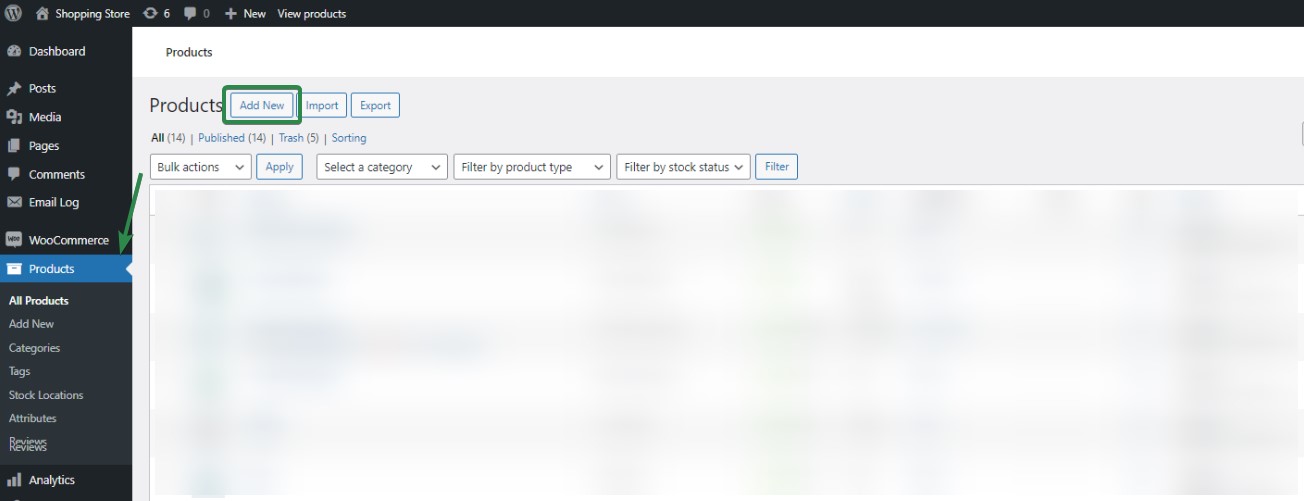
Next, choose the right product type for your catalog. WooCommerce supports four main product types. They include simple (one fixed item), variable (size/color options), grouped (related items sold together), and external/affiliate (listed here, sold elsewhere).
The type you choose affects how WooCommerce tracks stock and what inventory settings are available to you.
What you achieve: Your products are live in your store and ready for inventory tracking.
Step 2: Enable stock management at the product level
This is where WooCommerce inventory management becomes active for individual items. In the product editor, scroll to the Product Data box and click the Inventory tab:
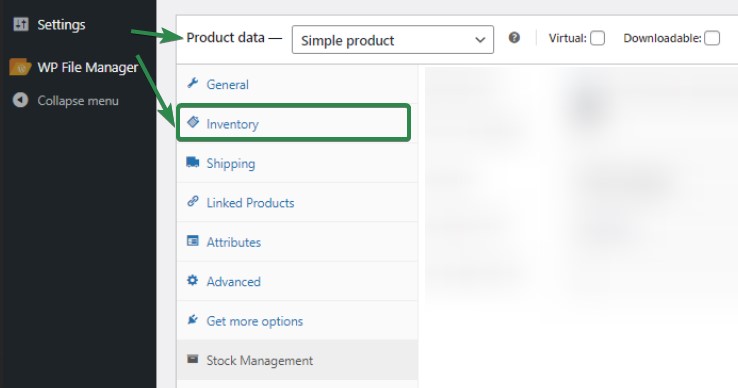
You’ll see these settings:
- SKU: A stock keeping unit — a unique code you assign to each product. It keeps your tracking accurate, especially when you have a large catalog.
- Stock management: Check this box to start tracking quantities for this product. Then enter how many units you currently have:
- Allow backorders: Decide whether customers can buy this item when it’s out of stock. You can allow it, block it, or allow it with a customer notification.
- Low stock threshold: Set the quantity that triggers a low-stock alert. Once your stock drops to that number, WooCommerce emails you.
- Sold alone: Limits each order to one unit of this product. Useful for handmade or limited items.
Save or publish the product when you’re done. These settings apply only to this specific product.
What you achieve: WooCommerce inventory management is now active for this product — tracking stock and alerting you before it runs out.
Step 3: Enable stock management in WooCommerce
Product-level settings are great for individual items. But you also need global settings to manage WooCommerce inventory across your whole store.
Go to WooCommerce > Settings > Products > Inventory:
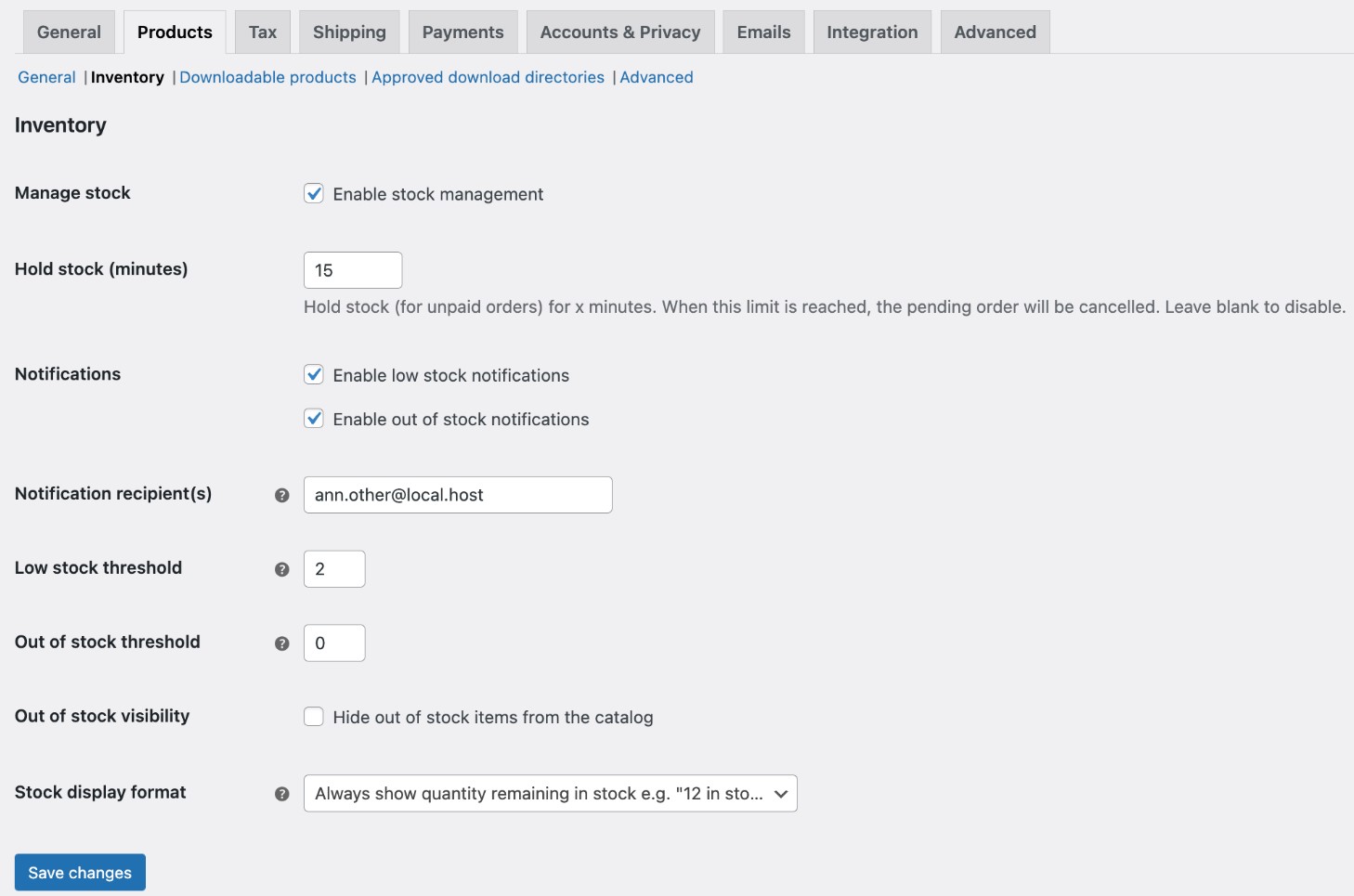
Here’s what you can configure:
- Enable stock management: Turn on store-wide inventory tracking with one checkbox
- Hold stock (minutes): Set how long WooCommerce holds stock for unpaid orders before releasing it back
- Enable low stock notifications: Get an email alert when a product drops to your set threshold
- Enable out of stock notifications: Get notified when a product hits zero
- Notification recipient: Enter the email address that receives all stock alerts
- Low stock threshold: Set a default low-stock alert level for all products
- Out of stock threshold: Define when a product gets marked as out of stock
- Out of stock visibility: Choose whether out-of-stock products stay visible in your store or get hidden
- Stock display format: Control whether customers see exact stock counts or a general “in stock” label
These global settings apply to your whole store. But any product-level settings you configured in step two will override the global defaults for that specific product.
What you achieve: Your entire store now has consistent inventory tracking rules. No product slips through the cracks.
Step 4: Manage and update WooCommerce inventory
Once your products are set up, keeping your WooCommerce inventory management up to date becomes an ongoing process. WooCommerce deducts stock automatically when a sale is made.
But it doesn’t increase stock on its own when new shipments arrive — that’s a manual step. To update stock levels, go to Products, find the item you want to update, and edit the quantity in the Inventory tab.
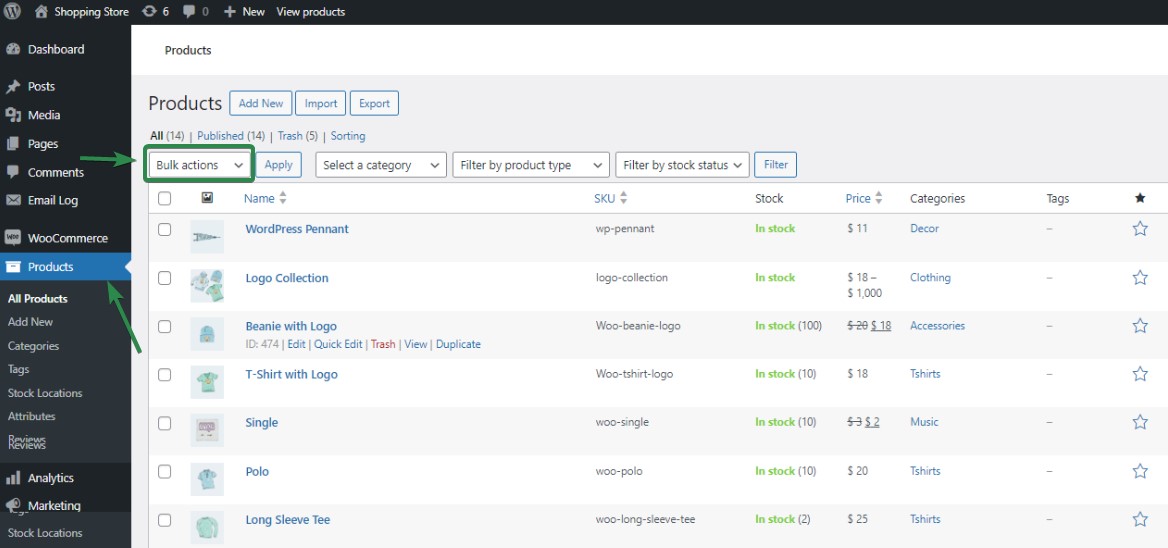
For stores with larger catalogs, updating products one by one gets slow. The WooCommerce inventory management dashboard includes a basic bulk editing tool.
Go to Products, select different items, and choose Edit from the bulk actions dropdown. You can update stock status for several products at once:
You can also run stock reports under WooCommerce > Analytics > Stock:
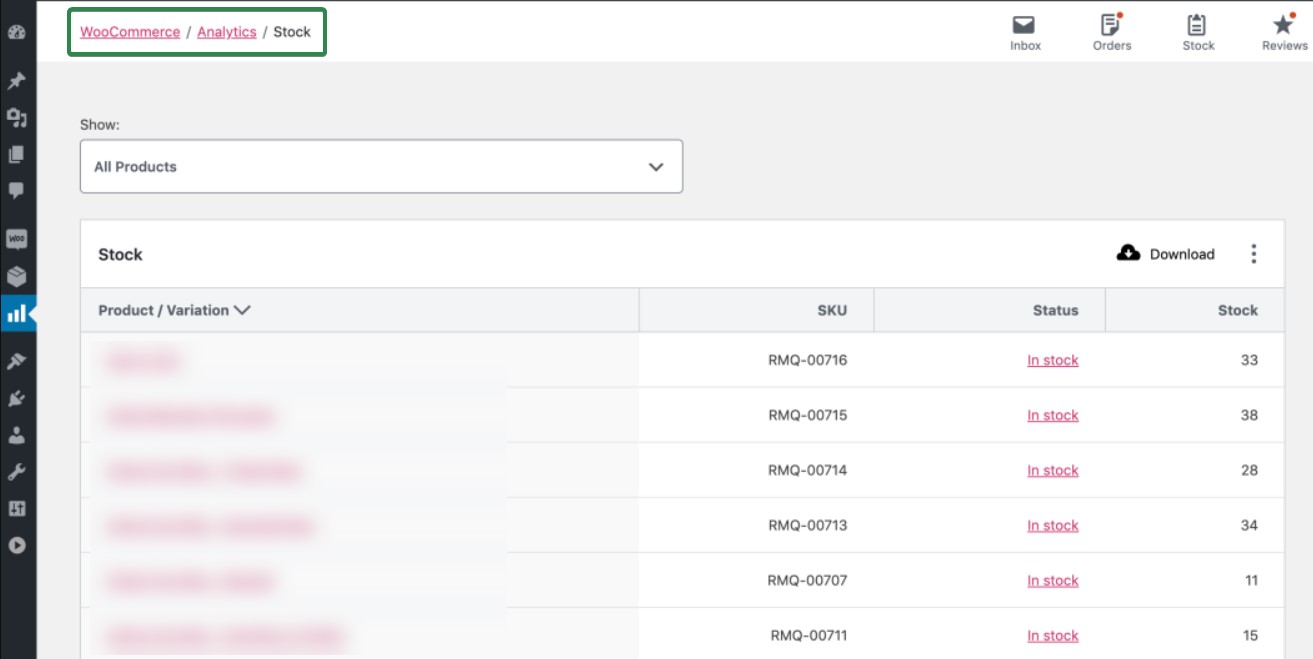
The WooCommerce inventory management dashboard shows you:
- Low-stock products approaching your set threshold
- Out-of-stock items that need restocking
- Your most stocked products by quantity
- Products with stock management disabled
It’s a quick way to spot gaps before they cost you sales. Stockouts on high-demand products can mean lost revenue in hours — catching them here early makes the difference.
But for deeper WooCommerce automation, like auto-updating stock from supplier files, you’ll need a plugin. We’ll cover the best options shortly.
What you achieve: Your inventory stays accurate, and you have a clear view of stock health across your store.
The limitations of the default WooCommerce inventory management tools
The native WooCommerce inventory management software covers a lot of ground. But it has notable limitations. And knowing where they are saves you from finding out the hard way.
No raw materials or component tracking
WooCommerce inventory management tracks only finished products. If you manufacture items, you can’t track the raw materials that go into making them.
So if you run low on a key component, WooCommerce won’t flag it. You’d either find out mid-production or have to maintain a separate spreadsheet to stay on top of it.
That kind of manual workaround adds up fast, especially as your product range grows. The result is unexpected production halts and delayed fulfillment, which erode customer trust.
No multi-location inventory tracking
By default, WooCommerce treats your inventory as one pool. There’s no native segmentation across multiple warehouses, retail stores, or third-party fulfillment centers.
For any WooCommerce inventory management setup operating across locations, this is a structural constraint.
If you sell the same product from two locations, the system can’t tell you which location has stock or route orders to the closest one. This exposes you to overselling — taking orders you can’t fulfill from the right location. This leads to delays, refunds, and unhappy customers.
Manual updates required for incoming stock
WooCommerce inventory management automatically reduces stock when a sale happens. But it doesn’t increase stock when new inventory arrives. Every time a shipment lands, you have to update quantities by hand, product by product.
For a store with 50 SKUs, that’s manageable. But for a store with 500+, it’s a serious time drain. And if updates get delayed, your store may show items as out of stock even when they’re sitting in your warehouse.
In the meantime, you’re turning away customers who could have bought — and may not come back.
When you need more than native WooCommerce inventory tools
The inventory management system in WooCommerce works well up to a point. But it’s worth considering a third-party solution if any of these apply to your store:
- You manage 500+ SKUs and need faster ways to update and track stock in bulk
- You sell from many locations — warehouses, retail stores, or fulfillment centers
- You manufacture products and need to track raw materials or bills of materials (BOM)
- You sell across several channels (Amazon, eBay, or a physical POS system) and need inventory to sync in real time
- You receive regular supplier shipments and want stock to update in real time
- You’re losing revenue because customers can’t get notified when popular items come back in stock
That last point is worth highlighting. Native WooCommerce doesn’t help you act on inventory events from a marketing angle. WooCommerce inventory management has no built-in way to notify waiting customers when a sold-out product becomes available again.
The next section covers the best WooCommerce inventory management plugins to fill these gaps.
The 8 best WooCommerce inventory management tools
Native WooCommerce inventory management gets you started. But once your store hits its limits, you’ll need a plugin to fill the gaps.
The best inventory management software for WooCommerce depends on your specific setup. Factors like catalog size, number of locations, and whether you manufacture products all play a role.
Here’s a look at eight solid options across different use cases, starting with a pricing overview to help you compare at a glance.
WooCommerce inventory management pricing comparison
Pricing varies significantly. Some tools offer free core versions with paid extensions. Others operate on annual licenses or per-user subscription models.
Use this table as a starting point, not a final answer. A free plan might cover your needs today, but paid extensions can add up quickly. And a tool with a low starting price may charge more based on order volume, number of locations, or user count.
Always check the tool’s website before committing. The price you see in the table is where it starts, not necessarily what you’ll pay.
| Tool | Starting price | Free option | Best for | Key differentiator |
|---|---|---|---|---|
| ATUM Inventory Management | Free plan + regular license from $192/year | ✅ | Advanced free tracking | Stock Central editing + paid add-ons |
| Smart Manager | Free plan + premium plans from $199/year | ✅ | Bulk editing large catalogs | Excel-style spreadsheet interface |
| Multi Locations Inventory Management | Regular license from $99 | ❌ | Multi-warehouse and retail stores | Auto closest-location detection |
| Stock Manager for WooCommerce | Free | ✅ | Free centralized stock management | Spreadsheet-style editing, GDPR-ready |
| Stock Synchronization for WooCommerce | Regular license from $15 | ❌ | Supplier CSV auto-sync | Auto-updates stock from external files |
| Katana | Free plan + paid plans from $299/year | ✅ | Manufacturers and product makers | Raw materials + BOM tracking |
| WooCommerce Attribute Stock | Regular license from $39 | ❌ | Product bundles and kits | Shared stock across products |
| WooCommerce Out of Stock Manager | Regular license from $35 | ❌ | Granular stock status control | Custom thresholds per category/variation |
1. ATUM Inventory Management
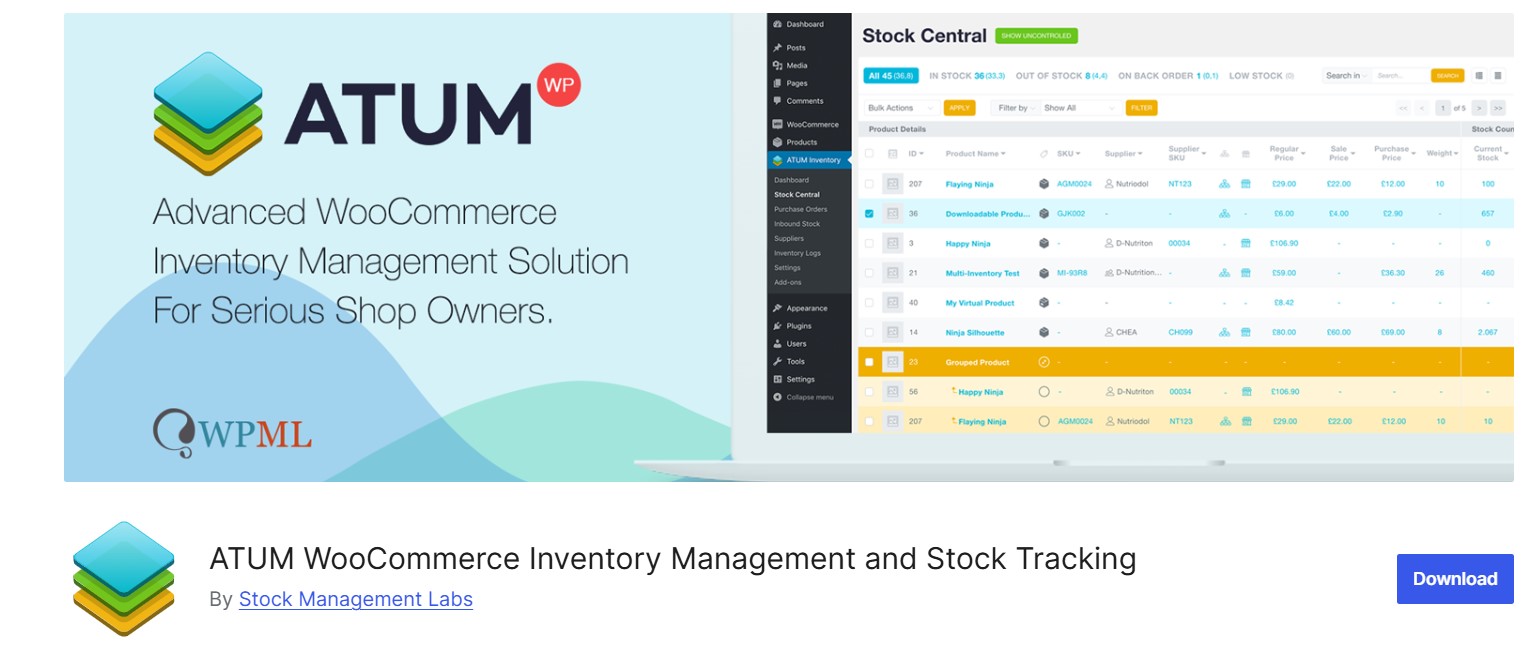
Best for: Store owners who want advanced free inventory tracking with optional paid upgrades.
ATUM is one of the most capable free WooCommerce inventory management plugins available. It gives you a central Stock Central page where you can view and edit inventory details for every product. All this without opening individual product pages.
You can also increase stock quantities through inventory logs. This is a feature that native WooCommerce doesn’t allow.
The free version already goes well beyond WooCommerce’s defaults. If you need more, you have access to paid add-on features, such as multi-location tracking and supplier management.
Key features
- Lost sales tracking
- Customizable dashboard interface
- Purchase order creation and management
- Image thumbnails for quick product identification
- Supplier management and purchase order tracking
Pricing
- Free plan
- Regular license: Starts from $192/year (free trial available)
Verdict: A leading free WooCommerce inventory management plugin for stores that need operational visibility beyond the default setup.
2. Smart Manager
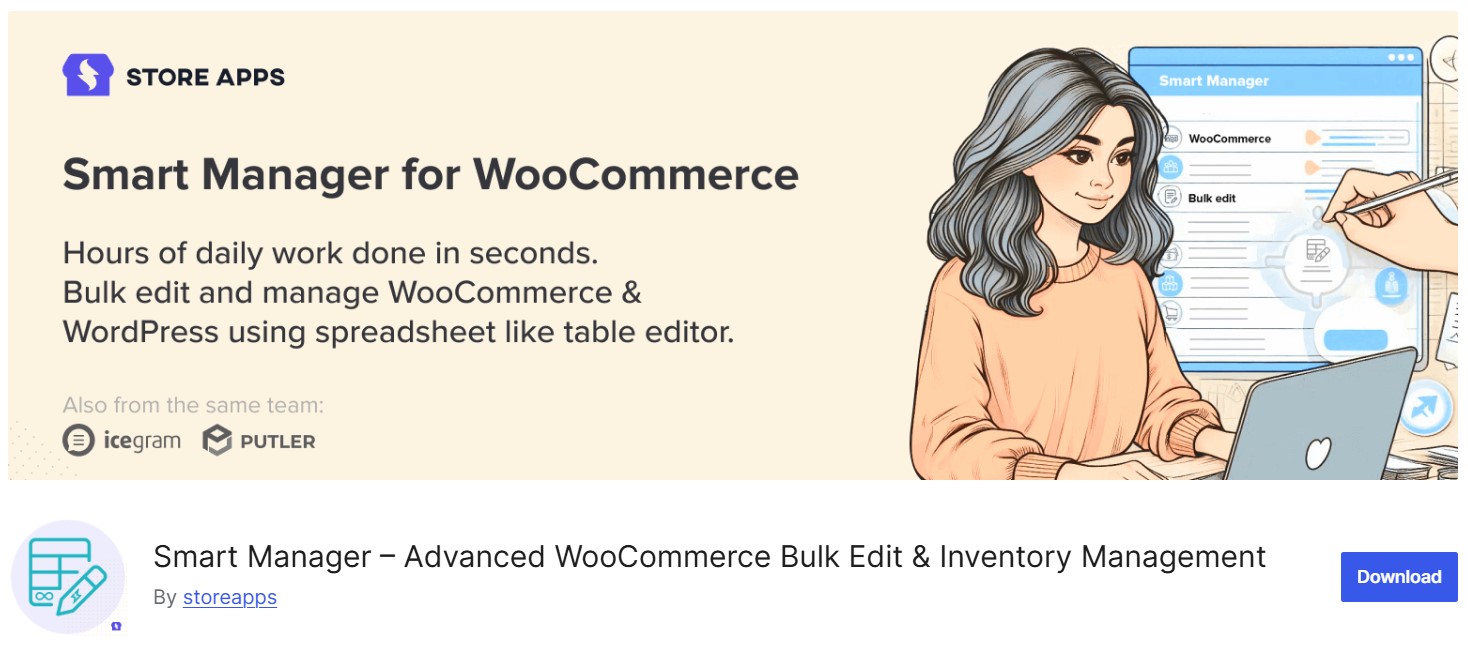
Best for: Stores needing efficient bulk editing and spreadsheet-style inventory management.
If product-by-product updates are slowing your team down, Smart Manager removes that bottleneck.
It gives you an Excel-style WooCommerce inventory management interface. There, you can edit stock, prices, and product details across your entire catalog at once. Changes happen inline — no need to open each product page.
Smart Manager also handles bulk editing beyond products alone. You can edit orders, coupons, and subscriptions from the same screen. This makes it a solid all-in-one admin tool for growing stores.
Key features
- Custom saved dashboard views
- Advanced search with custom field filtering
- Scheduled CSV exports for orders and products
- Scheduled bulk edits (run changes at a future date/time)
- Compatibility with WooCommerce Subscriptions, Bookings, and Memberships
Pricing
- Free plan
- Single Annual: $199/year for one site
- Multi Annual: $249/year for five sites
- Single 3-Years: $249 every three years for one site
Verdict: A strong pick for any store with a large catalog that needs to move fast on inventory updates.
3. Multi Locations Inventory Management
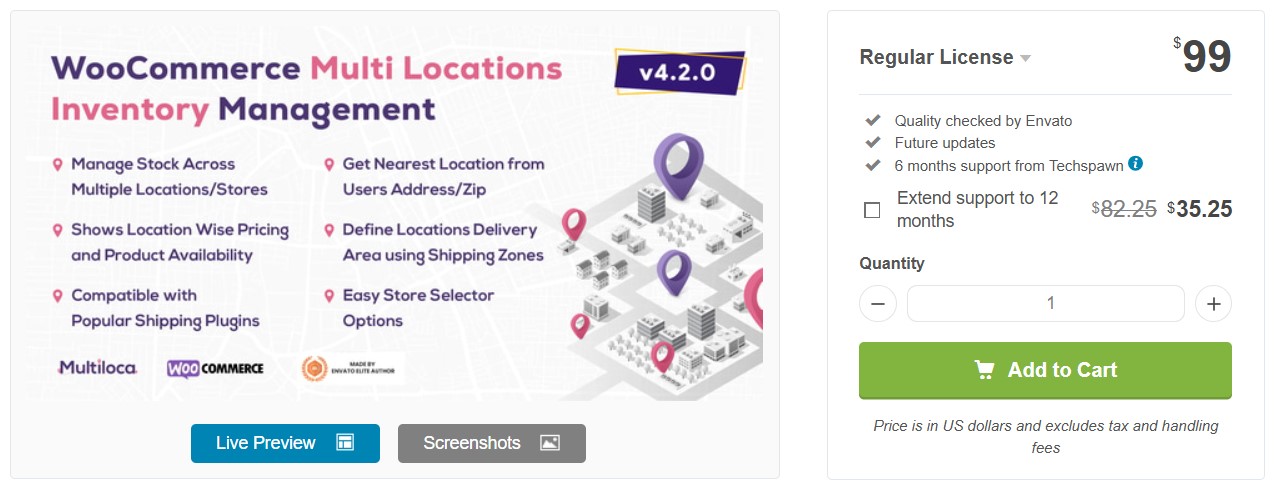
Best for: Stores with many warehouses, retail locations, or fulfillment centers.
WooCommerce’s multi-location inventory management is one of the biggest gaps in the native system. This plugin fills it. It lets you track stock across as many locations as you need. This includes warehouses, retail stores, pop-up locations, or third-party fulfillment centers.
One standout feature is automatic closest-location detection. The plugin shows customers the stock availability and pricing relevant to the nearest location.
You can also assign shop managers to specific locations and use sublocation features. This can get right down to the floor and shelf number.
Key features
- Shipping zone integration per location
- Stock-level alerts per individual location
- Combine inventory by city, region, or country
- Sublocation tracking down to the floor, shelf, or bin level
- POS system compatibility (OpenPOS, Point of Sale for WooCommerce)
Pricing
- Regular license: $99 one-time
Verdict: The most practical multi-location inventory plugin for WooCommerce stores.
4. Stock Manager for WooCommerce
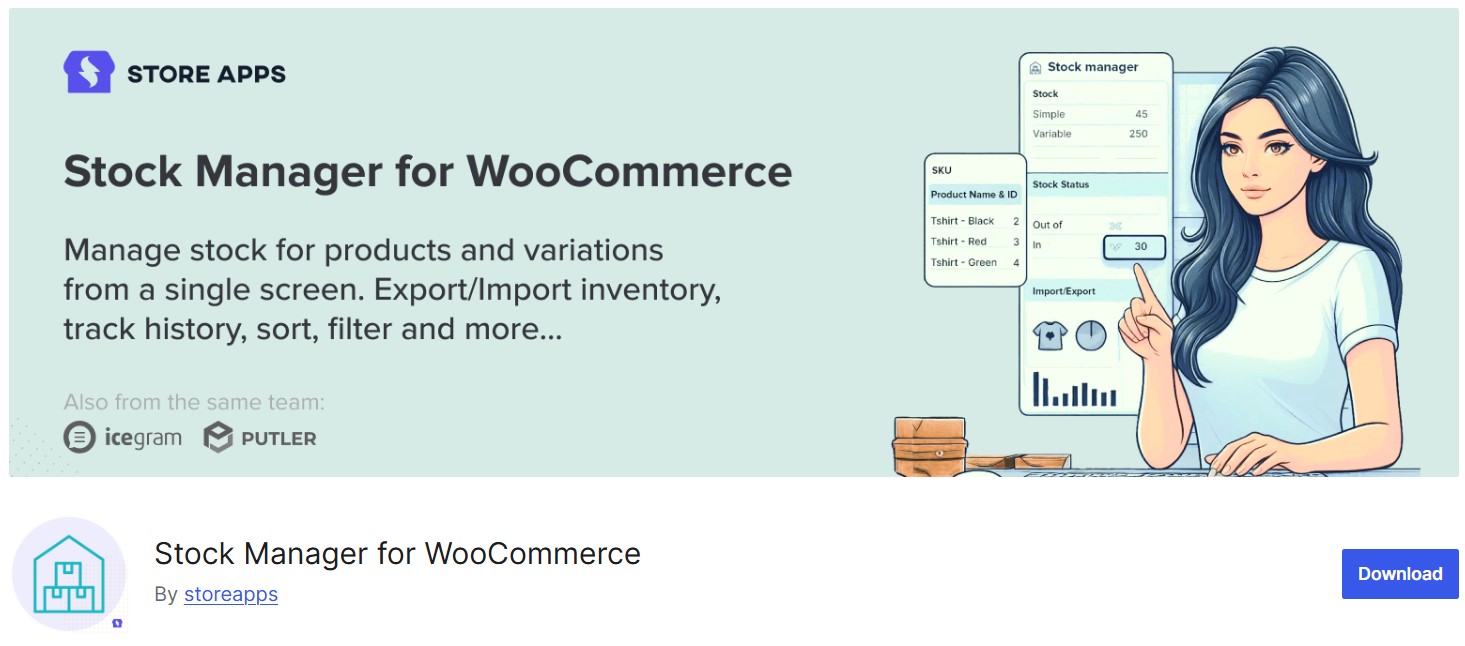
Best for: Stores wanting free centralized stock management with spreadsheet-style editing.
Stock Manager for WooCommerce is a free WooCommerce inventory management plugin that gives you what native WooCommerce doesn’t. This includes a single screen for editing, sorting, filtering, and exporting your full inventory.
The spreadsheet-style layout is familiar if you’ve worked on Excel. Unlike WooCommerce inventory management’s product-by-product editing, every change happens in one place. It’s GDPR-compliant too. So no personal customer data gets collected.
Key features
- Single-screen inventory editing, sorting, and export
- Bulk edit prices, attributes, and sale prices
- Advanced search with quick filters
- GDPR-compliant data handling
- Full stock history log
Pricing
- Free
Verdict: The go-to free option for stores that want a clean, spreadsheet-style WooCommerce inventory management view of their inventory.
5. Stock Synchronization for WooCommerce
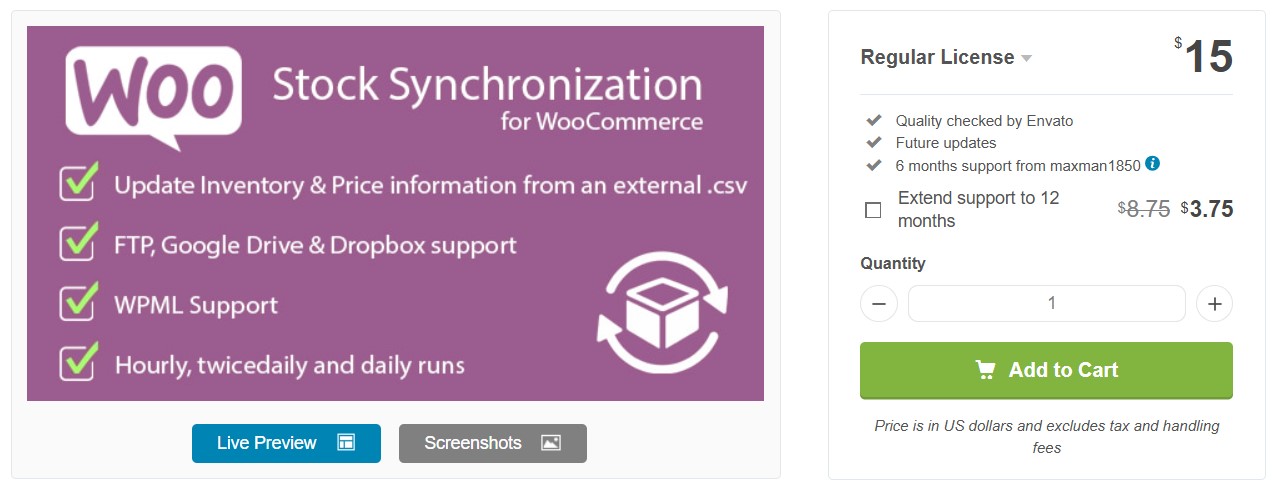
Best for: Stores receiving supplier inventory feeds via CSV or spreadsheet files.
Unlike native WooCommerce inventory management, which only updates stock when items sell, Stock Synchronization for WooCommerce also updates when they arrive. It does this by pulling data from an external CSV file.
If your supplier sends regular inventory files, you can point this plugin at that file and let it handle the updates. It works with Google Sheets, Google Drive, Dropbox, and other file sources.
Key features
- Variable product support
- Custom SKU field selection
- FTP support for external file sources
- Synchronization log for tracking update history
- External file handling for performance optimization
Pricing
- Regular License: $15 one-time
Verdict: A low-cost fix for manual restocking updates.
6. Katana
Best for: Manufacturers and product makers who need raw materials tracking and bills of materials (BOM) management.
Katana works for stores that manufacture what they sell. It lets you track raw materials and store bills of materials in one place. This way, you always know what to order before production runs out.
It also syncs stock across several warehouses. This fills another gap left open by native WooCommerce inventory management.
Beyond manufacturing, Katana works for WooCommerce inventory management integration with tools like QuickBooks for accounting and ShipStation.
Key features
- Reorder reminder triggers
- Batch and expiry date tracking
- Multi-warehouse stock sync across locations
- Production task scheduling for shop floor teams
- Sales order management with performance tracking
Pricing
- Free Plan
- Core Plan: Starts at $299/month
Verdict: A strong option for product makers who need visibility across the full production cycle.
7. WooCommerce Attribute Stock
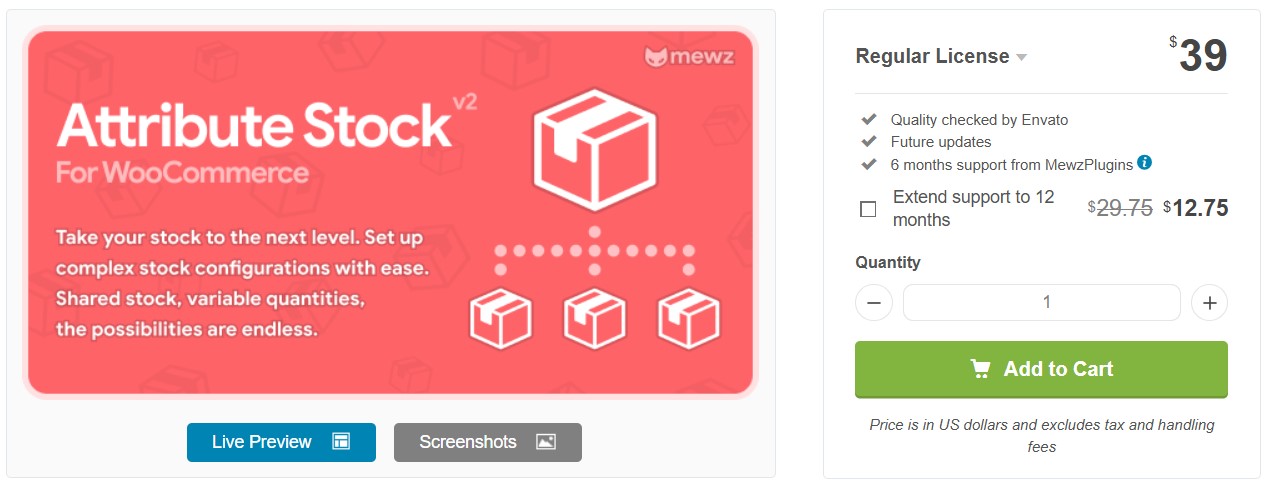
Best for: Stores selling product bundles, kits, or items with shared components.
WooCommerce inventory management tracks stock at the product level. WooCommerce Attribute Stock goes deeper.
It lets you share stock across different products and track individual components. This matters when several finished products rely on the same parts.
A jewelry store is a practical example. If you sell necklaces and bracelets that both use the same chain, you can track the chain as a shared component. When it sells out, every product using it shows as unavailable.
Key features
- Per-attribute stock deduction rules
- Backorder settings per individual stock item
- Shared stock tracking across products and variations
- Stock multipliers to deduct variable quantities per sale
- Rule-based stock assignment by product, variation, or attribute term
Pricing
- Free plan
- Regular license: $39 one-time
Verdict: A specialized WooCommerce inventory management extension for stores with interdependent SKUs and component-based inventory structures.
8. WooCommerce Out of Stock Manager
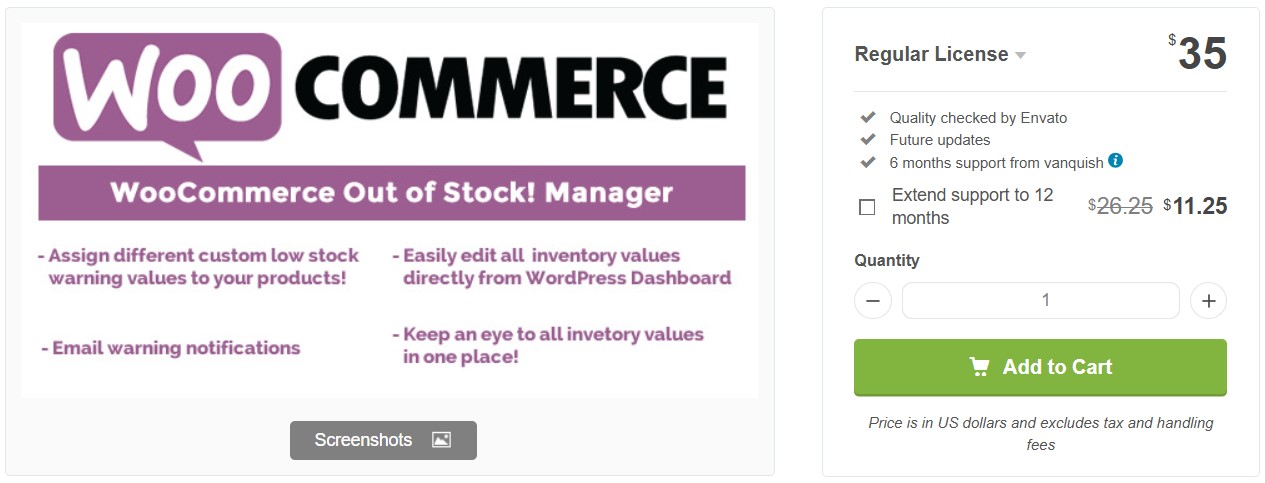
Best for: Stores wanting granular control over stock status messaging and threshold notifications.
WooCommerce’s native threshold setting fires a single site-wide alert. Out of Stock Manager lets you set rules per product, per category, or per variation, so alerts fire exactly when and where you need them.
You can also customize the “in stock” and “out of stock” text that appears on product pages. Likewise, you can set up notification emails to go to several recipients at once.
The Out of Stock Manager handles the admin side. For customer-facing alerts — back-in-stock emails, targeted follow-ups, and recovery campaigns — pair it with Omnisend.
Key features
- Per-variation low stock threshold support
- Multi-recipient email notifications for stock alerts
- Custom in-stock and out-of-stock text on product pages
- Default warning values assignable to product categories
- Works alongside WooCommerce’s native notification system
Pricing
- Regular license: $35 one-time
Verdict: A smart upgrade for stores that need more control over stock alerts. Pair it with Omnisend to close the loop on customer-facing notifications.
How to choose the right WooCommerce inventory solution
Most stores don’t need only one tool — they need the right combination. The best inventory management system for WooCommerce depends on where your business is right now and where it’s heading. Here’s how to match your situation to the right setup:
- Starting (under 100 SKUs): Native WooCommerce inventory management is enough. Set up stock tracking at the product level, enable low-stock alerts, and use the built-in reports to stay on top of what’s moving.
- Growing store (100–500 SKUs): Native WooCommerce inventory management tools start to slow you down. Add ATUM for better visibility and free advanced tracking. Or consider Smart Manager if bulk editing is taking up too much of your time.
- Multi-location business: The Multi Locations Inventory Management plugin is purpose-built for this. It handles per-location stock, closest-location routing, and shop manager assignments in one place.
- Manufacturer or product maker: Katana is your go-to. It tracks raw materials, manages bills of materials, and syncs production with your WooCommerce orders. No other tool on this list does that.
- High-volume store (500+ SKUs): You’ll likely need more than one WooCommerce plugin working together. Start with ATUM or Smart Manager for day-to-day management. Then add a specialized tool for the area creating the most friction — multi-location routing, supplier sync, or attribute-based stock.
Before you decide, it helps to understand that inventory management has two distinct sides. The tools above handle the operational side — tracking, updating, and reporting on stock.
But none of them help you profit from inventory events. Notifying customers when items return to stock or recovering lost sales — that’s a different job altogether. That’s where Omnisend comes in.
Turn WooCommerce inventory into marketing opportunities with Omnisend
Every time a popular product goes out of stock, you’re leaving revenue on the table. The WooCommerce inventory management tools covered above keep your inventory in order. But none of them capture that lost demand or bring customers back when stock returns.
The tools above help you manage inventory. Omnisend helps you profit from it.
Omnisend is an email and SMS marketing platform purpose-built for ecommerce. It connects straight to your WooCommerce store. This allows it to turn inventory events into revenue opportunities.
When items run low, trigger urgency campaigns. When they return, automatically notify waiting customers. Combine that with behavior-based segmentation to send personalized recommendations that convert.
Segmentation lets you target customers by purchase history, browsing behavior, and product preferences. This way, the right message reaches the right person at the right time. On average, Omnisend merchants earn $79 for every dollar spent on the platform.
Key features
- Pre-built email and SMS workflows for cart abandonment, welcome series, and post-purchase follow-up emails
- Back-in-stock automation triggered straight from WooCommerce inventory data
- Audience segmentation based on purchase history, browsing behavior, and product preferences
- Over 160 integrations, including WooCommerce, Shopify, and BigCommerce
- Performance reports to track revenue from each automation and campaign
- A/B testing for subject lines, content, and send times
Pair any of the operational tools above with Omnisend to create a complete inventory management and marketing system.
 | Amundsen Sports’ success story Amundsen, an apparel brand, uses Omnisend alongside WooCommerce to run automated email workflows. These emails generate 30% of its Omnisend-driven sales. Its order confirmation automation alone accounts for 17% of yearly Omnisend revenue. And this comes from a single email. Also, its abandoned cart automation converts at 57%.That’s more than half of the recipients clicking through and making a purchase — zero discount involved. Read the full report here. |
Omnisend’s free plan includes access to all ecommerce-focused features, no credit card required. Paid plans start at $16/month as your list and send volume grow.
Extend WooCommerce inventory management with Omnisend
WooCommerce handles the operational basics well. But WooCommerce inventory management doesn’t stop at stock counts.
As your store grows, the gaps become harder to ignore. No multi-location tracking and no way to turn inventory events into customer-facing action.
That’s where plugins come in for the operational side — and Omnisend for the marketing side.
While your inventory tools keep stock in order, Omnisend turns those inventory signals into revenue.
That means back-in-stock alerts that recover waiting demand, abandoned cart sequences that close open loops, and post-purchase flows that keep customers coming back. On average, merchants earn $79 for every dollar spent on the platform.
Omnisend’s free plan includes full access to all ecommerce features, no credit card required. Paid plans start at $16/month.
Turn your WooCommerce inventory into revenue with powerful Omnisend automation
Quick sign up | No credit card required
Not ready to sign up? See how Omnisend works for WooCommerce stores like yours.

TABLE OF CONTENTS
TABLE OF CONTENTS


Subscribe and don’t miss any updates!
No fluff, no spam, no corporate filler. Just a friendly letter, twice a month.