Omnisend AI


 OFFER
OFFER










Every time your ecommerce store sends an order confirmation, promotional campaign, or abandoned cart email, mailbox providers need to verify that the message comes from an authorized sender.
SPF, DKIM, and DMARC are the three core email authentication protocols. SPF identifies approved sending servers, DKIM adds a digital signature to outgoing messages, and DMARC checks whether the authenticated sending domain matches the domain customers see. BIMI builds on these protections by allowing eligible brands to display their logos in supported inboxes.
In this guide, you’ll learn how these protocols work together, which DNS records your business needs, and how to configure and verify email authentication when using platforms like Omnisend.
What are the main email authentication protocols?
For most ecommerce teams, the priority is straightforward: set up SPF and DKIM first, then implement DMARC. BIMI can come later if there is a business case for it.
The table below breaks down each protocol and its role:
| Protocol | Purpose | Major provider requirements |
|---|---|---|
| SPF | Lists all the approved sources that can send emails on behalf of your domain. | Required by Gmail, Yahoo, and Outlook depending on sender type/volume |
| DKIM | Adds a secure signature to emails so mailbox providers can check that they haven’t been changed after being sent. | Required by Gmail, Yahoo, and Outlook depending on sender type/volume |
| DMARC | Tells mailbox providers how to handle emails that fail SPF or DKIM checks and provides reporting on those failures. | Required for bulk/high-volume senders |
| BIMI | Lets supported inboxes display your brand logo when your email authentication setup meets their requirements. | Depends on the mailbox provider |
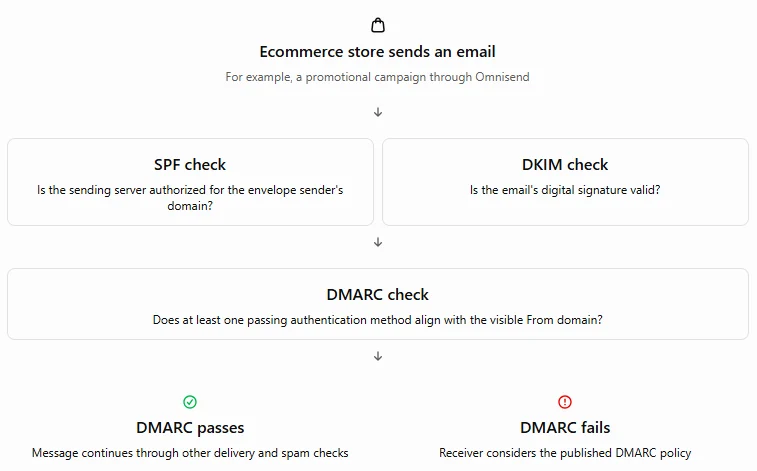
This diagram explains how protocols work together:
Why are email authentication protocols important?
Email authentication methods protect an authenticated sending domain from exact-domain spoofing, support email deliverability, and give mailbox providers greater confidence that messages are legitimate.
They:
- Make it harder for someone else to impersonate your brand. SPF, DKIM, and DMARC help mailbox providers tell the difference between legitimate messages and emails sent by someone pretending to be your business. For ecommerce brands, this reduces the risk of fake order confirmations, password-reset emails, or promotional messages being sent in your name.
- Support email deliverability. Missing or broken authentication can cause messages to be rejected or treated as suspicious. However, authentication alone doesn’t determine whether an email reaches the inbox.
- Protect customer trust and your sender reputation. Even if you never sent a suspicious email, customers may still associate a convincing phishing email with your brand. Authentication makes it harder for attackers to send those messages using your own domain.
- Meet major mailbox provider requirements. Gmail, Yahoo, and Outlook impose authentication requirements on senders, with especially strict rules for bulk or high-volume sending.
The exact requirements depend on the mailbox provider and how many emails you send per day:
Gmail, for example, requires bulk senders — those who send more than 5,000 messages per day — to implement SPF, DKIM, and DMARC and keep spam rates below 0.1%.
Yahoo senders must implement either SPF or DKIM, while bulk senders must implement both, publish a valid DMARC policy, keep spam complaint rates below 0.1%, and support one-click unsubscribe for marketing and subscribed messages. Yahoo doesn’t publish a numerical threshold for bulk senders.
Since May 2025, Microsoft has also enforced stricter SPF, DKIM, and DMARC requirements for domains sending more than 5,000 emails per day to consumer Outlook.com inboxes.
How does SPF validate the sending server?
Think of SPF as an approved-sender list for your domain. It tells receiving servers which sources are authorized to send email.
Sender Policy Framework (SPF) is an email authentication protocol that verifies whether a mail server is authorized to send emails on behalf of a domain.
The domain owner defines which providers are authorized to send email from their domain through an SPF record. For example, if Google is the only authorized provider for your brand, emails sent from other sources will fail SPF authentication.
An example SPF record looks like this:
v=spf1 ip4:203.0.113.5 include:_spf.google.com include:spf.omnisend.com -all
Usually, SPF has a hard limit of 10 DNS lookups across all mechanisms that trigger lookups, such as “include,” “a,” “mx,” or “redirect.”
For example, there is a distinction between -all and ~all. -all produces an SPF fail for unauthorized senders, while ~all produces a softfail. The receiving server decides how to handle the result.
However, not every SPF mechanism has the same cost, as shown below:
| Mechanism | Lookup cost |
|---|---|
| ip4, ip6, all | 0 |
| include | 1 + nested |
| a | 1 |
| mx | 1 per mx |
| exists | 1 |
| redirect | 1 |
The biggest challenge is that lookups can be nested. For example, your SPF record may include Google, and Google’s SPF record may include several additional hosts, which count toward the same 10-lookup limit.
If the number of DNS lookups exceeds 10, SPF authentication fails. Mailbox providers like Google or Microsoft, for example, strictly enforce this limit, as exceeding it results in a permanent error (PermError).
Another reason why it might fail is publishing more than one SPF record for the same domain or subdomain, which violates RFC 7208. A domain should publish one applicable SPF record; multiple SPF records for the same domain cause SPF evaluation to return an error.
How does DKIM prove message integrity?
DKIM works like a tamper-evident seal on a package. It helps receiving servers detect changes to signed parts of an email.
DKIM (DomainKeys Identified Mail) adds a digital signature to an email so the receiving mailbox provider can check that the signed content hasn’t changed since it was sent.
The email provider first generates a private key and a matching public key.
Then, it adds the DKIM signature for each outgoing message to the email header before sending. It includes information such as d= (the signing domain) and s= (the selector used to find the public key).
Example:
selector1._domainkey.example.com
TXT
v=DKIM1; k=rsa; p=MIIBIjANBgkqhkiG9w0BAQEFAAOCAQ8A…
Here, selector1 identifies the specific DKIM key, while p= contains the public key receiving email servers use to verify the signature.
The sending provider keeps the private key and uses it to create a unique signature for each outgoing message.
The recipient’s mailbox provider checks the signature using the d= and s= tags to find the public key in DNS and verifies that the message matches the signed content.
A matching signature produces a DKIM pass. It fails only if the signed content has been altered or the signature cannot be verified.
How does DMARC tie SPF and DKIM together?
DMARC checks whether authentication connects back to the domain shown in the customer’s inbox.
Domain-based Message Authentication, Reporting, and Conformance verifies that the visible “From” address aligns with the domains used in SPF and DKIM authentication, then lets domain owners specify how mailbox providers should handle messages that fail these checks.
DMARC passes when at least one authentication method — SPF or DKIM — passes, and its authenticated domain aligns with the visible From domain. Otherwise, DMARC fails, and the receiving provider may apply the domain’s published policy.
| p=none | p=quarantine | p=reject |
|---|---|---|
| MONITOR | QUARANTINE | REJECT |
| No enforcement action; monitor only. | Flags failed emails as suspicious or sends them to spam. | Requests rejection of messages that fail DMARC. |
A DMARC record can look like this:
_dmarc.example.com
TXT
v=DMARC1; p=quarantine; rua=mailto:[email protected]
For DKIM, the alignment is between the d= tag in the DKIM signature and the visible “From” domain. SPF alignment is between the envelope sender (Return-Path) domain and the visible ‘From’ domain.
For example, the visible address is From: [email protected]. The domains are aligned if DKIM authenticates d=example.com.
DMARC also supports both strict and relaxed alignment. Strict requires an exact match between the visible ‘From’ domain and the SPF or DKIM domain, while relaxed allows a partial match.
For instance, example.com and send.example.com are aligned because the root domain is the same.
Think of it like this:
SPF passes + SPF alignment → DMARC PASS
OR
DKIM passes + DKIM alignment → DMARC PASS
Only one of the two combinations needs to succeed for the overall DMARC check. If none of those are correct, DMARC fails, and the mailbox provider might apply the domain’s DMARC policy.
Also, in May 2026, the Internet Engineering Task Force (IETF) published RFC 9989, an updated DMARC specification that replaced the earlier RFC 7489 standard. It also published RFC 9990, covering DMARC aggregate reporting.
For ecommerce marketers, the core implementation steps remain familiar: configure SPF and DKIM, ensure proper domain alignment, publish a DMARC policy, and monitor authentication results.
How does BIMI turn authentication into visible brand trust?
BIMI lets eligible brands display their logos alongside authenticated emails in supported inboxes.
BIMI (Brand Indicators for Message Identification) increases trust and brand visibility by displaying the logo of a company in the mailboxes that support it. It’s an optional layer of brand verification that comes after SPF, DKIM, and enforced DMARC, rewarding strong email authentication practices with greater brand visibility in recipients’ inboxes.
Aside from properly configured SPF and DKIM records and a DMARC policy, BIMI also requires a VMC (Verified Mark Certificate) or CMC (Common Mark Certificate), which proves that a brand owns the logo and is allowed to display it next to the sender field in supported inboxes.
Keep in mind that not all providers support BIMI, and display conditions also vary.
| Mailbox provider | BIMI support | Certificate requirements |
|---|---|---|
| Gmail | Yes | VMC or CMC required; only VMC provides the verified checkmark. |
| Yahoo Mail | Yes | Yahoo does not require a VMC in all BIMI implementations. |
| Microsoft Outlook | No standard BIMI logo support | — |
| Apple Mail | Yes | Relies on VMC; CMC support is more limited. |
In 2024, Google’s inclusion of the CMC opened the door for startups, smaller businesses, and international brands to display their brand logos in Gmail without requiring a registered trademark. CMC streamlines the setup process for growing businesses aiming to improve brand credibility and visibility in emails.
Here’s how to add this extra layer of security (but only after configuring the core stack).
How to implement email authentication step-by-step
Implementing email authentication starts with identifying every service that sends email from the domain, then configuring SPF, DKIM, and DMARC for those services. Once configured, monitor authentication results to identify and fix alignment or configuration issues.
Step 1: Review all sending sources
Before setting up your authentication records, identify all legitimate sending sources, including transactional email services, CRMs, marketing platforms, and more.
For Shopify stores, it’s particularly important to check transactional and marketing email sources separately. Our guide to Shopify emails going to spam covers the platform-specific authentication checks.
Missing even one can cause authentication issues or result in emails being flagged. For example, when setting up an email service with Omnisend, configuring a custom domain allows the service to send emails using a domain owned by the business rather than a shared or platform-owned domain.
Step 2: Check email authentication status
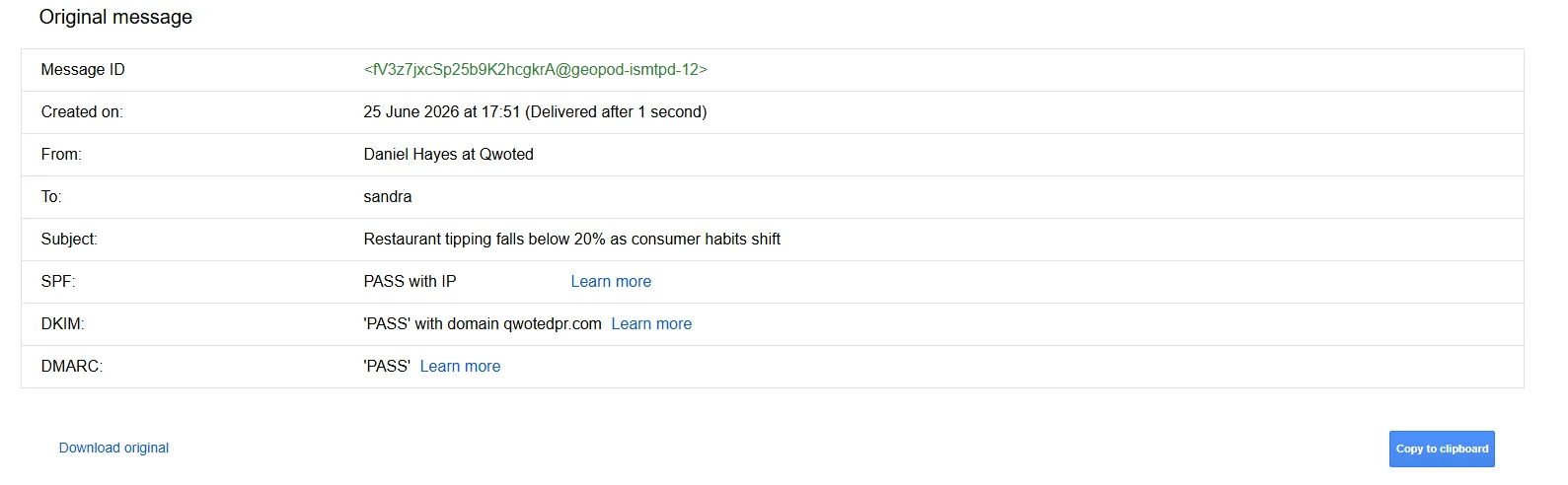
Brands can verify their email authentication status by sending a test email to an inbox they control and inspecting its Authentication-Results headers for SPF, DKIM, and DMARC results. This is important because different sending services may use different SPF, DKIM, or sending domains.
If you’re using Omnisend, don’t rely on its built-in test email to verify your custom sending domain, since test emails use Omnisend’s shared domain. Instead, check your domain’s verification status in Omnisend and inspect an actual campaign or automation email received in an inbox you control.
In Gmail, for example, open the message, then click More → Show original to view the full headers. It also provides an authentication summary showing whether the message was authenticated or not.
In Outlook or Microsoft 365, open the message headers and look for the Authentication-Results header. Something similar to this should appear:
Authentication-Results:
spf=pass smtp.mailfrom=example.com;
dkim=pass header.d=example.com;
dmarc=pass header.from=example.com
Ideally, SPF, DKIM, and DMARC should all show a PASS status. But if one of the protocols fails, investigate the cause before assuming the entire setup is broken.
Step 3: Configure SPF, DKIM, and DMARC correctly
For SPF, create a valid record for your domain, including all approved email service providers, internal mail servers, and any external tools that send mail using your domain.
DKIM requires access to the email provider’s DKIM settings to generate a 2048-bit key (if supported). Then, add the provided DNS TXT record.
Once SPF and DKIM are configured, enforce DMARC gradually to avoid blocking real emails. Start by watching the data, fixing setup errors, and then moving to block unwanted emails.
To receive DMARC reports, specify a reporting address using the rua tag in the DMARC record, such as rua=mailto:[email protected]. This enables aggregate reports that show which sources are sending emails on behalf of the domain and if authentication is passing or failing.
Since DMARC reports are delivered as XML files, use a third-party monitoring tool (PowerDMARC, Uriports.com, etc.) to interpret the reports and present the results in a more accessible format.
In Omnisend, go to Store settings → Domains → Add domain, select an email domain, and enter the domain or subdomain you want to authenticate. Omnisend generates the required SPF, DKIM, and DMARC records, which you then copy into your DNS provider’s settings. Return to Omnisend to check verification and confirm the domain is assigned to your campaigns or automations.
If you encounter issues, Omnisend also helps troubleshoot multiple SPF records, incorrect DNS Name fields, and an incorrect _dmarc record name.
Step 4: Monitor results and fix failures quickly
Ongoing monitoring means verifying that SPF and DKIM pass for authorized sending services, confirming DKIM alignment, reviewing DMARC reports for unexpected sources, and watching for sudden or forwarding-related authentication failures.
Omnisend’s reporting features provide visibility into email delivery and campaign performance, letting brands identify changes and issues that may require attention.

By getting a broader view of how campaigns and automations perform, brands can spot issues promptly and make adjustments when things aren’t working as intended.
Once you’ve authenticated a new sending domain, warm it up gradually before increasing campaign volume.
Why are my emails failing authentication?
Email authentication fails because of missing or incorrectly configured SPF, DKIM, or DMARC records, alignment problems, DNS formatting errors, or changes that have not yet propagated. The most common cause is missing SPF, DKIM, or DMARC records. If the required authentication records are missing, mailbox providers cannot properly authenticate messages using these protocols.
For example, when SPF exceeds the 10-DNS-lookup threshold, the record will look like this:
v=spf1 include:service1.com include:service2.com … include:service11.com ~all
The fixed version includes authorized sending services while staying within the limit:
v=spf1 include:service1.com include:service2.com include:service3.com ~all
DKIM, on the other hand, fails because the public key in DNS is missing or not published exactly as provided by the mailbox provider. An example of a broken DKIM record:
Authentication-Results: receiver.com;
dkim=fail (body hash mismatch) [email protected] header.s=selector1
Verify that the DKIM record in DNS matches the record provided by the sending service and that the required DKIM record is published correctly. Here’s what it should look like:
Authentication-Results: receiver.com;
dkim=pass (signature verified) [email protected] header.s=selector1
Small DNS errors, such as incorrect formatting, duplicate records, or missing quotation marks where required, can also cause authentication to fail. Use a DNS validation tool such as MXToolbox, Google Admin Toolbox Check MX, or dmarcian to check records after making changes.
For instance, a DMARC record with a typo in the policy tag, such as p=nnoe, will not work as intended. Correcting it to p=none fixes the syntax.
Keep in mind that DNS changes take time to propagate, and records may not work or appear as expected for up to 48 hours after an update.
If your emails pass authentication but still land in spam, other factors may be responsible. Our guide on how to avoid spam filters covers additional causes and fixes.
Keep email authentication on track
With SPF, DKIM, and DMARC properly configured, brands can authenticate legitimate emails, protect their domains from unauthorized use, and build a stronger foundation for reliable email delivery.
And now that you’ve got the full picture, it’s time to put it into practice.
Quick sign up | No credit card required