Omnisend AI


 OFFER
OFFER








Newsletter design: Ideas, free templates, and tips for 2026
With over 130+ pre-built integrations and flexible APIs, you can easily centralize data from across your tech stack
Make the most out of your data and unlock powerful growth marketing possibilities with these other top marketing tools.
Build any custom integration with our open, flexible APIs that are simple to use and implement.
Check out apps that have been stealing all the spotlight.
Email and SMS marketing insights, ecommerce resources, and the latest Omnisend news
Expert-led sessions covering email, SMS, and ecommerce marketing strategies.
Educational video and live training to help you make the most out of Omnisend.
Drive sales on autopilot with ecommerce-focused features
See Features
High-quality images in emails boost engagement and improve open and click-through rates, making them essential for effective campaigns.
Maintain a text-to-image ratio of 60:40 to enhance readability and reduce the risk of emails being flagged as spam.
Optimize image sizes to under 100KB and use standard formats like JPEG, PNG, or GIF to ensure fast load times and compatibility across devices.
Personalize images by incorporating recipient names or location-based content to create memorable experiences that increase conversions.
Email images are a powerful tool for capturing attention, reinforcing your message, and driving engagement. Clear visuals can significantly increase open rates, click-throughs, and overall campaign performance.
But remember, you can’t just add images in emails and call it a day. Using the wrong sizes, poor formatting, or incorrect embedding methods can slow load times, break layouts, or even cause deliverability issues.
The correct email graphic size and formats cut down load time, while proper alignment and spacing keep content readable and focused.
In this article, we’ll list down the best email image practices you can implement and explain how to embed images. We’ll also tell you the right size for email images, the best format, and personalization strategies.
Quick sign up | No credit card required
As you plan your email marketing campaign, familiarize yourself with best practices for using images in emails. Sticking to them will help you keep your emails looking professional and appealing to your readers.
Here are the top things you need to know about using images in your emails:
“When images load instantly, subscribers stay engaged and trust the experience. Heavy images slow emails down, especially on mobile or low-bandwidth connections. This increases drop-offs before your message even lands.”
— Desislava Zhivkova, CX Deliverability Team Lead at Omnisend
“Images should add to an email, not replace the message itself. Readable text ensures your emails still convey messages clearly, even when images are blocked by default.”
— Desislava Zhivkova, CX Deliverability Team Lead at Omnisend
Now that you have your beautiful images ready, it’s time to add them to your email. This is called embedding. Knowing how to do it correctly will save you from headaches.
Let’s take a look at how to embed images in emails for popular email providers like Gmail and Outlook. We’ll also guide you on how to do it with Omnisend’s email builder.
Follow these steps to embed an image directly into a Gmail email:
Follow these steps if you want to embed an email image in an Outlook email:
Here’s how to embed images or GIFs in your emails with Omnisend:
Are you wondering, “What size should email images be?” Although the ideal email marketing image size for email can vary, there are guidelines to help you keep them looking crisp and clear on any device. Choose high-quality images that align with your brand and maintain consistency across your emails.
Consider the type of image you’re including in your email. Is the image in square, landscape, or portrait aspect ratio, and is it a product image, header, or infographic? This affects how the image loads and appears on the screen.
Here are some general recommendations:
It might take a few tries to figure out how to embed an image in an email the right way, especially in terms of sizes. However, once you dial it in, you can use the same template to ensure your email images are appealing and your emails get high engagement rates.
Since we’re on the topic of images in emails, you may also want to add one to your signature.
Incorporating an image into your email signature can add a unique touch to your messages without detracting from the overall content. However, if the image is too large or too small, it can appear unprofessional and messy. Since most users read emails on their phones, it’s essential that email marketing pictures display well on all devices.
Email services respond to oversized images in a variety of unpredictable ways. For example, they might shrink the image to the dimensions of the screen. They may also shrink the entire email or expand the message so that users can scroll across the image. With that in mind, your signature needs to fit the dimensions of each screen.
If you want an image in your email signature, try to keep it as small as possible. While there isn’t a strict rule for image size in email signatures, it’s best to use images that are no more than 150 pixels tall and 300 pixels wide.
Choosing the right image format can significantly impact your email’s appearance and performance. Let’s break down the most common formats:
JPG (or JPEG) is a great choice for photos and colorful images. It uses lossy compression, which reduces the file size while still maintaining good quality. On the downside, they don’t support transparency, and the quality might decrease slightly if you edit them too much.
GIFs are great for simple graphics, animations, and images with a few colors. They can have transparent backgrounds, but remember, GIFs are limited to 256 colors, so they’re not the best choice for detailed images or photos.
PNGs are great because they keep all the details of an image without losing any quality. They also support transparency, making them perfect for logos, icons, and text-heavy images. They work well if you want to maintain high quality in emails, but just a heads-up — they’re usually larger files than JPGs.

The primary difference between attached and embedded images in emails is how they’re displayed and accessed. The attached images are sent as separate files along with the email. Recipients must download these attachments to view them, which can be helpful in preserving the original size and quality of the image. Attachments are ideal if you’re sending high-quality photos or documents that the recipient might want to save or print.
On the other hand, embedded images are part of the email’s HTML code, meaning they pop up automatically in the email body when you open it. This can make the email more visually appealing and engaging without extra steps for the reader. Embedded images are particularly great for marketing emails, newsletters, or when you want to grab attention right away.
But there are some downsides — embedded images can make the email larger, which might slow down load times and affect delivery. Plus, some email clients block them by default for security, so the recipient might have to turn them on manually. Knowing these differences can help you decide which method to use based on what you’re trying to achieve and what the reader might prefer.
Personalizing email marketing images can significantly enhance your connection with subscribers. By tailoring visuals to individual preferences, you can create memorable experiences that increase engagement and drive conversions.
Here are some essential tips for effectively personalizing images in your email campaigns:
Incorporating the recipient’s name into images is one of the easiest ways to personalize email marketing. This simple touch can make your communication feel more intimate and engaging, surprising readers with a level of personalization they might not expect from a marketing email. Services like NiftyImages allow you to seamlessly add names to images.
“Using a customer’s name inside an image creates an immediate moment of recognition. It feels personal, not promotional. It’s a simple tactic with a huge impact on attention and trust.”
— Andrius Šeršniovas, Conversion Specialist at Omnisend
If your goal is to encourage readers to visit a physical store, consider sending them a custom map that highlights the nearest location based on their geographic data. This strategy not only provides valuable information but also emphasizes your brand’s commitment to serving the local community. Personalizing content in this way can lead to increased foot traffic and stronger customer relationships.
Leveraging a recipient’s purchase history or browsing behavior can enhance the relevance of your email marketing. By showcasing products that align with their interests, you can increase the likelihood of conversions. Automated product recommendation emails can highlight items that the recipient may have previously shown interest in while also suggesting alternative options. This approach not only boosts sales but also demonstrates an understanding of customer preferences.
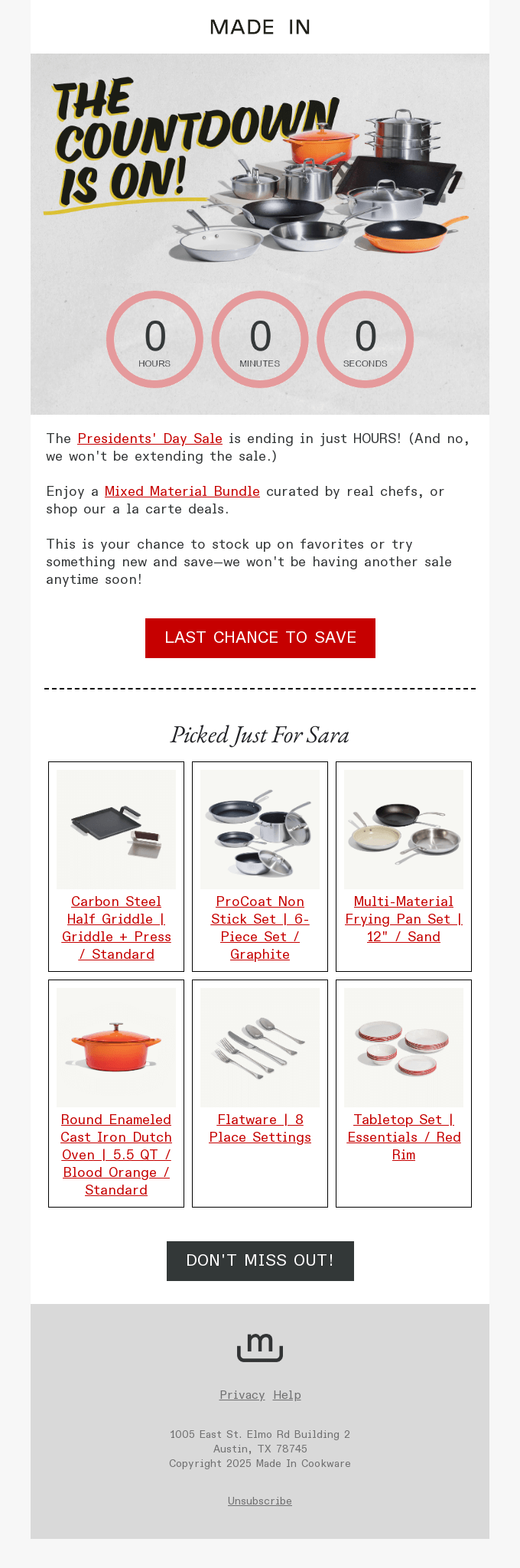
This email does a great job of highlighting tailored product recommendations by curating a “Picked Just For You” section. Instead of overwhelming the reader, this section presents a focused selection of products aligned with the reader’s preferences for easier decision-making:
Take advantage of automation tools like Omnisend to streamline the creation of personalized images for email campaigns. Features like the Product Recommender allow you to automate the tedious work of generating tailored product suggestions, making it easier to engage your audience.
Additionally, Omnisend’s Brand Assets feature lets you import your brand’s logos, colors, and fonts. This ensures consistency in your marketing materials while saving you time and effort.
By implementing these strategies, you can improve your email marketing campaigns by creating more personalized experiences for your subscribers. This results in higher engagement and loyalty.
“Automation is what makes personalization scalable. Tools like Omnisend remove tedious manual effort by automatically generating relevant product recommendations while keeping branding consistent across every email.”
— Evaldas Mockus, VP of Marketing, Omnisend
 | Rachel Riley’s success story Using Omnisend’s personalization-powered automations, Rachel Riley delivered tailored messages across the customer journey — from personalized order confirmations to reactivation flows. The result is a 77% YoY BFCM revenue increase, with nearly half of total BFCM sales driven by highly personalized Omnisend campaigns. Read more about the Rachel Riley case study to understand how the brand achieved this. |
Emails with graphics have higher average open and click-through rates of 43.12% and 4.84%, respectively. Visuals grab attention, make the content more fun and easy to understand, and help get messages across quickly.
Just keep in mind that it’s important to strike a good balance between email images and text by using the 60/40 rule.
Each email must contain about 60% text and 40% images. This ratio keeps messages readable while lowering spam risk. Readers get context from text, while images draw attention and reinforce the message.
Sending emails that only contain images might seem visually appealing, but it comes with significant drawbacks that can harm your email deliverability and user experience.
Many email clients are cautious with image-only emails, often flagging them as spam. This is because image-heavy or image-only emails are commonly associated with promotional content, which spam filters are designed to catch.
As a result, your emails may end up in the spam folder, severely limiting their reach. For better results, it’s crucial to maintain a balance between text and images in email marketing.
“Spam filters rely on context, and images alone don’t provide enough signals. When emails lack readable text, they’re more likely to be flagged, throttled, or blocked altogether. Text supports both deliverability and accessibility.”
— Desislava Zhivkova, CX Deliverability Team Lead at Omnisend
Not all users will have images automatically enabled in their email settings. Some email clients block images by default, which means recipients may only see a blank email, so your message gets lost entirely.
Additionally, image-only emails may not be accessible for visually impaired users who rely on screen readers. Since these tools can’t interpret images, they won’t be able to convey your message unless alt text is included, and let’s face it — you can’t fit an entire email message just in the alt text.
A balanced mix of text and images ensures your email is readable and accessible to all users, improving engagement and conversion rates.
“When images don’t load, the copy becomes the experience. Emails that combine clear text with supportive visuals stay readable, accessible, and actionable, resulting in higher engagement and conversions.”
— Andrius Šeršniovas, Conversion Specialist at Omnisend
Email images play a crucial role in performance, as they help create first impressions and make messages easier to understand. When sized, formatted, and embedded correctly, they improve readability and help emails avoid spam filters.
Best practices, such as using high-quality visuals and maintaining a proper text-to-image balance, enhance deliverability and accessibility.
Start incorporating these tips into your emails for better results.
Quick sign up | No credit card required
Email graphic dimensions should stay within common width limits to display well across clients. Full-width headers are usually best at about 600 pixels wide. In the email body, images look clean at 300–400 pixels wide.
To help images show properly, embed them directly in the email instead of attaching them. Use standard formats like JPG or PNG and host images on secure servers. Add clear alt text to provide context.
JPG works best for photos, as it keeps file sizes small while maintaining image quality. PNG suits logos and graphics that need sharp edges or transparency.
The 60/40 rule suggests that your email should contain approximately 60% text and 40% images. This balance improves readability, supports accessibility, and lowers spam risk.

TABLE OF CONTENTS
TABLE OF CONTENTS

What’s next


No fluff, no spam, no corporate filler. Just a friendly letter, twice a month.