
 Omnisend AI


 OFFER
OFFER







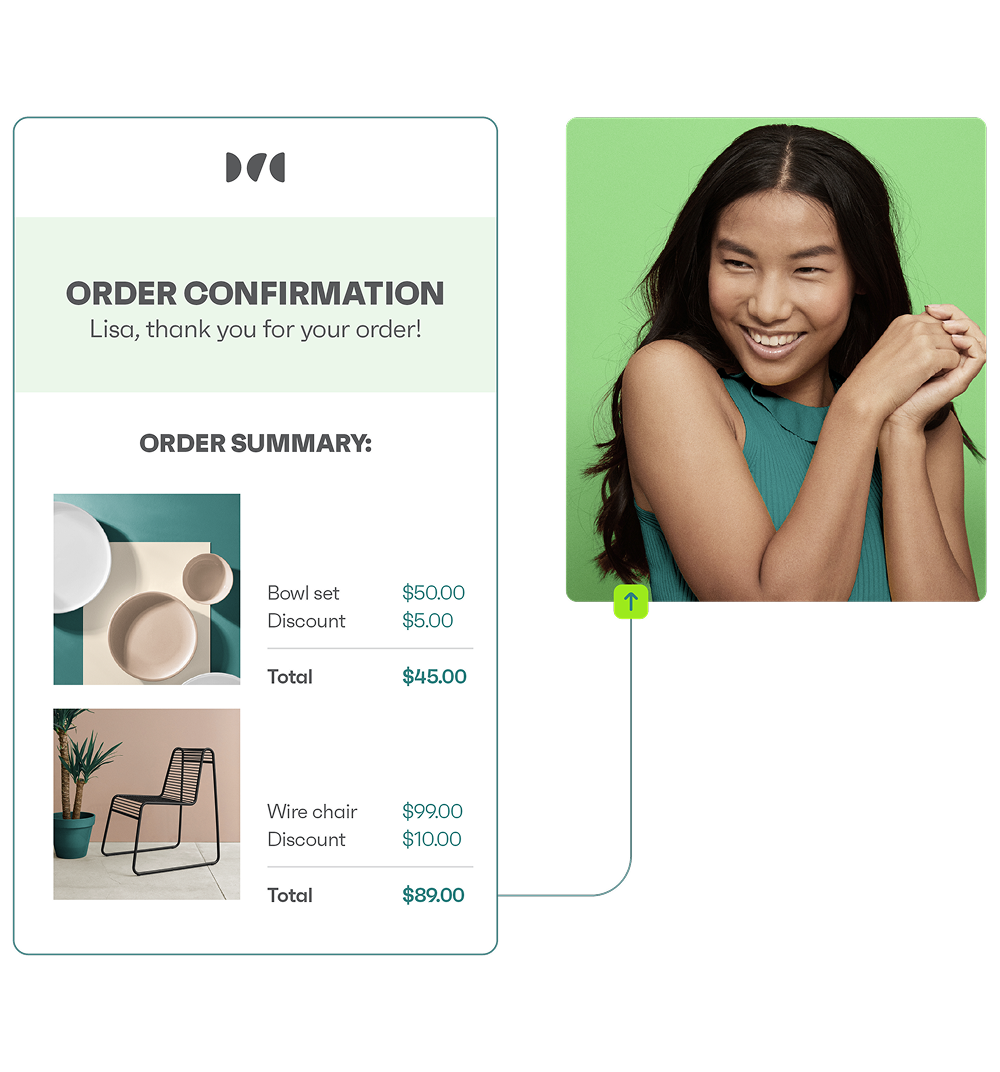

Order confirmation email: Templates, examples & best practices
With over 130+ pre-built integrations and flexible APIs, you can easily centralize data from across your tech stack
Make the most out of your data and unlock powerful growth marketing possibilities with these other top marketing tools.
Build any custom integration with our open, flexible APIs that are simple to use and implement.
Check out apps that have been stealing all the spotlight.
Email and SMS marketing insights, ecommerce resources, and the latest Omnisend news
Expert-led sessions covering email, SMS, and ecommerce marketing strategies.
Educational video and live training to help you make the most out of Omnisend.
Most brands treat order confirmation emails like a receipt. But with Omnisend, they can be so much more. Turn every purchase into an opportunity to bring customers back, boost sales, and build loyalty – without any extra effort.
Drive sales on autopilot with ecommerce-focused features
See Features
Order confirmation emails boast impressive engagement rates, with 54% open rates and a 14.25% click-to-conversion rate, making them vital for building trust and brand perception.
These emails serve multiple purposes: they document the transaction, alleviate customer anxiety about shipping, and initiate a post-purchase communication sequence.
Effective order confirmation emails prioritize clear, concise design and logical information hierarchy to create a professional first impression and enhance future email interactions.
Including descriptive subject lines and straightforward content in order confirmation emails helps customers quickly grasp essential details, fostering appreciation for your brand's communication style.
An order confirmation email is the first message your customers receive after purchase. A healthy 54% of people opened them in 2025, with those kinds of views dictating that you take them as seriously as any marketing email.
My order confirmations play three roles. The first is documenting the transaction. Second, they ensure my customer isn’t anxious about their shipping information. Third, they start a sequence.
That third point is something I want to hit home. It’s so easy to think of a confirmation email as the last act in a sale. It’s anything but that.
Shipping and delivery notifications and post-purchase follow-ups lead on from them. I don’t build single-order confirmation emails anymore; I create sequences for the entire customer journey, all tied back to revenue.
In this article, I’ll walk through order confirmations, including what they are (and aren’t), share real examples, provide templates, and share the tips I learned following years of selling online.
Quick sign up | No credit card required
No issue with you skipping the bulk. Here are the quick points from my article:
An order confirmation email is the transactional message your customer receives following a purchase to notify them that it went through.
A timely order confirmation email from a branded sender domain (@yourstore.com) is a trust signal for your customer. Additionally, it hands their experience over to you. They can now get on with their day while you handle the order.
That handoff and immediacy aren’t something you actively manage. Order confirmations are automated by your ecommerce platform with stock templates (editable on WooCommerce and most others) or an email tool connected to it.
I always integrate an email tool because it provides more control over email design. For instance, I created the template below in Omnisend:
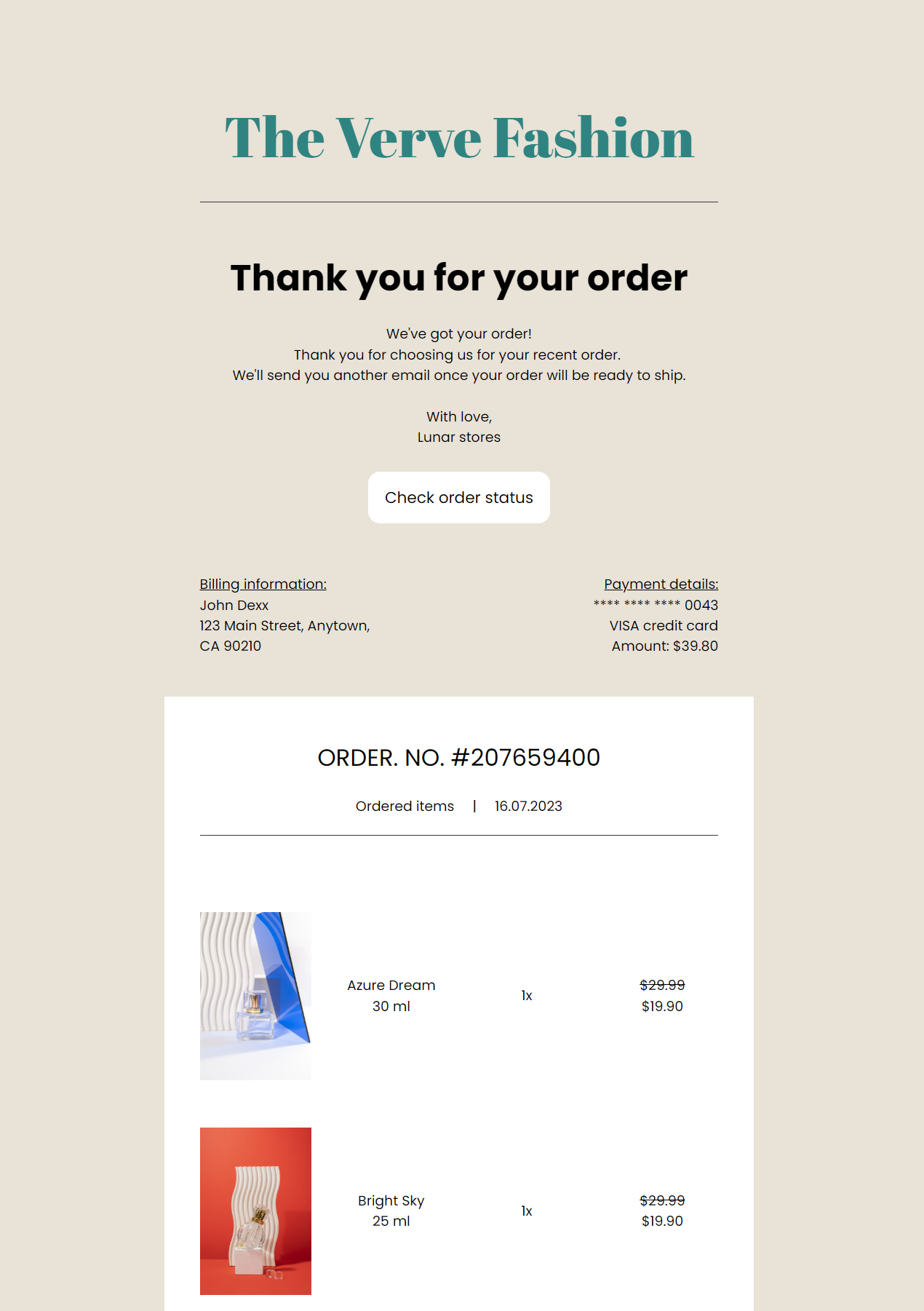
Additionally, email tools open up new opportunities for a post-purchase series. An example is a flow containing a confirmation email and a thank-you email.
“Order confirmations had the second-highest open rate for transactional emails in 2025, with 54% of people opening them. They also had the highest click-to-conversion rate at 14.25%. That engagement makes them prime real estate to establish your brand and start building relationships that eventually lead to second purchases.”
— Evaldas Mockus, VP of Marketing, Omnisend
Transactional emails can also include receipts and invoices. The difference:
Only the order confirmation and receipt are post-purchase here, and it isn’t uncommon for a sequence to include a confirmation email, then a receipt email, when the confirmation doesn’t include the payment record.
A second receipt email can be seen as one too many, though. I prefer a leaner setup, where one order confirmation email covers the transaction with the products ordered, any preferences such as gift packaging, and the payment method.
My customers want to check their inbox after placing an order and see an email confirming that their order went through correctly and what they’re getting. They don’t want a cross-sell or anything else that distracts them from confirming their order.
Here’s what I include to answer those questions and present my ecommerce store as professional and trustworthy:
Such as Order #10918 Confirmed or Thank You For Your Order. I sometimes personalize them with my customer’s first name, such as “Thank You For Your Order, Sarah”, a trust signal I like to use for orders placed in gift and seasonal collections.
One of my proudest achievements with order confirmation emails is how few customer enquiries arise from them. That might seem odd, but confirmations that answer every question save my support team enormous amounts of time.
I include these elements, tick them off as you add them to your template:
The most successful ecommerce stores have concise order confirmation emails because they know their customers want information delivered fast. Another thing I’ve noticed is that they are always on-brand and match the store’s websites.
Here are my favorite examples from real brands:
Subject line: Thanks for your Postable order 📬
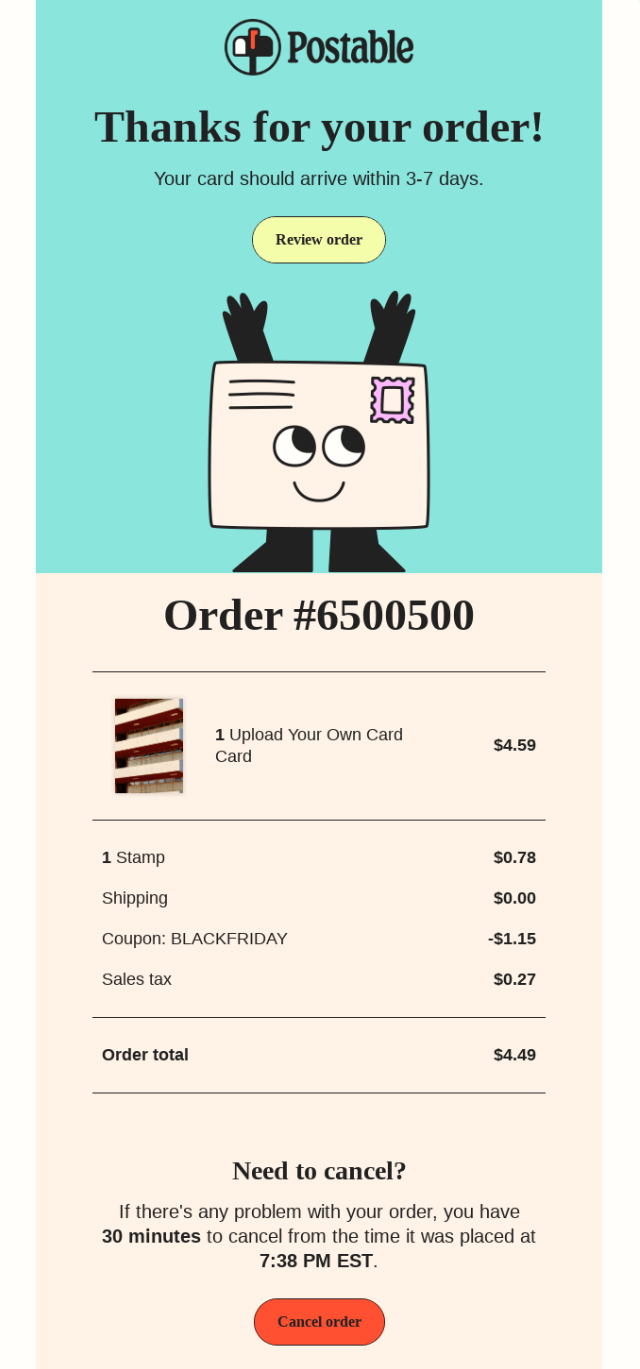
Postable is a gift card retailer that posts unique cards to customers. Its order confirmation email uses a descriptive subject line and thanks customers immediately in the email, with a delivery timeline to set expectations.
I like how the order number sits beneath an illustration of a smiling card because it reinforces the idea of a happy customer experience.
Another key element is the cancel order button, which seems odd at first glance (wouldn’t it promote cancelling!?) but makes perfect sense when you consider greetings card purchases are fraught with misplaced orders due to date mistakes.
Subject line: Confirmed: Our retrievers have your order
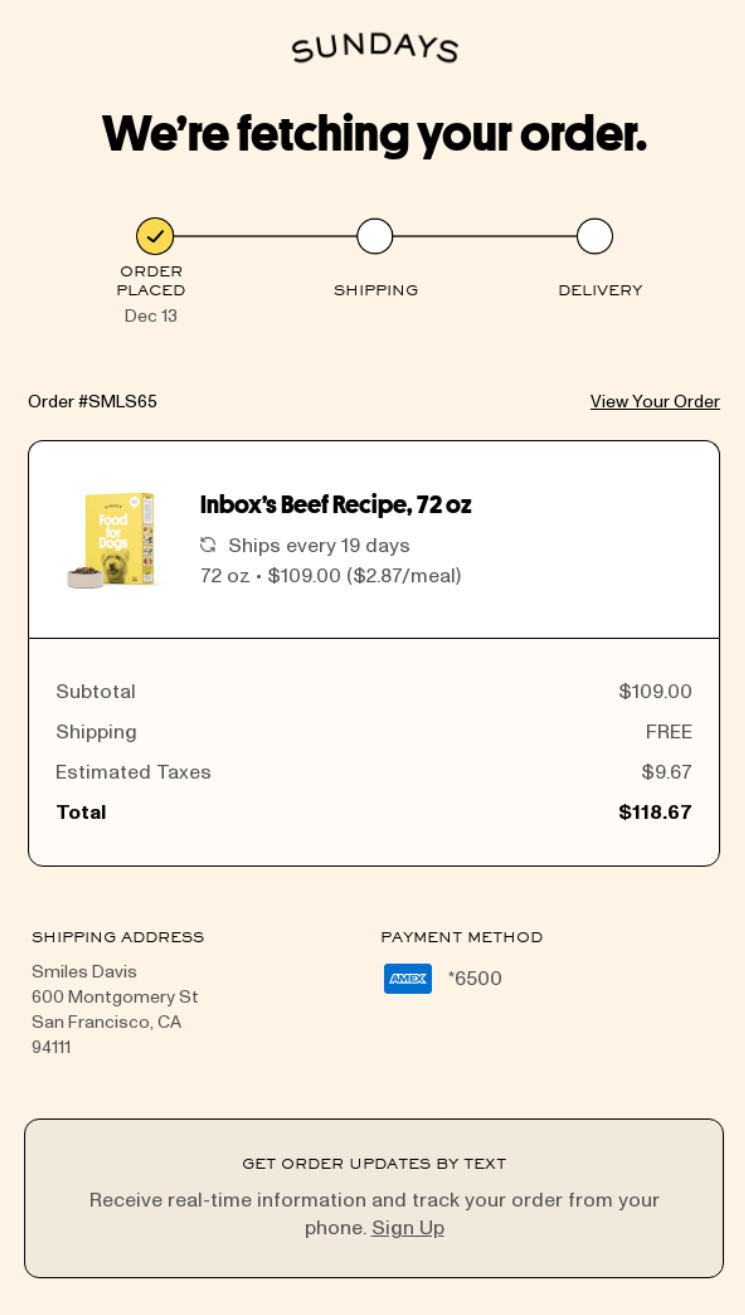
Air-dried dog food retailer Sundays does lots right with its order confirmation email. First, the subject line’s play on words is fun (retrievers, aka golden retrievers). Opening the email reveals a descriptive heading and an order progress bar.
That bar is my favorite feature. It sets the tone for the next message (shipping) and basically lets the customer know they will get two additional updates.
The white order summary box stands out, too, much more so than if it had the same background as the email body, helping customers quickly scan and find the information.
“We’ve found that progress bars in order confirmation emails significantly reduce additional support questions because customers know what to expect next at a glance. The bar doesn’t need to be dynamic, either. You can add an image to the top of your order, shipping, and delivery confirmations to achieve the same result.”
— Agnė Ganchev, Director of Customer Success at Omnisend
Subject line: AG1, confirmed ✅
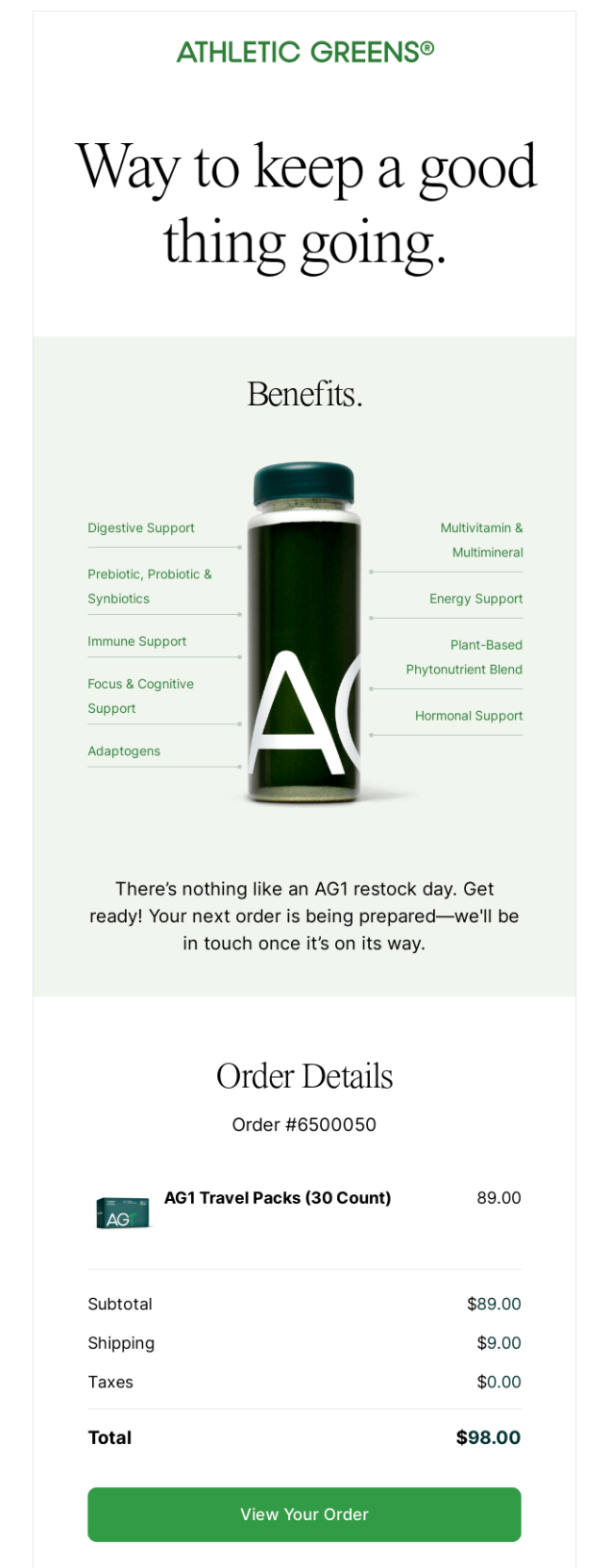
Athletic Greens’ order confirmation email for subscribers leads with product benefits and the heading “Way to keep a good thing going.” I love the product image with benefits listed in series and the description below, which confirms the order being prepped.
Since these confirmations are for existing customers, they don’t try to upsell membership, rewards, or additional product sales. They keep complete focus on how the customer benefits from their products to influence high retention rates.
Subject line: Thank you for your order (#R650000650)
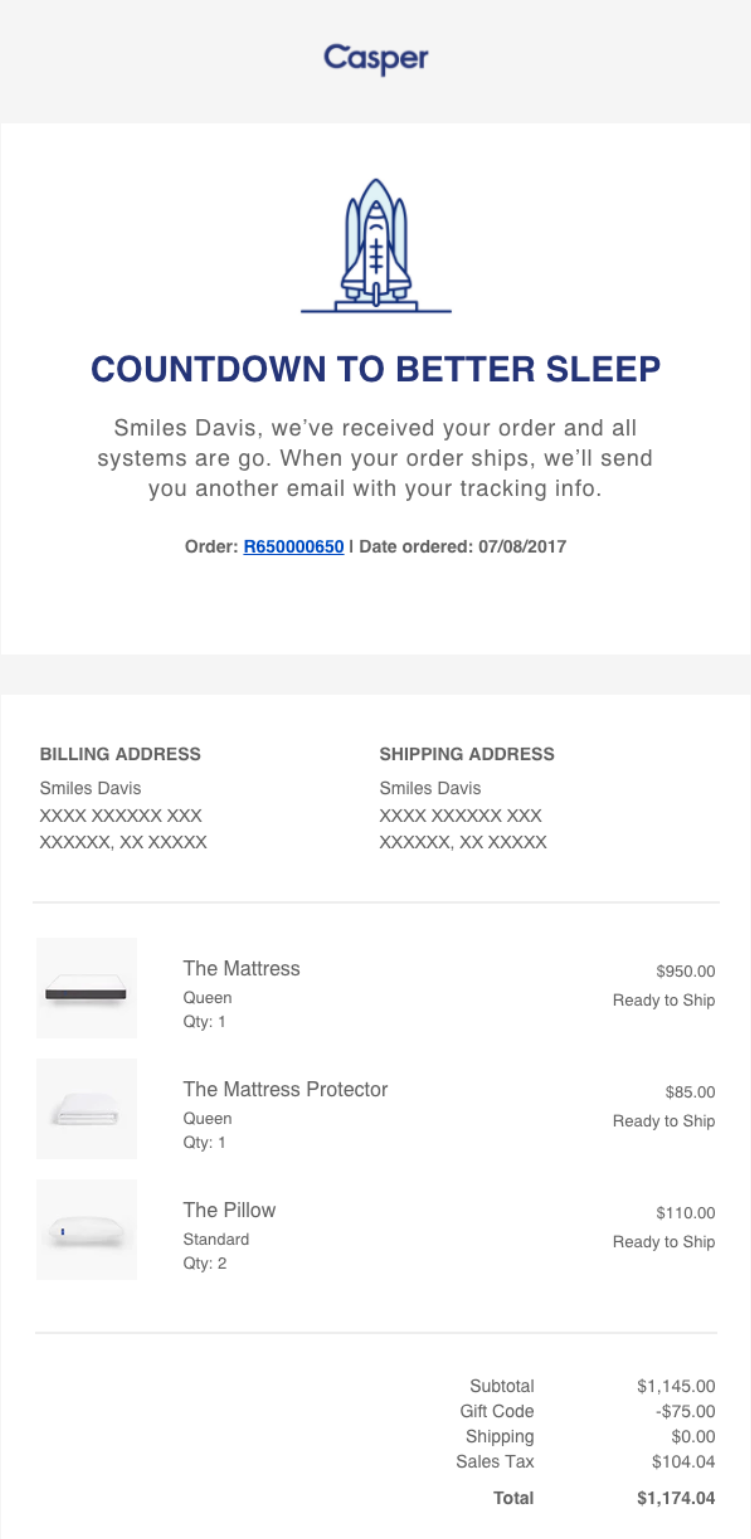
Casper uses the clever heading “countdown to better sleep” to confirm orders. It creates excitement and leads on to a description confirming order receipt and what happens next (a shipping email). It’s plain and works perfectly.
The order summary layout puts what Casper’s customers want to confirm first at the top, in this case, their shipping address. It then lists the products and provides subtotals.
One of the potential friction points in Casper’s delivery process is products shipping separately, which it addresses with a view order link for shipping updates.
Subject line: We got your order. (You have great taste!)
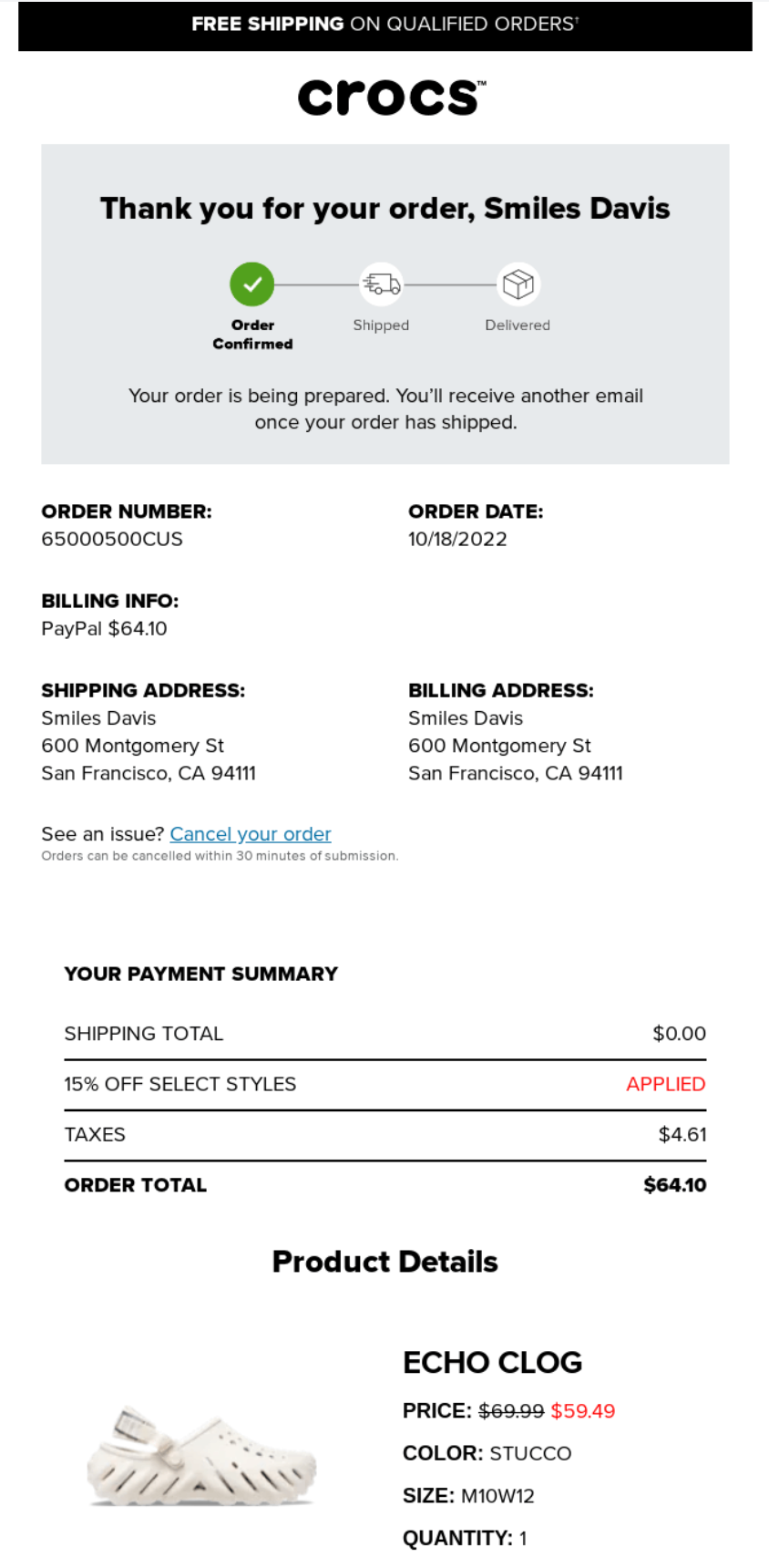
Crocs has one of the best order confirmation email templates I’ve ever seen. It’s the hierarchy that makes it great, with its initial thank you message, progress bar, and description placed into a grey box so it’s available at a glance.
I also appreciate how the order number, date, billing information, and shipping address sit side-by-side, rather than in a list. It saves space, reduces scrolling/swiping, and means that the payment summary information below it can use a list format.
Subject line: Order #WIMP6500 confirmed
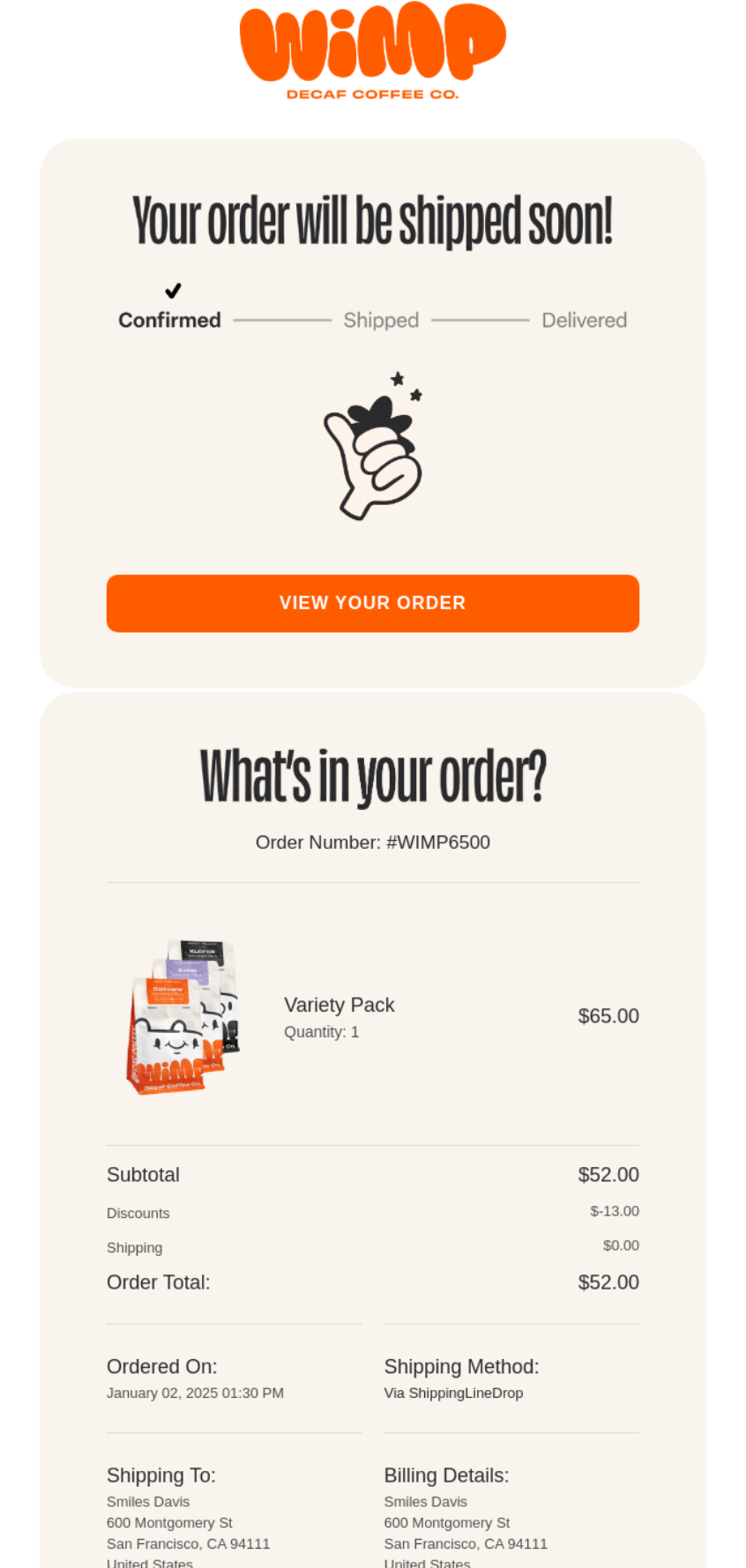
Decaf coffee company Wimp uses a progress bar in its order confirmation email and goes further than my other examples for setting up the next step. Rather than confirming the order, the heading at the top of the email says “Your order will be shipped soon!”
The orange button to “VIEW YOUR ORDER” puts control in the customer’s hands, or they can swipe to see their order in the email. The layout is easy to scan and leaves the customer in no doubt that Wimp has everything under control.
Subject line: Welcome to Refreshments, Freshie. Your order is confirmed.
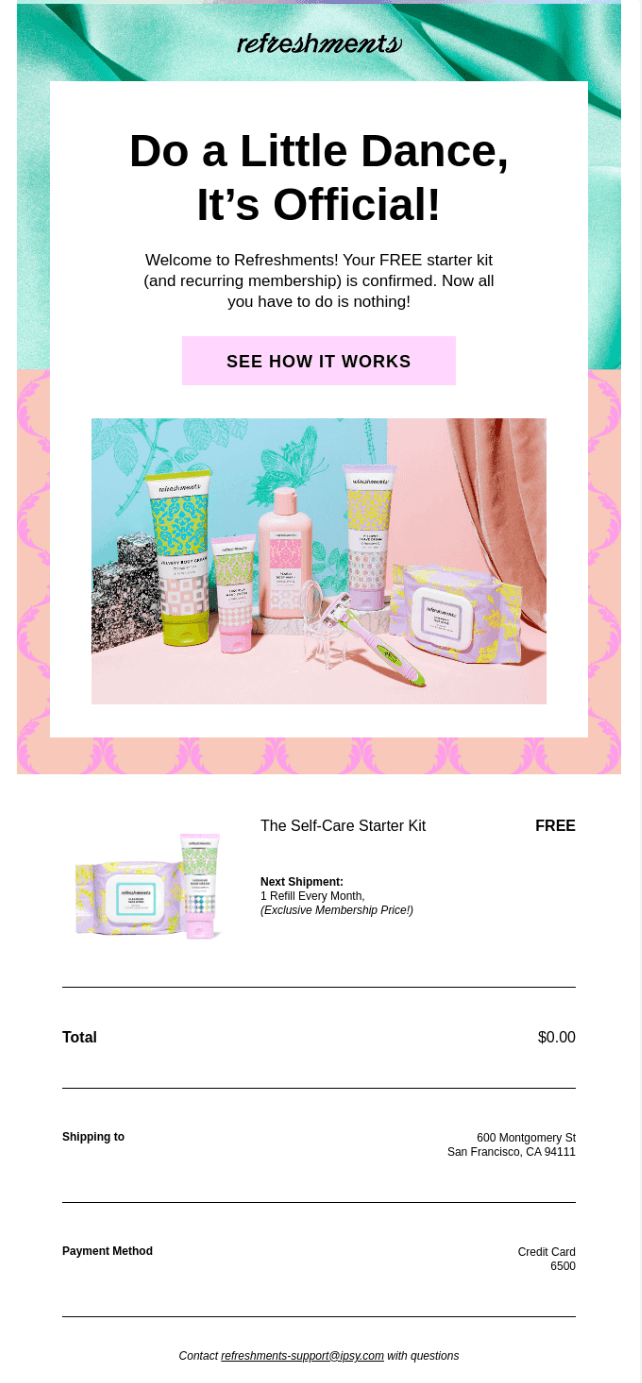
Beauty retailer IPSY builds excitement into its order confirmation with the heading “Do a Little Dance, It’s Official!” It then welcomes customers to the club and re-educates them about how its subscription works with a link to a written guide.
The hero background, layout, and image match the IPSY site and create the feeling of a fun, youthful brand. Boring this confirmation isn’t, and I also rate how it lays out the product summary with plenty of whitespace between elements.
“Educational content in order confirmation emails is one of our hidden secrets for retention. Not everyone who purchases will know they are going to get charged again in the future, or that costs might increase, and so on. Letting them know the ins and outs early keeps them happy and not frustrated from the unforeseen.”
— Agnė Ganchev, Director of Customer Success at Omnisend
Subject line: Confirmation of Your Order US650005000
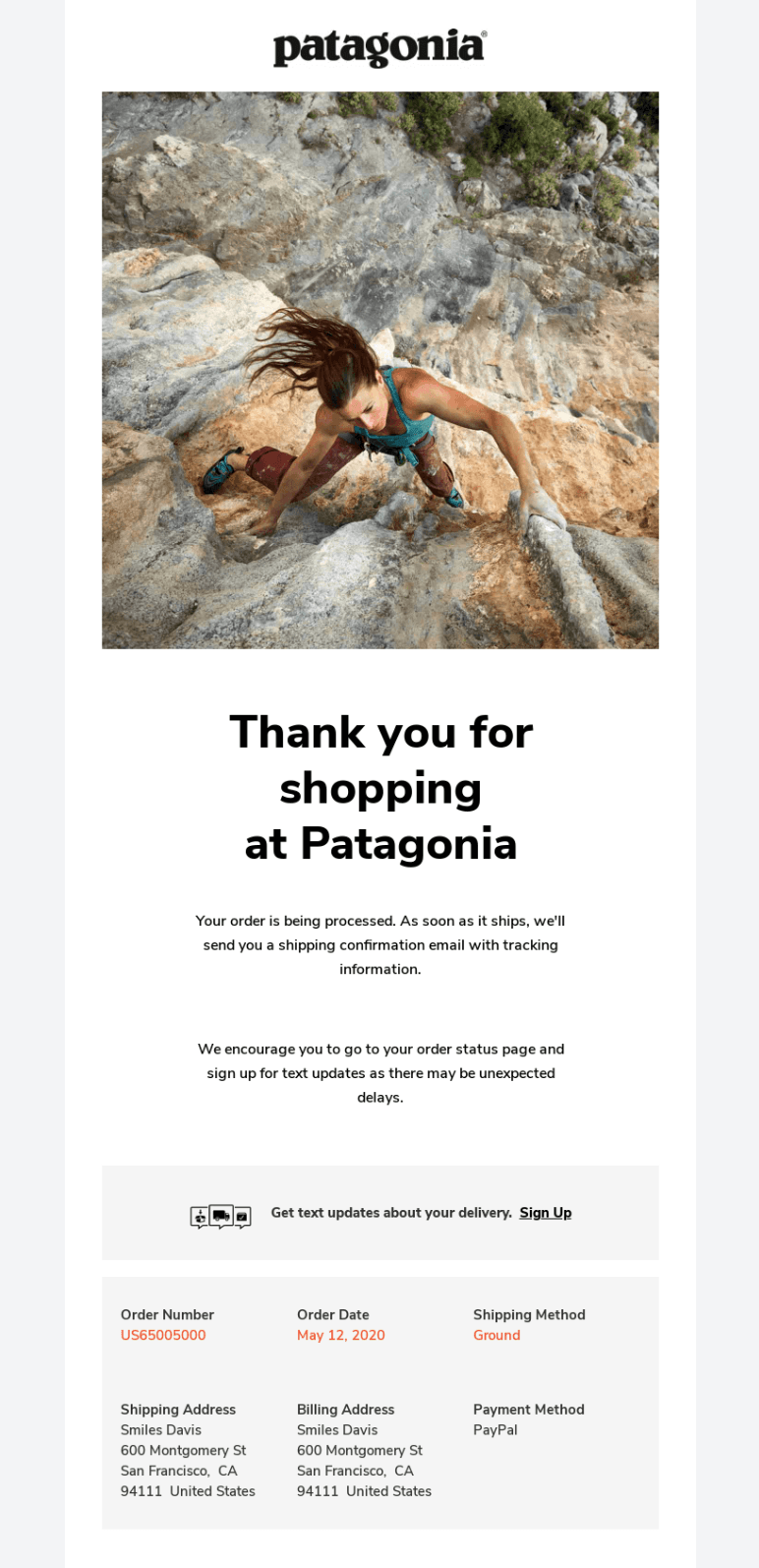
Outdoor apparel brand Patagonia uses a no-nonsense order confirmation subject line and immediately thanks customers for their order in its email. The hero image is adventurous and matches the season of the products purchased (shorts).
The “Get text updates about your delivery. Sign up” CTA targets those who didn’t opt into receiving text messages during purchase, or customers can continue scrolling to see their order information and a summary of products.
At the bottom of the email (not shown, due to length), Patagonia includes guarantee information and a 1% for the planet donation disclaimer.
Grab the content in the order confirmation email templates I’ve prepared below and swap out any placeholders with your own information:
Subject line: We’ve Got Your Order
Preview text: [[ order.order_number ]] is under prep for shipping as you read this.
Hi [[ contact.first_name ]],
Good news, we’re really fast at getting things shipped, so your order today will go out before our shipping cut-off point.
Here’s what you purchased:
[[ order.line_items ]]
The costs for your order are detailed below. If you see any discrepancies, use the footer links to visit our support page.
The address we have in our system for you is [[ order.shipping_address.address1 ]], [[ order.shipping_address.city ]], [[ order.shipping_address.state ]] [[ order.shipping_address.zip ]]
Tracking details will hit your inbox once it’s on the way.
Thank you.
Subject: We’re prepping something good for you
Preview: Order confirmed, soon to be shipped (stay tuned for that one)
Hi [[ contact.first_name ]],
Your order just came through, and honestly? Great picks, they’re some of our best-sellers.
Here’s what you’re getting:
[[ order.line_items ]]
And here’s what you paid: [[ order.total_price ]]
We’ve verified your address and will ship it here:
[[ order.shipping_address.address1 ]], [[ order.shipping_address.city ]], [[ order.shipping_address.state ]] [[ order.shipping_address.zip ]]
The next email we send over to you will be a shipping update. We always ship via DHL, and you can track your order with them. We’ll provide the details.
Anything else, reach out,
[[ account.name ]]
Subject: Order #[[ order_number ]] confirmed
Preview: Fantastic Order, [[ first_name ]]
Hi, thank you for your order.
I am reaching out to provide your order information personally. You can find the price and quantities below. If you need anything else, my contact details are in the footer.
[[ account.name ]]
Total paid: [[ order.total_price ]]
Delivering to [[ order.shipping_address.city ]], [[ order.shipping_address.state ]]
Something I’ve observed from sending over 1,000 order confirmation emails is that they get opened irrespective of the subject lines.
My customers, and yours, open them because they need to check their order went through okay, not because of the quality of the subject line.
Even so, the more direct you are, the easier it is for customers to know that your email isn’t a marketing message, which improves trust. You can also build excitement into purchases and stand out from generic confirmations with personality.
The subject lines I’ve provided below use Liquid templating (“[[ ]]”) for personalization, such as order numbers and names. Omnisend uses these tags. You can paste them into your subject line field. Additionally, all of them are under 50 characters to prevent truncation:
Functional/direct
Excitement-driven
Reassurance
Playful
For high-value orders
For any subject lines you think are too long, too vague, or overly flowery, use Omnisend’s subject line tester for refinement ideas.
I’ve perfected my order confirmation email design to the point where I can copy the HTML/Liquid/CSS across platforms and make very few changes. Here’s what works:
The table below provides additional dos and don’ts when designing your order confirmations:
| Do | Don't |
|---|---|
| Design mobile-first with a single-column layout | Use multi-column layouts that break on mobile |
| Match your store's logo, colors, and fonts | Send generic, unbranded templates |
| Put the order number near the top | Bury the order number in the footer |
| Include product images in the order summary | Use text-only lists |
| Add alt text to all images | Assume images will always display |
| Use descriptive link text like "View return policy" | Write vague links like "click here" |
| Give one primary CTA button | Add multiple competing buttons |
| Space elements 20px apart maximum | Cram content with no breathing room |
| Use 14px+ text and 44px+ button height | Make links too small to tap on mobile |
| Include shipping and payment info | Add cross-sells or anything promotional (leave those for follow-ups) |
“Omnisend’s internal data shows that mobile email openers outnumber desktop openers by a factor of 5. If your order confirmation email doesn’t look fantastic on mobile, you’re failing most of your customers at the moment they’re most engaged with your brand.”
— Desislava Zhivkova, CX Deliverability Team Lead at Omnisend
The wonderful thing about order confirmation emails is that you write them once. Your email tool then automatically sends them with order information pulled from your store. The parts you control are the subject line, preheader, and email body.
Follow these pointers for how to write a confirmation email:
Confirm the order in as few words as possible, for example:
Either of those three subject lines is perfect. Don’t add any fluff. You want to immediately tell your customer you have their order, nothing else.
Going branded, getting personal, and leading with a thank-you is also possible:
I’ve tested multiple subject lines using Omnisend. My experience is that personalized subject lines perform the best. My highest performer: “[Name], Order Confirmed.”
Some email clients show preview text in place of the first part of your email. Use it to describe the purpose or next action, such as:
Your customer will open the email to mark it as read, but won’t have to spend time scrolling through it to know it’s moving through your system.
Use any of these depending on how formal/informal you want to go:
Referencing the order number is my first approach because some customers will need to find and copy it in the future when contacting support.
To go under your heading and describe what you’re doing next. Set expectations for their next email and put any doubts around deliveries to bed. A few options:
Anything along the above two lines works fine. You don’t need to be unique, but do be casual and set up the next email in your sequence.
You have control over the data your confirmation email template pulls into the order summary/information blocks. For example, you can include/exclude images, prices, quantities, or anything else you think isn’t relevant using code.
I recommend including these elements:
The information you select is dynamically generated based on orders. If you think it’s cluttered, that’s a design problem to fix when building your template.
There are a few additional things I recommend you add to your order confirmations:
Use Grammarly to catch any grammatical errors and ask ChatGPT if there are any typos in the code or things that look out of place, such as British grammar if you’re selling to US customers.
Preview your order confirmation message in your email tool and send test messages. Send it to an Outlook and Gmail address and ensure both clients render your email properly.
Most ecommerce platforms have built-in order confirmations, as well as confirmations for shipping and receipts. They’re decent enough for starting selling, but I outgrew them as soon as I wanted to create an on-brand and personalized customer experience.
There’s also the control factor. I can edit the order confirmation template in Shopify, for instance, but I can’t build it into a sequence without an app.
Installing an email tool, such as Omnisend, lets me create a flow with multiple messages that improve my customer experience. Here’s one of my typical flows:
“A flow containing multiple messages reaches your customer at crucial moments in their journey. If you stopped at an order confirmation email, customers would need to contact you for updates or forget to reorder. A sequence automates the entire experience and contributes to higher repeat purchase rates and long-term retention.”
— Karolina Petraškienė, Marketing Projects Lead at Omnisend
Follow these steps to create your first order confirmation email in Omnisend:
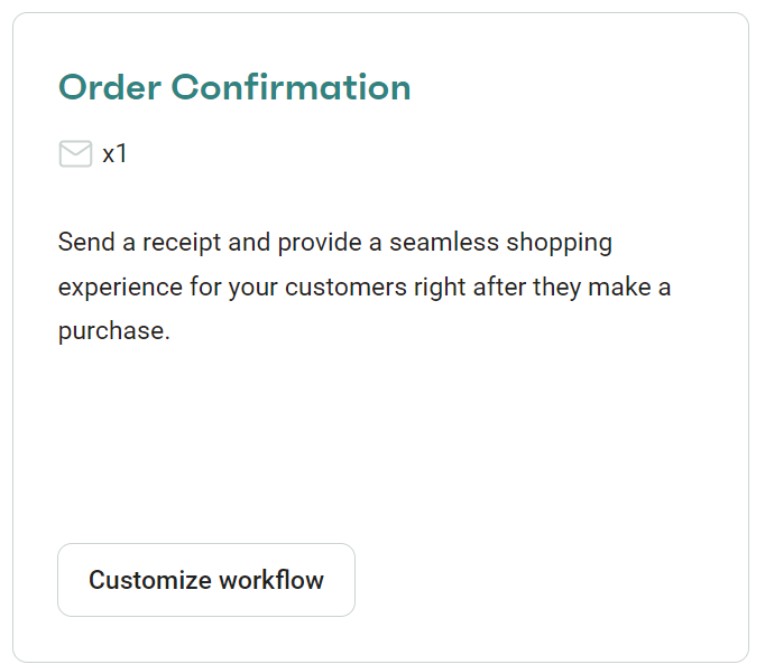
6. The pre-built flow has the trigger “Paid for order” applied and the exit condition “Order cancelled.” You do not need to change these. You can add additional filters, though. One that I like to add is “Order Total” to a separate build, because I can then send snazzier VIP-like emails to those who purchase more than $100. Have a look at the filters and see if there is anything you want to add:
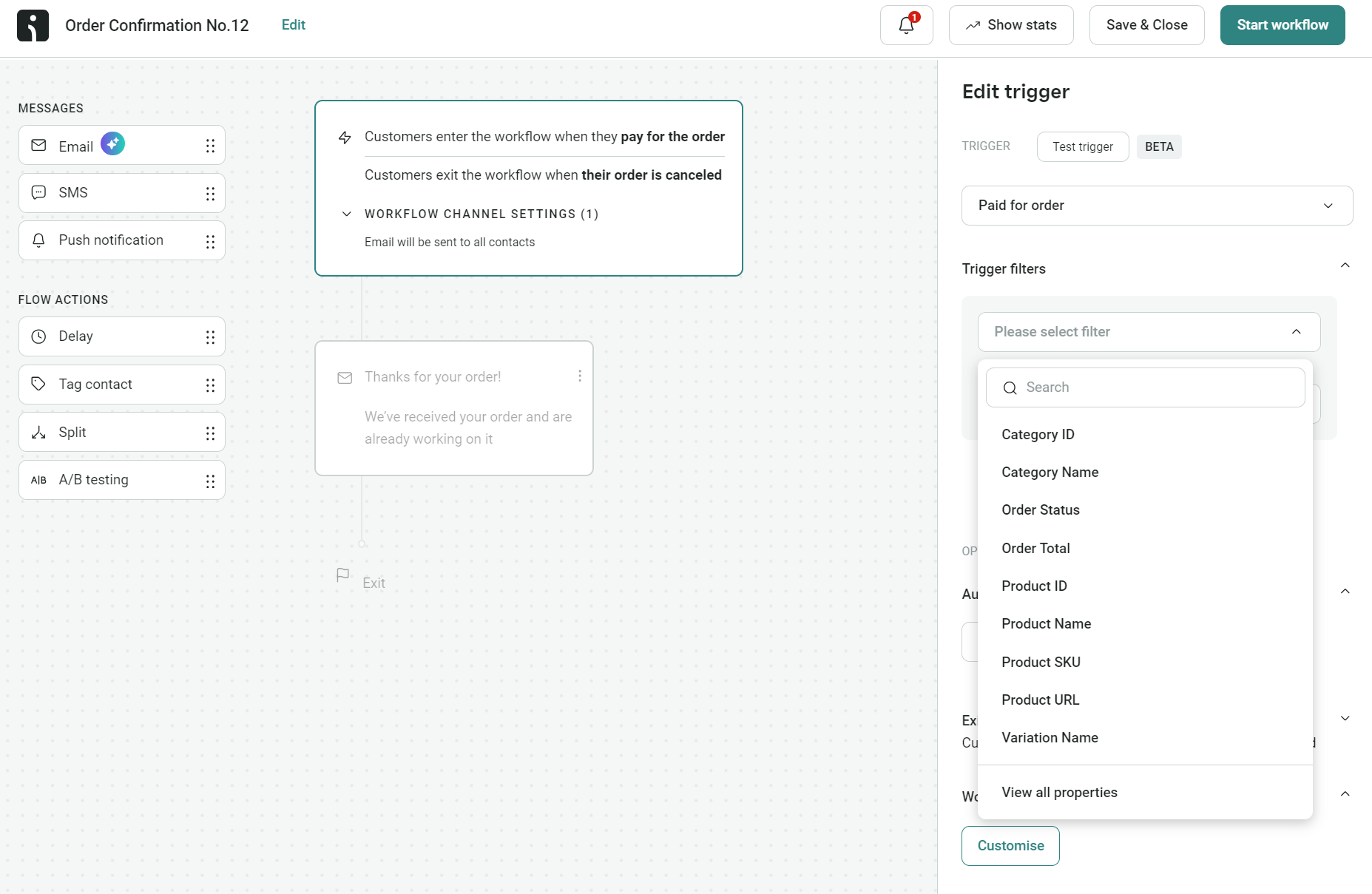
7. Click the email element in your flow and edit these elements:
a. Subject line
b. Preheader
c. Sender’s name (if it’s different from your default store name)
d. Top tip: Omnisend lets you use generative AI for the subject line and preheader
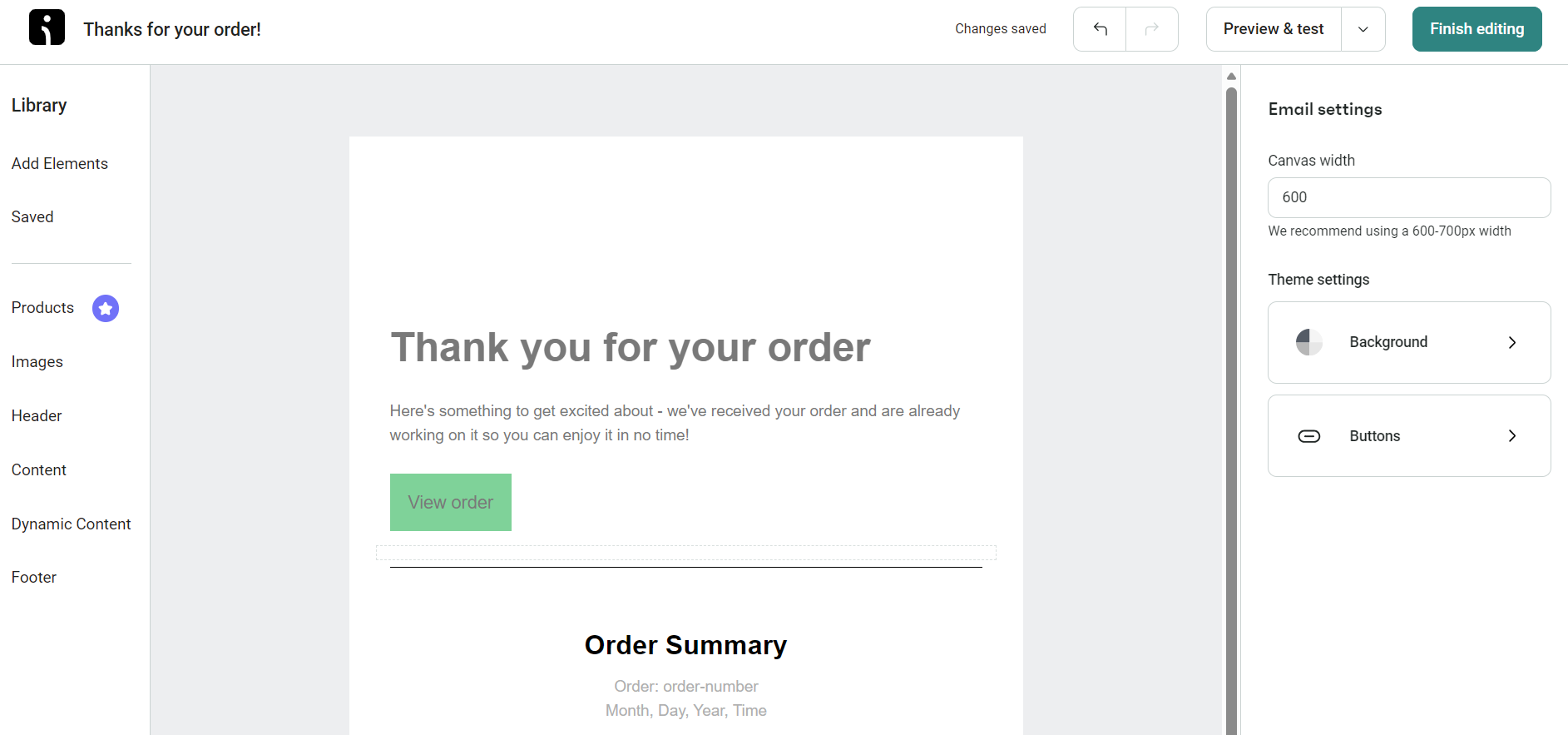
8. Click Edit content under the email in the right-hand sidebar to open the email editor. Add your content and other elements, then click Finish editing:
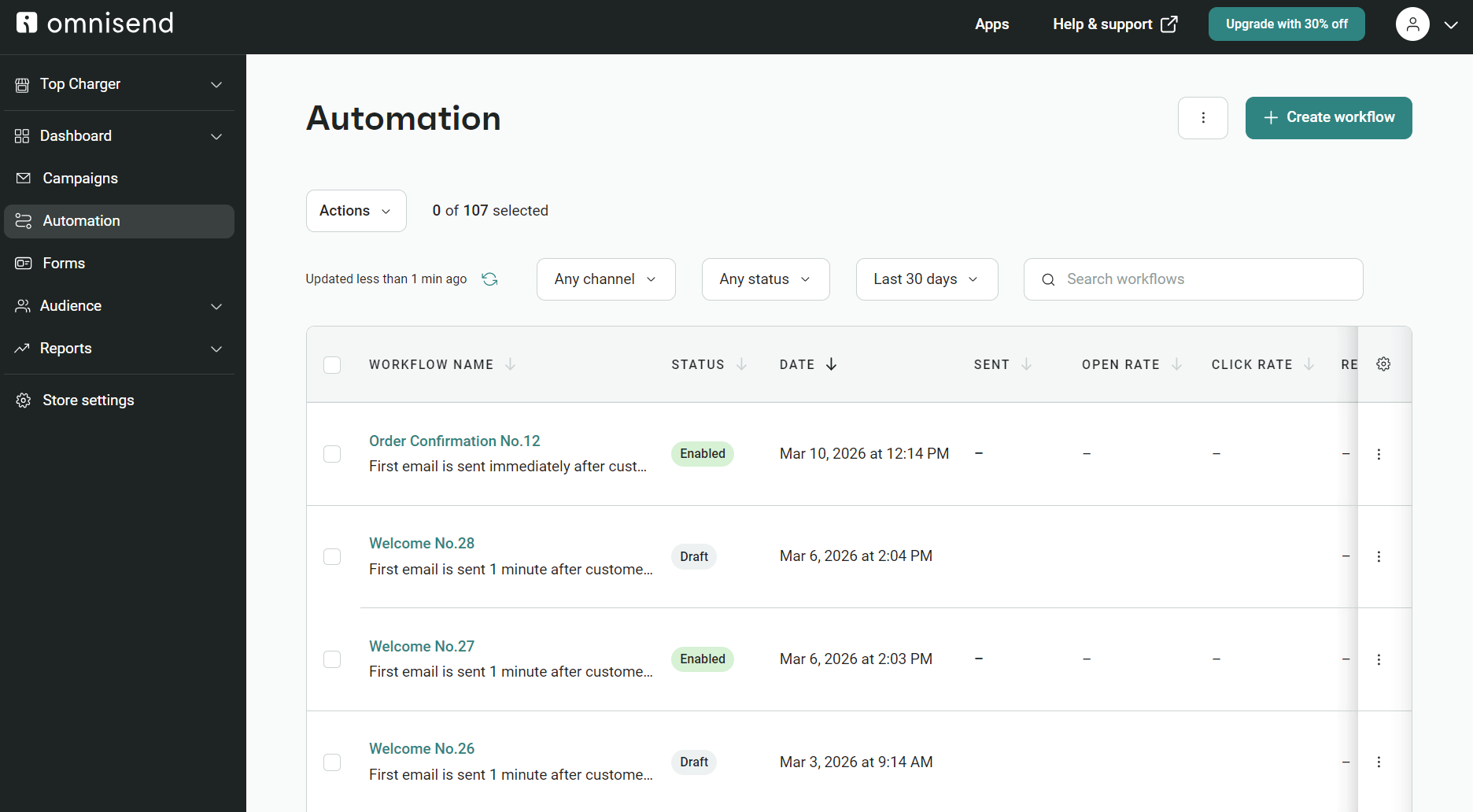
9. Click the Start workflow button to power on your order confirmation automation. You will then land back on the Automation page:
That’s it! You have your first order confirmation. Now take these final steps:
Order confirmations have high open rates by default. I see averages of between 40% and 50% and sometimes as high as 70% for luxury purchases.
Confirmations achieve higher open rates than marketing messages because they contain crucial information. Customers want to know that I’m getting things ready and that I have the correct shipping address. Here are the metrics to watch with benchmarks:
| Metric | Benchmark | What it means |
|---|---|---|
| Open rate | 40-50% based on Omnisend research | How many people open your email. It also suggests you have good subject lines and have cautious customers who want reassurance. |
| Click-to-sent rate | 5-15% (Omnisend) | It’s clicks divided by total emails sent. 1,000 emails and a 15% click-sent-rate equals 150 clicks. Tells you how your email performed against your list. |
| Click-to-conversion rate | 10-15% (Omnisend) | Your customers are clicking links and doing what you want them to. |
| Unsubscribe rate | <0.1% (standard industry benchmark) | It’s the percentage of customers who no longer want your emails. |
| Revenue per email | Varies, track your own | If your order confirmations use cross-sells, or are part of a series, you can measure how much they earn. |
Additional reading:
15 email marketing metrics that really matter in 2026
Quick sign up | No credit card required
An order confirmation email is a transactional notification with your customer’s order information. It confirms the order is in and sets expectations for the next communications.
The most appropriate trigger is “paid for order” or “payment complete”. Once that event occurs in your ecommerce tool, your email app should send the confirmation within five minutes, so that any customers who hop straight to their inbox see it.
Nothing outside the scope of the purchase. Add the order number, a summary, and payment and shipping information to it.
You’re going to hit around 70 words depending on the number of products in the order and the amount of information pulled into your email from Shopify or whichever platform you use.
No, otherwise it turns into a promotion for which you might not have collected consent. Your order confirmation provides information crucial to the purchase only. Use other emails in your sequence to promote. For example, you could send a cross-sell follow-up.
Confirm the order and state the order number. It is that simple. At a push, add a thank you in there, and mention the customer’s name. “Thanks for Order #019191, James.”
Nope, you do not need to include one because they are not marketing emails. However, any subsequent emails in your sequence that are promotional should let customers click a link to unsubscribe.

TABLE OF CONTENTS
TABLE OF CONTENTS

What’s next



No fluff, no spam, no corporate filler. Just a friendly letter, twice a month.