
 Omnisend AI


 OFFER
OFFER







Drive sales on autopilot with ecommerce-focused features
See FeaturesKey takeaways 
WooCommerce's default low stock notification emails are basic and only suitable for internal alerts, lacking customization and customer-facing capabilities.
To enhance low stock notifications, integrating a third-party plugin like Omnisend allows for customizable, on-brand emails and the ability to send alerts via SMS.
Stockouts can severely impact sales and customer trust, costing businesses over $1.2 trillion globally in 2024, making timely low stock alerts essential for maintaining inventory levels.
Setting appropriate low stock thresholds tailored to product categories and sales velocity is crucial for effective inventory management and preventing stockouts.
Reveal key takeaways
The default WooCommerce low stock notification email works fine for an admin alert because it lets you select multiple recipients, stock thresholds, and stock display format.
However, the standard alert does not offer a customizable on-brand email template, nor does it let you create a separate customer-facing email (such as a low-stock campaign), or combine alerts with SMS, which requires a capable third-party plugin.
Another limitation of WooCommerce’s low-stock notification emails is their reliability, as they use WordPress’s default mail function (wp_mail), which spam filters love to block.
The correct setup and best practices overcome all this, and our article will help you do just that, covering the technical steps and offering additional revenue-focused advice.
Join Omnisend to create automated low stock notifications and back-in-stock emails
Quick sign up | No credit card required
What WooCommerce low stock notification emails do (and why they matter)
WooCommerce low stock notification emails alert you in good time about inventory shortages so that you can act on them, and can form part of an inventory series, including out-of-stock and back-in-stock emails.
Low-stock notifications matter most to customers who have shown interest in your products but, for one reason or another, haven’t purchased, and they matter to you because they provide the heads-up needed to trigger restocks.
Your WooCommerce store requires an email marketing plugin, such as Omnisend, to enable customizable low stock emails. WooCommerce handles basic low stock alerts by default, but not for customer-facing situations.
The real cost of stockouts in ecommerce
Stockouts cost sales that your competitors mop up, and they lock capital in inventory you can’t move, with the global cost of stockouts hitting $1.2 trillion in 2024 (IHL Group).
Here’s how stockouts impact your business:
- Sales numbers take a hit across all out-of-stock products
- Eroding customer trust due to popular items being unavailable
- Wasted marketing spend and acquisition costs
- Overstock on slow-movers costs you additional revenue
- Customer lifetime value drops as they abandon you for alternatives
- Potential for higher product costs and lower profits due to rushed restocks
How the WooCommerce features for low stock notification work by default
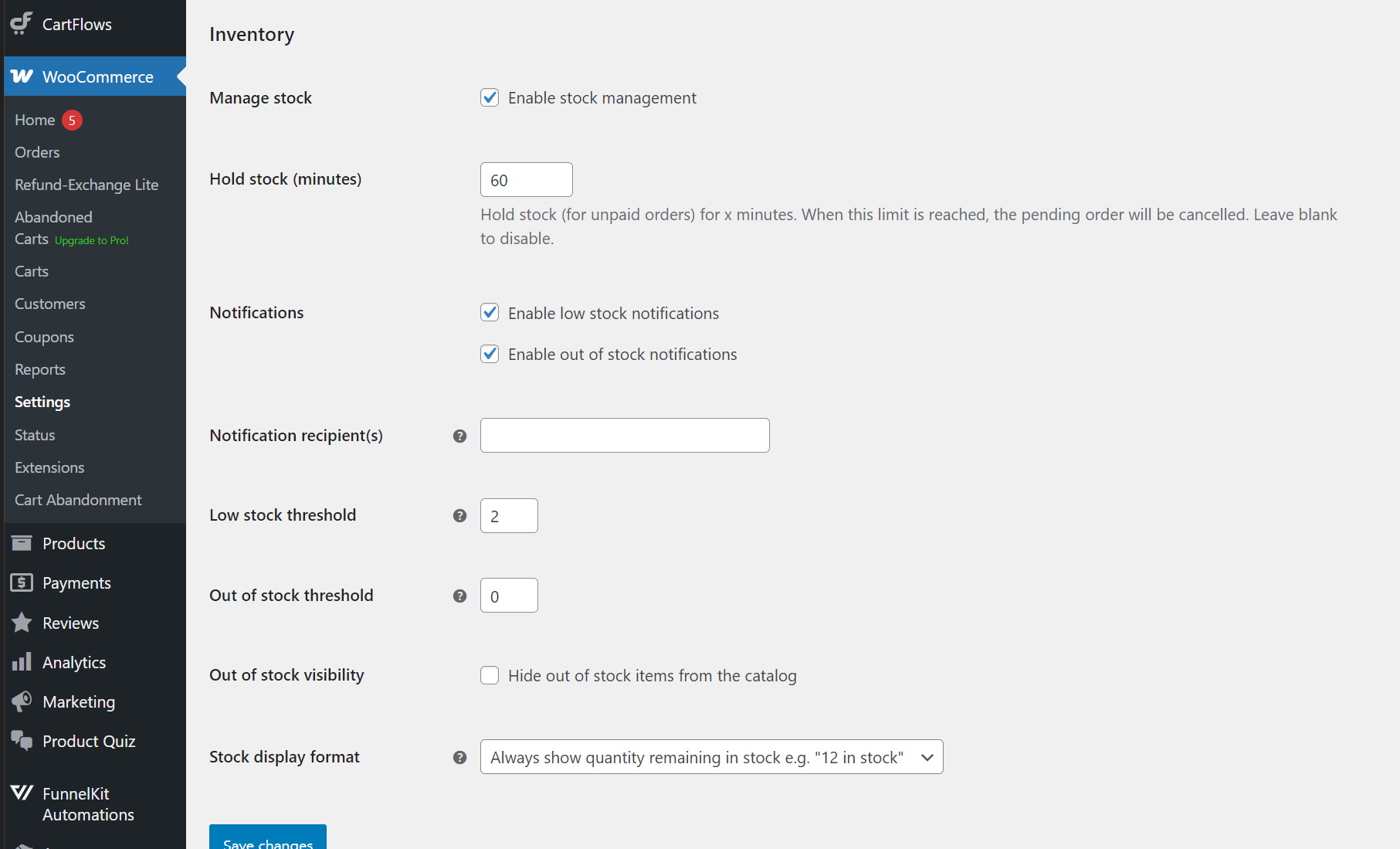
You’ll find the settings for WooCommerce’s standard low stock notification in WooCommerce > Settings > Products > Inventory in the WordPress dashboard.
It handles one low stock and out-of-stock notification email to multiple recipients. The image below shows the settings for the default notification:
Limitations of WooCommerce’s built-in low stock emails
The standard low stock notification is a text email that doesn’t show a timeline or contextual information, such as how fast a stockout could happen.
There isn’t a customer-facing low stock email built into WooCommerce, so if you intend to use low stock alerts in your marketing, you will need a third-party plugin. The same goes if you want to send an SMS alert in addition to an email.
“The default WooCommerce low stock notification email is only suitable for keeping admins in the loop about inventory. If you want to use low stock emails in your marketing, you can install a third-party email plugin, such as Omnisend, and create an email series for low stock and back-in-stock alerts.”
— Iryna Shatalo, Lead of Product Knowledge Enablement at Omnisend
How to set up low stock notifications in WooCommerce (step-by-step)
Enable inventory management in WooCommerce
Before configuring your low stock email, it’s best practice to enable inventory management for individual products. To do this, follow these steps:
- Navigate to Products > All Products in your WordPress dashboard
- Click on the product you want to manage
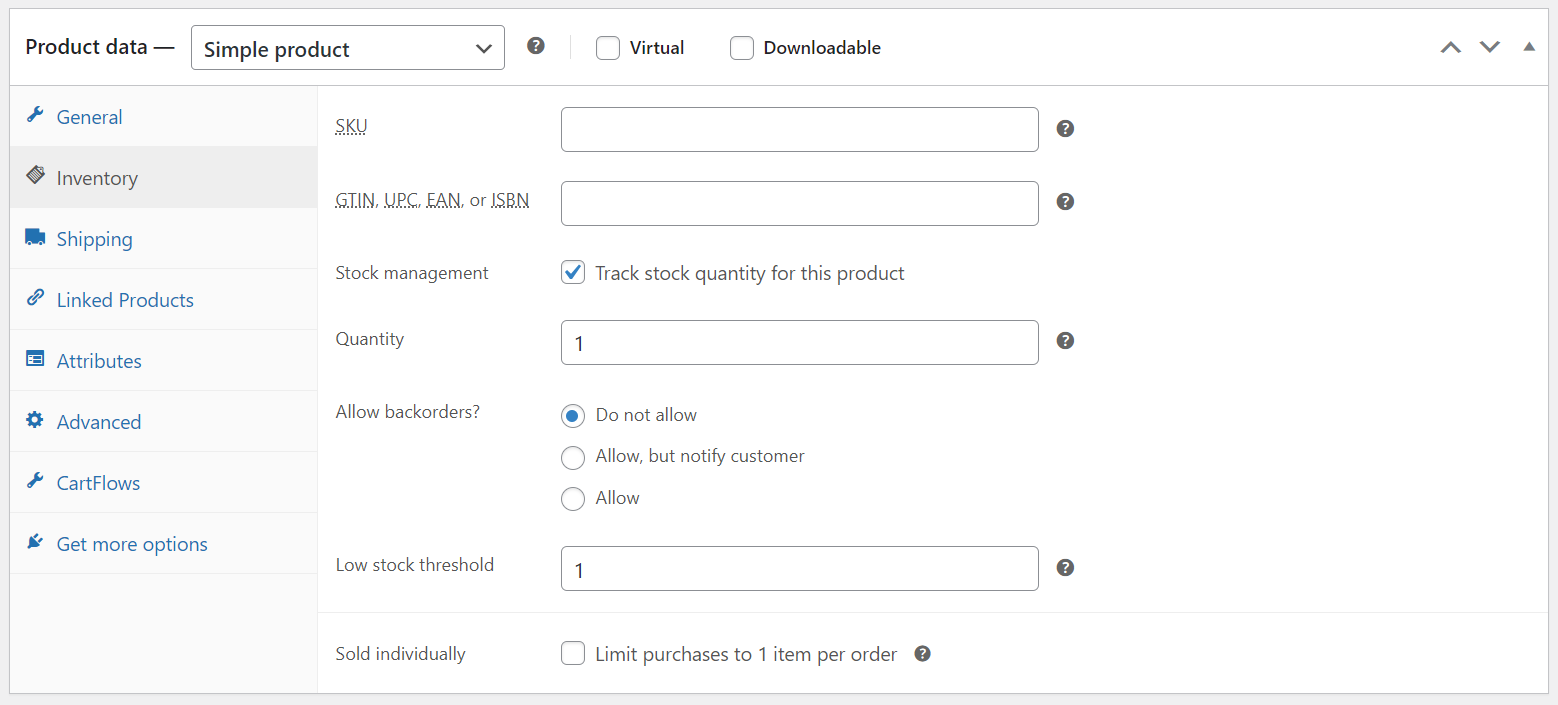
- Scroll down to the Product data section:
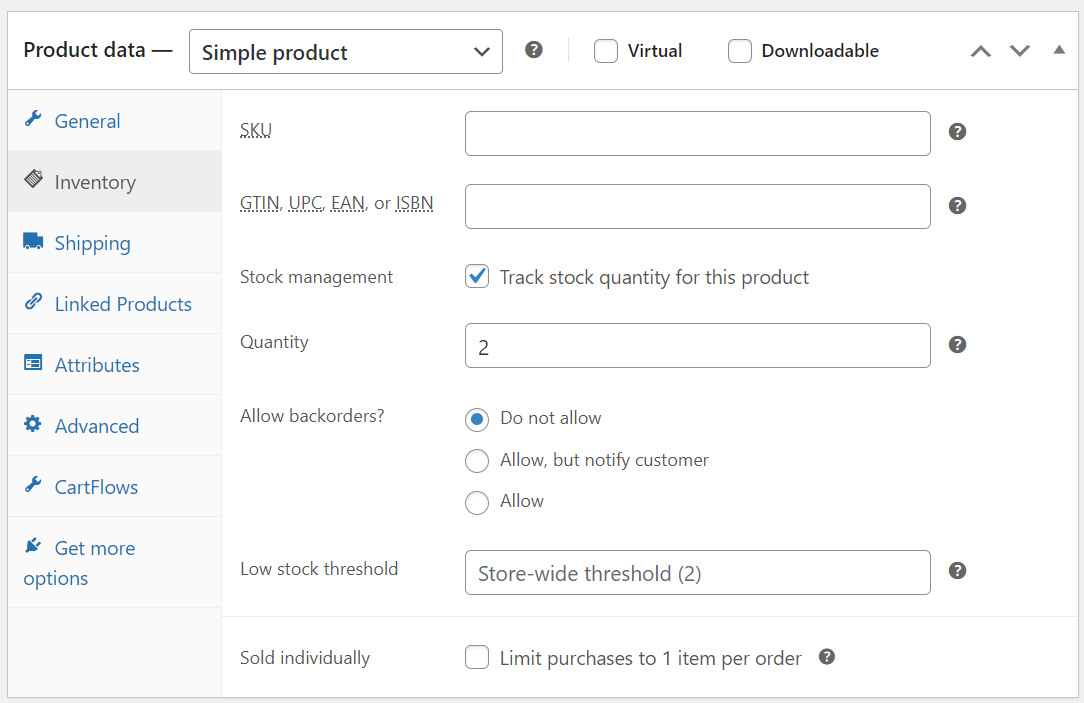
4. Select the Inventory tab
5. Check the box labeled Track stock Quantity for this product
6. Enter your stock quantity in the Stock quantity field
7. Set product-specific low stock thresholds if desired (optional)
8. Click Update to save your changes
9. Repeat for each product you want to track
Setting global low stock and out-of-stock thresholds
Thresholds for low stock and out-of-stock are the triggers for your email notifications. To set these globally, follow these steps:
- Log in to your WordPress admin dashboard
- Navigate to WooCommerce > Settings > Products > Inventory
- Locate the Low stock threshold field and enter your desired number (e.g., 5 units)
- Find the Out of stock threshold field and set when products should be marked out of stock (e.g., 0):
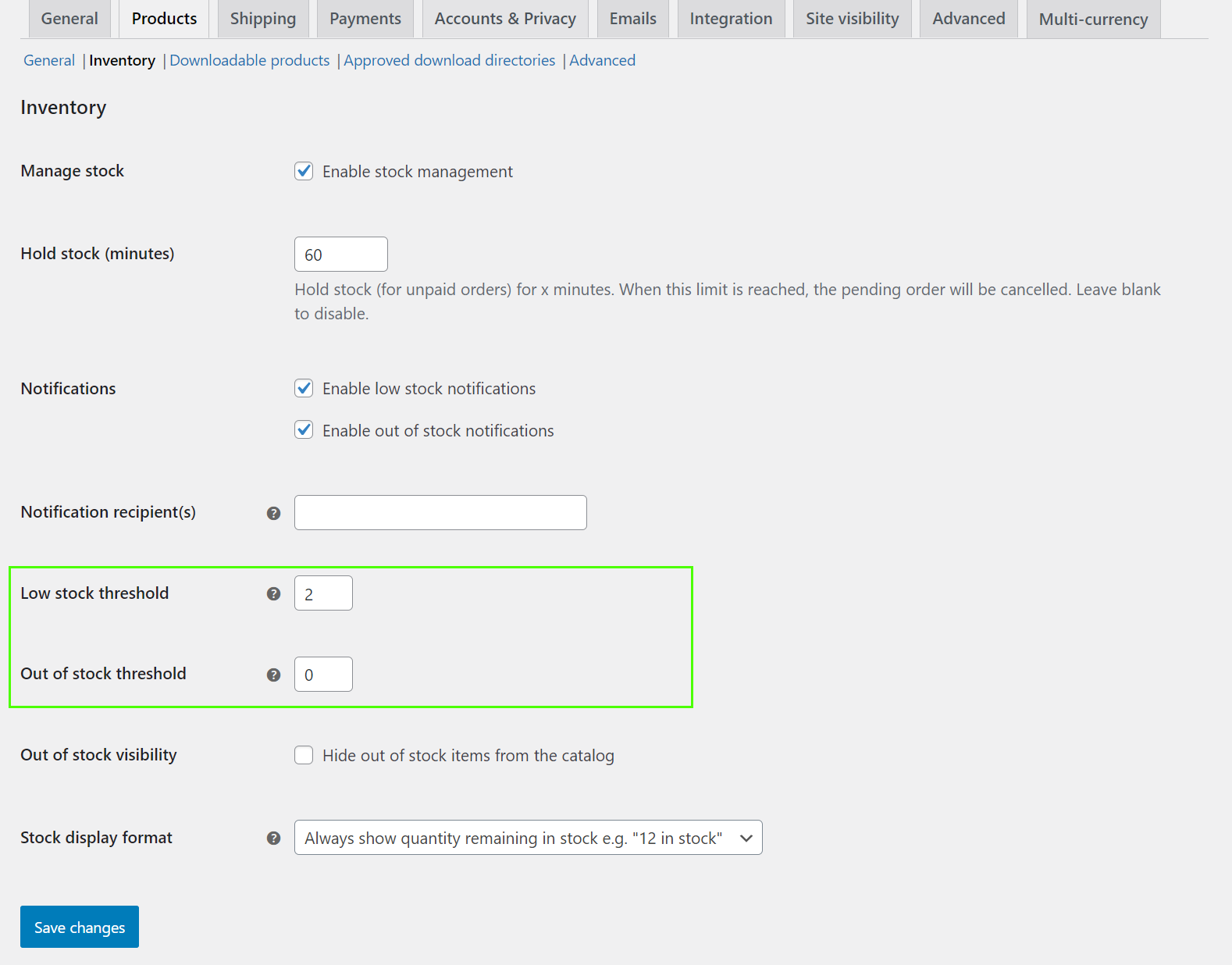
5. Check the Enable stock management box at the top if it isn’t already enabled
6. Scroll down and click Save changes to apply the global thresholds to all products
Configuring the default low stock notification email
We’ll keep this short — there’s no way to configure the default WooCommerce low-stock notification email. It is uncustomizable and does not appear under Settings > Emails, so there’s no way to manage it beyond the Products > Inventory page.
The text notifications WooCommerce generates are what you will receive every time, and these are unsuitable for customer-facing emails due to their lack of customization and branding.
For customer-facing emails, a third-party plugin such as Omnisend comes into play. Omnisend lets you build low stock and back-in-stock flows for customers to deliver on-brand notifications that provide a consistent brand experience.
Testing and confirming email delivery
You can trigger a low stock email in WooCommerce by updating the stock on one of your products to be lower than the threshold you set earlier:
- Go to Products > All Products in your WordPress dashboard
- Select a product that has stock management enabled
- Click Quick Edit (or open the full product editor)
- Change the Stock quantity to a number below your low stock threshold
- Click Update to save the change
- Check the email inbox you configured as the recipient
- Look for the low stock notification email (check spam/junk folders if it doesn’t arrive within a few minutes)
Customizing low stock notification settings and recipients
You can tune your WooCommerce low stock emails so they trigger according to custom thresholds for multiple recipients. The most significant limitation is the inability to change the look, feel, and content of the default email.
It’s crucial to remember that WooCommerce’s default low stock notification is an internal alert, meant only for your team, due to its basic design.
For customer-facing low stock alerts, you need their permission to send marketing emails, which your email app will handle. You can then create custom emails for low stock alerts, such as this one built using Omnisend:

Adjusting thresholds per product, category, or season
A single storewide threshold doesn’t work when products sell at different rates, such as fast-moving items, which need earlier warnings to allow reorder lead time, compared to slow movers, which can safely drop lower before triggering alerts.
For instance:
- Fast-sellers need thresholds of 20-50 units to account for supplier lead times
- Seasonal items (holiday decor, summer apparel) require higher buffers during peak months, and lower in off-season
- High-value products (electronics, jewelry) warrant early alerts at five to 10 units to prevent expensive stockouts
To set unique threshold numbers, follow these steps:
- Go to Products > All Products in your WordPress dashboard
- Click on the product you want to customize
- Scroll to the Product data section and select the Inventory tab
- Locate the Low stock threshold field (below Stock quantity)
- Enter a product-specific threshold number (this overrides the global setting)
- Click Update to save
- Repeat for each product that needs a custom threshold
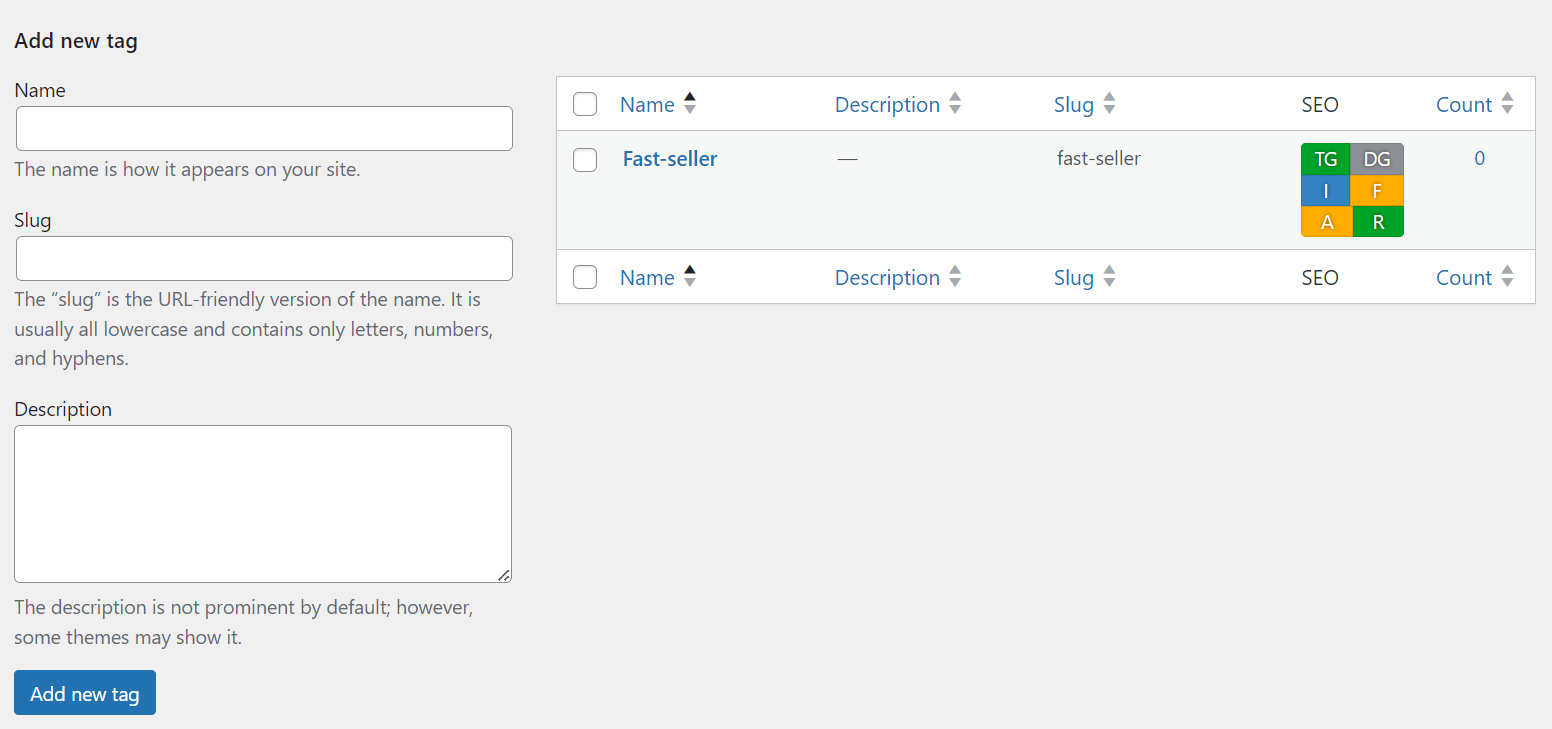
You can also use naming conventions to tag products by velocity or season (e.g., “fast-seller,” “summer”), then use filters to identify and manually update thresholds for groups of products:
Another way to adjust thresholds in bulk is via CSV import/export:
- Export your products via WooCommerce > Products > Export:
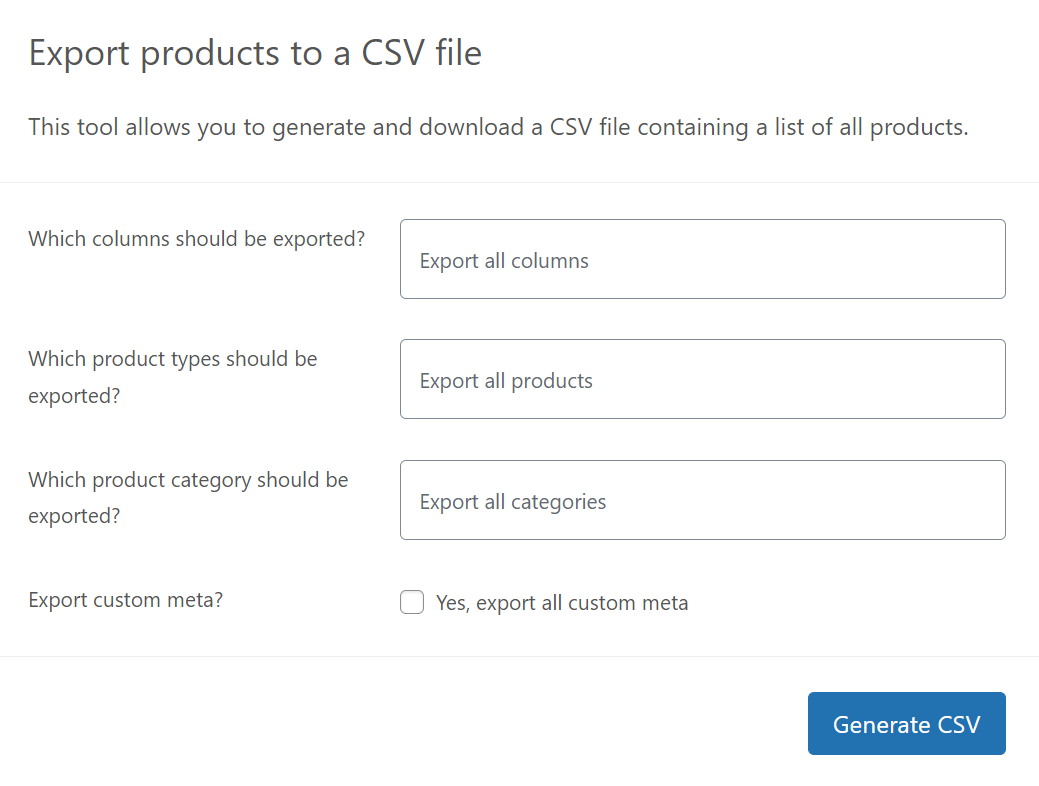
2. Add or edit the Low stock amount column with threshold values for each product
3. Re-import using WooCommerce > Products > Import
For category thresholds, unfortunately, these cannot be set directly in WooCommerce, neither natively nor through CSV import/export. WooCommerce only supports thresholds at the global level (storewide) and individual product level.
Changing and extending low stock email recipients
By default, WooCommerce sends low stock notifications to the admin email address set in your WordPress general settings. To change or add recipients:
- Go to WooCommerce > Settings > Products > Inventory
- Scroll to the Low stock threshold field
- Enter the email address where you want to receive notifications (you can enter as many addresses as you like, with comma separation)
- Click Save changes
For conditional routing, role-based notifications, or integration with team tools, the ATUM Inventory Management plugin provides additional notifications that let you assign alerts based on supplier, product category, or warehouse location.
Modifying the WooCommerce low stock email content and design
WooCommerce’s default low stock notification is a plain text email without any template, so you can’t customize it via the WordPress admin. However, you can add custom code that replaces WooCommerce’s basic plain-text function with your own email.
A custom approach involves unhooking the default woocommerce_low_stock() function and creating a new one that builds and sends an HTML email with your desired design, content, and logic, defined within your functions.php file.
Advanced options: Plugins and custom code
Plugins and custom code can turn inventory management into a simple task and help you prevent stockouts with timely, contextual notifications.
Extending low stock notifications with plugins
There isn’t a plugin that improves WooCommerce’s default low stock email, but there are several that provide better inventory management and notification features:
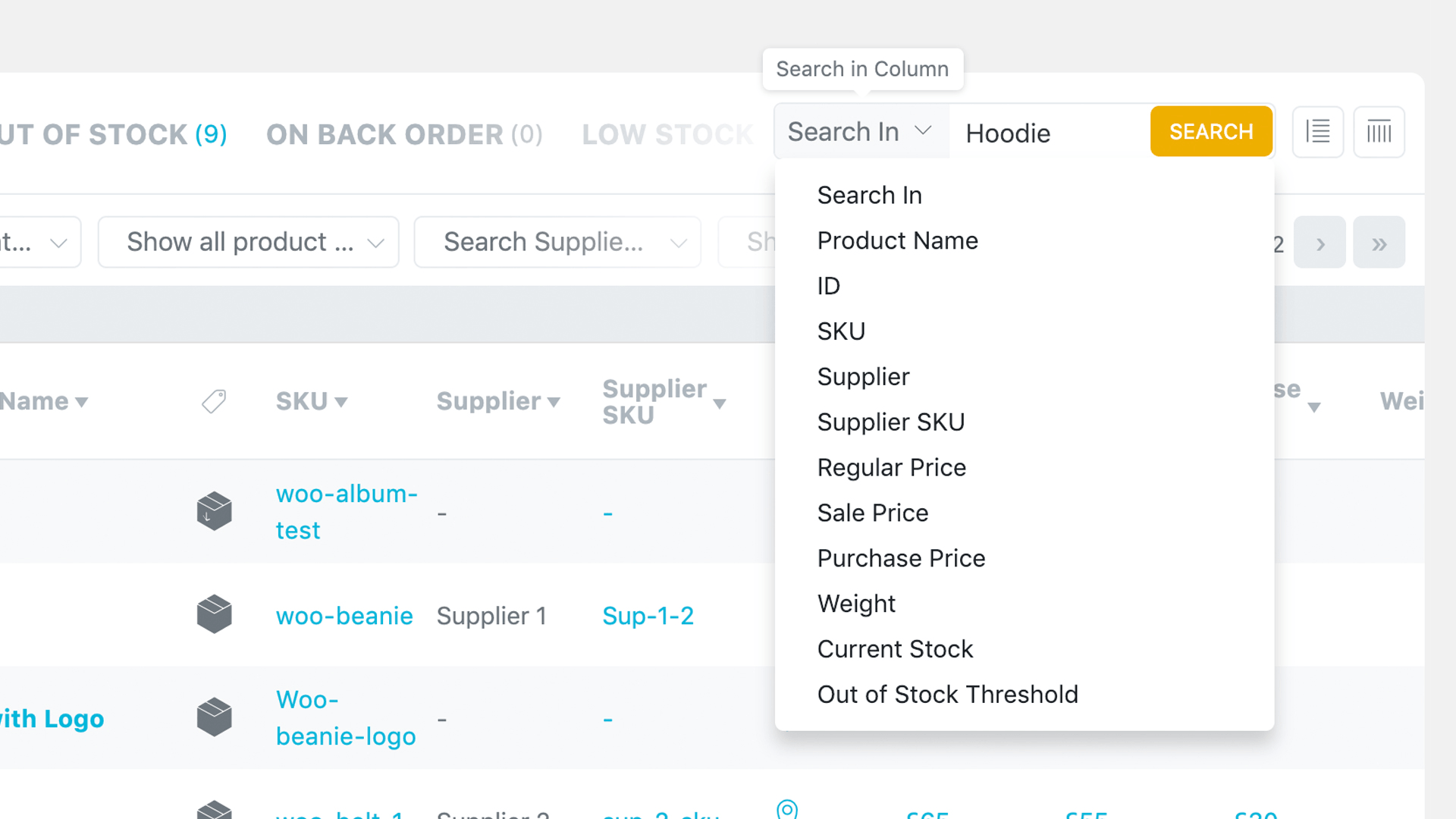
- ATUM: Provides advanced stock control dashboards, supplier management, and inventory analytics. It gives you better visibility over inventory with widgets and reports that show which products are running low across your entire catalog. The image below shows the search features available:
- WooCommerce Advanced Notifications: Lets you set up multiple recipients for low stock, out of stock, and backorder alerts, and route them by product category, shipping class, or individual products.
You can also upgrade your email capabilities with these plugins:
- Omnisend: For customer-facing low stock and back-in-stock flows, lets you segment customers and create multichannel (email plus SMS) low-stock and back-in-stock automations that trigger based on preferences and browsing behavior.
- WP Mail SMTP: Scraps the PHP mail() function with SMTP services so WooCommerce’s standard emails don’t get flagged as spam.
Using plugins is the best approach when you want to be a seller rather than a developer and spend more time perfecting your marketing than configuring your backend. The pros and cons:
Plugin pros
- No coding required
- Quick setup and configuration
- Regular updates and support
- Pre-built features ready to use
Plugin cons
- No direct editing of low stock emails
- Potential for ongoing subscription costs
- Potential plugin conflicts
- Dependent on third-party maintenance
- Limited customization compared to custom code
Useful code snippets to extend WooCommerce low stock emails
You can use code to make some modifications to your WooCommerce low stock emails without installing plugins or configuring the backend. Copy and paste the code snippets below to add new functionality to your store.
Important note: The code below has no verification for your WooCommerce configuration. Test it in a sandbox environment first. Do not publish untested code to your live website, and always back up your site before any tests.
Code to adjust triggers to send alerts at different stock levels per category
add_filter( ‘woocommerce_low_stock_amount’, ‘custom_low_stock_threshold’, 10, 2 );
function custom_low_stock_threshold( $amount, $product ) {
if ( has_term( ‘electronics’, ‘product_cat’, $product->get_id() ) ) {
return 50; // Alert at 50 units for electronics
} elseif ( has_term( ‘apparel’, ‘product_cat’, $product->get_id() ) ) {
return 20; // Alert at 20 units for apparel
}
return $amount; // Use default for everything else
}
Copy text
Code to send low stock notifications at intervals
// Add to plugin activation or run once
if ( ! wp_next_scheduled( ‘daily_low_stock_digest’ ) ) {
wp_schedule_event( strtotime( ‘tomorrow 09:00:00’ ), ‘daily’, ‘daily_low_stock_digest’ );
}
add_action( ‘daily_low_stock_digest’, ‘send_low_stock_digest’ );
function send_low_stock_digest() {
$low_stock_products = array();
$global_threshold = get_option( ‘woocommerce_notify_low_stock_amount’, 2 );
$args = array(
‘post_type’ => ‘product’,
‘posts_per_page’ => -1,
‘meta_query’ => array(
array(
‘key’ => ‘_manage_stock’,
‘value’ => ‘yes’
)
)
);
$products = get_posts( $args );
foreach ( $products as $post ) {
$product = wc_get_product( $post->ID );
$stock = $product->get_stock_quantity();
$threshold = $product->get_low_stock_amount() ? $product->get_low_stock_amount() : $global_threshold;
if ( $stock !== null && $stock <= $threshold ) {
$low_stock_products[] = sprintf( ‘%s – Stock: %d (Threshold: %d)’, $product->get_name(), $stock, $threshold );
}
}
if ( ! empty( $low_stock_products ) ) {
$recipients = get_option( ‘woocommerce_stock_email_recipient’ );
if ( $recipients ) {
$subject = sprintf( ‘[%s] Daily Low Stock Report – %s’, get_bloginfo( ‘name’ ), date( ‘Y-m-d’ ) );
$message = “Low Stock Products:\n\n” . implode( “\n”, $low_stock_products );
wp_mail( $recipients, $subject, $message );
}
}
}
Copy text
Code to send alerts only for high-value products
add_action( ‘woocommerce_low_stock_notification’, ‘high_value_priority_alert’, 5 );
function high_value_priority_alert( $product ) {
$price = $product->get_price();
if ( $price >= 500 ) {
$subject = sprintf( ‘[URGENT] High-Value Product Low Stock: %s’, $product->get_name() );
$message = sprintf(
“Priority Alert:\n\nProduct: %s\nPrice: £%s\nCurrent Stock: %d\n\nThis high-value item needs immediate attention.”,
$product->get_name(),
number_format( $price, 2 ),
$product->get_stock_quantity()
);
wp_mail( ‘[email protected]’, $subject, $message );
}
}
Copy text
Custom code makes sense when plugins don’t do what you want, or when they do, but charge too much money for such basic functionality. The pros and cons:
Custom code pros
- No recurring plugin costs
- Complete control over logic and design
- No plugin conflicts or bloat
- Tailored to your workflow
Custom code cons
- Requires PHP and WooCommerce knowledge
- You maintain and debug it yourself
- Breaks if WooCommerce updates change hooks
- No support when things go wrong
When advanced DIY setups become hard to maintain
They’re impossible to maintain without tracking where you add custom code, so that you can add your code back in following any theme or WordPress updates.
Additionally, DIY setups can sometimes create conflicts with plugins, and it isn’t always apparent where to debug. You could be spending considerable time troubleshooting sender and deliverability problems when things break.
The reliable approach to WooCommerce low stock alerts is as so:
- Use an SMTP plugin to replace the standard WordPress function so that your default WooCommerce low stock notifications deliver to your inbox
- Use a third-party email automation plugin, such as Omnisend, to build a customer-facing low stock series that contributes revenue to your store
Low stock email examples and best practices
Now, let’s look at some low stock email examples and cover the best practices you should follow to encourage open rates and clicks:
Internal low stock notification email example
The default low stock email sent by WooCommerce looks like this:
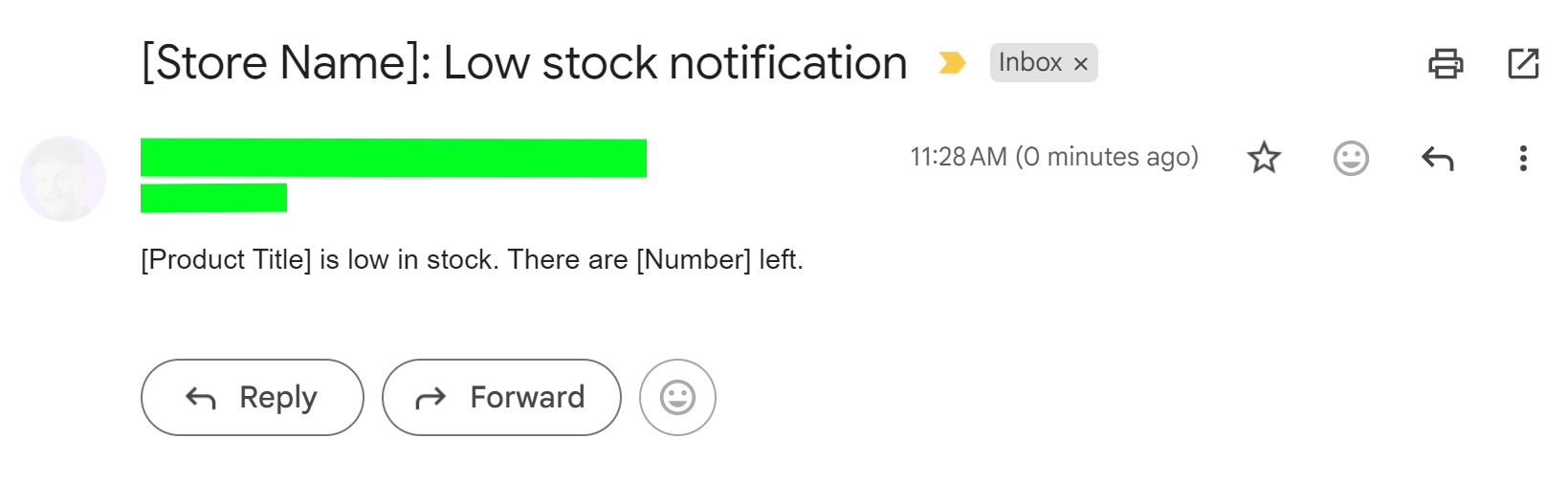
As you can see, this low stock email example is plain text, with no formatting or detailed elaboration, definitely suitable for internal purposes but not for customer-facing scenarios.
The best practice for this low stock notification on WooCommerce is to configure your thresholds and recipients and leave the code that runs it intact.
Customer-facing low stock / “only X left” email examples
Telepathic Instruments sends low stock reminders about popular products and new releases, such as this one for its digital synthesizer, the Orchid:
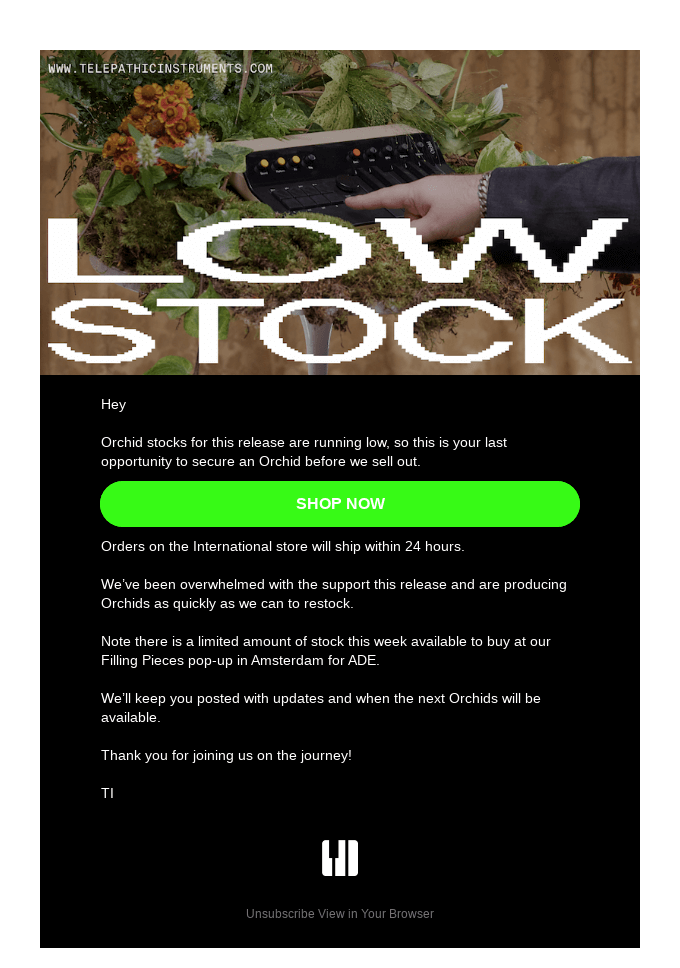
Its subject line, “Orchid Stocks are Low,” follows the best practice of being descriptive to encourage open rates. The design is unique, with a stretched “low stock” heading catching the eye and a green “SHOP NOW” CTA button making the next steps clear.
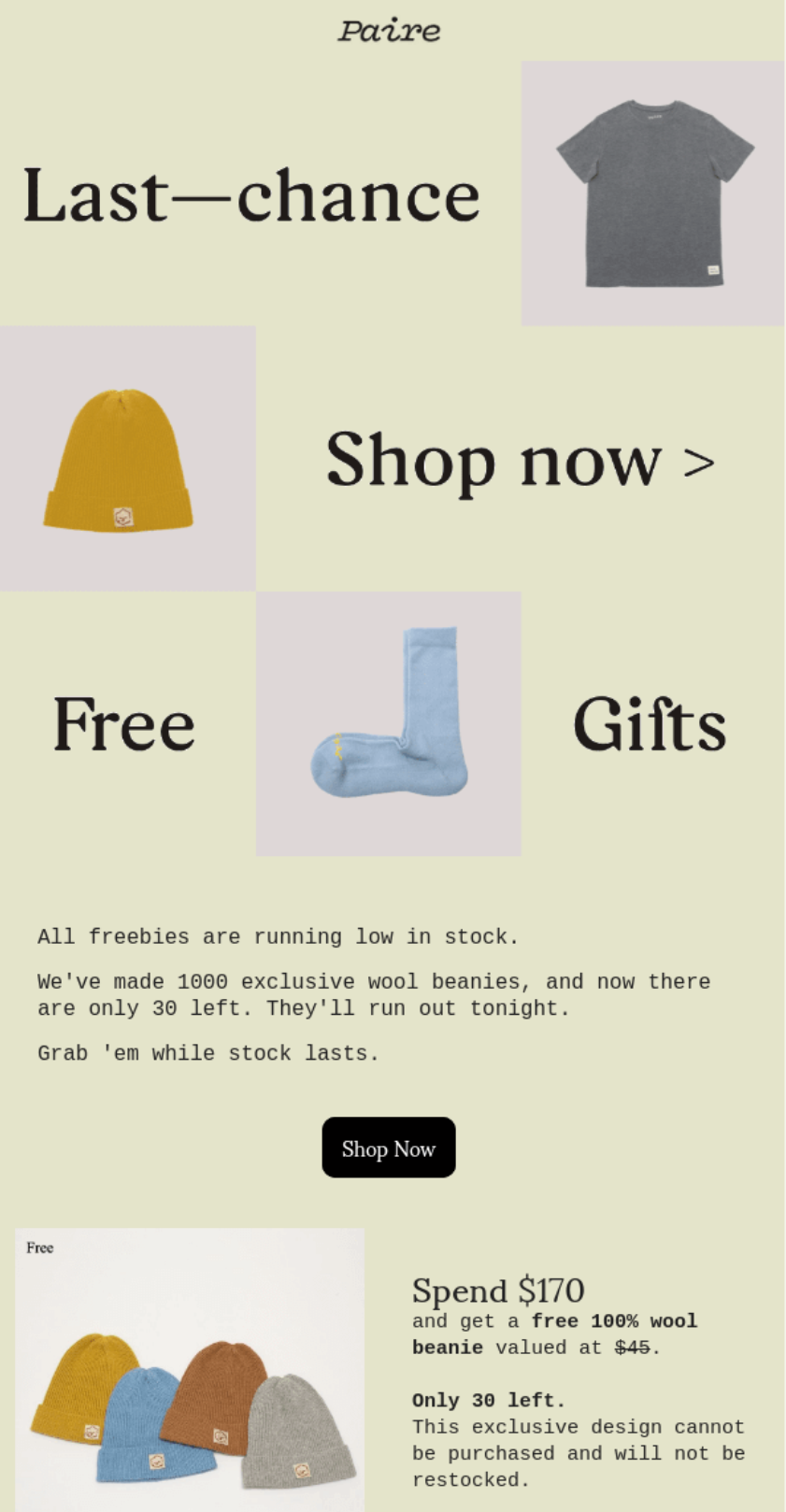
Another fantastic email that uses low stock as an urgency tactic comes from fashion retailer Paire. Its low stock email leads with the subject line “Only 30 left. Last chance before it’s gone forever.” and provides tiered deals with stock counts:
Back-in-stock and waitlist sequence overview
Customers who’ve opted into waitlists for out-of-stock products become high-intent buyers once inventory returns, with your automated back-in-stock flows reaching them as soon as items restock.
Your automation flow goes like this:
- Customers submit their email on your out-of-stock product page
- Instant confirmation email acknowledges their waitlist signup
- Restock alert triggers automatically when the product is back in stock
- 24-hour reminder sends if they haven’t purchased yet
- Optional: “Low stock again” alert creates urgency before items sell out
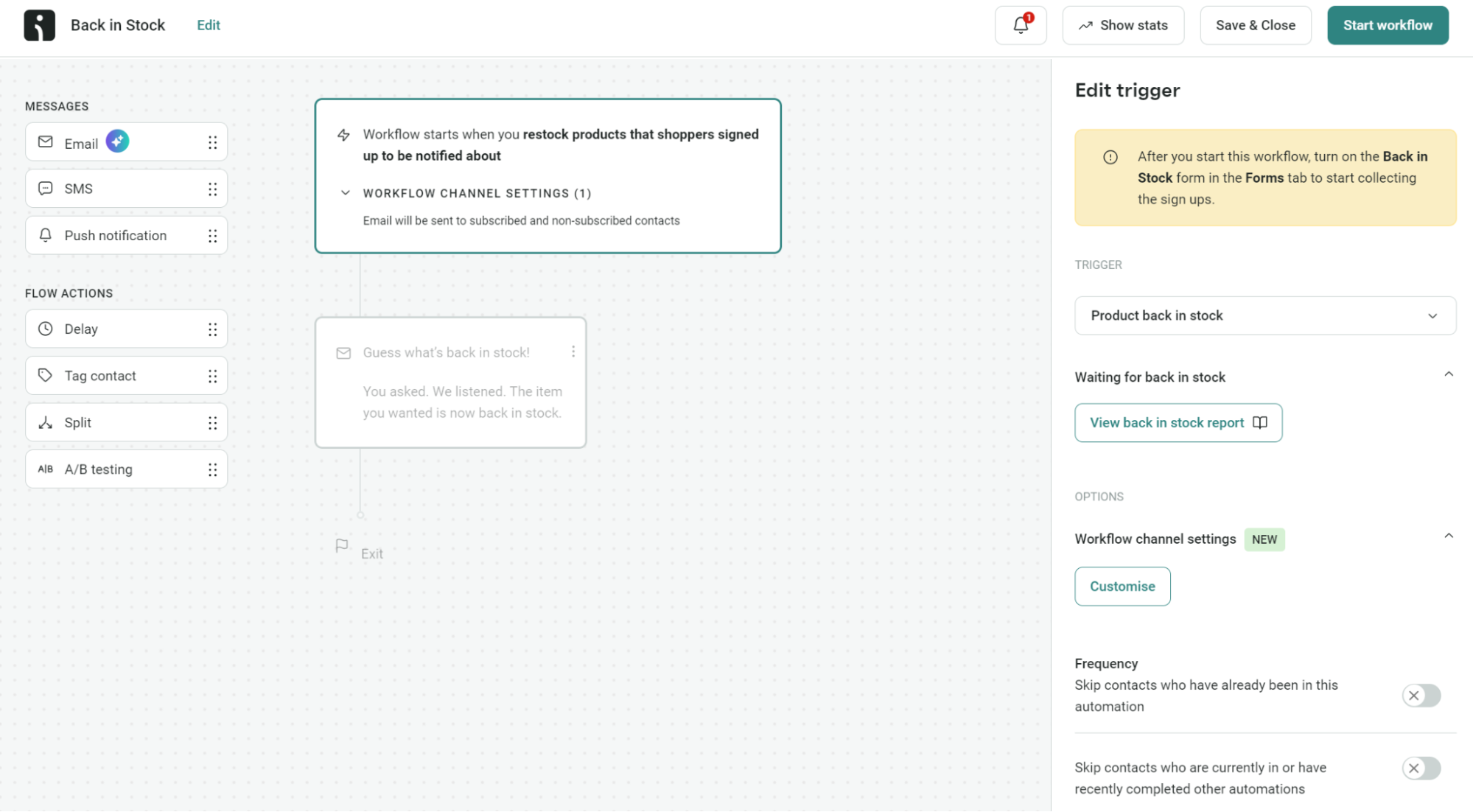
Omnisend lets you build these flows from scratch in a drag-and-drop editor, or you can pick the pre-built back-in-stock automation for a head start:
Copy, design, and subject line best practices
In 2025, back-in-stock emails achieved an incredible 59.19% open rate and 5.34% conversion rate, ahead of abandoned cart and cross-sell emails. Your low stock emails can achieve similar success with the right subject line, copy, and email design.
Follow these best practices:
Email structure
- Subject line: Product name + what’s happening (“Back in stock: Winter Boots” or “Only 12 left: Orchid Synthesizer”). Use Omnisend’s subject line tester for maximum open rates.
- Intro: Confirm why they’re getting this (“You asked to know when this returned”).
- Body: Product image, current stock count, or availability timeframe.
- CTA: A button in a contrasting color with action-focused text, such as “Get Yours.”
- Footer: An Unsubscribe link, social media icons, and contact information. You could also provide a link to your support pages.
Design extras
- Stock counts create urgency when they’re accurate. “47 available” works when it’s honest and matches what your store says.
- Countdowns: Timers that predict when stock will run out can encourage customers to click through and start shopping.
- Social proof: Badges for Trustpilot and other review platforms are a good shout, or you can add testimonials and customer photos.
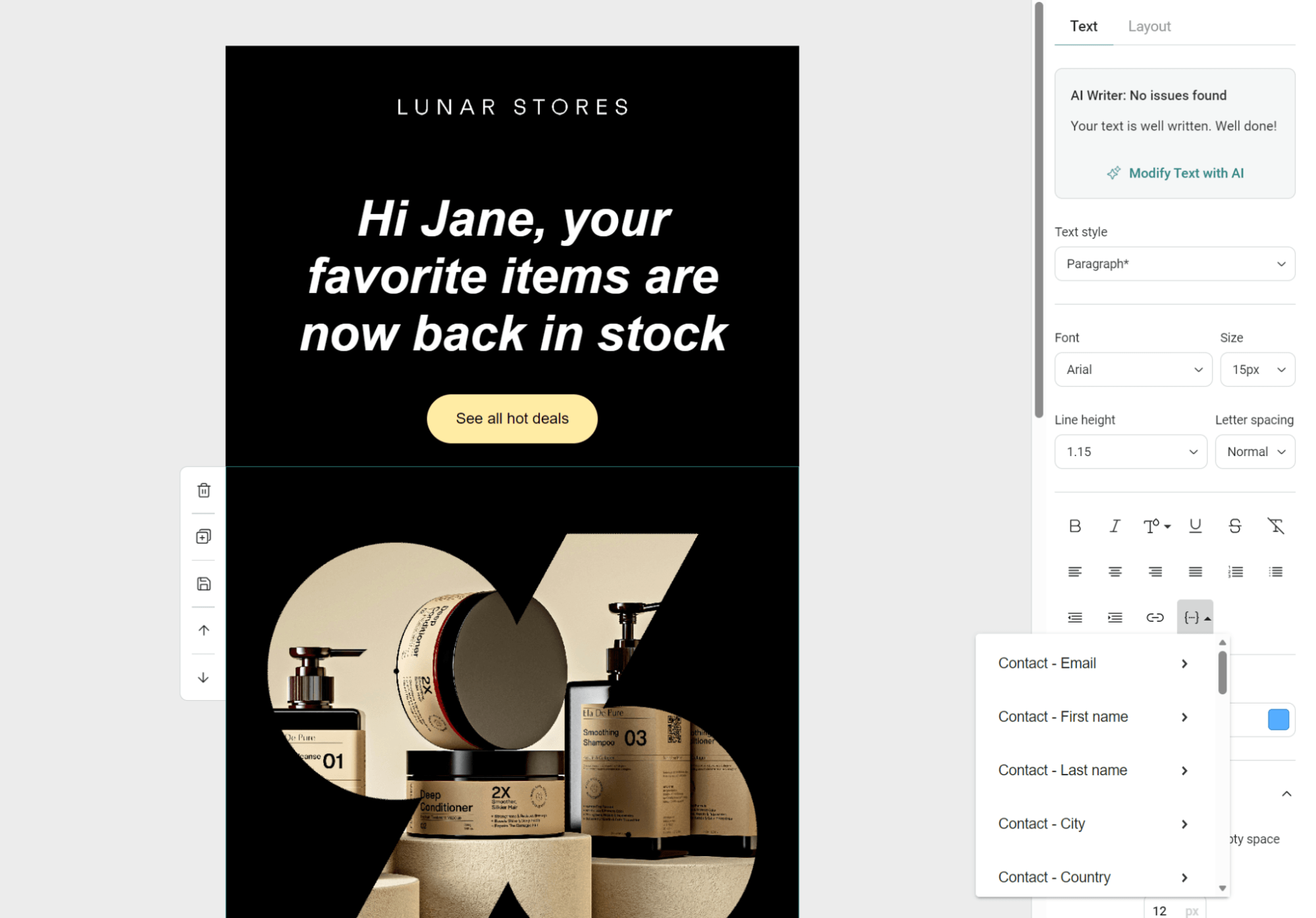
- Personalization: Add your customer’s name to the subject line and intro. Omnisend lets you do this using Liquid syntax, as shown in the image below, with personalization contributing to customers seeing an average ROI of $68 for every $1 spent:
“Once you’ve designed what you think is the perfect low stock email, it’s best practice to create additional versions for A/B testing to find winning elements and versions. A/B tests in Omnisend let you compare subject lines and email content (design/layout).”
— Andrius Šeršniovas, Conversion Specialist at Omnisend
Community Q&A: Common WooCommerce low stock issues and fixes
Community discussions around low stock notifications on WooCommerce are positive overall, with most concerns centering around expanding notifications to other teams, customizing email designs, and creating customer-facing versions:
“Why am I not getting WooCommerce low stock emails?”
A common issue. These can stop following WordPress core or WooCommerce plugin updates. Head to WooCommerce > Products > Inventory and ensure Enable stock management, Enable low stock notifications, and Enable out of stock notifications are checked.
The Omnisend approach
Check the above, plus that the individual products in your backend have stock management enabled via Products > All products > Edit (the product in question) > scroll to Product data > select Inventory:
“I want to send low stock notifications to customers”
Then you need an email marketing plugin, not WooCommerce’s low stock notifications. As mentioned in this Reddit thread, Omnisend has this feature, and there are additional plugins you can install to send customer-facing emails.
The Omnisend approach
Create a series for low stock alerts and assign segments to them, so that relevant customers receive back-in-stock and low stock alerts.
“I’m frustrated by the lack of WooCommerce email customization”
WooCommerce isn’t an email tool, so it isn’t surprising there’s a lack of email customization. Some people have hired developers to improve the stock emails, but most people leave them as is or install a third-party email plugin.
The Omnisend approach
Leave WooCommerce’s internal low stock emails alone as plain text alerts, but customize your customer-facing emails to maximize revenue.
“Can I send low stock alerts to suppliers or warehouse teams?”
Yes, you can enter as many notification recipients as you like at WooCommerce > Products > Inventory, comma-separate the addresses. For more granular control, the WooCommerce Advanced Notifications plugin lets you assign low stock, no stock, and backorder notifications.
The Omnisend approach
Use the Custom Events API in Omnisend to trigger automated workflows based on WooCommerce inventory levels. Here’s how it works:
- Set up a custom event in Omnisend (name it “low_stock_alert” or similar)
- Include custom fields for product name, SKU, stock count, product URL
- Connect WooCommerce to Omnisend’s API using custom code or Zapier to send the event when stock crosses your threshold
- Build your automation workflow in Omnisend using this event as the trigger and assign it to your segment containing employees
Turning stock alerts into automated marketing with Omnisend
WooCommerce treats low stock emails as internal alerts only. It does not connect your inventory to any marketing or revenue opportunities, meaning you need an email plugin to create multichannel customer-facing campaigns.
Omnisend is the most appropriate email tool for these because you can trigger campaigns via inventory changes, such as out-of-stock and back-in-stock events (supported natively), and low stock scenarios using custom events.
Why basic WooCommerce notifications aren’t enough
They aren’t enough because they are for internal purposes only, with their plain text being unsuitable for customers and providing no additional context for different teams. For example, a marketing manager will receive the same alert as the web designer.
In a nutshell:
- WooCommerce only: Internal low stock alerts, plain text
- WooCommerce + Omnisend: Internal low stock alerts, plus customizable customer and internal-facing back-in-stock and low stock alerts
Here’s a rundown of what Omnisend brings to your setup:
Back-in-stock email (native support)
- The integration automatically tracks when products go out of stock and come back in stock
- It works natively if you have WooCommerce 6.4+ and WooCommerce Blocks 7.2+
- No custom setup needed for back-in-stock automation workflows
- Your customers who opted in to receiving back-in-stock alerts get them when your WooCommerce inventory updates in Omnisend
Low stock email (requires custom setup)
- Omnisend does not have a native “low stock” event from WooCommerce
- To automate low stock alerts through Omnisend, you need to create a custom event via its API
- WooCommerce detects when stock crosses your threshold and sends that data to Omnisend as a custom event
- Then you build automation workflows in Omnisend, triggered by that custom event
For instance, when inventory reaches a critical level, such as 10 in stock, Omnisend will trigger an urgent low stock email to recent browsers. If inventory replenishes, then your customer receives a back-in-stock email.
Additionally, Omnisend provides additional automation opportunities for order confirmations and thank-you emails, helping you perfect your customer experience. You could even add stock updates into your email newsletter.
Multichannel stock alerts (email, SMS, push) with Omnisend
Combining email, SMS, and push messages into your low stock notification WooCommerce strategy ensures you reach customers across all high-engagement channels.
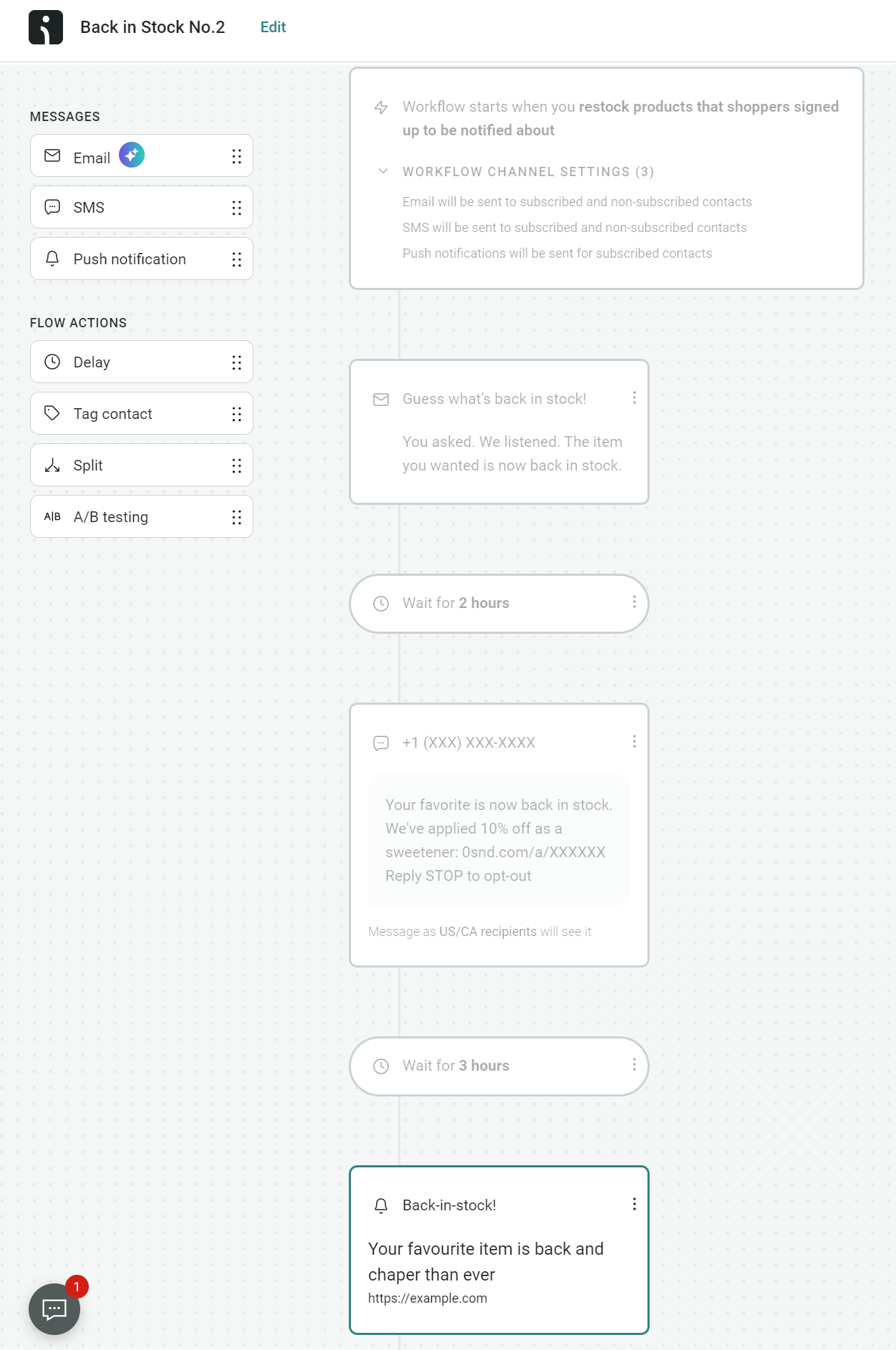
Omnisend lets you add SMS and push messages to any email automation, in addition to creating separate campaigns:
- Email works best for detailed product information, images, and reorder links when urgency is moderate, and customers need context to make purchasing decisions
- SMS reaches customers instantly for urgent restocks or “last chance” alerts when timing matters more than detail
- Push notifications reach customers browsing the web immediately, perfect for flash restocks that sell out fast
The image below shows the Omnisend flow builder, containing a multichannel back-in-stock sequence with an email, SMS, and push notification:
Conclusion
Timely low stock notifications prevent stockouts and lost revenue, helping you reorder in good time and adapt your marketing strategy to push slower-movers and eke out your fast-sellers.
Configuring the correct thresholds and recipients is crucial to receiving notifications that help you make decisions that prevent stockouts. Do that, and you’ll stop customers from heading to competitors with in-stock catalogs and maximize ROI.
Omnisend handles those urgent low stock and back-in-stock flows across email, SMS, and push, leaving the default WooCommerce low stock notification email intact as an internal reminder.
Join Omnisend to create low stock notifications that generate sales
Quick sign up | No credit card required
FAQs about WooCommerce low stock notification emails
Why are my WooCommerce low stock emails not sending?
Check that stock management is enabled, thresholds exist, recipient emails are correct, and your server can send emails. Install WP Mail SMTP to fix deliverability.
How can I change or add recipients for the low stock notification?
You’ll find the settings for this in WooCommerce Settings > Products > Inventory. The Notification recipient(s) field contains your WordPress admin email address by default. Change it to whichever address you like.
How do I create a compelling low stock email for sales?
Use subject lines with product names and stock counts, show stock counts in your content, include quality product images, and add one prominent CTA button.
Can I send low stock notification emails to customers instead of just admins?
WooCommerce’s default low stock emails are for internal use only, but you can add to them using marketing automation tools like Omnisend with proper opt-ins.
How can Omnisend improve my WooCommerce low stock notifications?
Its pre-built email templates, multichannel alerts via SMS and push, better deliverability than standard WordPress email, customer segmentation, A/B testing, and detailed analytics for revenue tracking improve on WooCommerce’s default low stock emails.

TABLE OF CONTENTS
TABLE OF CONTENTS


Subscribe and don’t miss any updates!
No fluff, no spam, no corporate filler. Just a friendly letter, twice a month.