Omnisend AI


 OFFER
OFFER








How to put a GIF in an email?
With over 130+ pre-built integrations and flexible APIs, you can easily centralize data from across your tech stack
Make the most out of your data and unlock powerful growth marketing possibilities with these other top marketing tools.
Build any custom integration with our open, flexible APIs that are simple to use and implement.
Check out apps that have been stealing all the spotlight.
Email and SMS marketing insights, ecommerce resources, and the latest Omnisend news
Expert-led sessions covering email, SMS, and ecommerce marketing strategies.
Educational video and live training to help you make the most out of Omnisend.
Drive sales on autopilot with ecommerce-focused features
See Features
Adding GIFs to your texts enhances emotional expression and communication, making your messages more engaging.
Both iPhone and Android users can easily send GIFs through their default messaging apps without needing third-party keyboards.
Platforms like GIPHY and Tenor offer extensive libraries of GIFs, allowing users to find the perfect animation for their conversations.
Marketers can leverage Omnisend to incorporate GIFs into SMS campaigns, boosting customer engagement and brand personality.
When you learn how to add GIF to text, you become able to express emotions, reactions, or ideas better than text alone. GIFs are short, often humorous animations that let you say more with less.
The best part is that you can send GIFs using any device. Whether you’re using an iPhone or Android phone, adding them to your text messages is pretty straightforward.
In this article, we’ll take a detailed look at how to add GIF to text from any device and show you where to find the best GIFs.
We’ll cover the following topics:
Quick sign up | No credit card required
With Apple, sending GIFs is relatively easy through iMessage. You can access and send GIFs directly within the app. Once you know how to add GIFs to iMessage, you don’t need to download third-party keyboards.
Here’s how to get GIFs on iPhone:
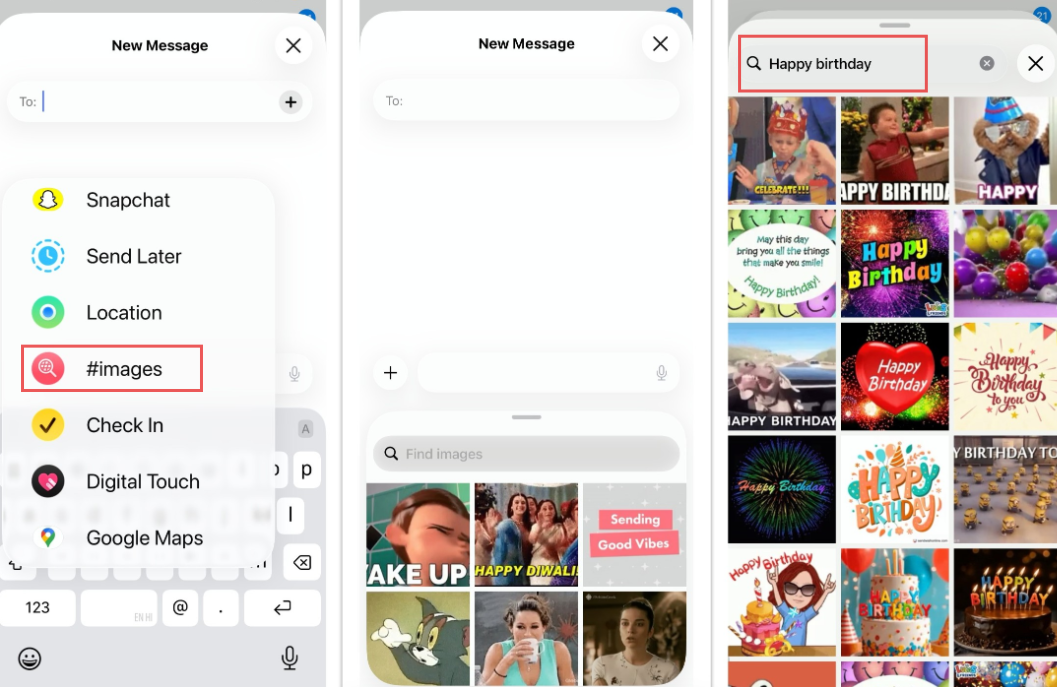
If you’ve been wondering, “Can you send GIFs on iMessage?” the answer is a resounding yes. Here’s how to add a GIF to a text message using iMessage:
Here’s an image illustrating how to send a GIF in iMessage:
If you want a wider selection of GIFs or want to use a different interface, you can install a third-party GIF app like GIPHY. This is a great way to add GIFs to iMessage’s default functionality.
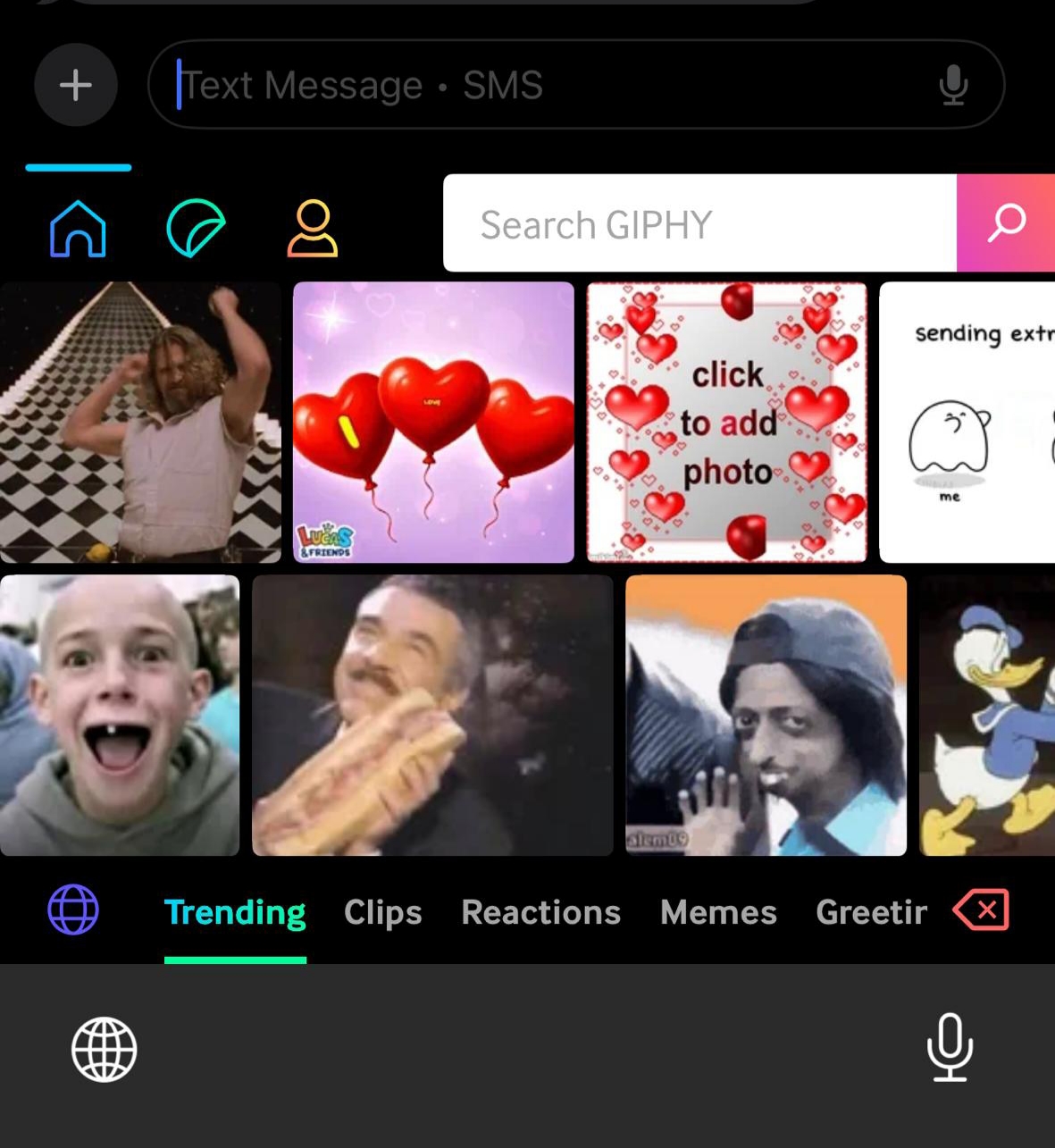
Here’s how to add a GIF keyboard using GIPHY:
Here’s how GIFs will appear on your iPhone when using GIPHY:
If you’re not an iPhone user, you might wonder, “How to put a GIF in text on Android?” Well, if you’re an Android user, you’ve got a couple of options to add and send GIFs in text messages.
Let’s take a look at a few:
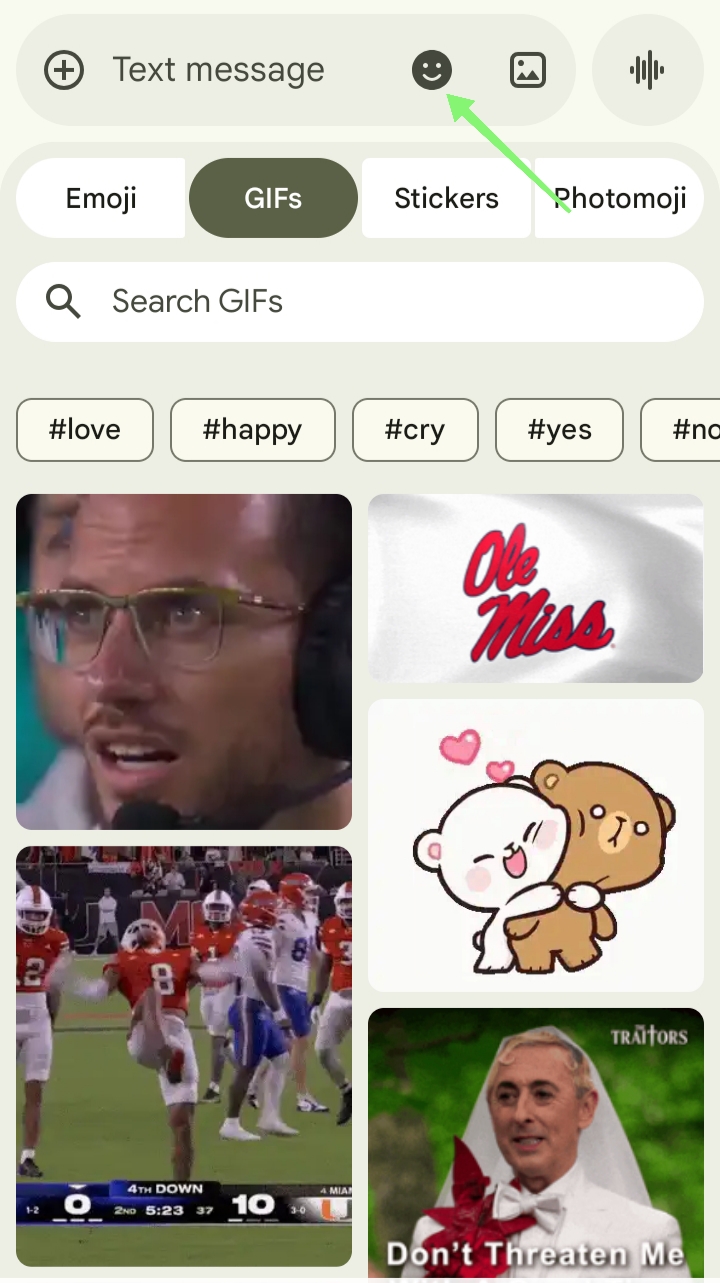
Most Android phones, such as Samsung Galaxy or Google Pixel, have the GIF function integrated into their default messaging apps. If you haven’t explored it yet, here’s how to send a GIF in text:
This is how your messaging app should appear:
If the default messaging app on your Android doesn’t have a built-in GIF option or if you want more customization, you can use a third-party keyboard like Gboard.
Here’s how to attach a GIF to a text on Android using Gboard:
Below is an image showing how GIFs will appear on your Gboard:
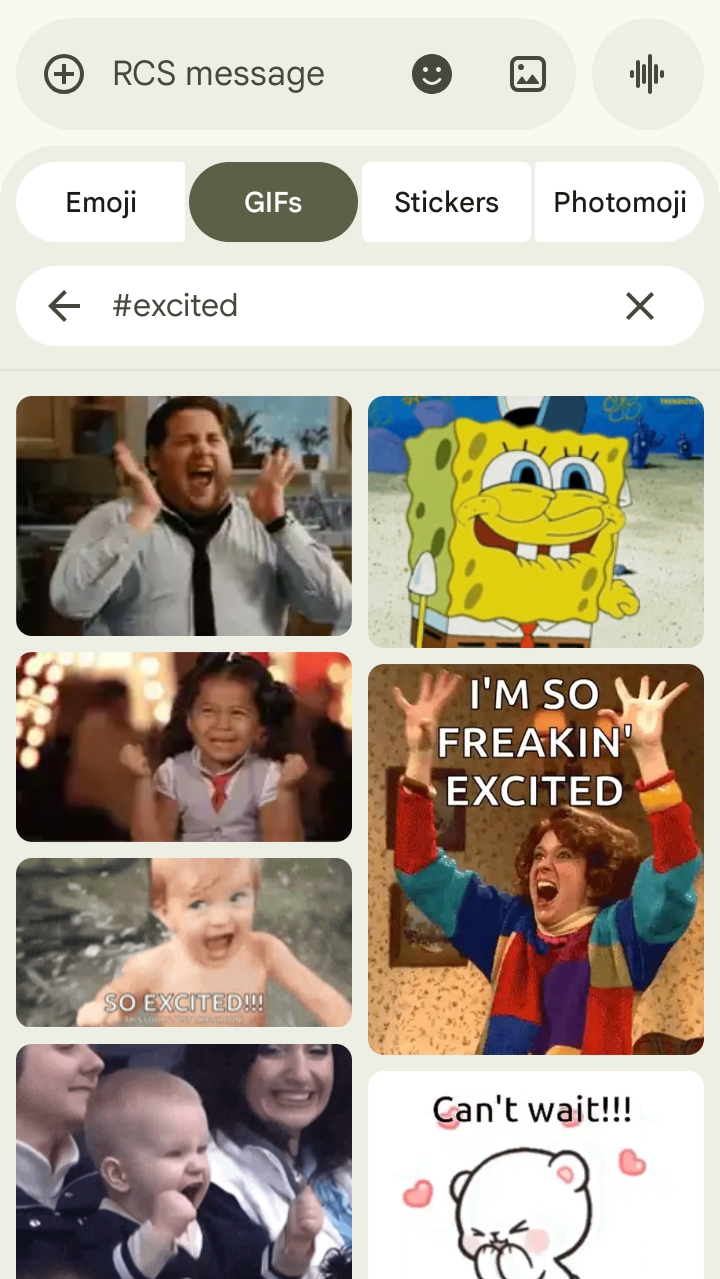
If you love using GIFs in texts or want a larger collection, downloading a dedicated GIF app like GIPHY is ideal.
Here’s how to add an animated GIF to a text message using GIPHY:
Here’s what GIPHY looks like on Android devices:
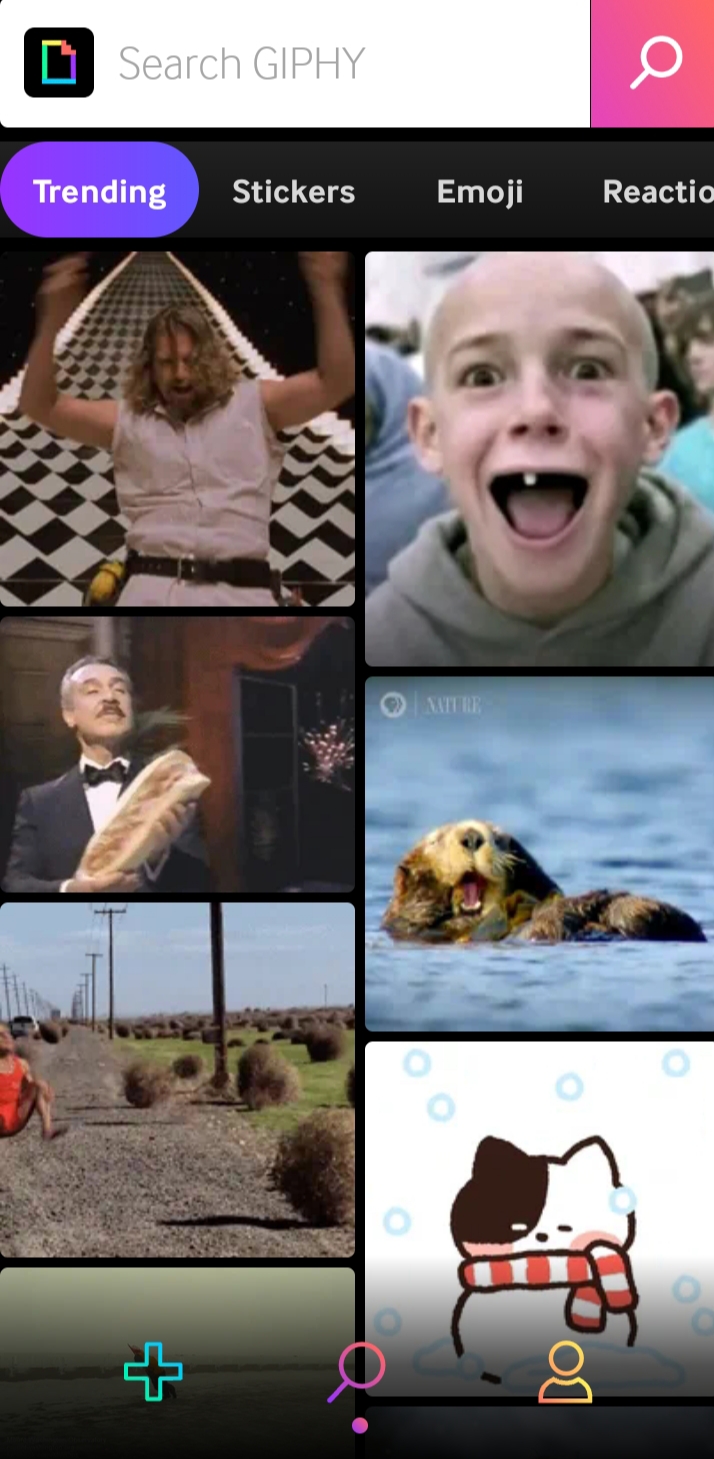
Besides the two apps mentioned above, there are other places you can find GIFs, including:
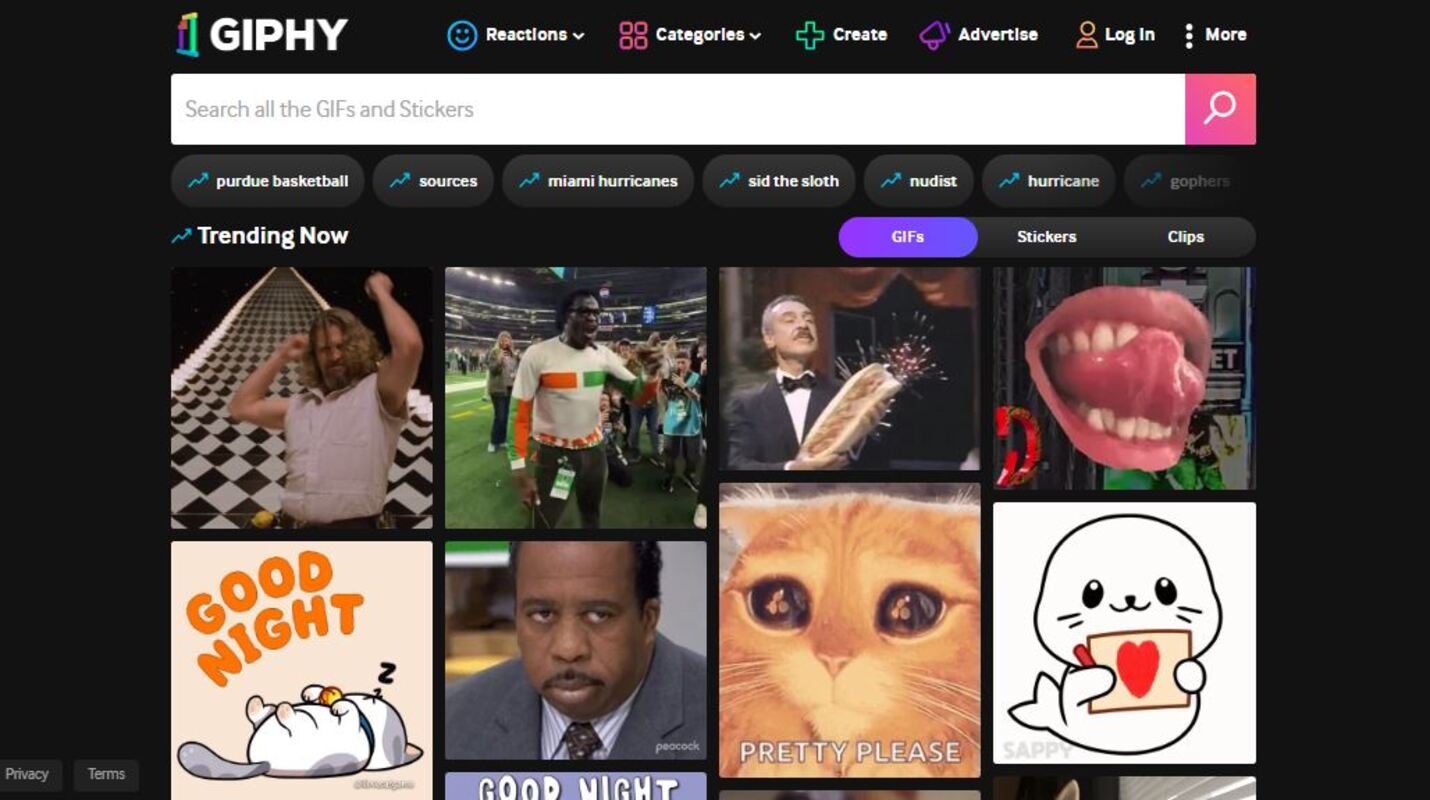
GIPHY is one of the best platforms for sending GIFs in a text message. The site has an extensive database of more than 1 million GIFs, indexed to make them easy to find. Most of the GIFs have also been pre-sized for quick insertion into text messages and social media.
What’s more, GIPHY allows you to access stickers, video clips, memes, and other forms of short visual content to complement your GIFs. It’s a versatile tool for self-expression in messages.
It enables you to find content that perfectly fits the tone, style, and context of your conversations. Below are some of the GIFs the platform displays:
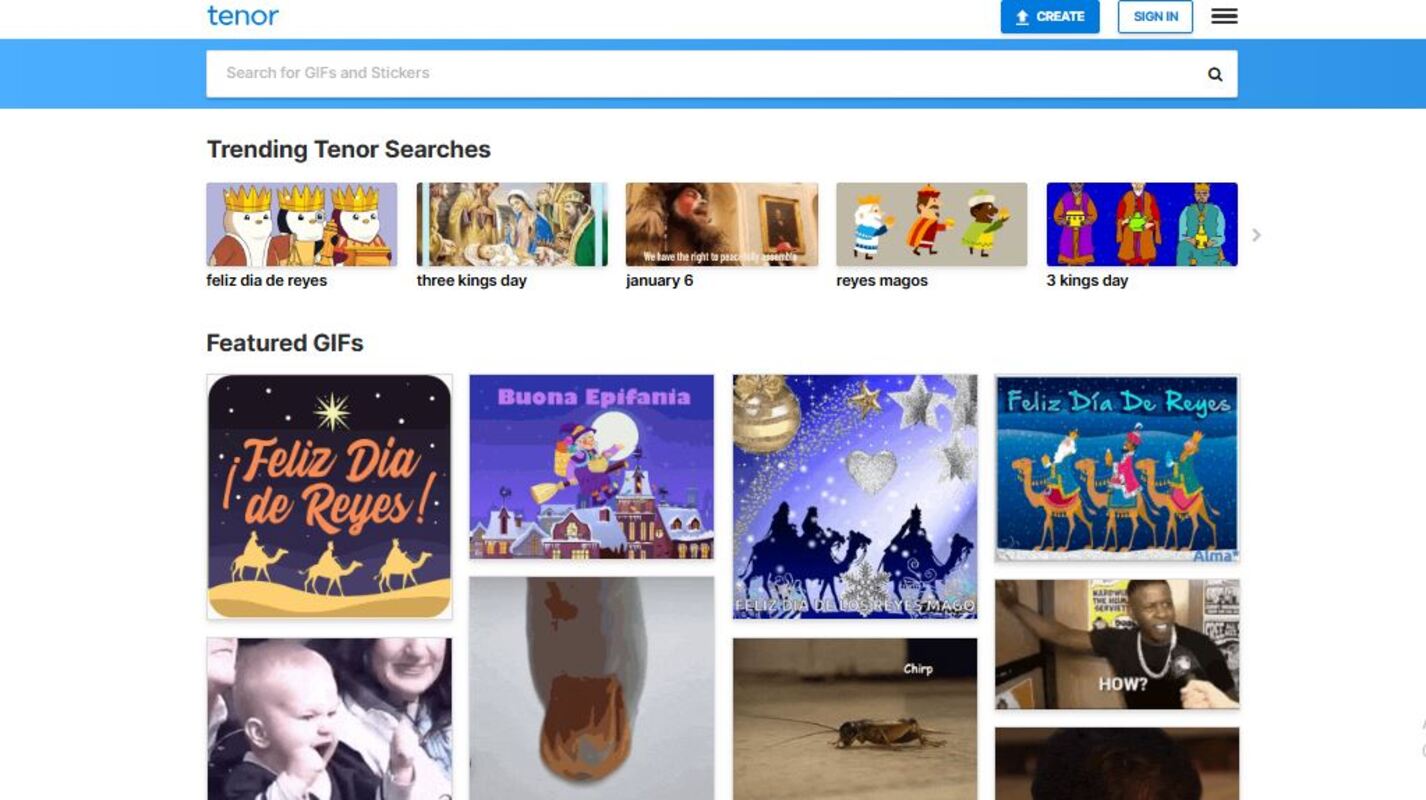
Tenor is a GIF platform that allows you to add emotion to your conversations and personalize your text messages. Besides the millions of GIFs and videos available on the site, Tenor will enable you to create your own GIFs and stickers to express what you’re trying to say.
Tenor even offers a GIF keyboard that you can install on your smartphone to add GIFs to your messages.
While GIFs for text messages are a nice way to communicate with your friends and family, you can also add them to your marketing messages to drive customer engagement. GIFs add a light touch to MMS marketing and show your brand’s personality.
This section is for marketers who want to learn how to text a GIF. We’ll show you how to send GIFs on Messenger or via SMS using Omnisend.
With five-star reviews on Shopify, Omnisend is the best tool for ecommerce marketers who want to automate sales processes and engage customers with highly relevant, personalized messages. For example, Omnisend helped Divatress optimize its SMS marketing. The brand generated 70K SMS subscribers and exceptional ROI in just eight months.
You can also leverage Omnisend to learn how to add a GIF to a text. Here’s how to add a GIF to text using Omnisend in just a few simple steps:
To use GIFs for texts, you’ll need to create a free Omnisend account for your SMS campaigns.
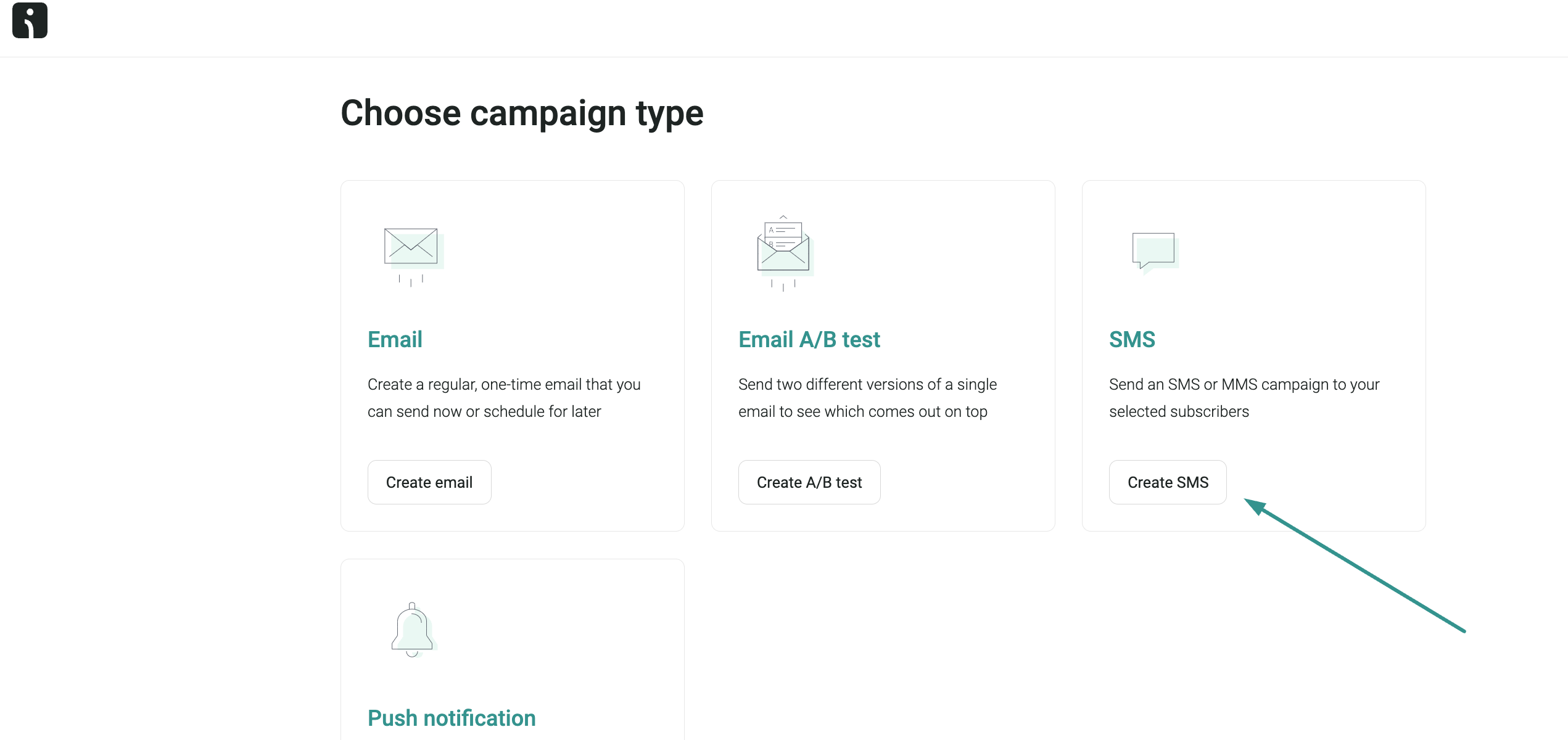
Next, go to Campaigns > Create SMS:
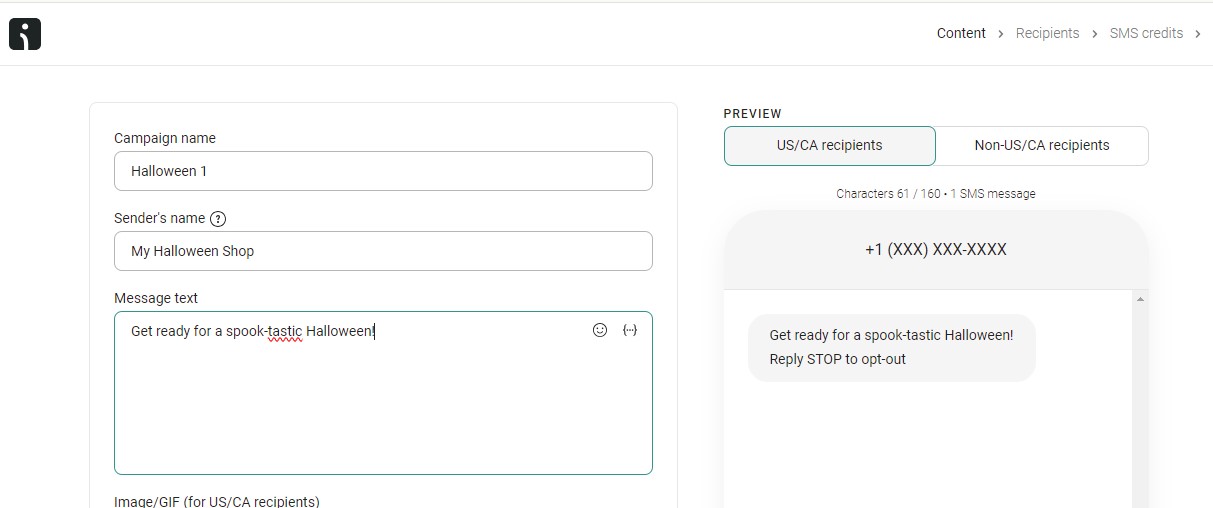
To get started, name your campaign, add the sender’s name, and write the message:
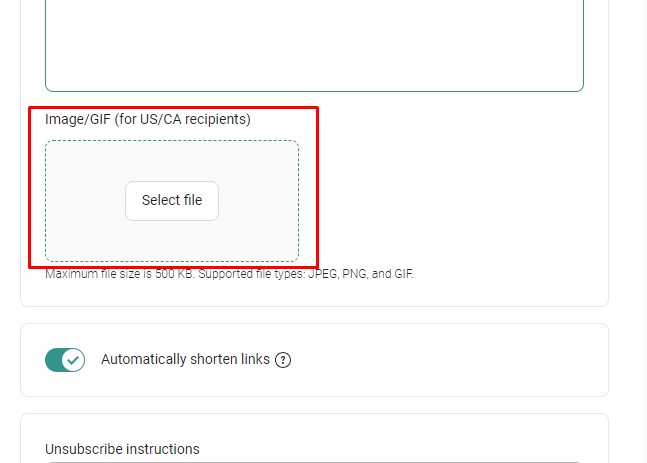
Click the Select file button and choose a GIF for your text message:
Add a GIF from your computer or upload it from a URL. Omnisend also provides an image and GIF library for your convenience.
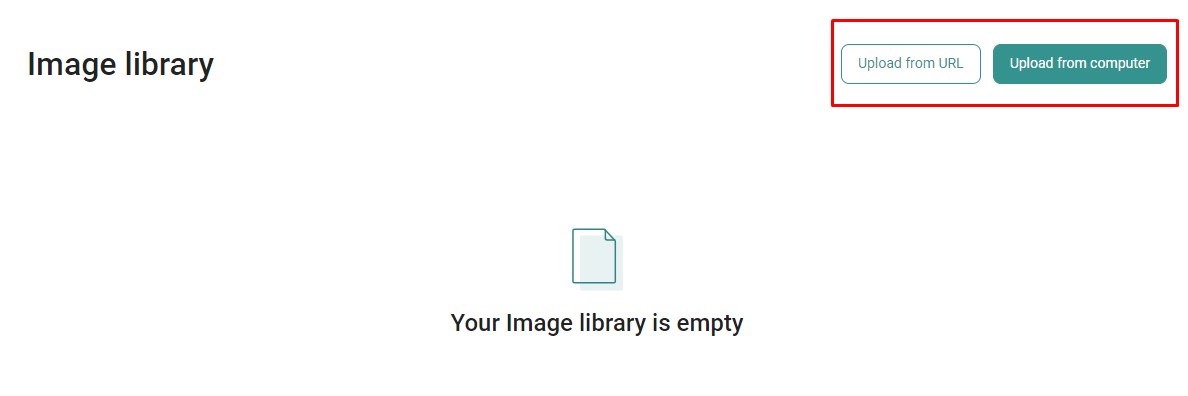
The uploaded GIF will be added to your image library. Select the file you want to be displayed in the preview of the message:
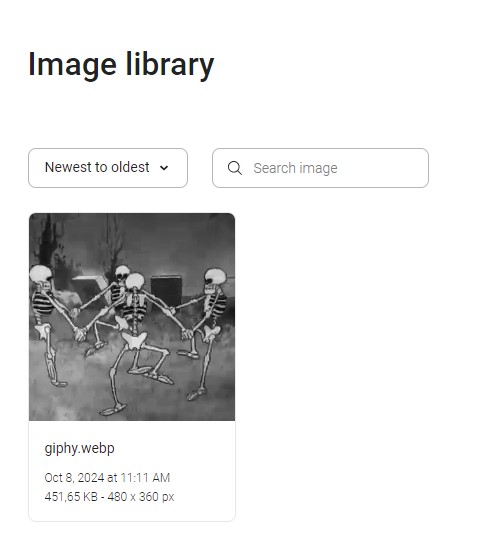
You can see the selected GIF along with the text in the preview. You can then add the recipients:
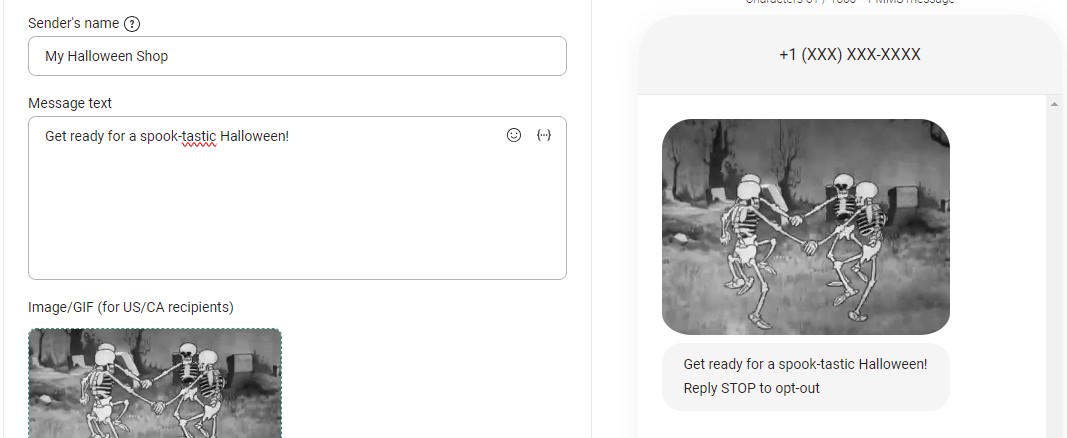
Once you’re done, click Next.
☝️ Note: Optimize GIF size. Before adding a GIF, ensure it meets the maximum size requirements. Ideally, your GIF files shouldn’t be larger than 500KB. If you need to, you can easily reduce the size of your GIF using a tool like FreeConvert.
Indicate the subscribers who’ll receive the message. You can send the text message to all contacts or to specific segments:
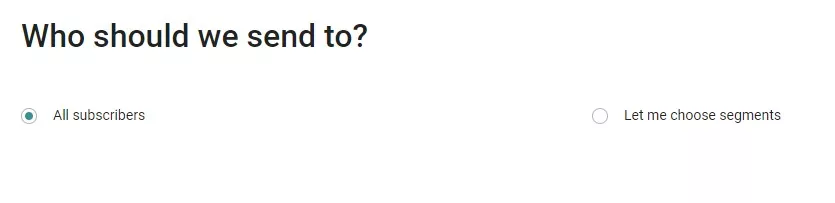
The next step is to determine the sending costs by using Omnisend’s text message length calculator. All you have to do is copy-paste the text message in the Message input field, choose the destination country, and add the number of contacts to calculate the cost of the campaign.
Related:
SMS length and pricing calculator
With everything set, save your campaign and send it to your recipients. The full-size GIF will be displayed when the recipient opens the message.
Learn more about text message marketing:
The best time to send SMS
What is SMS marketing? A 2026 guide for ecommerce brands
It depends, but your operator will charge you a standard fee for an MMS message.
Yes, GIFs are free. Under fair use principles, creating and using GIFs in your marketing campaigns costs nothing.
If your GIF isn’t playing, it could be because the file is too large. Use a resizing tool to reduce your GIF’s size, and it should start playing or looping.
The GIF button hasn’t disappeared; it may just be hidden. In Messages, tap the + (or App Store icon) next to the text field, then choose #images. If it’s missing, open More and add it back, or enable #images by navigating Settings > Messages.
GIFs usually require you to activate iMessage or MMS. If you’re texting a non-iPhone user, you can enable MMS through Settings > Messages. Other reasons why you can’t send GIFs in text messages include:
— Poor network connection
— Location restrictions
— Low data
Quick sign up | No credit card required

Aiste is a Content Marketing Manager at Omnisend. When she's not searching for the perfect synonym or refining her latest copy, you can find her curled up with her cat, binge-watching yet another TV series.
TABLE OF CONTENTS
TABLE OF CONTENTS

What’s next


No fluff, no spam, no corporate filler. Just a friendly letter, twice a month.
Start Omnisend for free today.
Powerful omnichannel marketing, all at your fingertips.
No fees, no limits, no surprises.