Omnisend AI


 OFFER
OFFER








35+ best WooCommerce plugins in 2025 (free & paid)
With over 130+ pre-built integrations and flexible APIs, you can easily centralize data from across your tech stack
Make the most out of your data and unlock powerful growth marketing possibilities with these other top marketing tools.
Build any custom integration with our open, flexible APIs that are simple to use and implement.
Check out apps that have been stealing all the spotlight.
Email and SMS marketing insights, ecommerce resources, and the latest Omnisend news
Expert-led sessions covering email, SMS, and ecommerce marketing strategies.
Educational video and live training to help you make the most out of Omnisend.
Get better email & SMS marketing made for WooCommerce for 30% off PLUS a bonus migration package valued at $1,000
Use code to get 30% discount COPIED ONLYWOO
Drive sales on autopilot with ecommerce-focused features
See Features
WooCommerce SMS marketing significantly boosts conversions, with automated SMS campaigns achieving 118% higher rates than traditional marketing methods.
Integrating SMS with email marketing enhances customer engagement, allowing for immediate visibility and effective communication for time-sensitive offers.
Omnisend's plugin simplifies the setup of SMS marketing for WooCommerce, enabling easy opt-in collection and real-time customer data syncing.
Following best practices, such as obtaining permission and personalizing messages, is crucial for creating valuable SMS campaigns that foster customer relationships and drive sales.
Ecommerce stores using WooCommerce as their ecommerce plugin also choose WooCommerce SMS marketing for increased conversion. While email is a reliable channel, SMS offers more personalized and direct engagement.
To back this up, Omnisend’s recent ecommerce report shows that conversion rates for automated SMS are 118% higher than other marketing campaigns. This data confirms that the battle for customer attention has officially moved from crowded email inboxes to smartphones.
If you’re ready to recover abandoned carts and drive instant sales in 2026, this guide is for you. We’ll show you how to add an SMS marketing plugin to your WooCommerce store, plus the top SMS platforms and the best practices to launch your campaigns successfully.
Quick sign up | No credit card required
While some ecommerce businesses worry about being intrusive, data suggests that customers are responding to SMS at record levels. In 2024, brands increased their SMS volume by 31%, with US businesses generating over $25 million in sales from this channel alone.
This growth is driven by a shift in consumer behavior. We check our phones an average of 144 times a day, starting from the moment we wake up.
You can even combine SMS with email. For example, use email to announce a sale, then send an SMS reminder 48 hours before it ends. Most businesses get an average conversion rate between 21 and 30% from SMS marketing.
The main benefits of WooCommerce SMS marketing include:
Integrating SMS marketing into your WooCommerce store is easier than you think, especially with tools like Omnisend. The Email Marketing for WooCommerce by Omnisend plugin seamlessly connects your Omnisend account with your WooCommerce store, so you can immediately start encouraging customers to subscribe and engage them with personalized SMS messaging.
It takes just a few quick steps to get started:
When it comes to WooCommerce SMS marketing, Omnisend stands out as a top choice for growing ecommerce brands. Omnisend’s plugin for WooCommerce helps you collect leads and create targeted segments based on purchase history, website activity, and more. You can even create and manage SMS messages and emails directly from your WordPress dashboard.
Adding Email Marketing for WooCommerce by Omnisend to your store is straightforward, so let’s quickly walk through the installation process.
1. Open your WordPress dashboard and go to Plugins > Add New. Search for “Omnisend for WooCommerce” and click Install Now.
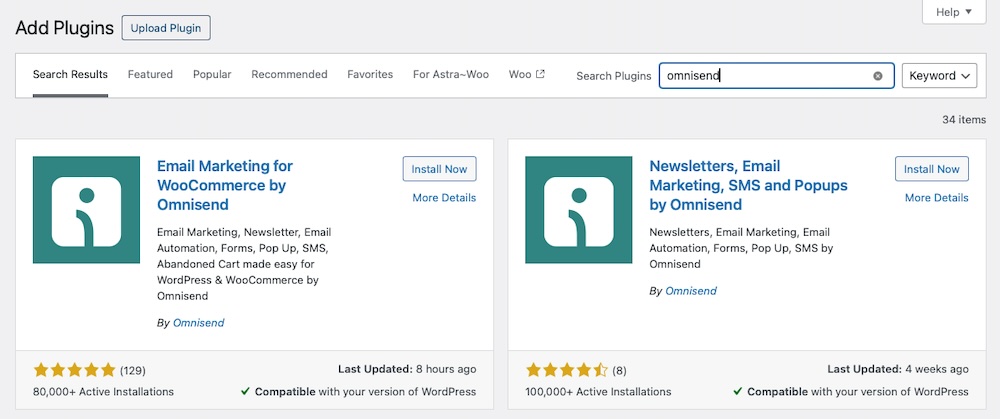
2. Once installed, click Activate and follow the prompts to connect your WooCommerce store to Omnisend.
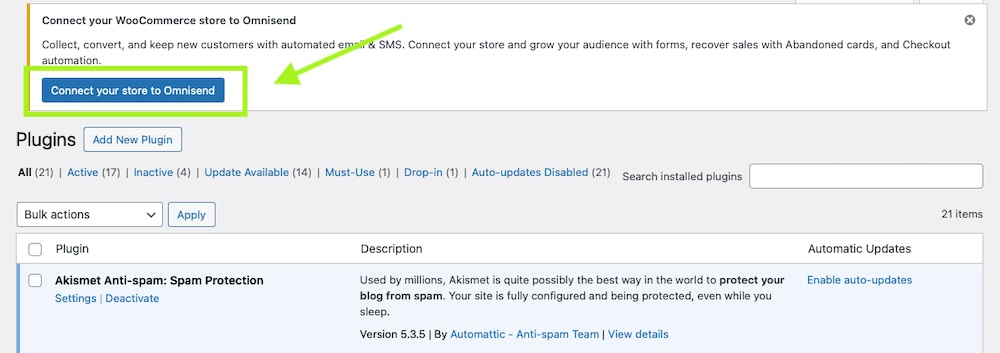
3. You’ll be redirected to a screen prompting you to log in to your Omnisend account or create a new one if you’re just starting.
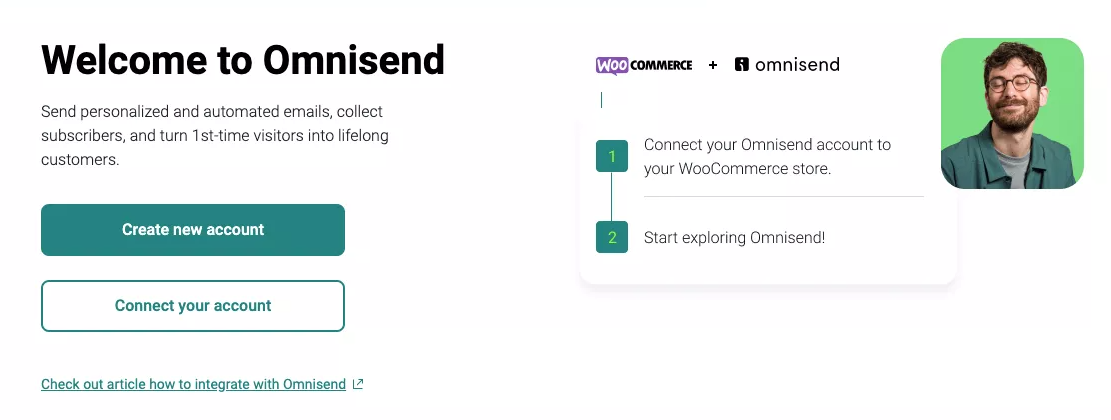
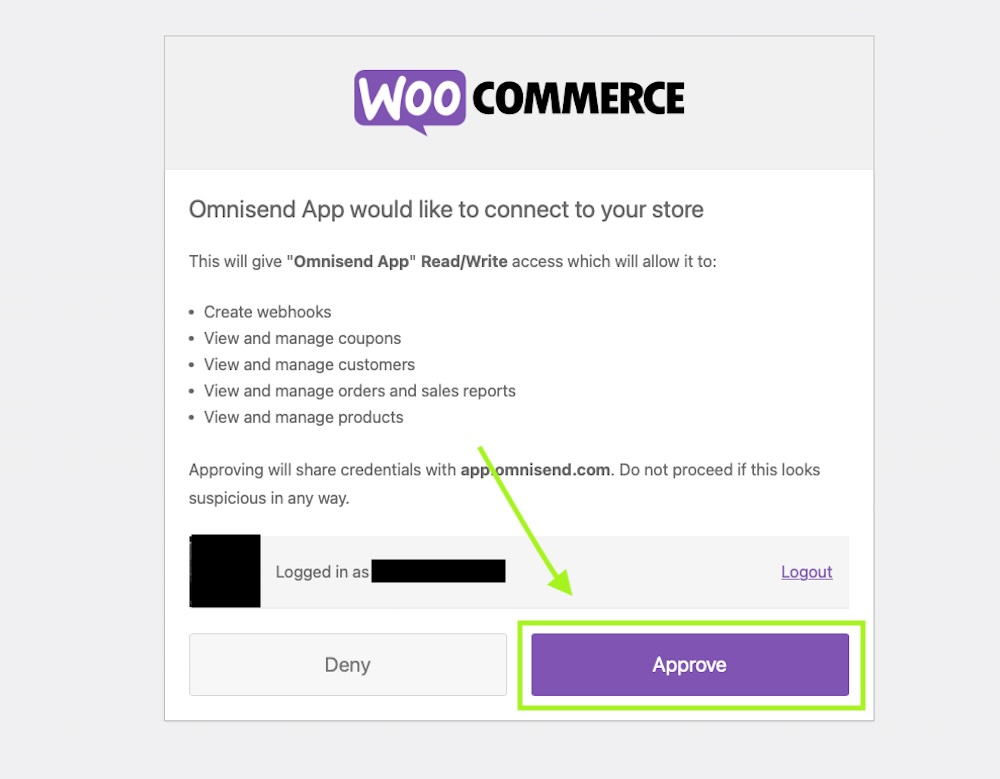
4. Once you’re logged in, approve the connection, and Omnisend will automatically sync your store data.
5. After completing the installation, you’ll be redirected to the brand assets page. Omnisend will automatically pull your logo, color palette, and typography from your store, if that information is discoverable.
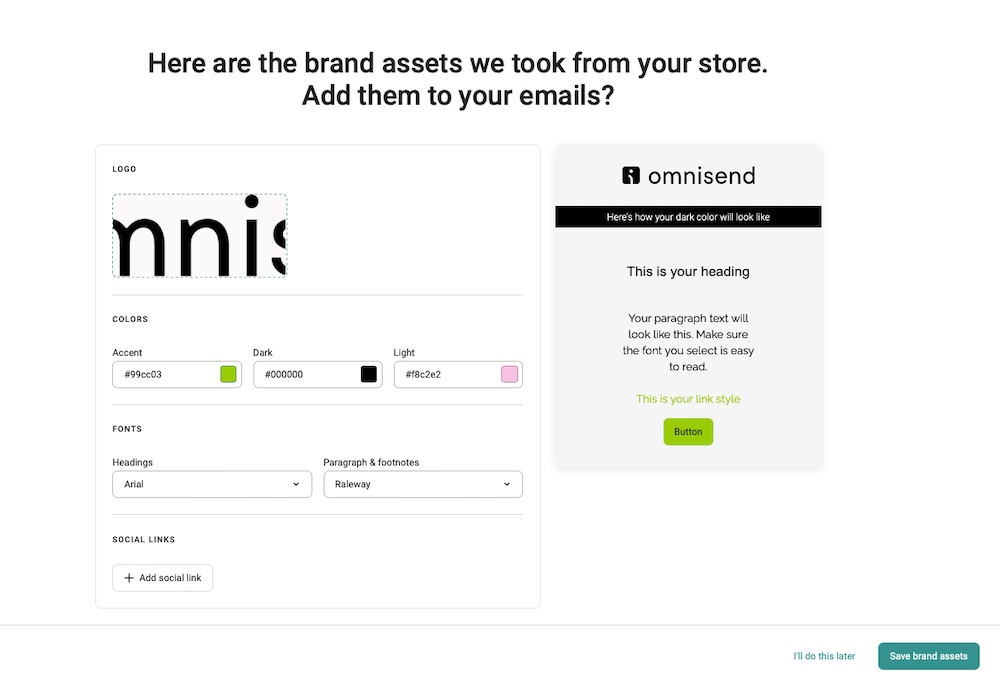
Ensure your brand’s logo is correct, then customize your brand’s colors, typography, and social media links. You can always tweak it later if you need to.
Once you’ve installed the plugin and customized your brand assets, there are just a couple of setup steps left before you can start sending SMS text campaigns. First, you’ll need to configure opt-in settings and then sync your customer data.
Currently, SMS opt-in at checkout is not supported on WooCommerce stores. To collect SMS consent, use Omnisend’s signup forms — including popups, landing pages, and embedded forms — which allow you to legally collect SMS subscribers with proper consent. You’ll have fewer unsubscribes and spam complaints if customers choose to receive marketing messages from you.
Omnisend will automatically sync your store’s products and customer data in real time so you can send messages like abandoned cart reminders, order updates, and promotional alerts. However, you may need to manually resync your contacts if you get disconnected from your Omnisend account or experience another issue with your website that disrupts the syncing process.
To access your sync data and the Resync all contacts option, go to your WordPress dashboard, click Omnisend for WooCommerce, and then select the Sync tab.
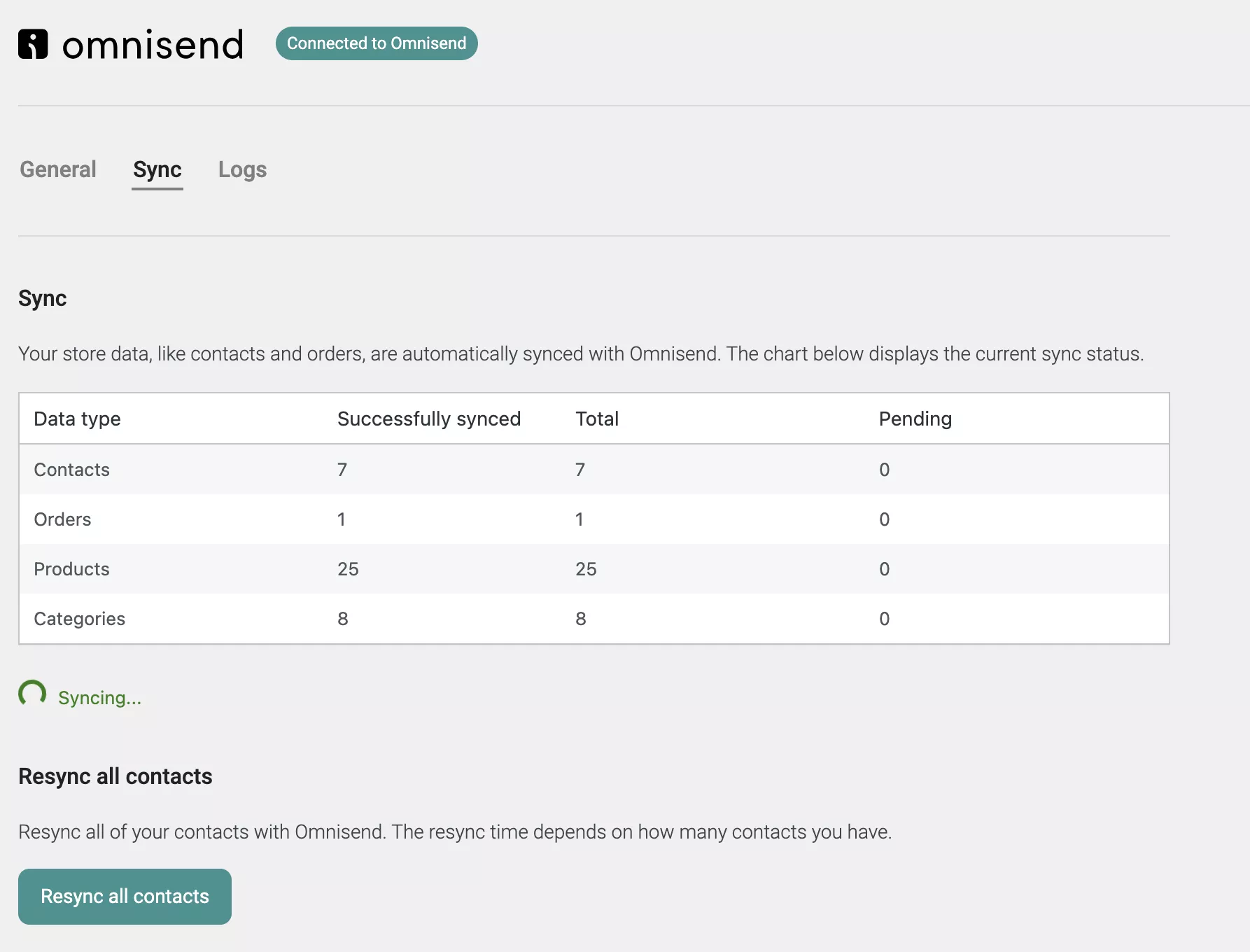
From here, you can see how many contacts, orders, products, and categories were successfully synced and manually resync them if needed.
Once you’ve got your list of subscribers and have connected Omnisend with your WooCommerce store, you can start sending SMS notifications and campaigns.
Send transactional SMS messages such as:
Send customer relationship management (CRM) texts such as:
Create promotional SMS campaigns to share:
Use Omnisend’s templates or craft custom messages, and pair SMS with email to create omnichannel campaigns that drive engagement.
When creating your campaigns, don’t forget to personalize them and include a strong call to action (CTA) to increase conversions.
Here are some examples of ways SMS text and email can work hand-in-hand:
Tracking your SMS campaign performance is essential to optimizing engagement and maximizing profitability. Unlike email, SMS doesn’t offer open rate tracking, but key metrics like delivery rates, CTR, conversions, and unsubscribes can help you understand what’s working and where to improve.
High delivery rates indicate that your messages are reaching customers, while CTR, conversion, and unsubscribe data show how engaging and effective your campaigns are.
With Omnisend’s built-in analytics, you can monitor these metrics in real time. Use the insights to tweak your messaging, test different offers, and optimize timing for better results. Consistently analyzing your campaign performance will help you refine your strategy and increase your ecommerce sales.
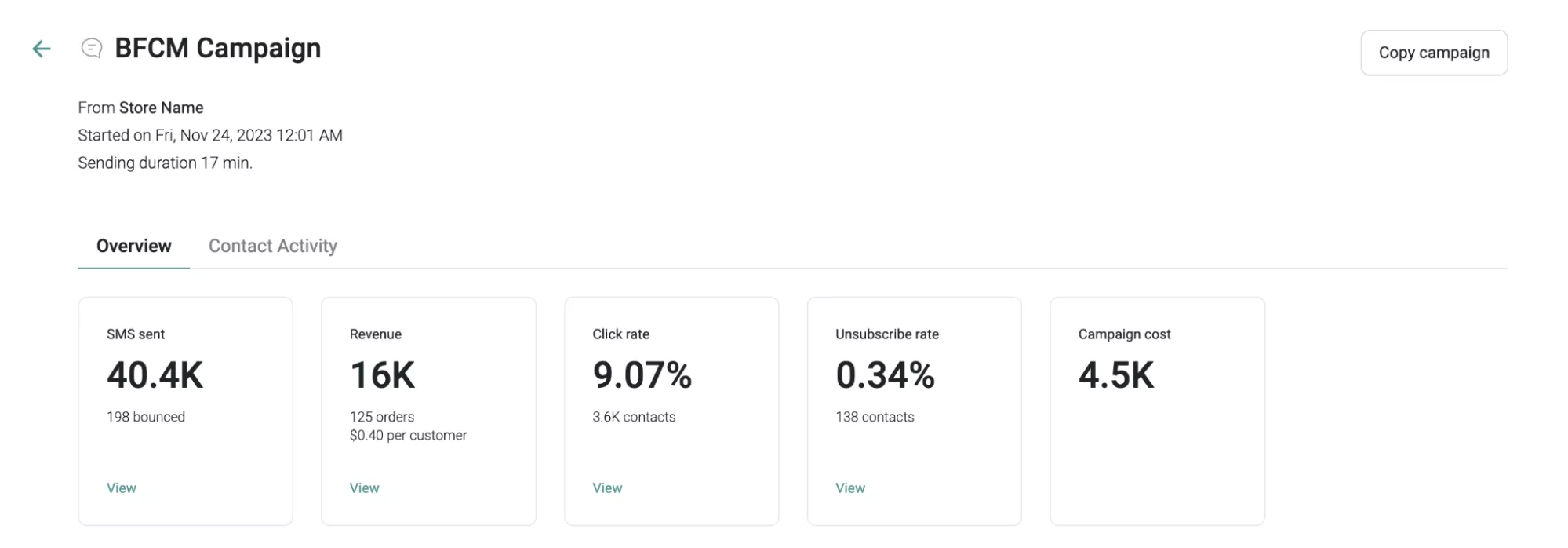
Ensure your messages include a clickable link so you can keep track of these important engagement metrics.
Quick sign up | No credit card required
Selecting the right platform is a critical step in launching your WooCommerce SMS marketing campaign. In 2026, you need an automation platform that integrates seamlessly with your store data. Below are the best SMS platforms for WooCommerce.
1. Omnisend
Omnisend is an intuitive yet powerful email and SMS marketing automation tool specifically designed for ecommerce brands of all sizes. What sets it apart from other WooCommerce SMS marketing tools is its ability to build multi-channel workflows into a single automated sequence.
For instance, if a customer doesn’t open an abandoned cart email within a specific time, Omnisend can automatically trigger a follow-up SMS. The platform also has pre-set workflows for order confirmations, shipping updates, and repeat purchases. This way, you don’t have to build anything from scratch.
If you’re looking to start real-time sales interactions with customers, Omnisend offers two-way SMS for better customer engagement. Moreover, you don’t have to worry about consent or regulations. The platform has mobile-optimized TCPA-compliant signup forms with double opt-in.
Lastly, Omnisend offers detailed sales attribution, making it easy to track ROI from every text message sent.
With Omnisend’s free plan, you get most of the features available on the Pro plan, along with 24/7 customer support. Its paid plans start at $16/month and scales affordably.
2. Texty
If you’re looking for a beginner-friendly WooCommerce SMS marketing plugin, then Texty could be for you. It sends transactional alerts, such as order confirmations and shipping updates.
However, Texty can’t send messages on its own. You must connect it to third-party providers like Twilio, Clickatell, Vonage, or Plivo.
Texty provides customizable designs, segmentation, A/B testing, and multilingual support. It’s ideal for small stores that want basic SMS functionality.
This WooCommerce SMS marketing plugin is completely free, but the service you choose may incur charges.
3. Twilio
Twilio is a customer engagement platform offering messaging, email, and voice functionalities. While it’s not a plugin, it integrates with WooCommerce via dedicated plugins like ShopMagic.
Its AI can predict customer actions and create tailored campaigns. It also offers deliverability insights beyond opens and clicks, allowing you to better understand your ROI and optimize messages.
This WooCommerce SMS marketing platform is suitable for ecommerce businesses with technical resources. Integrating its communication API comes with a steep learning curve.
Twilio offers a free trial balance, and its SMS marketing service uses pay-as-you-go pricing.
If done right, SMS can be one of the most effective tools for building customer relationships and driving sales. When considering your store’s approach to SMS marketing, remember that the customer comes first. If what you’re sending them doesn’t provide value, they might delete your messages, report them as spam, or simply unsubscribe.
Providing value matters the most — whether through timely updates, personalized offers, or relevant notifications.
So, respect customer preferences and follow these best practices to create SMS campaigns that feel beneficial rather than bothersome:
Encourage customers to actively opt-in to receive text messages — Validity has found that 35% of consumers are annoyed when they receive texts from brands to which they didn’t subscribe.
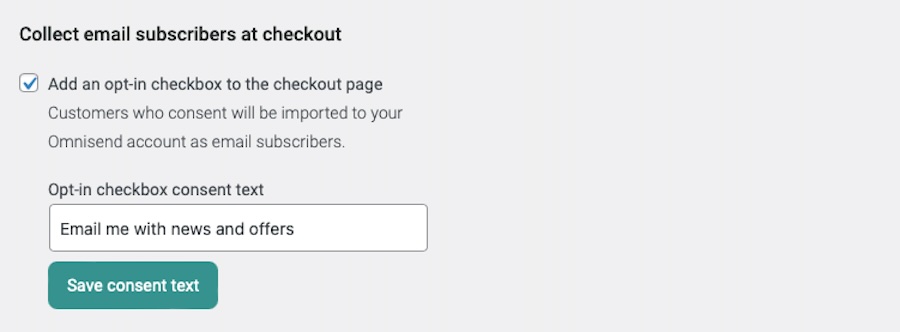
With Omnisend’s plugin, you can include an email opt-in checkbox during the checkout process:
Don’t send customers messages they don’t expect to receive. Be transparent about your marketing intentions right from the beginning — at checkout, in signup forms, and during account registration.
The following example clearly explains to customers what opting in involves:
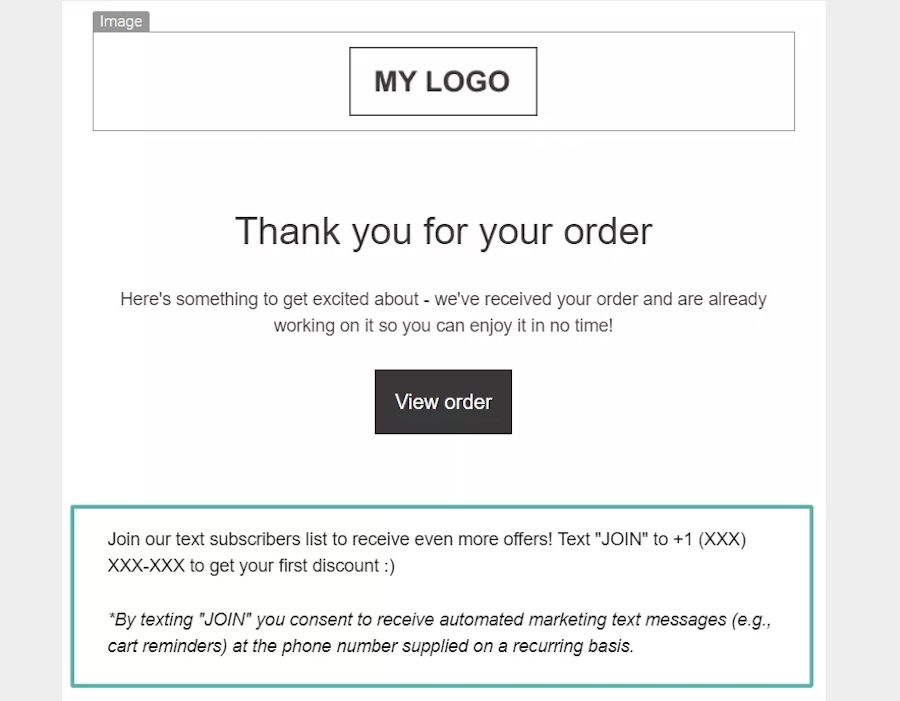
Make sure your terms are displayed near your CTA or opt-in button and in a readable font size for accessibility.
While Web Content Accessibility Guidelines (WCAG) don’t specify a minimum font size, “fine print” is often intentionally made very small in order to obscure key details and trick people into signing up for things that might not be in their best interest. Don’t be that company.
A good rule of thumb is to use a minimum of 16px font size when presenting your opt-in terms to potential subscribers.
If you send too many bulk SMS messages, your customers might start unsubscribing or stop shopping with you altogether. In fact, according to Validity’s research, 28% of customers won’t hesitate to quit doing business with your brand if they get irritated by excessive messaging.
On the other hand, failing to reach out regularly enough risks subscribers forgetting about you. It’s a delicate balance. While US shoppers are more open to the idea of daily texts from brands than countries like Australia or the UK, overall, most people prefer receiving texts weekly or only when there’s an important announcement.
If you’re not sure how often to send your SMS messages, try starting weekly. Then, run A/B tests and monitor performance metrics to see what frequency works best for your subscribers.
Nobody wants to be woken up by an order reminder, which is why Omnisend automates your messages based on the recipient’s location. This ensures that your customers won’t receive texts at 3 AM, unless that’s your specific intention.
With Omnisend, you can specify a time frame for sending SMS messages to your customers and limit the number of messages sent to those hours in keeping with each subscriber’s time zone.
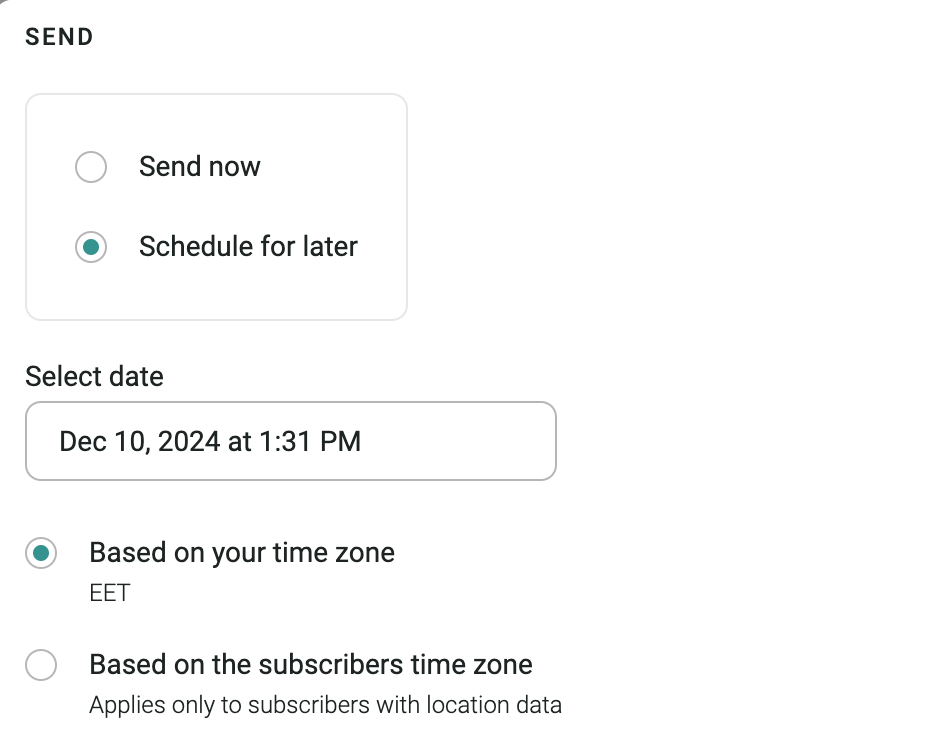
Your subscribers are busy, so respect their time by keeping it brief. Here’s an example from FATHERSONS to offer inspiration. Observe how the SMS is under the 160-character limit:
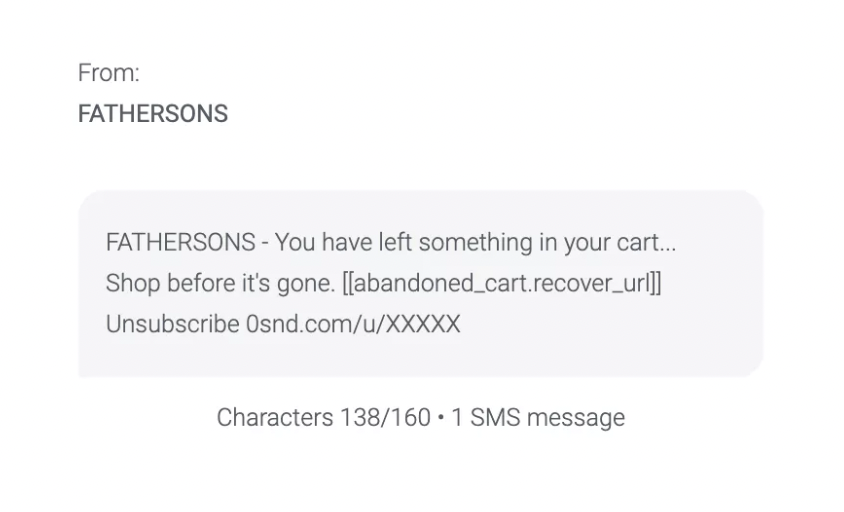
Use an SMS length calculator to ensure your messages are within these limits.
Links, in particular, can cause messages to go over the character limit. That’s why Omnisend automatically shortens links and adds a UTM tracking parameter so each click is tracked.
Allow customers to unsubscribe to WooCommerce SMS marketing by responding to your text messages with a single keyword like STOP. Check out how this brand provides clear instructions for opting out, in this case by clicking a link:
Before launching a WooCommerce SMS campaign, send a test message for review — ideally by someone other than the person who created the message. Two sets of eyes are always better than one, and everybody needs an editor.
Sending test messages will help you catch mistakes and device-related display issues as well as ensure that the timing is appropriate.
Testing also lets you experience the customer’s perspective and verify that any links or call to action buttons work correctly.
You can test SMS messages directly within Omnisend while creating your campaign.
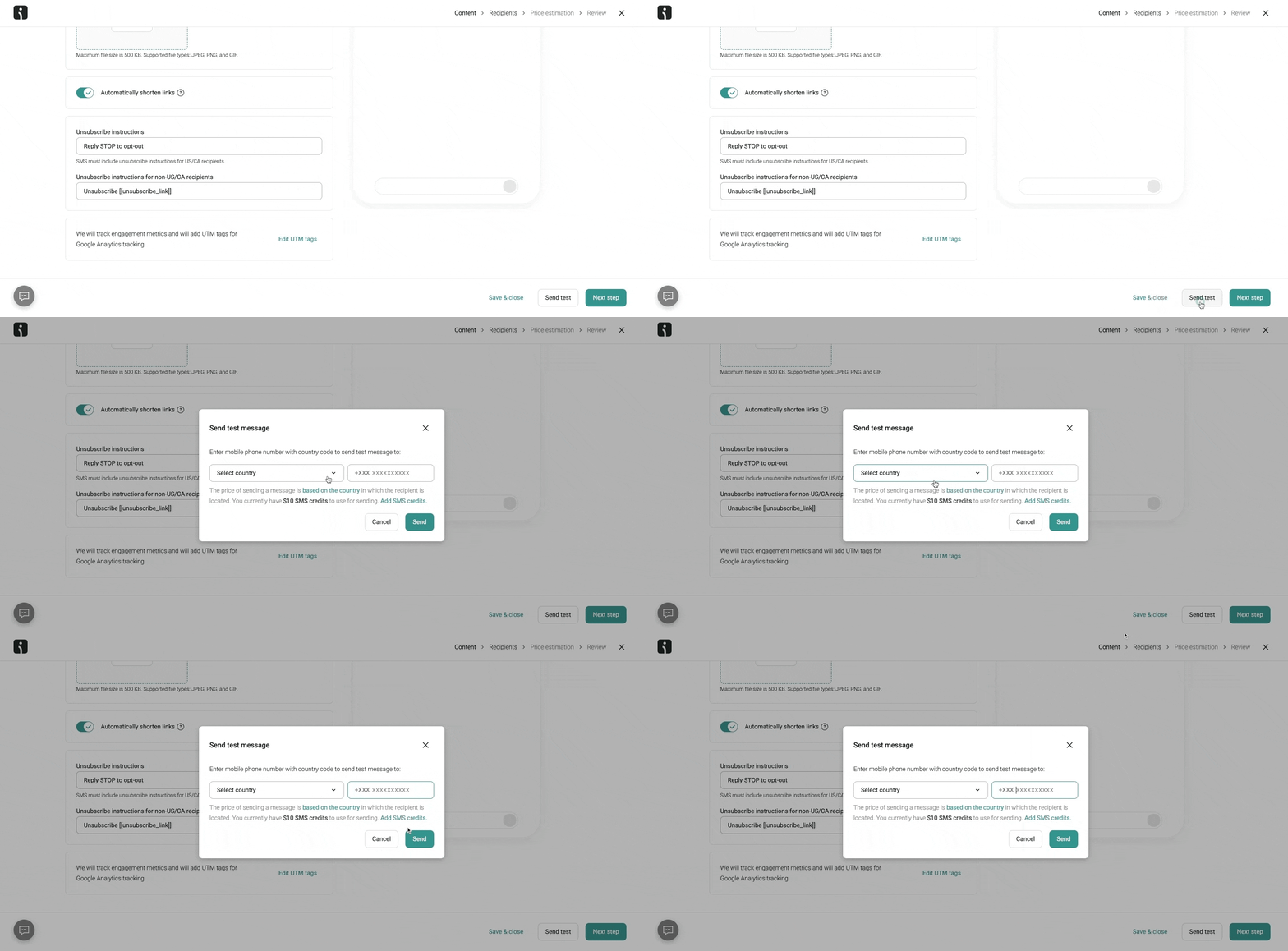
Personalized messages are more engaging and can lead to higher conversion rates. Address customers by their first name whenever possible and ensure your messages are relevant to the recipient, whether it’s an order update, promotional message, or product recommendation.
Here’s an example of a personalized message. Notice how it adopts a conversational and friendly tone:
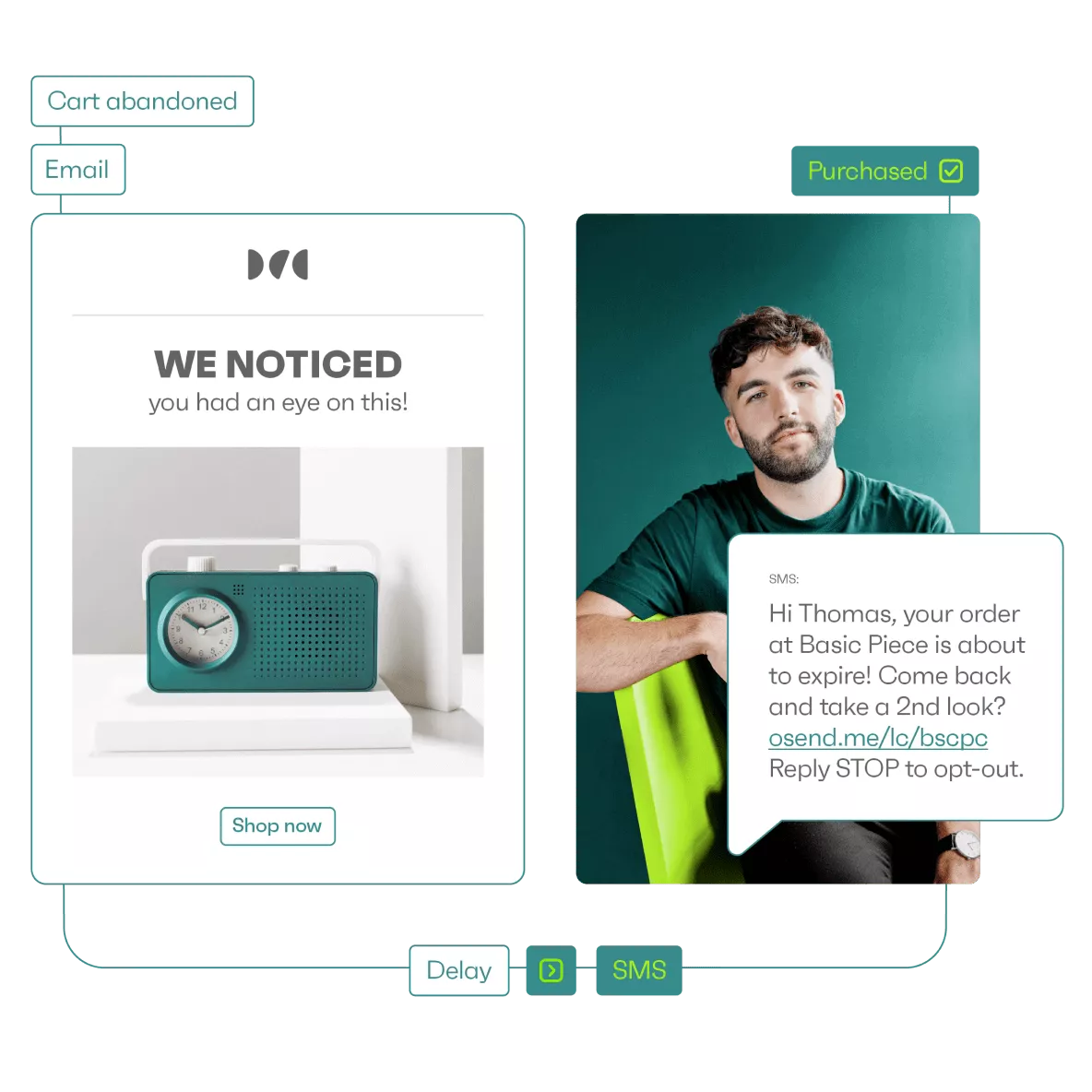
Use SMS to keep customers informed of things that benefit them. This includes updating them on their order progress, arranging delivery slots, offering coupons and pricing discounts, or reminding them of expiring promotions.
You can say anything less time-sensitive (or relevant) via email. Take a look at the way Baking Steel uses SMS marketing to share shipping and order updates:
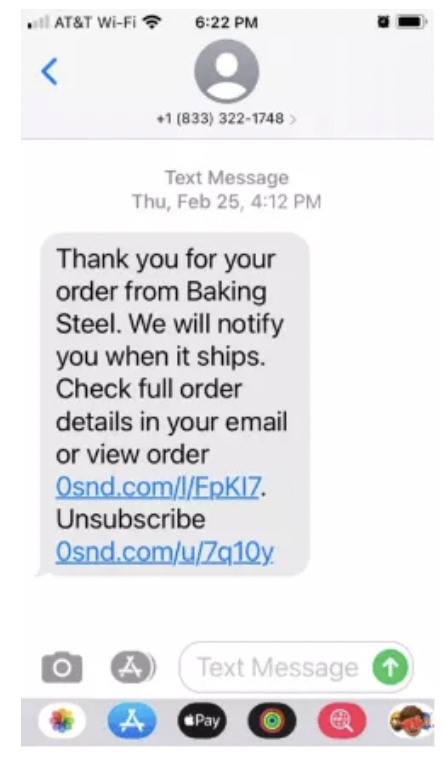
SMS is a more personal way to get in touch with your customers. Most people only give out their phone numbers to people and brands they trust. However, that trust can quickly fade when communication only goes one way.
Allowing customers to connect with you in real time over text can help nurture the relationship, reduce wait times for customer service, and make customers feel listened to and valued.
One way to encourage interaction and start a conversation is by using auto-responses through Omnisend. This ensures the subscriber receives an instant response, which you can then follow with a personalized message.
An example of this type of automation might look like:
Sally Sue’s Sock Shop (SMS 1): “Hey Jennifer! Looks like there’s some lost socks in your cart. Would you like to complete your purchase? Reply ‘YES’ for assistance or ‘NO’ if you’re all good.”
Customer Jennifer (SMS 2): “YES”
Sally Sue’s Sock Shop (SMS 3): “Sweet! Here’s a link to your cart: otxt1.com/lc/xxxxx Let us know if you need any help with your order by replying ‘HELP’.”
Another way you can use automated text messaging to encourage two-way communication with your customers is by sending appointment reminders. The medical office example below illustrates a simple appointment confirmation automation:
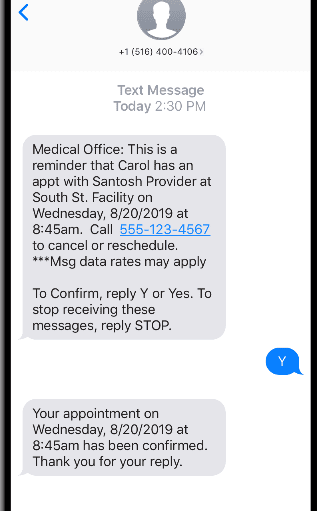
You don’t have to limit the recipient’s response to a single option, either (although you do have to contend with the 160 character limit). In the medical office example, the customer is given the option to confirm, unsubscribe, or call the office to reschedule.
Now, it’s evident why your store must meet customers where they already spend their time. You must do so if you want to thrive in 2026. Remember, SMS marketing for WooCommerce stores works best when it’s timely, personalized, and integrated with your broader marketing strategy.
If you’re looking for the most effective way to launch a WooCommerce SMS marketing campaign, Omnisend is your best bet. Its features, such as pre-built automations and revenue attribution, make it easy to launch, optimize, and scale SMS campaigns. Whether you’re a small or scaling business, Omnisend offers the necessary tools for growth.
Yes, you need a plugin to send SMS from WooCommerce. The platform doesn’t support SMS natively. Aside from sending texts, a plugin helps you manage opt-ins, automate messages, and stay compliant with SMS regulations.
Omnisend is the best WooCommerce SMS marketing plugin. It offers built-in SMS and email automation, compliance tools, and detailed analytics without requiring third-party gateways.
Text marketing for WooCommerce stores is effective, as it delivers high open and conversion rates compared to email. It’s especially effective for abandoned carts, shipping updates, and time-sensitive offers.
Follow these steps to launch SMS marketing for WooCommerce:
— Install an SMS plugin like Omnisend
— Collect SMS opt-ins via forms
— Sync your store data
— Launch automated messages, such as order updates

TABLE OF CONTENTS
TABLE OF CONTENTS

What’s next


No fluff, no spam, no corporate filler. Just a friendly letter, twice a month.